
Sell Food and Beverages for Pickup
Create food and beverage products, enable pickup, configure collection options and manage fulfillment.
Create food and beverage products, offer choices and extras, and let customers collect their orders from your pickup location.
Before you begin
Connect your payment provider. Decide where customers will collect orders and whether they need a scheduled time. Pickup requires a pickup address and a pickup rate in Fulfillment.
Create a food or beverage product
- Open Commerce → Products and select Create Product.
- Enter the product Name.
- Choose Food & Beverage under Type, then select the Save button beneath the field.
- Add a Description, price, and optional discounted sale price.
- Select Upload Product Images and add the product to suitable categories.
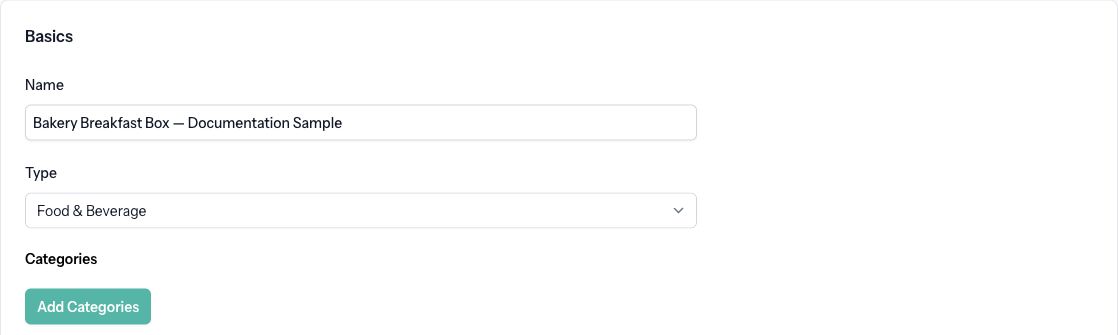
Use options and variants for choices such as sizes with different prices or stock counts. Use modifiers for extras such as an additional topping or a customer note. For the full setup, see Configure Product Options, Variants, and Modifiers.
Set stock and pickup eligibility
- Select Inventory & Shipping.
- Turn on Track Stock if you want purchases to reduce an available quantity. Enter Total In Stock, or configure each variant's stock. With variants, Shared Inventory Across Variants lets them draw from one stock pool.
- Optionally enable Show Stock To Customers.
- To cap the quantity per order, enable Limit per Order and enter Max per Order.
- Enable Allow Pickup.
- Select Save.
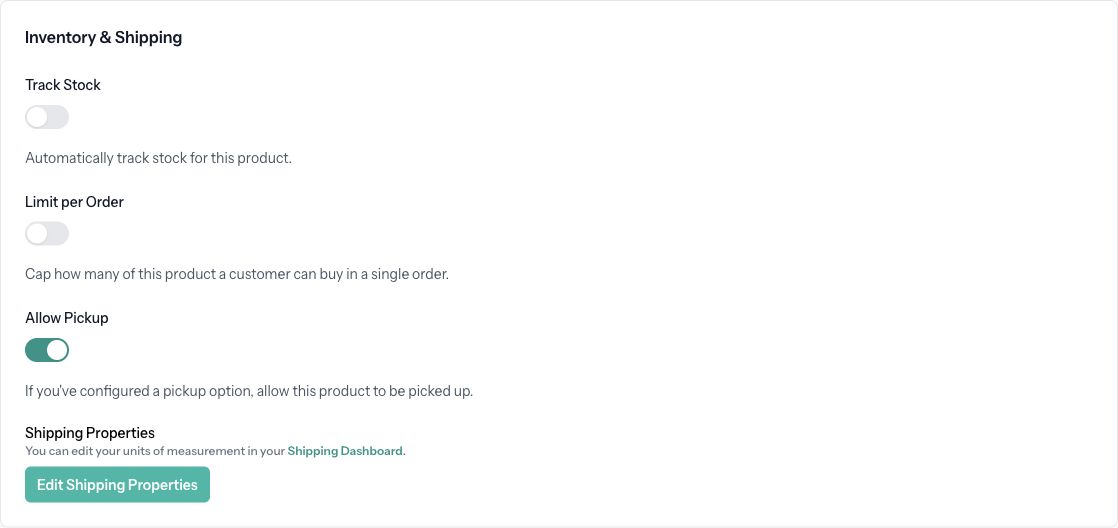
Food & Beverage is a physical product type. If you also offer shipping, configure its shipping properties and eligible rates. Enabling pickup allows collection; it does not by itself remove shipping choices.
Configure collection
- Open Fulfillment and add your Pickup Location under Store Addresses.
- Under Shipping & Pickup Rates, select Add Rate and choose the pickup source.
- Enter the Display Name, choose a pickup Rate Type, and enter the Rate. Use zero for free pickup. Add Pickup Instructions, such as the collection entrance or what the customer should bring.
- If customers must choose a time, enable Require buyers to schedule a pickup time and configure your hours, preparation time, and slot limits.
- Save the rate.
Follow Schedule Local Pickup for operating hours, blackout dates, ASAP pickup and rescheduling. Scheduling uses your site's timezone, which you can change under Site → General.
Publish and fulfill orders
Enable Product Available and Product Visible on the product, save it, and preview the product page. Publish your site and check that pickup appears for a cart containing eligible products.
After an order is prepared, open the transaction and select Mark as Ready for Pickup. After collection, select Mark as Picked Up. Scheduled pickups can also be managed from the pickup schedule.
If pickup is missing, check the pickup address, enabled pickup rate, and Allow Pickup setting on the products in the cart. If there are no appointment times, review operating hours, lead time, blackout dates, and capacity in the pickup rate.