
Configure Product Options, Variants, and Modifiers
Use variants for choices with their own SKU or stock, and modifiers for personalization and add-ons.
Options and modifiers collect different kinds of choices. An option such as size or color creates product variants. Each variant can have its own price, SKU, and stock. A modifier collects an extra choice, such as gift wrapping or a message.
Add options and review variants
- Open the product under Commerce → Products.
- Go to Variants & Options and choose Create Option.
- Name the option, choose its input type, and add the choices buyers may select.
- Save the option and review the generated combinations.
- Repeat for another option if needed. For example, six sizes and four colors produce 24 combinations.
- Review each combination's price, discounted price, SKU, and stock. Add variant images where needed, then choose Save.
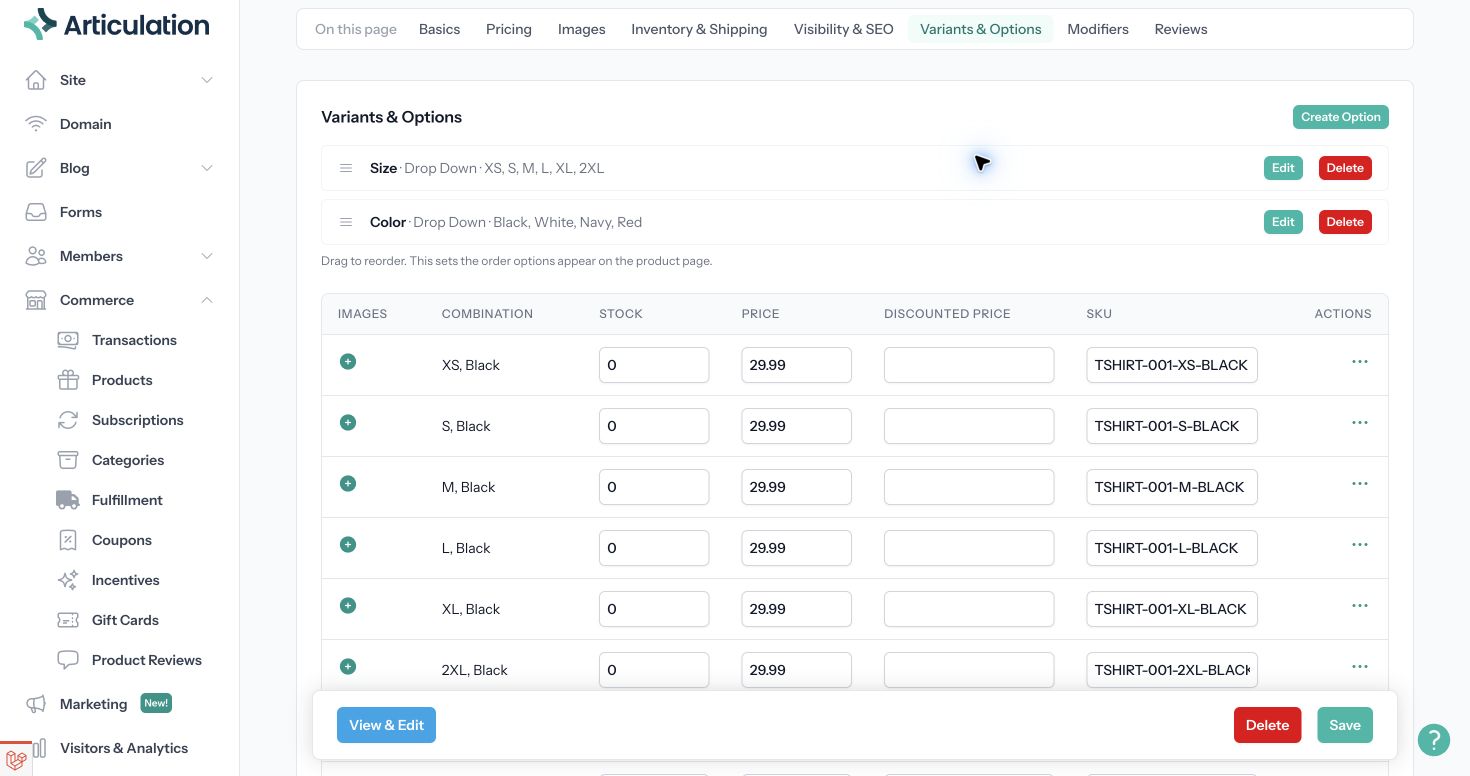
Drag options to change their order on the product page. Before adding, removing, or changing choices on a product already for sale, read any warning about regenerating combinations. Review the resulting variants before assuming their previous settings still apply.
Decide how stock is shared
In Inventory & Shipping, use Shared Inventory Across Variants only when every choice draws from the same supply. Leave it off when each combination has its own stock count, such as separately stocked shirt sizes.
A variant with a stock count of zero can be unavailable even when the product itself is marked available. Review the individual rows when troubleshooting a missing choice.
Add personalization or extras
Go to Modifiers and choose Create Modifier. Name the modifier, select its type, and decide whether it is required. Available types include text input, a dropdown, multiple checkboxes, and a single checkbox/add-on. Add choices for types that need them and review any price adjustments shown in the modifier editor.
Use a text modifier for a gift message. Use an option when the buyer is selecting a different stocked item. A modifier does not create another row in the variant inventory table.
Check the storefront
Choose View & Edit. Select each option, confirm the resulting price and image, and check required modifiers. Try the choices on a narrow screen as well as desktop. Save any corrections before making the product available.
Related: Create and manage products.