
Schedule Local Pickup
Offer pickup time slots with operating hours, preparation time, capacity, and blackout dates.
Scheduled pickup lets buyers choose a collection time that fits your store's hours and preparation capacity.
Prepare your pickup location
Open Commerce → Fulfillment and review Pickup Location under Store Addresses. Check your site's timezone in Site → General before adding hours: pickup times use the site's timezone.
For each eligible product, enable Allow Pickup in Inventory & Shipping and save the product.
Create a pickup option
- In Shipping & Pickup Rates, choose Add Rate.
- Select Pickup as the rate source.
- Enter a clear Display Name, such as “Store Pickup.”
- Choose a pickup Rate Type, and enter the pickup charge. Use zero when pickup is free.
- Add Pickup Instructions, including where to collect the order and anything customers should bring.
- Enable Require buyers to schedule a pickup time.
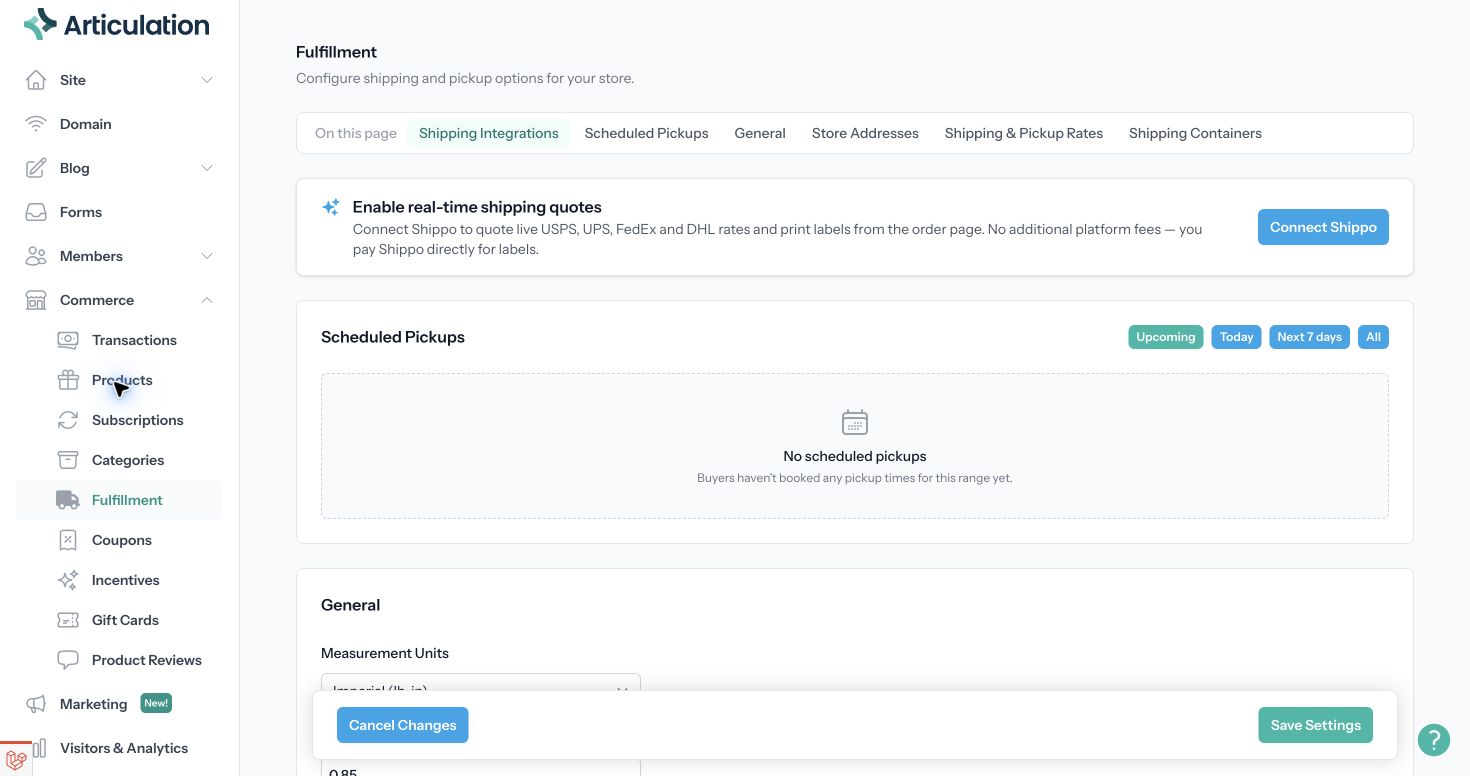
Confirmed scheduled pickups appear in this overview. Use the rate editor to configure hours and booking rules.
Set hours and capacity
Use Add hours under Operating Hours to define when you accept collections. Then review:
- Slot length (min): the spacing between offered pickup times.
- Min prep / lead time (min): preparation time needed before pickup.
- Max days out: how far ahead customers can book.
- Max orders per slot: slot capacity; leave blank for unlimited.
- Allow buyers to choose ASAP pickup: whether to offer the earliest preparation window.
- Allow buyers to reschedule and its Cutoff: whether and how late customers can change their slot.
- Blackout Dates: dates when pickup is unavailable.
Save the rate and then the fulfillment settings.
Review bookings and troubleshoot
Use Scheduled Pickups in Fulfillment to switch between Upcoming, Today, Next 7 days, and All. Open the related transaction when preparing or completing an order.
If checkout offers no pickup time, check operating hours, timezone, preparation time, blackout dates, the booking horizon, and slot capacity. Also confirm the product allows pickup and that you selected a pickup rate type.
Review the ready-for-pickup and picked-up workflow in View and manage orders.Scheduled pickup lets buyers choose a collection time that fits your store's hours and preparation capacity.
Prepare your pickup location
Open Commerce → Fulfillment and review Pickup Location under Store Addresses. Check your site's timezone in Site → General before adding hours: pickup times use the site's timezone.
For each eligible product, enable Allow Pickup in Inventory & Shipping and save the product.
Create a pickup option
- In Shipping & Pickup Rates, choose Add Rate.
- Select Pickup as the rate source.
- Enter a clear Display Name, such as “Store Pickup.”
- Choose a pickup Rate Type, and enter the pickup charge. Use zero when pickup is free.
- Add Pickup Instructions, including where to collect the order and anything customers should bring.
- Enable Require buyers to schedule a pickup time.
Confirmed scheduled pickups appear in this overview. Use the rate editor to configure hours and booking rules.
Set hours and capacity
Use Add hours under Operating Hours to define when you accept collections. Then review:
- Slot length (min): the spacing between offered pickup times.
- Min prep / lead time (min): preparation time needed before pickup.
- Max days out: how far ahead customers can book.
- Max orders per slot: slot capacity; leave blank for unlimited.
- Allow buyers to choose ASAP pickup: whether to offer the earliest preparation window.
- Allow buyers to reschedule and its Cutoff: whether and how late customers can change their slot.
- Blackout Dates: dates when pickup is unavailable.
Save the rate and then the fulfillment settings.
Review bookings and troubleshoot
Use Scheduled Pickups in Fulfillment to switch between Upcoming, Today, Next 7 days, and All. Open the related transaction when preparing or completing an order.
If checkout offers no pickup time, check operating hours, timezone, preparation time, blackout dates, the booking horizon, and slot capacity. Also confirm the product allows pickup and that you selected a pickup rate type.
Review the ready-for-pickup and picked-up workflow in View and manage orders.