
Manage subscribers and view their email history
Find contacts, edit names, inspect engagement, and remove subscribers individually or in bulk.
Open Marketing > Lists and select a list to manage its subscribers. Changes here apply to the selected list.
Find and sort subscribers
- Search by email address, first name, last name, or full name.
- Use Subscriber Status to show Active, Unsubscribed, Bounced, or Complained contacts, or choose All Statuses.
- Select a column heading to sort by email, first name, last name, source, status, or subscription date. Select the same heading again to reverse the order.
- Use the pagination controls to move through the list.
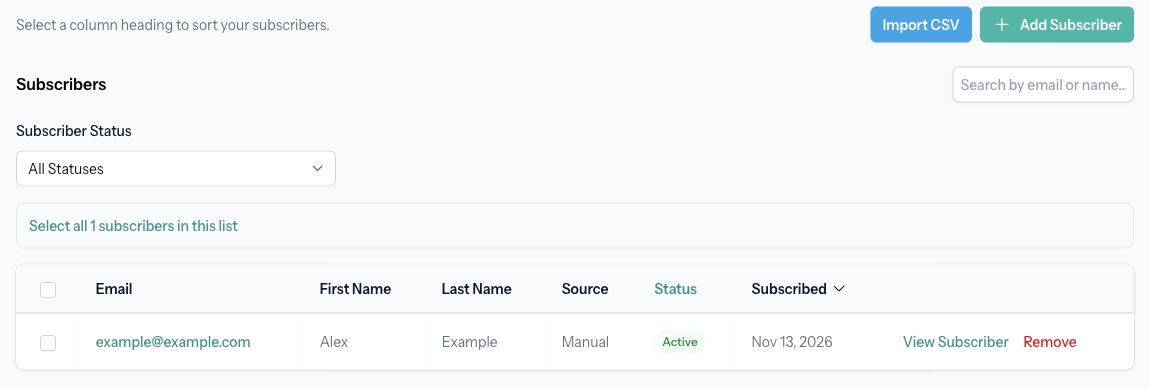
The list's count reflects the current search and filter. The Lists overview shows active subscribers, so its count can differ from the number shown inside the list.
View one subscriber
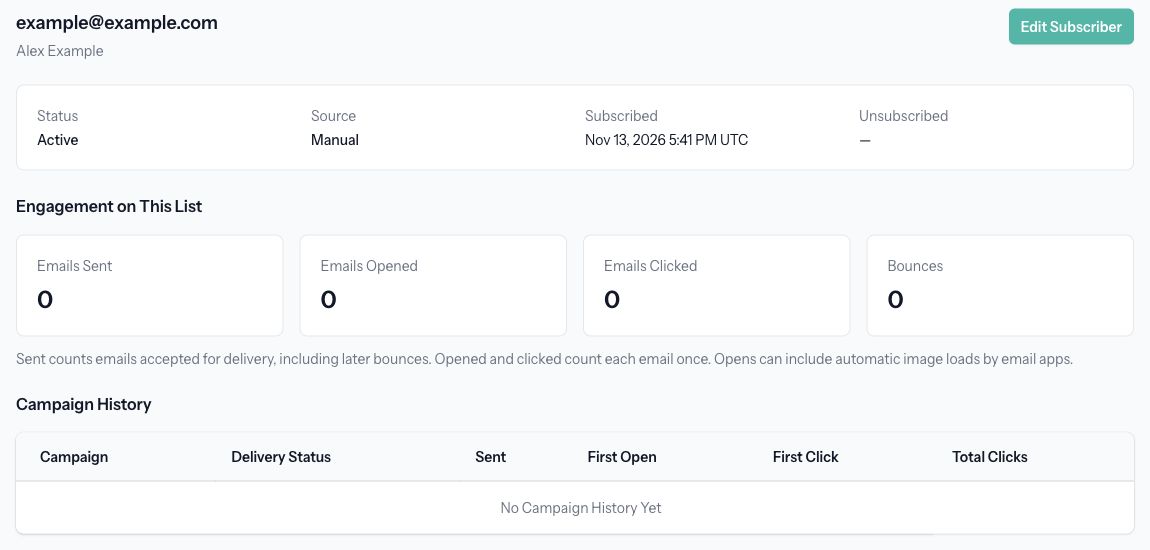
Select their email address or View Subscriber. The detail page shows status, source, subscribed date, and unsubscribe date when present.
Under Engagement on This List, review Emails Sent, Emails Opened, Emails Clicked, and Bounces. Sent counts accepted deliveries, including messages that later bounced. Opened and clicked count each email once. Opens may include automatic image loads by email apps.
Campaign History shows each campaign, delivery status, sent time, first open, first click, and total clicks. Select a campaign to inspect it. A dash means no value has been recorded. No Campaign History Yet means there are no sends recorded for this subscriber.
Edit a subscriber
- Select Edit Subscriber on the detail page.
- Update First Name (Optional) or Last Name (Optional).
- If Email is editable, correct the address if needed.
- Select Save Changes.
The email address can only change while the subscriber is active and has no campaign activity. After campaign activity, an unsubscribe, bounce, or complaint, the address is fixed to preserve history and preferences; you can still edit the name. Changes apply to this list and preserve subscription status and campaign history.
If a delivery issue or complaint has blocked the address, the detail page shows a warning. Editing a name does not remove that block.
Remove one subscriber
Return to the list and select Remove for the contact. Review the confirmation, including the list and site, then confirm if you want to remove them. The contact no longer receives future campaigns from this list. Past campaign records are kept.
Remove several subscribers
- Apply your search and status filter first.
- Select individual checkboxes, or the header checkbox to select the visible page.
- To select every result across pages, select Select all … matching subscribers. Without a filter, this selects all subscribers in the list.
- Check the selected count, then select Remove Selected.
- Review the list, site, and number of contacts in the confirmation before confirming.
Selections can span pages. Changing the search or status filter clears the selection; Clear Selection also clears it.
Removal is not a temporary unsubscribe switch. Previously removed addresses are skipped when added again manually, imported, or captured automatically. Remove only contacts you intend to remove from this list.
For adding contacts, see Create a subscriber list and capture forms and purchases and Import subscribers from CSV.