
Bulk Edit Products
Select products and apply shared settings while understanding which fields bulk editing replaces.
Use the product list to apply shared settings to several products at once. Review the selection and every setting in the bulk editor before saving: the dialog replaces settings across all selected products.
Use this workflow for physical products that should share the same settings. For services, digital products, memberships, food and beverage products, or other specialized offers, use the individual product editor so you can review their availability, delivery and billing settings together.
Choose products carefully
- Open your site's Products dashboard.
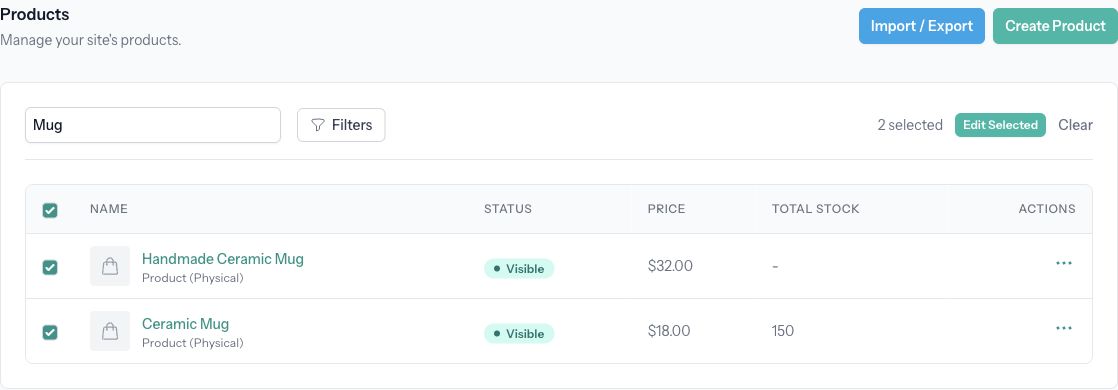
- Use the search field to find a name or SKU. Use the filters to narrow by Type or visible/hidden Status.
- Select the checkbox beside each product you want to change. The table-header checkbox selects or clears the products on the current page.
- Check the selected count, then select Edit Selected.
Select All selects every product in the site, including products outside the current search results or filters. Use individual row checkboxes or the current-page checkbox for a limited selection. Use Clear to start the selection again.
Review and apply settings
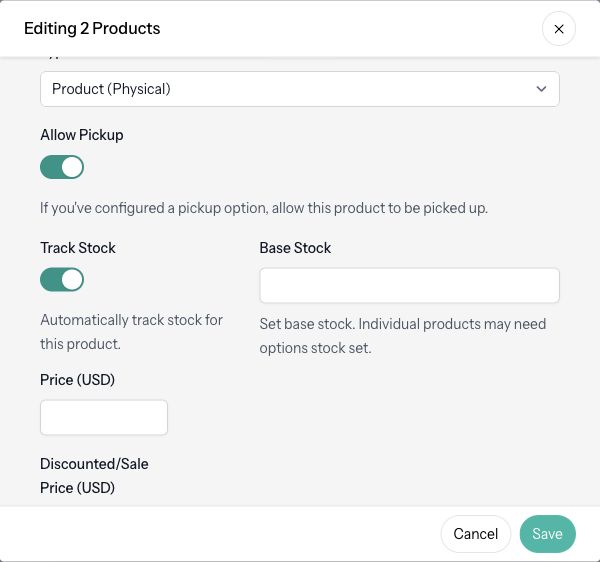
In Editing N Products, review the following before saving:
- Product Available controls whether customers can purchase the selected products.
- Product Visible controls their visibility in product lists and categories.
- Type changes the product type for the entire selection. Use a group of products that should share the same type.
- For Product (Physical), check Allow Pickup, Track Stock, and Base Stock.
- Enter a shared price or discounted sale price only when you want the selected products to use that amount.
The bulk editor does not preserve each product's different toggle or type values automatically. Even if you only intend to change the price, review the availability, visibility, type and stock settings in the dialog.
- Review all fields and confirm the number of products being edited.
- Select Save.
- Confirm the warning that these settings override the selected products' current settings.
- Open a representative edited product and verify the result. Republish your site if prompted.
Limits and follow-up checks
Blank or zero price entries do not clear existing prices in this bulk editor. To set a product to zero or remove a sale price, edit the individual product and save it there.
Base Stock does not replace the separate stock counts of individual variants. Check variant inventory after a bulk edit. See Track Inventory and Send Back-in-Stock Alerts.
For products with different types, pickup rules or stock settings, make smaller selections that share the intended settings, or edit each product individually.
If you see a plan upgrade message, review the feature named in the message, such as stock tracking or digital products. If a product disappears or becomes unavailable after editing, open it and check Product Visible, Product Available, its type and remaining stock.
To move a product catalog into or out of Articulation, use Import and Export Products with CSV.