
Import and Export Products with CSV
Use the product CSV template, import variants, and avoid duplicates when retrying an import.
CSV import creates products in bulk. Export provides a spreadsheet-friendly copy of your catalog. Feature availability depends on your site plan.
Start with the template
- Open Commerce → Products.
- Choose Import / Export → Import Products.
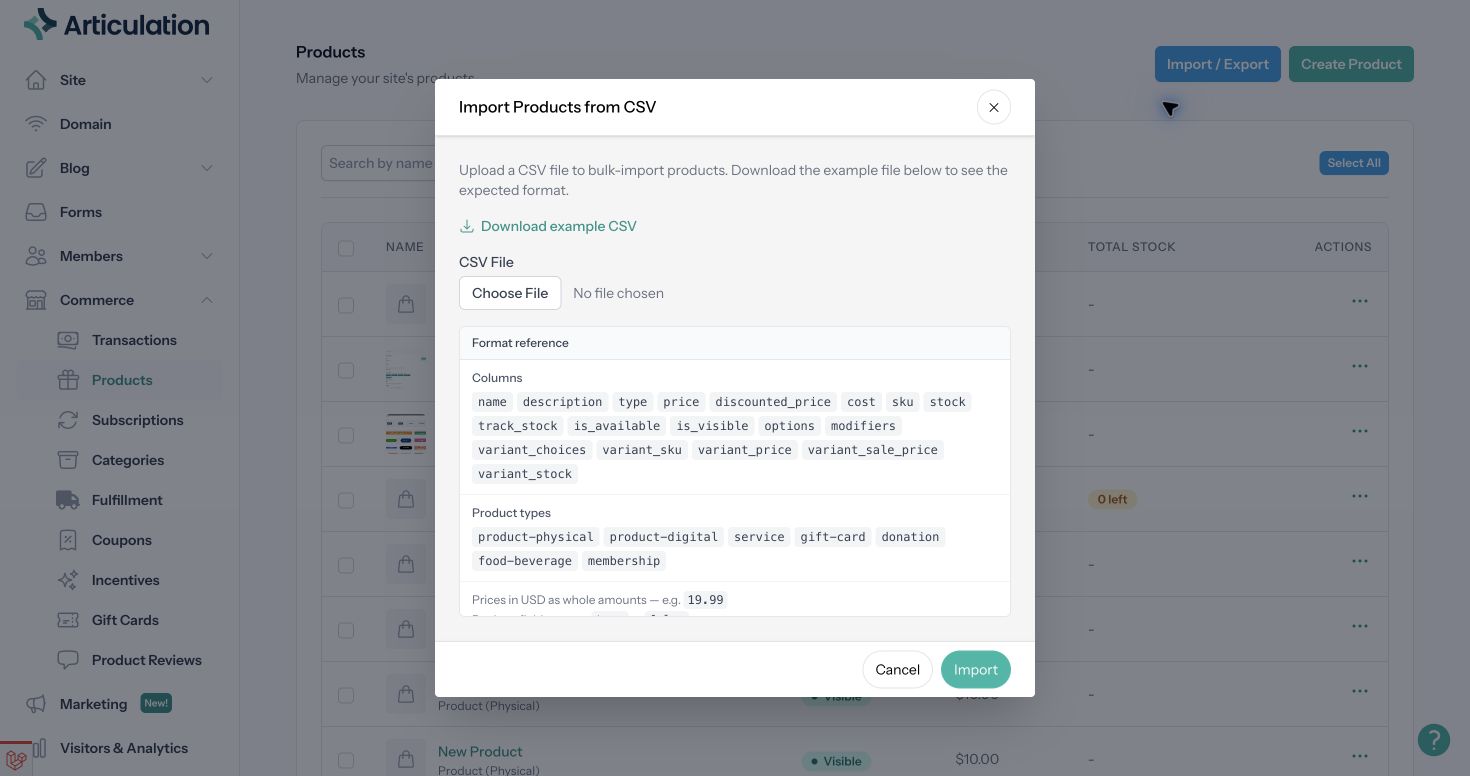
- Select Download example CSV and use its headings as your starting point.
- Review the Format reference before uploading your file.
Prepare the file
Each product needs a name. Supported types are product-physical, product-digital, service, gift-card, donation, food-beverage, and membership.
Enter prices in whole currency units: 19.99 means nineteen and ninety-nine hundredths, not 1,999. Boolean fields such as is_available, is_visible, and track_stock accept true or false. Keep SKUs as text in your spreadsheet so leading zeroes are preserved.
Options use pipe-separated groups and comma-separated choices, for example:
Size:S,M,L,XL|Color:Red,Blue,Green
A simple optional text modifier can use:
Gift Note:text_input:false
Follow the template for variant rows. Place each product's variant rows immediately after that product; variant rows need a preceding product to attach to. Review variant SKU, price, sale price, and stock columns separately from the parent product.
Save as CSV and keep the file within the import's 2 MB size limit.
Import and review results
Choose the CSV file and select Import. Review the success count and any failed rows. If only some rows fail, correct and retry those rows rather than importing the entire original file again.
Import creates new products; it does not update existing products by SKU or ID. Reimporting an exported catalog can create duplicates.
Open several imported products and check variants, prices, stock, visibility, and descriptions. Add images and required digital files separately before making the products available. For membership or recurring products, review the additional settings in the product editor too.
Export the catalog
Choose Import / Export → Export from the products list. Keep the exported file as a record or use it to prepare a new catalog import. Treat it as product data, not a complete backup of images, downloadable files, and every commerce setting.