
Track Inventory and Send Back-in-Stock Alerts
Configure product or variant stock, per-order limits, and restock notifications.
Inventory tracking keeps your storefront's availability in step with the quantities you can sell. Stock tracking and back-in-stock alerts may require a plan that includes those features.
Turn on inventory tracking
- Open a product in Commerce → Products.
- Go to Inventory & Shipping and enable Track Stock. Some product types use the label Limit Availability.
- Enter the quantity you currently have available.
- For a product with variants, choose whether to use Shared Inventory Across Variants.
- Choose Save.
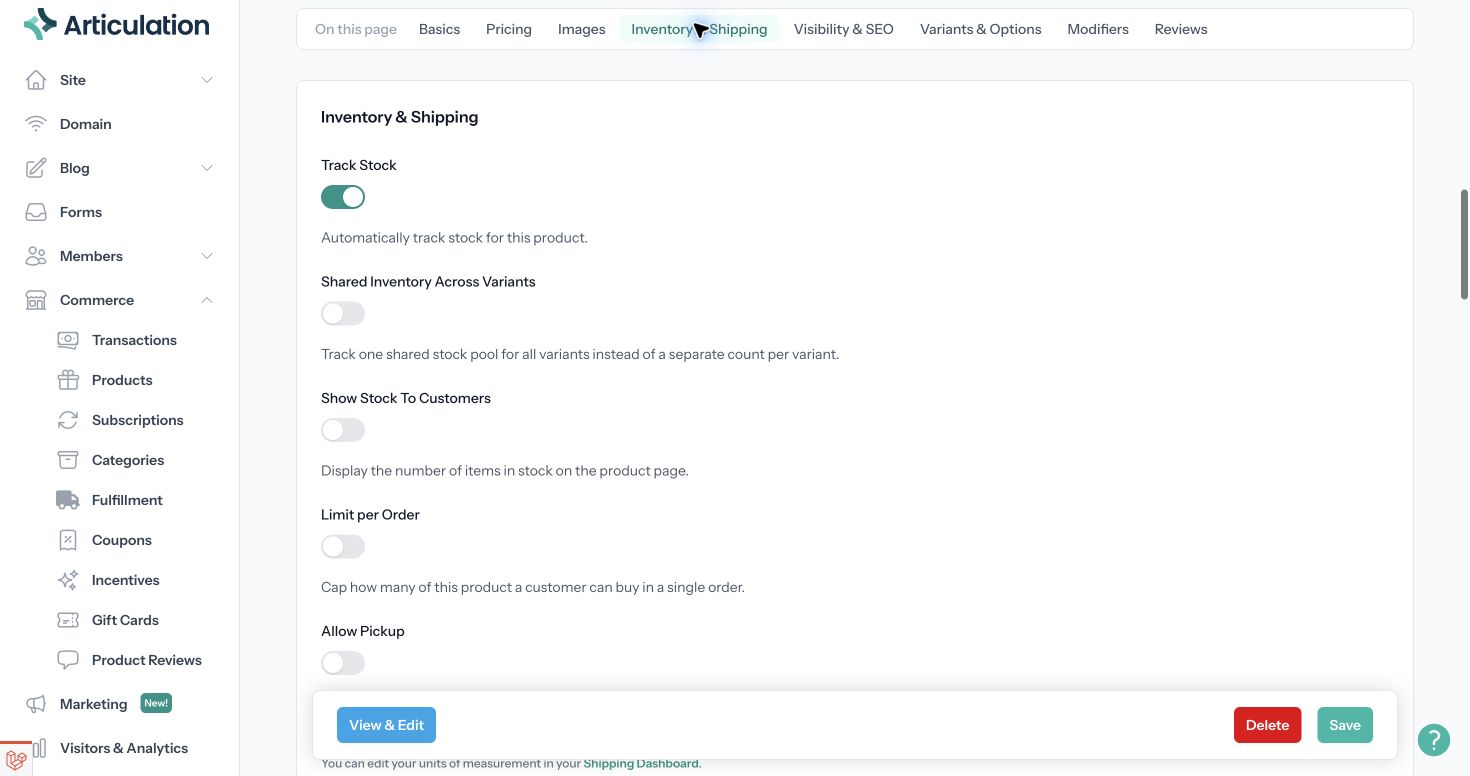
Use shared inventory when all variants draw from one pool. Leave it off when each combination needs its own quantity, then update the stock cells under Variants & Options. For example, a medium blue shirt and a large blue shirt usually have separate stock counts.
Control what customers can buy and see
Enable Show Stock To Customers if you want the product page to display the remaining quantity.
Enable Limit per Order and enter a positive quantity to cap how many a buyer can purchase in a single order. This controls quantity per order; it is not the same as total inventory or a permanent limit per customer.
Keep Product Available enabled for products you want to sell. Product Visible controls whether a product appears in lists and categories. Visibility alone does not make an out-of-stock item purchasable.
Enable restock alerts
Open Commerce, find Back In Stock Alerts, turn it on, and save the settings. Eligible shoppers can then request notification when an out-of-stock product becomes available.
When new stock arrives, update the product or variant quantity and save it. A transition from no available stock to positive stock can trigger notifications to people who requested them. These alerts are for subscribed shoppers; they are not a general announcement to every customer.
If availability looks wrong
Check whether inventory is shared or tracked per variant, then inspect the relevant count. Also check the product's availability switch and any per-order limit. For physical goods, verify that a shipping or pickup option is available for the customer's order.
When using a back-in-stock alert as a test, use a product that was actually out of stock and a shopper who requested notification before you replenish it.Inventory tracking keeps your storefront's availability in step with the quantities you can sell. Stock tracking and back-in-stock alerts may require a plan that includes those features.
Turn on inventory tracking
- Open a product in Commerce → Products.
- Go to Inventory & Shipping and enable Track Stock. Some product types use the label Limit Availability.
- Enter the quantity you currently have available.
- For a product with variants, choose whether to use Shared Inventory Across Variants.
- Choose Save.
Use shared inventory when all variants draw from one pool. Leave it off when each combination needs its own quantity, then update the stock cells under Variants & Options. For example, a medium blue shirt and a large blue shirt usually have separate stock counts.
Control what customers can buy and see
Enable Show Stock To Customers if you want the product page to display the remaining quantity.
Enable Limit per Order and enter a positive quantity to cap how many a buyer can purchase in a single order. This controls quantity per order; it is not the same as total inventory or a permanent limit per customer.
Keep Product Available enabled for products you want to sell. Product Visible controls whether a product appears in lists and categories. Visibility alone does not make an out-of-stock item purchasable.
Enable restock alerts
Open Commerce, find Back In Stock Alerts, turn it on, and save the settings. Eligible shoppers can then request notification when an out-of-stock product becomes available.
When new stock arrives, update the product or variant quantity and save it. A transition from no available stock to positive stock can trigger notifications to people who requested them. These alerts are for subscribed shoppers; they are not a general announcement to every customer.
If availability looks wrong
Check whether inventory is shared or tracked per variant, then inspect the relevant count. Also check the product's availability switch and any per-order limit. For physical goods, verify that a shipping or pickup option is available for the customer's order.
When using a back-in-stock alert as a test, use a product that was actually out of stock and a shopper who requested notification before you replenish it.