
Sell Services and Track Completion
Create a service product, limit available capacity and per-order quantities, and record completion after purchase.
Sell services such as consultations, lessons, or project work through a product page, then record completion in the order dashboard.
Before you begin
Connect a payment provider and decide what the price includes. A service product records a purchase; arrange appointment times or other delivery details through the process you describe to your customer.
Create the service
- Open Commerce → Products and select Create Product.
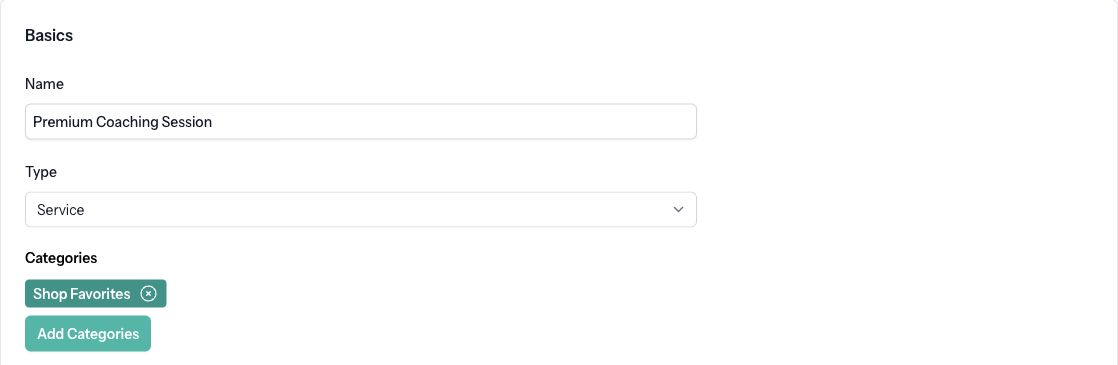
- Enter the service Name.
- Choose Service under Type. Select the Save button beneath the type field to apply the change.
- Enter a Description explaining the scope, how the service is delivered, and what happens after purchase.
- In Pricing, enter the price and an optional discounted sale price. The sale price cannot be higher than the regular price.
- Use Upload Product Images to add an image, and add the service to any relevant categories.
For a recurring service, follow Sell Recurring Products and Manage Subscriptions. Recurring billing requires Stripe.
Set capacity and purchasing limits
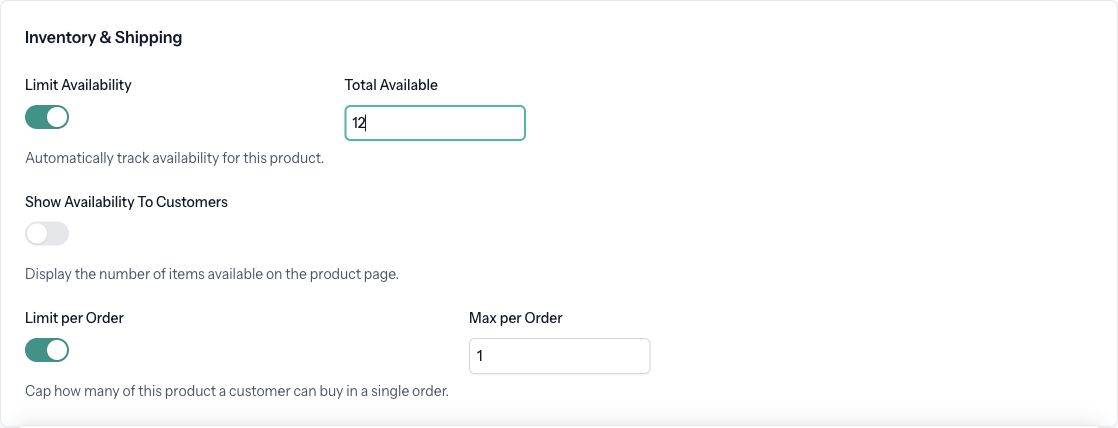
In Inventory & Shipping, enable Limit Availability if you have a limited number of service purchases available. Enter Total Available and optionally enable Show Availability To Customers.
To cap the quantity in a single purchase, enable Limit per Order and enter Max per Order. This is a per-order limit, not a limit on all future purchases by the same customer.
If the service has variants, decide whether they share one capacity using Shared Inventory Across Variants, or need separate counts. See Track Inventory and Send Back-in-Stock Alerts.
Make the service available
- Under Visibility & SEO, enable Product Available to allow purchases and Product Visible to include it in product lists and categories.
- Select Save.
- Open View & Edit → Preview Product Page to check the description and purchasing controls. Use View & Edit → Edit Product Page Content if you want to customize the page.
- Publish your site, then check the service on the published page.
Services do not need shipping rates. Any enabled restrictions for non-shipped products still apply to the customer's country.
Record completion
- Open Commerce → Transactions and select the customer's order.
- Find the service item's Service Status.
- Select Mark Service Completed once the work has been delivered.
- Check the completion date shown on the order.
If the service cannot be purchased, check Product Available, remaining availability, the payment connection, and any country restrictions. If you cannot find a paid purchase, search Transactions by the customer's email or order ID. See View and Manage Orders.