
Import Your WordPress Site into Articulation
Preview or upload a WordPress export, import your site, and review content before publishing.
Import your WordPress pages, posts, and WooCommerce products into Articulation, then review and edit the result before publishing. The import does not change your original WordPress website or automatically move its domain.
Choose a public site or an export
For an online import, use the public address visitors use to reach your WordPress site. Pages need to be accessible without a password.
A WordPress export is useful when the site is private or offline, public content access is blocked, or you need more complete blog or store content. Articulation accepts .xml and .xml.gz WordPress export files up to 500 MB. The upload screen explains how to obtain an export using Tools → Export → All content in WordPress.
Online imports do not include customer accounts, past orders, or form entries. Some layouts and features need adjustment after conversion. Keep your original site and any backups available while you review the result.
Preview the public website
- Open Import Your WordPress Site, available under Import Your Site on the Articulation website.
- Enter Public WordPress Site URL and click Get Started for Free.
- Review the preview. If it is incomplete or cannot be generated, use the export option below.
- Continue into Articulation and sign in when prompted.
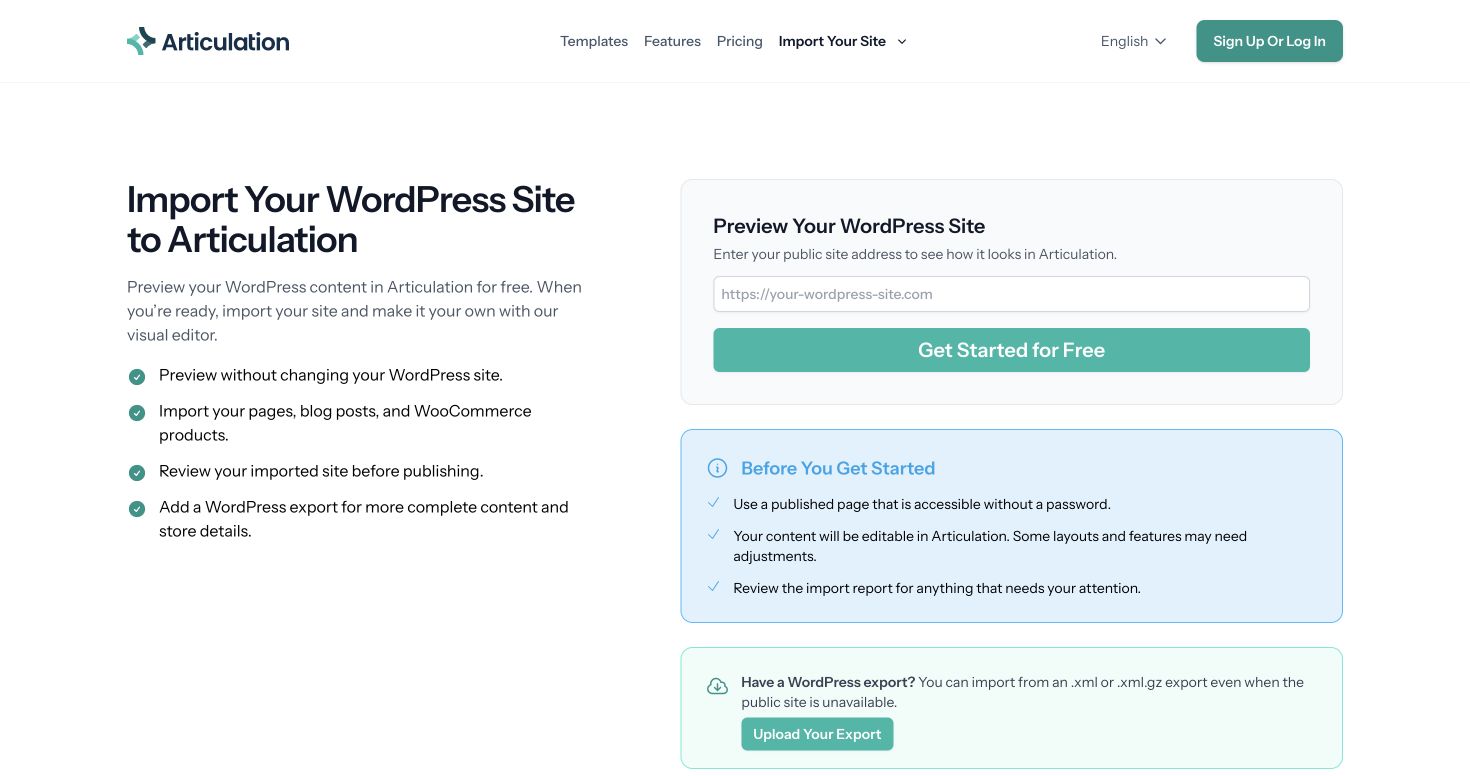
You can also click Add Site from your dashboard and choose Import from WordPress during setup. Enter Site Address and use Preview Site to review it before importing.
Import with a WordPress export
From the WordPress import page, choose Upload Your Export. Sign in if prompted. On the import setup screen, expand Have a WordPress Export? and choose your WordPress Export File.
Wait for the upload to finish before continuing. You can use an export with or without a public site address. If the screen reports that an upload has expired, choose the file again.
Review and start
- Choose Continue to open Review Your Import.
- Check the source address and export filename.
- Read the linked Imported Content terms. Select the agreement checkbox if you agree.
- Click Start Import.
The progress screen shows the current status. Larger imports can take time, and Articulation emails you when the imported site is ready. When Your Site Is Ready appears, open the editor if it does not open automatically.
Image and file transfers are tracked separately and may still be running after the page content is ready.
Review the imported website
Before publishing, check the imported pages, navigation, blog posts, images, and important links. Review page titles, descriptions, and routes. Test the layout at desktop and mobile sizes.
For a store, check product types, prices, variations, stock, and images. Review shipping rules and configure the payment providers and other store settings you need. WordPress plugins and specialized product options may need a replacement or manual adjustment in Articulation.
If content is missing or looks wrong, make a note of the affected page or product and contact support. Import diagnostics can help the team investigate.
Resolve an import issue
If a preview cannot read the site, check the address and whether the page is public, then try again or use an export. A site that blocks automated access may still work with a valid export.
If the import screen shows Your Import Needs Attention, read the displayed message. The screen may offer Retry, and the support team is notified of the failure. Keep the source address and export file available when seeking help.
An import destination is associated with its original source. For a different WordPress website, start another site rather than changing the source of an import already in progress.
Connect the domain and publish
Once you are satisfied with the imported content, connect your custom domain and publish the website. Moving your domain's DNS is a separate step from importing. Check the published website before retiring the old hosting.