Preview, Publish, Update, and Unpublish Your Website
Check your changes, publish your website, and take it offline without deleting its content.
Saving your work and publishing your website are separate steps. Saving keeps your changes in Articulation; publishing updates the website visitors see.
Check your changes before publishing
- Open your website in the editor and finish your changes. Text edits save as you work; settings screens with a Save button must be saved explicitly.
- Use Desktop View, Tablet View, and Mobile View to check the layout at different widths.
- Open Preview to inspect the website without editor controls. Follow navigation links, check images, and read the pages you changed.
- Return to the editor when you are ready to publish. Opening Preview does not publish anything.

Publish your website
Click Publish. If your plan needs an upgrade to publish, follow the upgrade prompt. An imported website may also require completion of its conversion before publishing is available.
Read the result and open the website address shown to check the published version. If a custom domain is not connected yet, choose Complete Domain Connection and finish its setup. The publish dialog explains when the site will go live automatically after the domain connects.
Sites in Test Mode cannot be published. If your agency manages the site, contact the agency to have Test Mode removed when the site is ready.
Publish later changes
After editing a published site, click Publish again to release your saved changes. Saving page or site settings may show a republish notice: follow it after saving to update the public site.
Check the published address after each update, particularly when changing navigation, page visibility, or shared header and footer content.
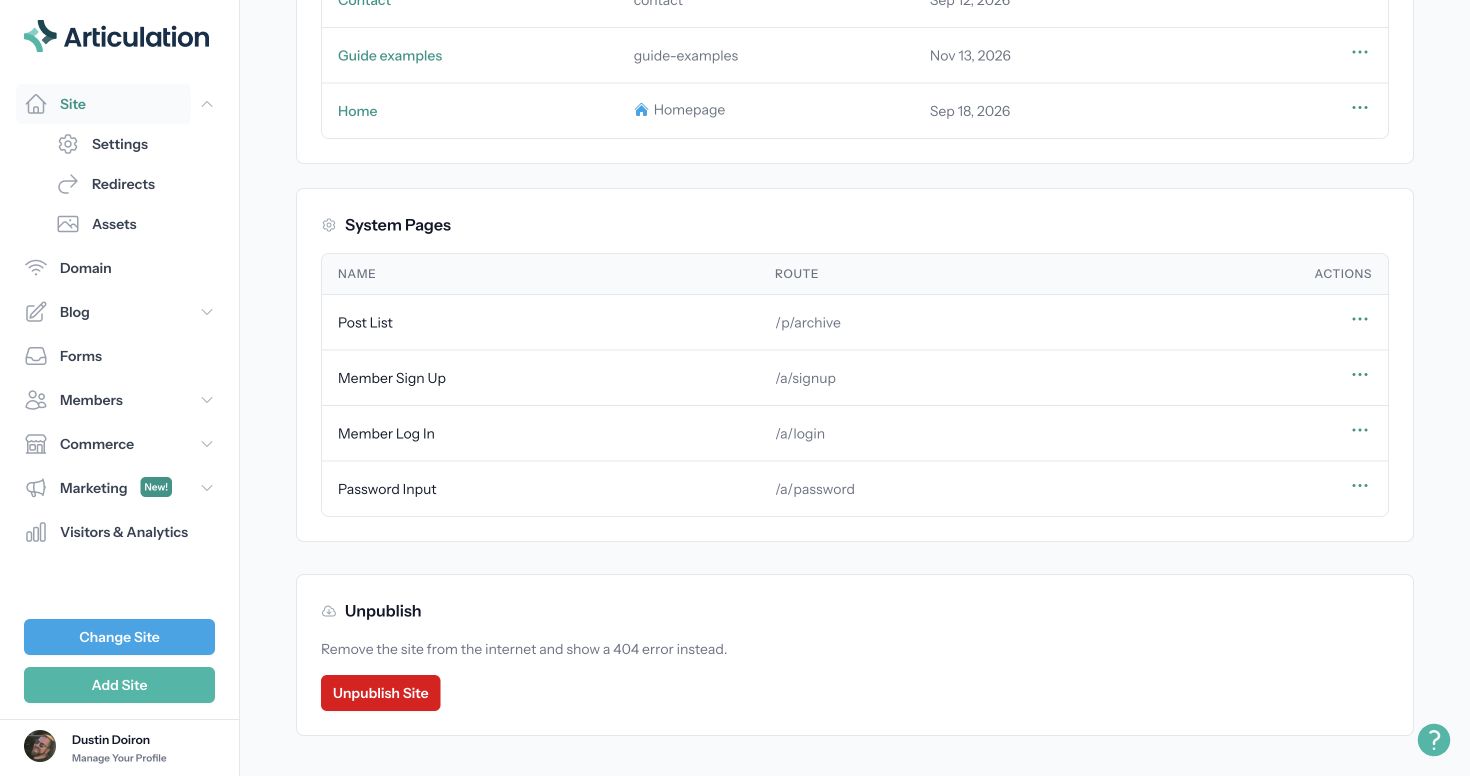
Take your website offline
- Return to the dashboard and open Site.
- Scroll below the pages list to Unpublish.
- Click Unpublish Site.
The public website will show a 404 error. Your content remains available for editing. Publish again when you want visitors to access the website.