
Add an Animated Counter
Animate a number from a starting value to a target, with timing and text-style controls.
Use the Counter component to animate a number, such as a completed-project total or a milestone. The counter displays the values you enter; it does not connect to live sales or visitor statistics.
Add and configure the counter
- Open the page in the website editor and select Add Content.
- Find Counter under Content and drag it into a section.
- Select the counter to open its options.
- Set Start to the number where the animation should begin.
- Set End to the number it should reach.
- Set Duration (ms) to the animation length. For example, 3000 means three seconds.
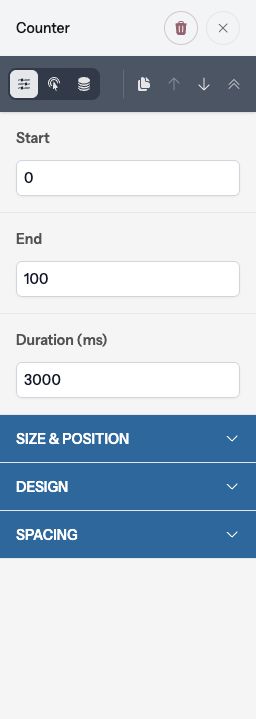
The animation starts when the counter enters view and runs once for that page load. It uses whole numbers. A start of 0, end of 250, and duration of 3000 creates a three-second count toward 250.
Style and position the number
Under Size & Position, use Align to position the number and Size to change its text size. Under Design, set Text Color to match the surrounding content. Use Spacing > Margin to create space around the counter.
The counter contains only the animated number. Add a Rich Text component above or below it for a heading or explanation, such as “Projects completed.” Place related counters in Columns or a Grid when you want to compare several totals.
Preview and publish
Use Preview and scroll the counter into view to check its animation and final value. Reload the preview to replay it. Check that the number and its explanation fit on mobile, then select Publish when ready.