
Add a Callout
Highlight page content in a styled container with a configurable accent line.
The Callout component groups other components inside a highlighted area with an accent line. It works well for a note, announcement, or short explanation within a page.
Add content
- Open your page in the website editor.
- Select Add Content and drag Callout from Layout into a section.
- Select the callout to open its options.
- Under Content, select Add Content and choose text, images, or another component.
- Select the content on the page to edit it.
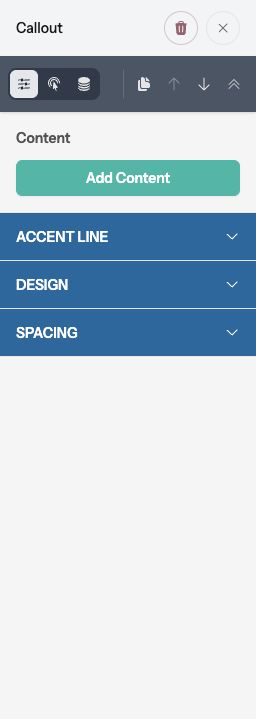
You can add several components to one callout. If selecting an inner component makes it hard to reach the callout settings, select Callout in the bottom breadcrumb or use Select Parent Container.
Configure the accent line
Open Accent Line and adjust:
- Line Position: place the line on the left or right.
- Line Thickness (px): set the line’s thickness.
- Line Background: choose its background treatment or color.
- Line Placement: choose Edge or Inset.
- Line Spacing: choose Small, Medium, or Large spacing.
Use the accent line to distinguish the callout while leaving enough room for its content.
Set the surface and spacing
Under Design, configure Shape, Background, Border, and Opacity. Under Spacing, use Margin for space outside the callout and Padding for space between its content and edges.
The Hover tab provides separate Background, Border, and Line Background settings for pointer hover. The normal state should remain understandable on touch devices.
Preview and publish
Check the callout in desktop, tablet, and mobile views. Make sure its text remains readable against the background, then use Preview to test any links inside it. Select Publish when ready.