
Add a Video Gallery
Build a grid of YouTube or uploaded videos with cover images, captions, and popup playback.
A Video Gallery presents several videos as thumbnails. Visitors select a thumbnail to open the video in a popup player. Each gallery item can use a YouTube video or an uploaded video.
Add videos
- Open your page in the website editor.
- Select Add Content and drag Video Gallery from Media into a section.
- Select the gallery, then choose an item under Videos.
- Set Source to YouTube or Upload.
- For YouTube, enter the YouTube Video ID. For Upload, choose a Video File.
- Add a Caption if needed.
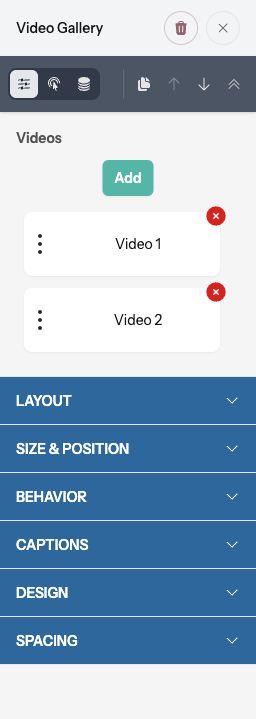
Use Add to create more items. Drag the item handles to change their order, or use an item’s remove control to delete it from the gallery.
Choose cover images
The gallery normally uses the YouTube thumbnail or the uploaded video’s poster. Turn on Use Custom Cover Image for an item to choose your own Cover Image.
Use a cover that makes the video easy to recognize. Keep essential words in the caption so visitors can read them independently of the thumbnail.
Configure the grid and captions
Under Layout, set Columns, Video Spacing, and Aspect Ratio. Use the device controls where available to adapt the layout for smaller screens.
Under Size & Position, set Width and Align. Under Behavior, Show Play Icon controls the play symbol over thumbnails.
Under Captions, choose Full Overlay, Bottom Overlay, or Below. Show Captions on Hover controls hover-only overlay captions. A Below caption remains beneath its thumbnail.
Use Design for Shape and Border, Spacing for Margin, and Hover for the hover border.
Preview and publish
Use Preview to open each video and check playback and closing the popup. Check captions and thumbnails on mobile, then select Publish when ready.