
Recover Abandoned Carts
Enable abandoned-cart reminders and choose a delay for shoppers who leave checkout unfinished.
Abandoned-cart emails remind shoppers about an unfinished purchase. A reminder needs a saved cart with a customer email address; an anonymous visit to a product page is not enough.
Turn on reminders
- Open Commerce and select Cart & Checkout.
- Enable Enable Shopping Carts if you want shoppers to collect multiple items before checkout.
- Turn on Abandoned Cart Emails. If the dashboard prompts for an upgrade, the site needs a plan that includes this feature.
- Choose a delay using Send After (Minutes) or Or After (Days).
- Select Save.
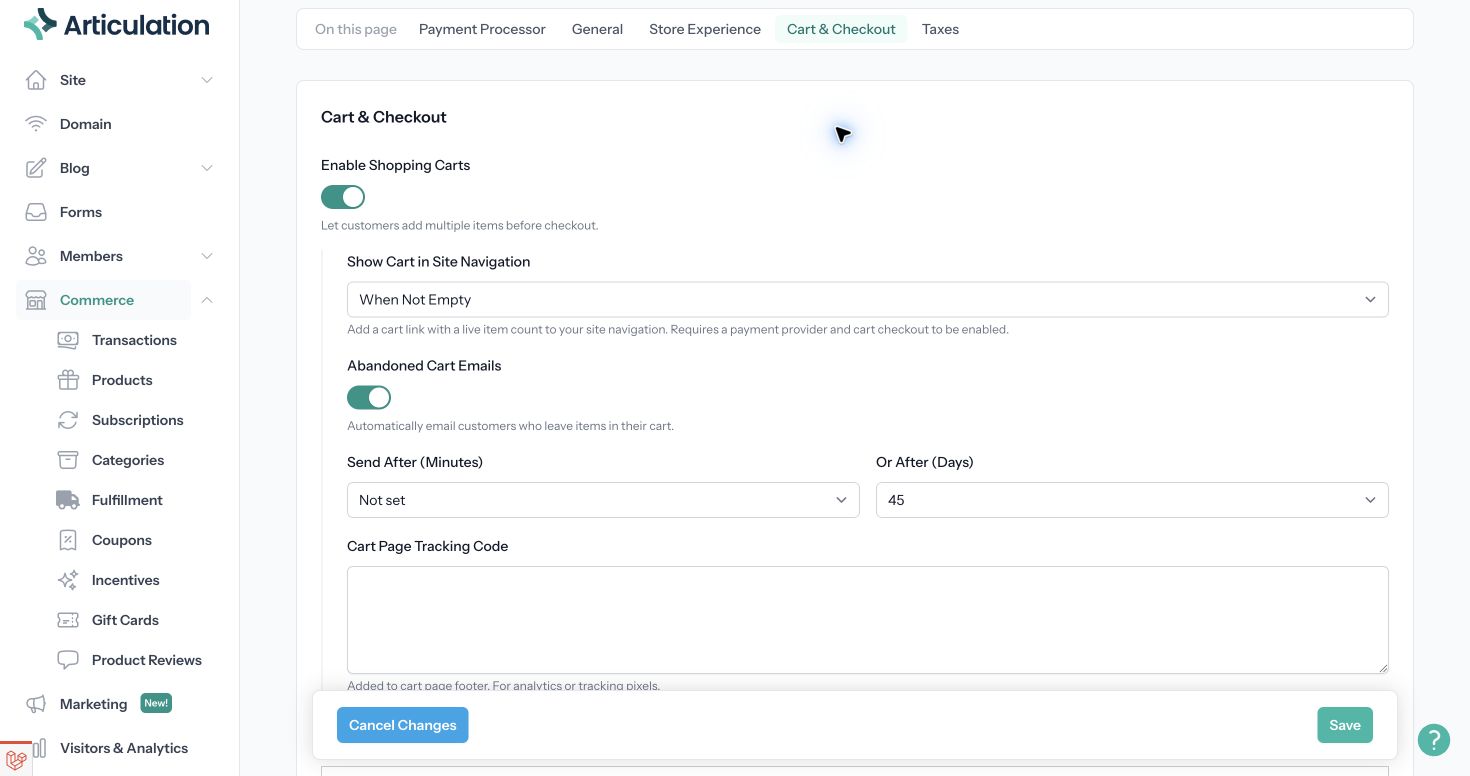
Choose one delay unit. When you change the timing, confirm the intended selection remains visible after saving. Day-based reminders are processed on a schedule, so they should not be treated as an exact send-time appointment.
Understand which carts qualify
A shopper must have left items in an unfinished cart and provided an email address. A completed order should not receive an abandoned-cart reminder. Reminders also respect email unsubscribe records.
Enabling the setting does not email every site visitor, and it is not a replacement for a general marketing campaign.
Check the customer experience
Review the storefront cart and checkout flow using an email address you control. Make sure a shopper can reach checkout, supply their email, and return to the cart. Check the contents, prices, and shipping requirements before expecting a reminder to help recover the sale.
If you complete a real purchase while testing, remember that it is an actual payment unless you are using a separate test environment.
If a reminder is missing
Check that the setting was saved, a delay was selected, the shopper entered an email address, and the order remains unfinished. Allow for the configured delay and delivery processing. Also check spam folders and whether that address previously unsubscribed.
To stop reminders, turn off Abandoned Cart Emails and save. Review the setting again after changing the site's checkout configuration.
Related: Set up your online store.Abandoned-cart emails remind shoppers about an unfinished purchase. A reminder needs a saved cart with a customer email address; an anonymous visit to a product page is not enough.
Turn on reminders
- Open Commerce and select Cart & Checkout.
- Enable Enable Shopping Carts if you want shoppers to collect multiple items before checkout.
- Turn on Abandoned Cart Emails. If the dashboard prompts for an upgrade, the site needs a plan that includes this feature.
- Choose a delay using Send After (Minutes) or Or After (Days).
- Select Save.
Choose one delay unit. When you change the timing, confirm the intended selection remains visible after saving. Day-based reminders are processed on a schedule, so they should not be treated as an exact send-time appointment.
Understand which carts qualify
A shopper must have left items in an unfinished cart and provided an email address. A completed order should not receive an abandoned-cart reminder. Reminders also respect email unsubscribe records.
Enabling the setting does not email every site visitor, and it is not a replacement for a general marketing campaign.
Check the customer experience
Review the storefront cart and checkout flow using an email address you control. Make sure a shopper can reach checkout, supply their email, and return to the cart. Check the contents, prices, and shipping requirements before expecting a reminder to help recover the sale.
If you complete a real purchase while testing, remember that it is an actual payment unless you are using a separate test environment.
If a reminder is missing
Check that the setting was saved, a delay was selected, the shopper entered an email address, and the order remains unfinished. Allow for the configured delay and delivery processing. Also check spam folders and whether that address previously unsubscribed.
To stop reminders, turn off Abandoned Cart Emails and save. Review the setting again after changing the site's checkout configuration.
Related: Set up your online store.