
Create Automatic Order Incentives
Apply automatic amount, percentage, or free-shipping discounts when an order qualifies.
Order incentives apply automatically when an order meets your criteria. Customers do not need to enter a coupon code.
Create an incentive
- Open Commerce → Incentives and choose Create Incentive.
- Enter an Incentive Name that explains the offer.
- Choose a Discount Type: Amount, Percentage, or Free Shipping.
- For an amount or percentage discount, enter the discount value. A percentage cannot exceed 100.
- Set Minimum Transaction Amount if the offer requires a minimum product subtotal. Leave it at zero if no minimum is needed.
- Turn on Enabled when the offer is ready, then choose Save.
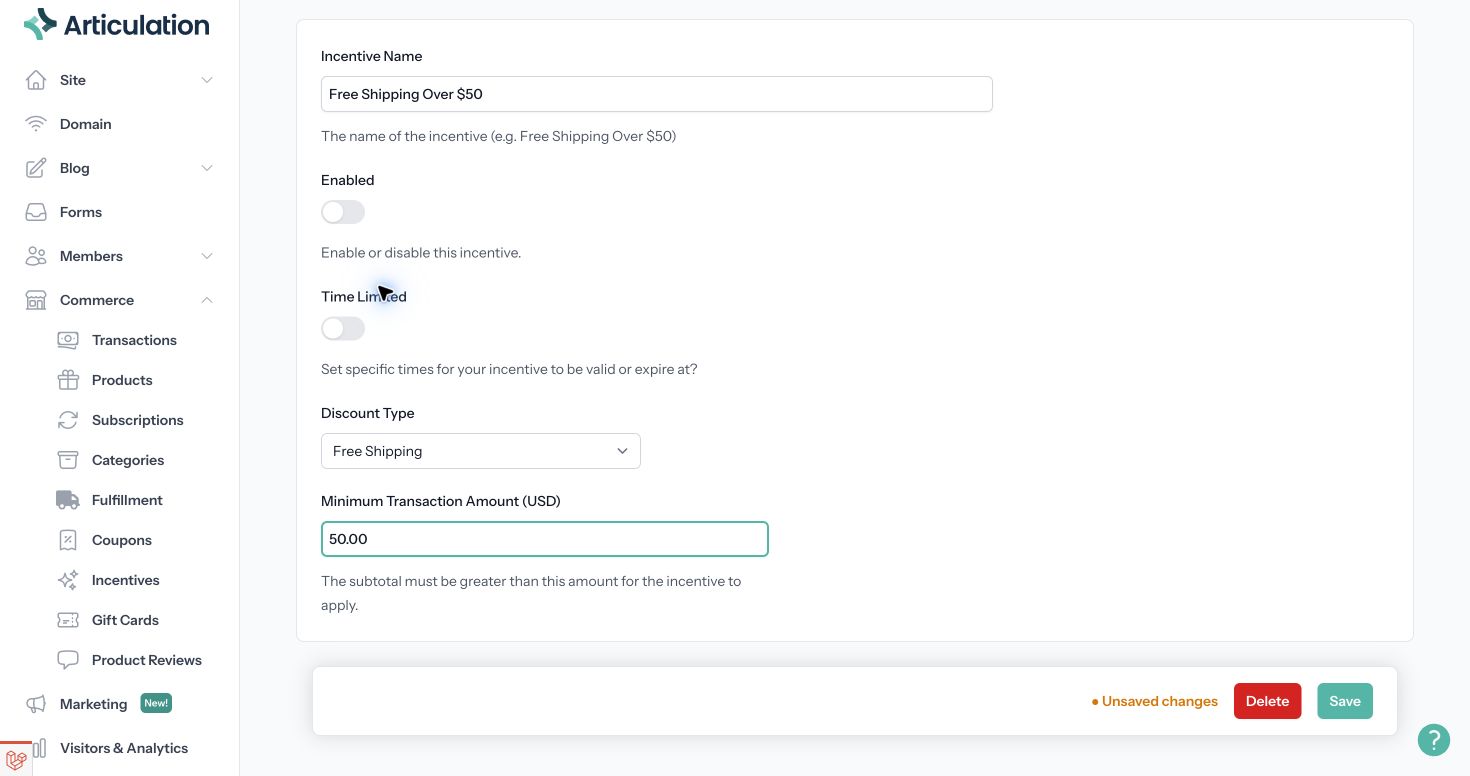
This example is being configured with Enabled off. Turn it on and save when the offer is ready.
Schedule an offer
Enable Time Limited to enter start and end dates. Check that the end is after the start and that the dates match the promotion you advertise. An enabled incentive outside its scheduled period will not apply.
Check discount combinations
More than one qualifying incentive can apply to an order. Review your other active incentives and coupons before launching a promotion so the combined discount matches your intention.
A free-shipping incentive discounts shipping; it does not create a shipping service. Configure delivery options under Commerce → Fulfillment first.
Test the offer
Add products to a cart that clearly meets the minimum and check the order summary. Then test a cart below the minimum and one exactly at the boundary. Review totals with any active coupon too. This is especially useful if your promotional wording uses “over” or “at least.”
If the incentive does not appear, check Enabled, scheduled dates, and the subtotal requirement. For free shipping, also check that the cart has an eligible shipping option.
To stop an offer, open it, turn off Enabled, and save. This keeps its settings available if you want to reuse it later.
Related: Create and manage coupons.Order incentives apply automatically when an order meets your criteria. Customers do not need to enter a coupon code.
Create an incentive
- Open Commerce → Incentives and choose Create Incentive.
- Enter an Incentive Name that explains the offer.
- Choose a Discount Type: Amount, Percentage, or Free Shipping.
- For an amount or percentage discount, enter the discount value. A percentage cannot exceed 100.
- Set Minimum Transaction Amount if the offer requires a minimum product subtotal. Leave it at zero if no minimum is needed.
- Turn on Enabled when the offer is ready, then choose Save.
This example is being configured with Enabled off. Turn it on and save when the offer is ready.
Schedule an offer
Enable Time Limited to enter start and end dates. Check that the end is after the start and that the dates match the promotion you advertise. An enabled incentive outside its scheduled period will not apply.
Check discount combinations
More than one qualifying incentive can apply to an order. Review your other active incentives and coupons before launching a promotion so the combined discount matches your intention.
A free-shipping incentive discounts shipping; it does not create a shipping service. Configure delivery options under Commerce → Fulfillment first.
Test the offer
Add products to a cart that clearly meets the minimum and check the order summary. Then test a cart below the minimum and one exactly at the boundary. Review totals with any active coupon too. This is especially useful if your promotional wording uses “over” or “at least.”
If the incentive does not appear, check Enabled, scheduled dates, and the subtotal requirement. For free shipping, also check that the cart has an eligible shipping option.
To stop an offer, open it, turn off Enabled, and save. This keeps its settings available if you want to reuse it later.
Related: Create and manage coupons.