
Configure Automatic Tax Collection
Enable Stripe Tax, choose inclusive pricing and shipping tax, and set product tax-code overrides.
Use the Taxes settings to have Stripe calculate tax during checkout. You can choose whether your displayed prices include tax and set tax codes for different kinds of products.
Before you begin
Connect Stripe through your Commerce dashboard. Automatic tax collection requires Stripe and a plan that includes this feature. Stripe Tax may charge additional fees.
The setting does not register your business for tax. Complete the required tax registrations in Stripe before relying on automatic collection. This guide explains the controls in Articulation; it does not determine where your business must register.
Enable automatic collection
- Open your site's Commerce dashboard.
- Select Taxes in the section navigation.
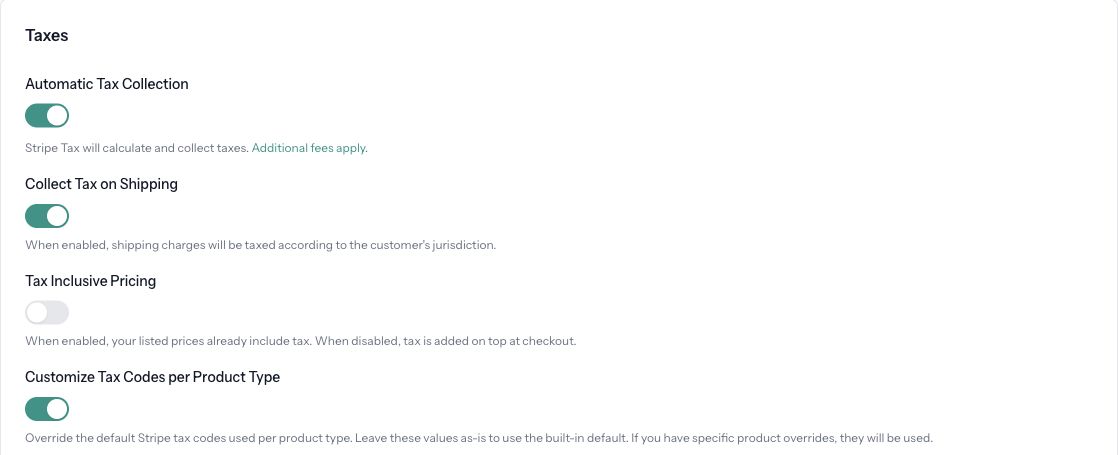
- Turn on Automatic Tax Collection.
- In Stripe Tax Registration Required, select Go to Stripe Tax Registration to open Stripe and complete your setup. If you have already completed it, select Got It.
- Return to Articulation and choose whether to enable Collect Tax on Shipping. When enabled, shipping charges are taxed according to the customer's jurisdiction.
- Choose Tax Inclusive Pricing if the prices you list already include tax. Leave it off if tax should be added to the listed price during checkout.
- Select Save. Republish your site if prompted.
Choose tax codes
The built-in tax codes provide defaults for each product type. If your products require different classifications:
- In Taxes, turn on Customize Tax Codes per Product Type.
- Use the link to browse Stripe tax codes.
- Enter the appropriate code beside each product type you need to change. Codes use the format
txcd_XXXXXXXX, with eight digits after the underscore. - Select Save.
To override a single product instead, open it under Commerce → Products, find Tax Code Override, enter its code, and select Save. An individual product override takes precedence over its product-type default. Clear that product's override to return to the default.
Check your checkout
Open a product on your published site and proceed to checkout using a representative customer address. Review the tax calculation and whether the total matches your intended inclusive or exclusive pricing before completing any payment.
If no tax appears, check that Stripe is connected, the Commerce settings were saved, and the necessary registrations are complete in Stripe. A tax amount is not expected for every product or destination.
If the switch will not stay enabled, review the payment-provider or plan message. If a tax code fails validation, check its format and confirm the code in Stripe's tax-code reference.