Using the Undo Button
We all make mistakes. How to undo an action in the editor.
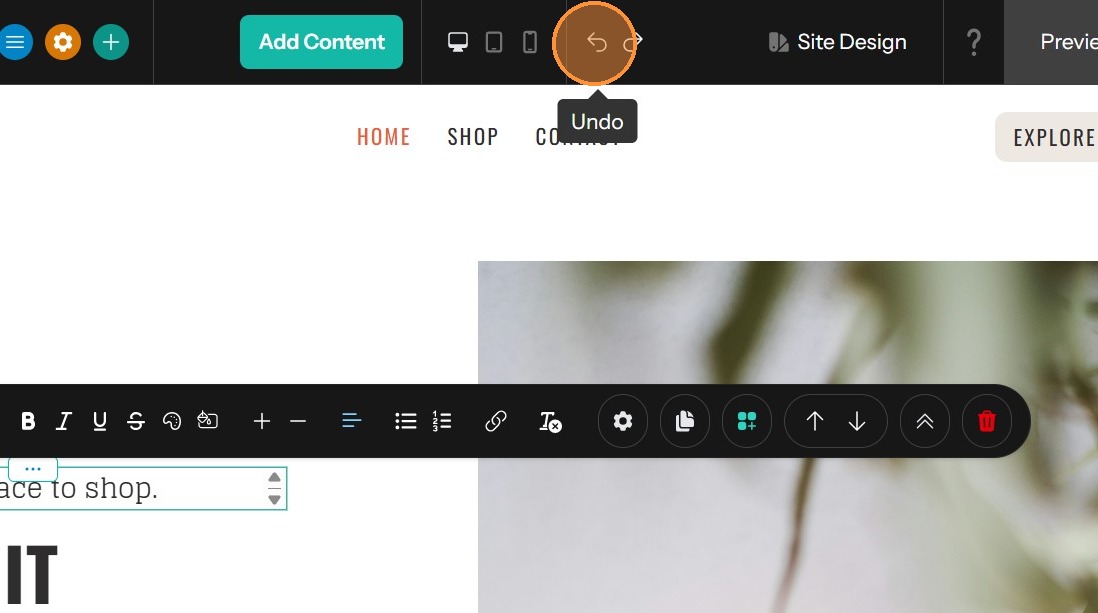
Undo Button
1. Sometimes you might need to undo an action within the website editor. Articulation will currently allow you to undo the last 25 actions taken within the editor by clicking the undo or redo arrow buttons at the top of the editor.
Tip: Tip! Most browsers have an undo option which you can use to undo text changes. This will work while directly editing text (and our undo button does not work for text changes), but it will not work once you’ve clicked elsewhere since Articulation automatically saves your changes.
Tip: What types of actions on a page can you undo?
- Deletion of a component
- Moving a component to somewhere else on page
- Copying a component
- Changes in global sections like the header and footer
Tip: What actions can you not undo?
- Changes to content within a component, such as text edits
- Page deletion
- Changes to the header and footer code fields for your site (in the page settings)
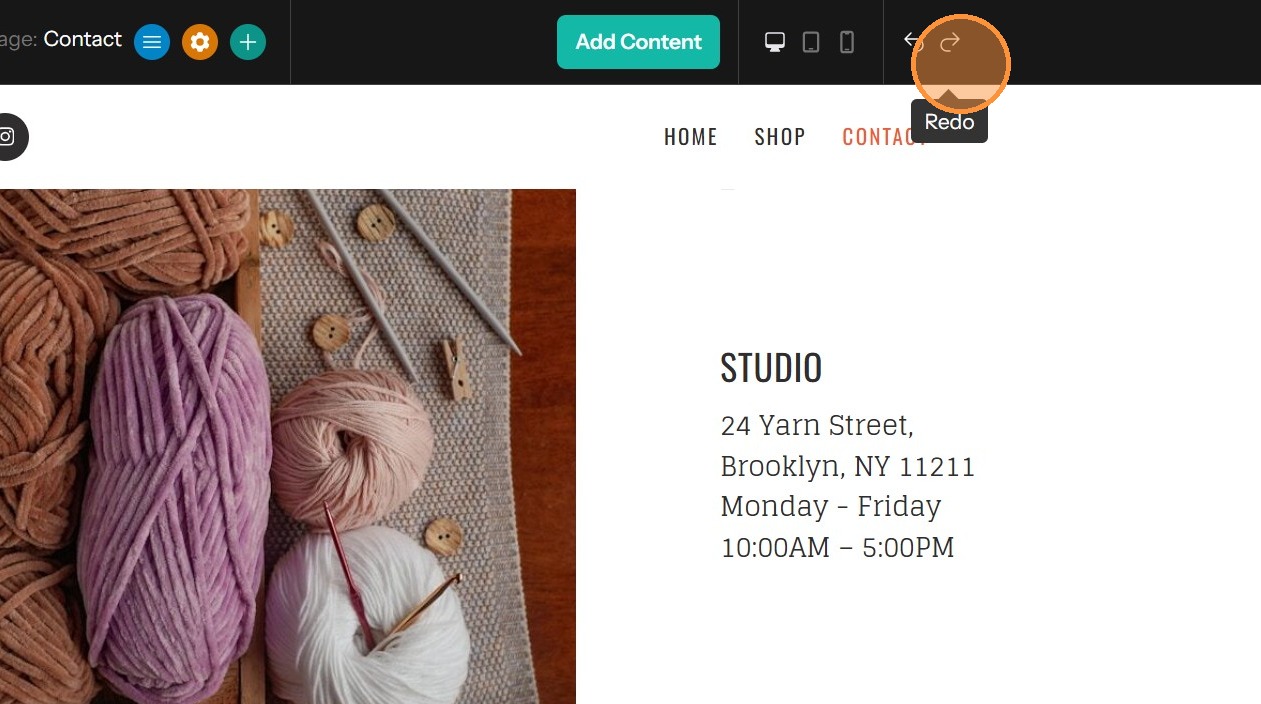
Redo Button
2. If you've used the Undo button to change something by mistake, the Redo button will restore it.