Countdown Timers
Adding and customizing a countdown timer
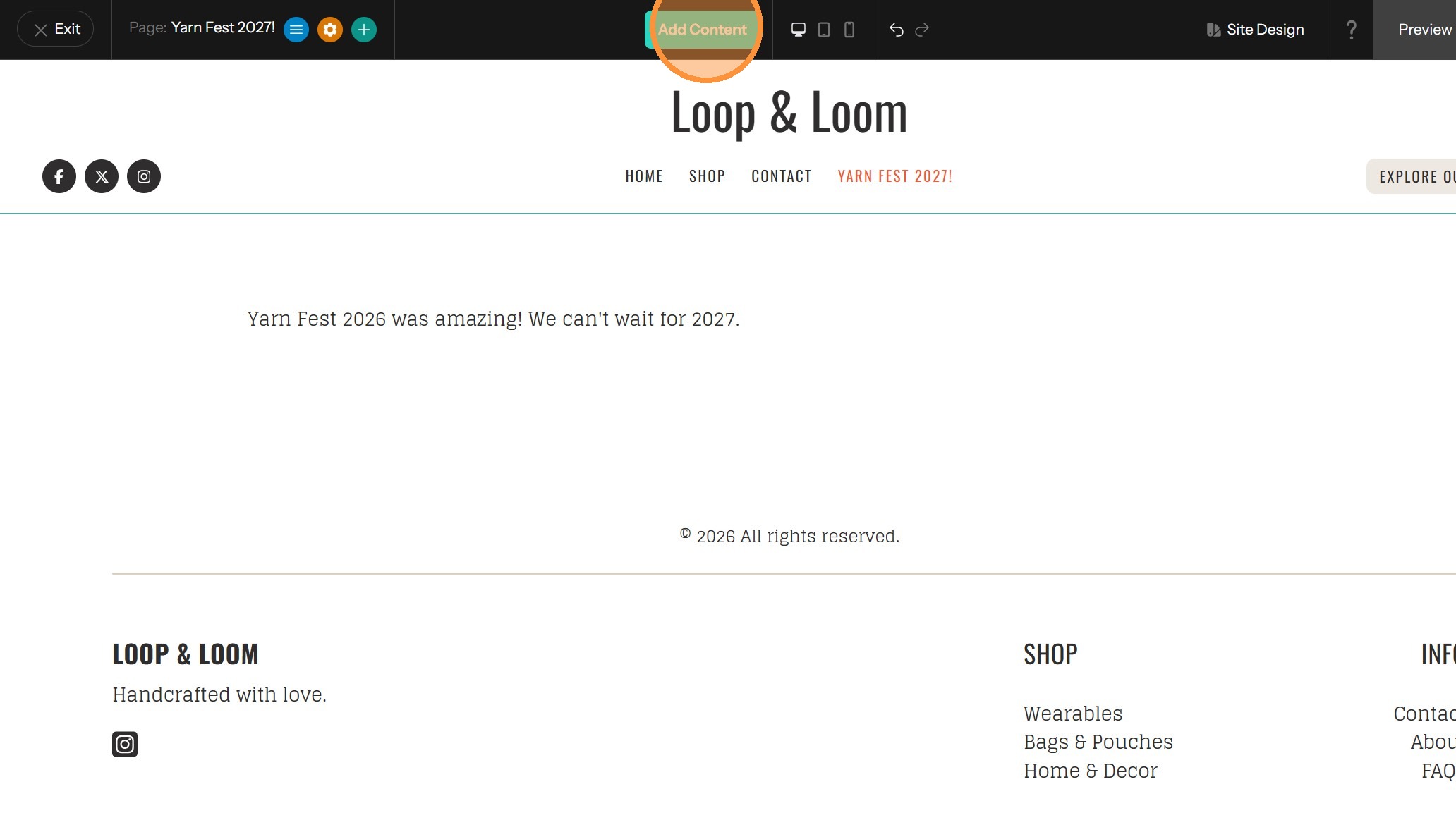
1. Click "Add Content"
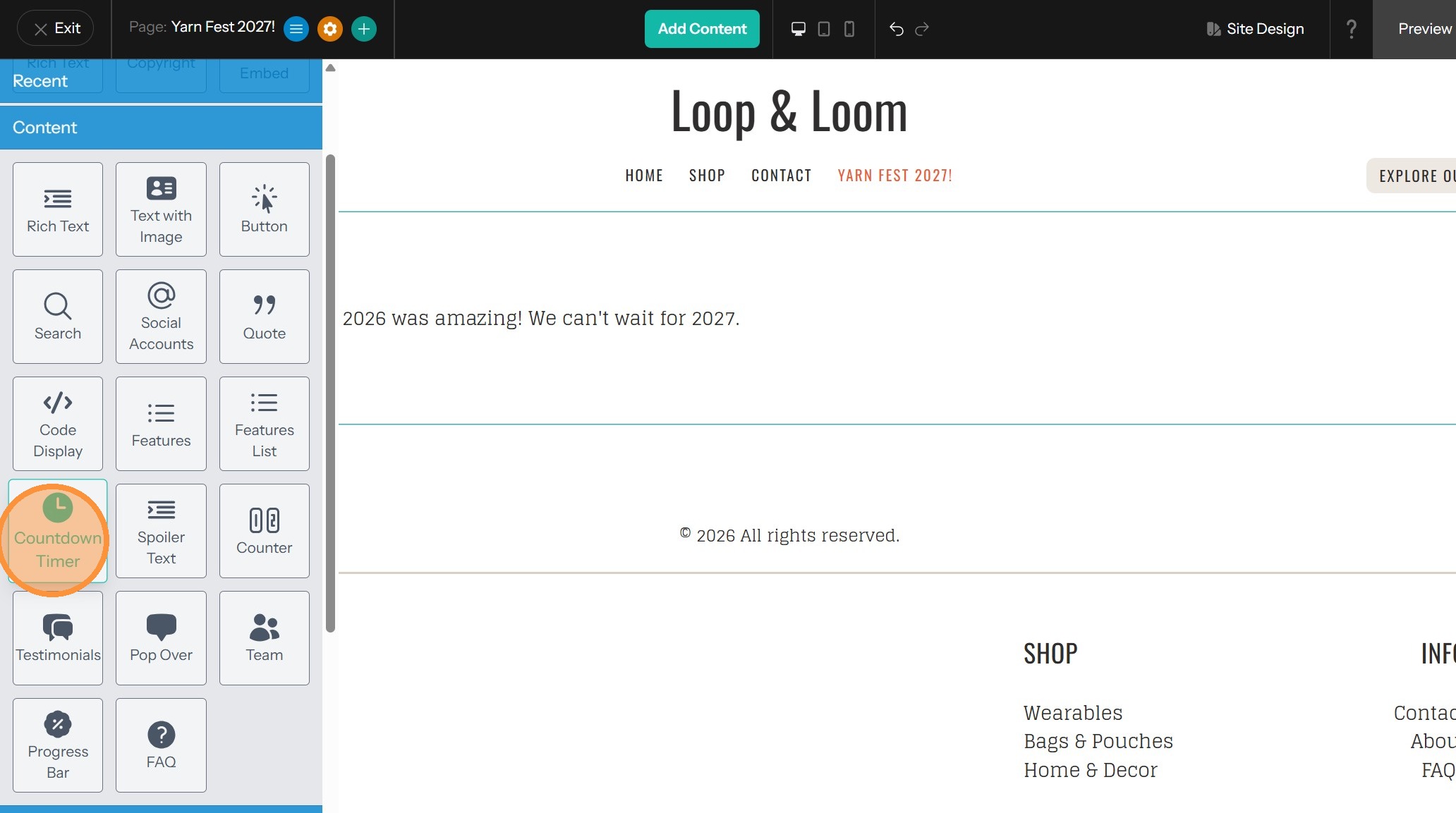
2. Find Countdown Timer under Content and drag it to the desired location
Timer Content Configuration
3. Double-click the Countdown Timer to open the settings sidebar
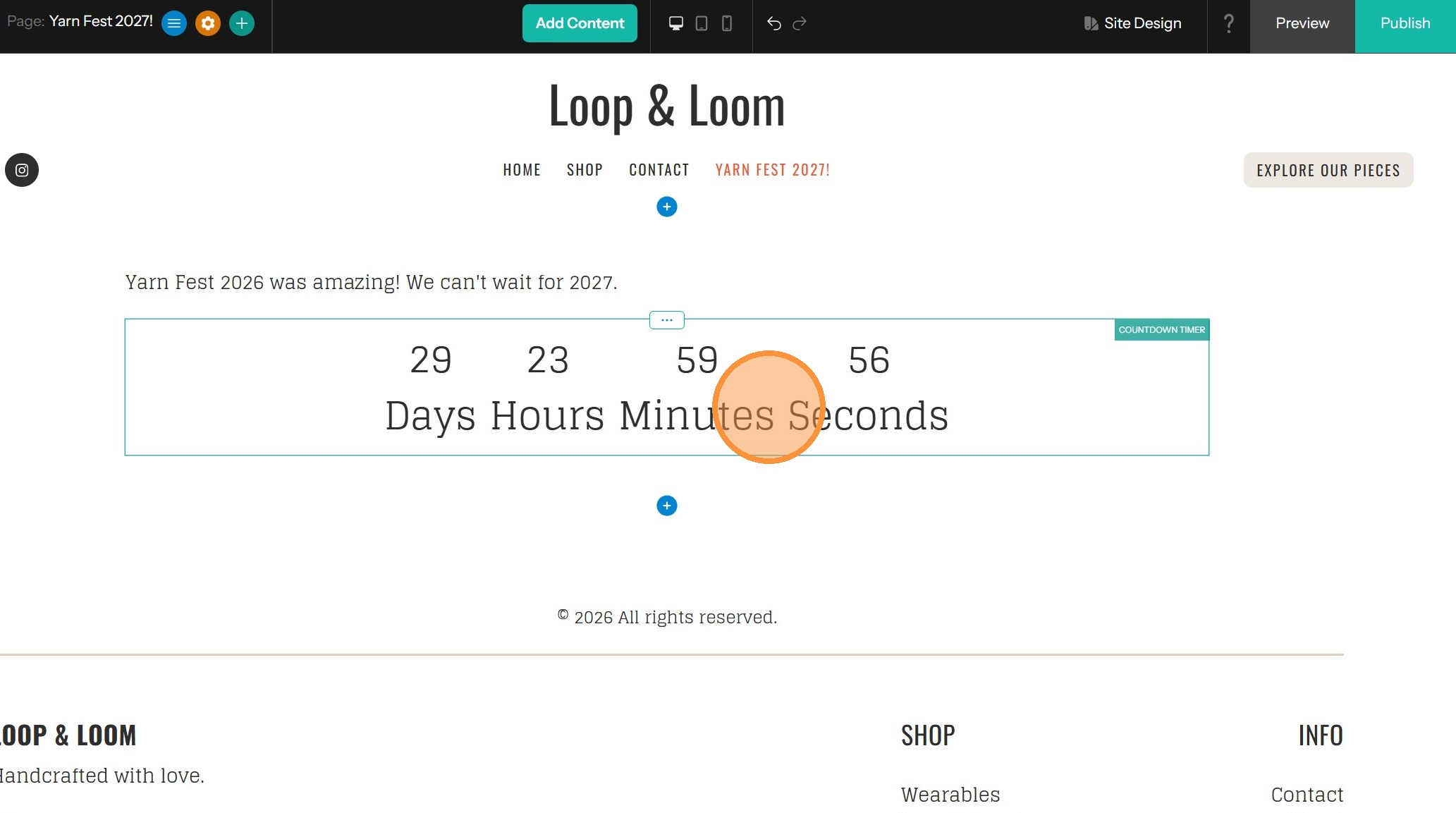
4. Set the Target Date (and time)
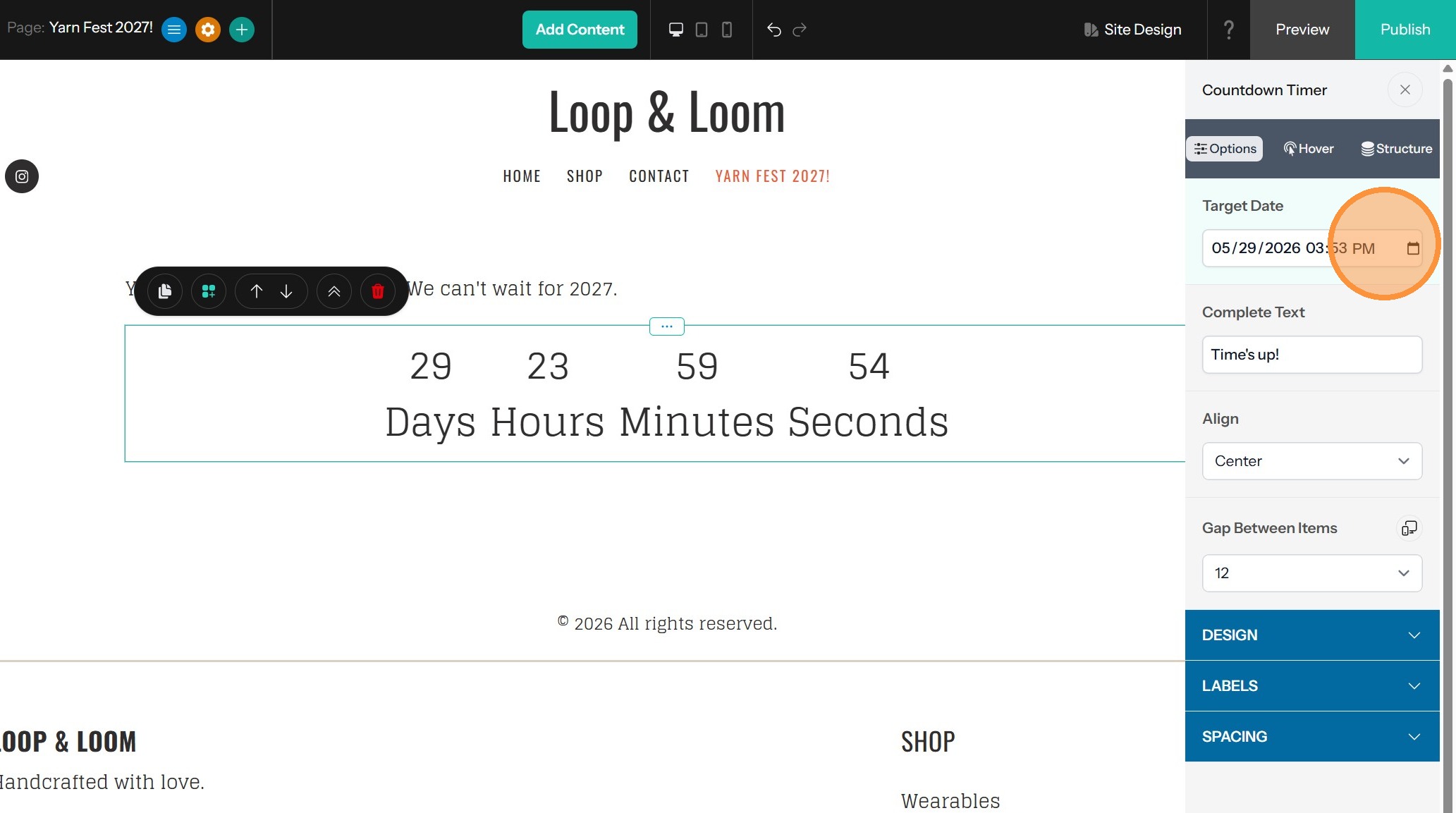
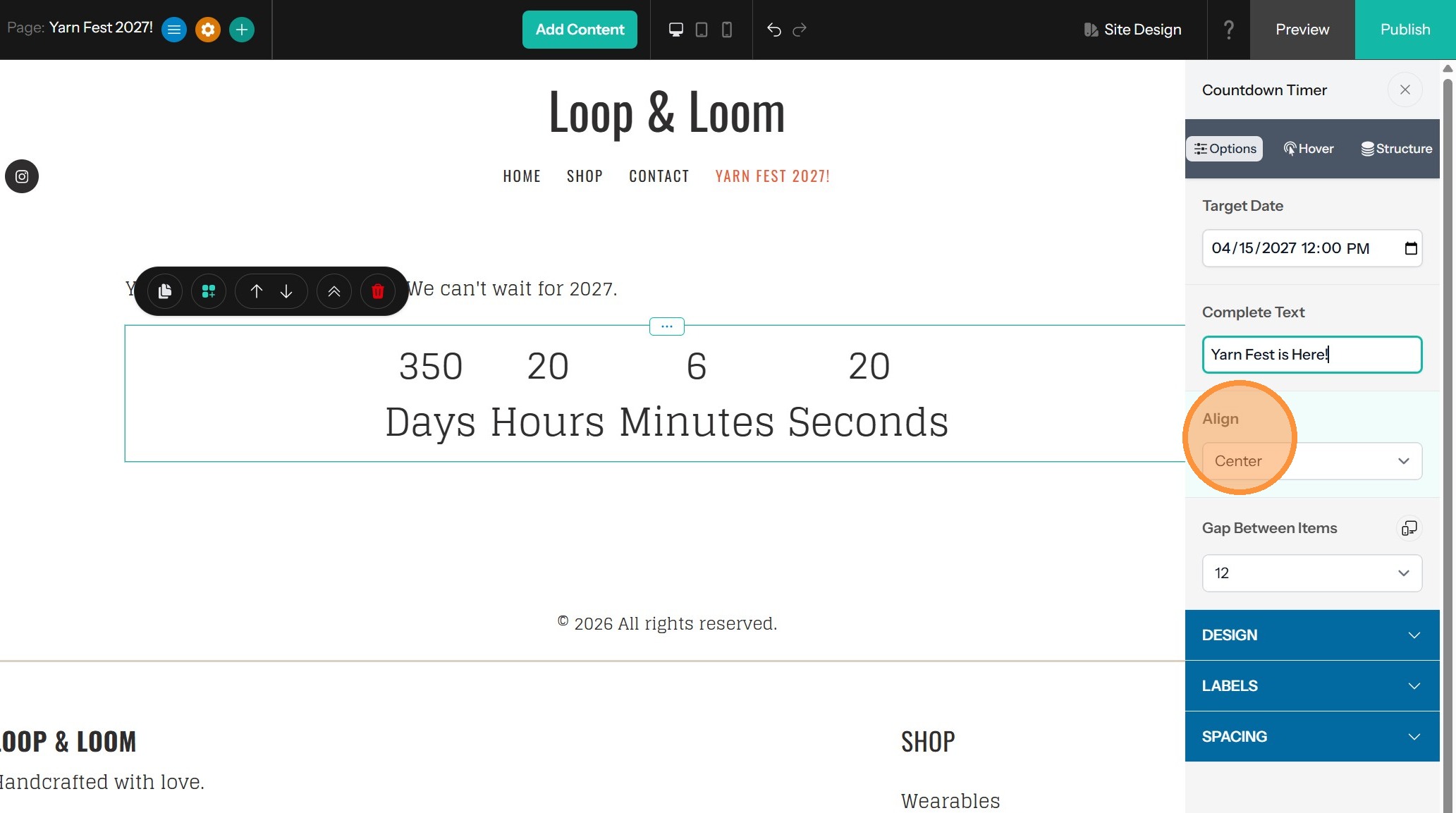
5. The Complete Text field is what will be displayed when the time is up. Customize it as needed

6. Change the alignment and spacing between the times as needed
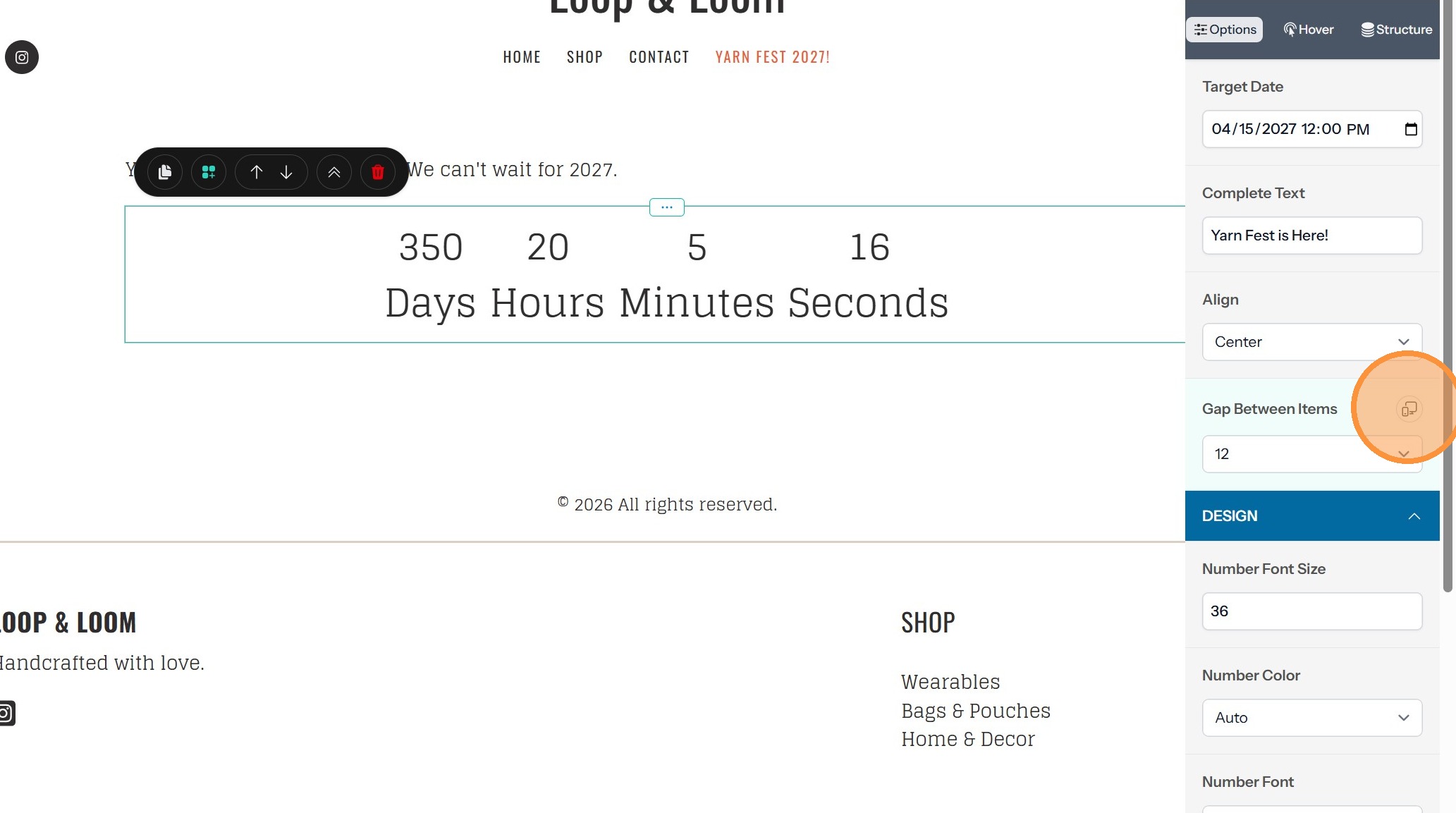
7. With the Gap Between Items option, you can control the spacing between each part of the date and time. You can also set this separately for different screen sizes by clicking the desktop/mobile icon.
Style Customization
8. Edit the fonts, colors and sizes for the numbers and labels as needed in the Design drawer.
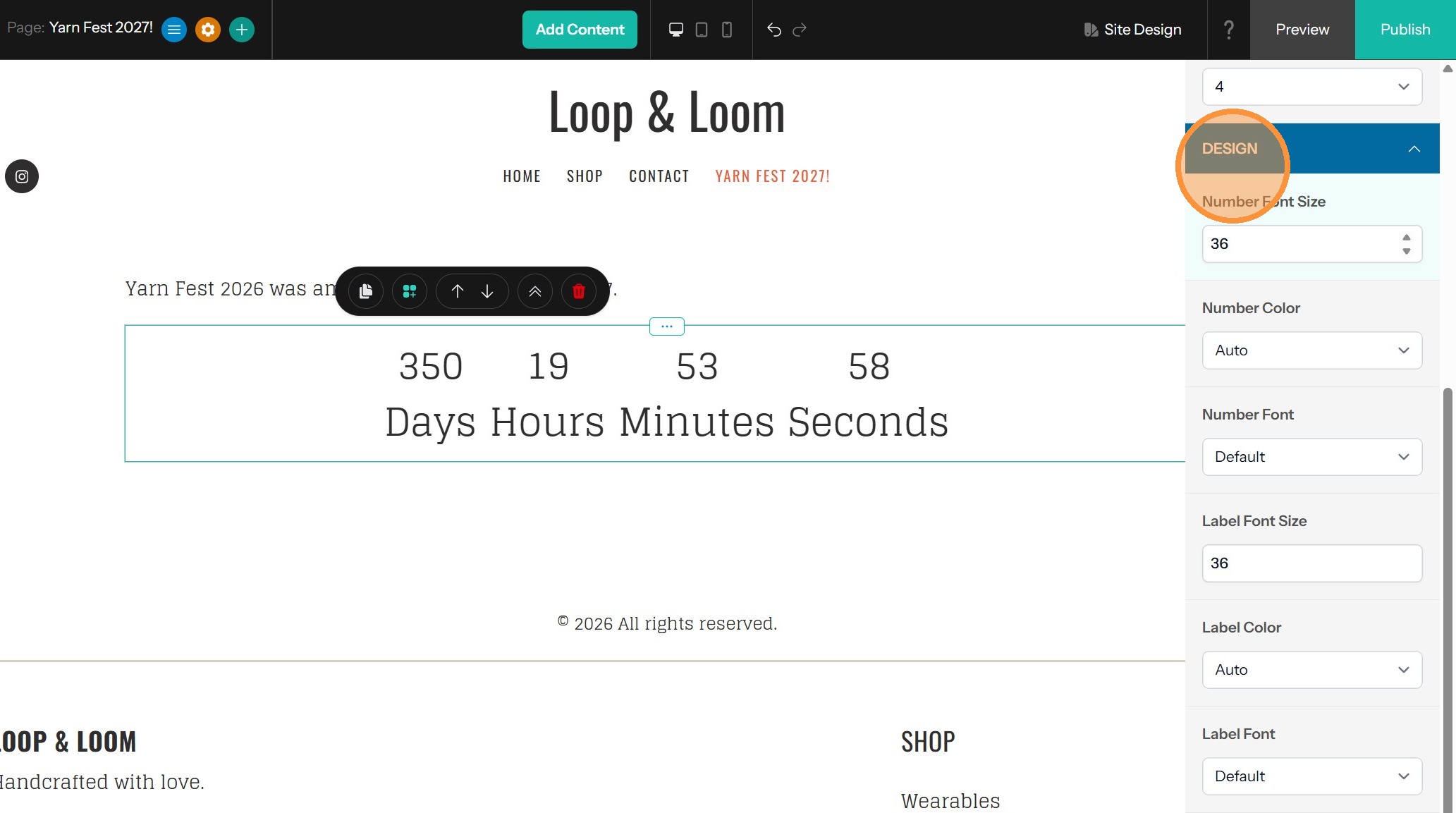
Tip: We provide a number of design options for the countdown timer to give you fine-grained control of text styling.
- Number Font Size - The font size of numbers within the component.
- Number Color - The color of numbers in the component.
- Number Font - The font used by numbers in the component.
- Label Font Size - The text size of labels for each number.
- Label Color - The color of the text used for labels.
- Label Font - The font used by text labels.
- Complete Text Font Size - The size of the text shown in your complete message.
- Complete Text Color - The color of text shown in the complete message.
- Complete Text Font - The font used by text in your complete message.
9. Edit the words used to label the hours, minutes, days and seconds as needed in the Labels drawer
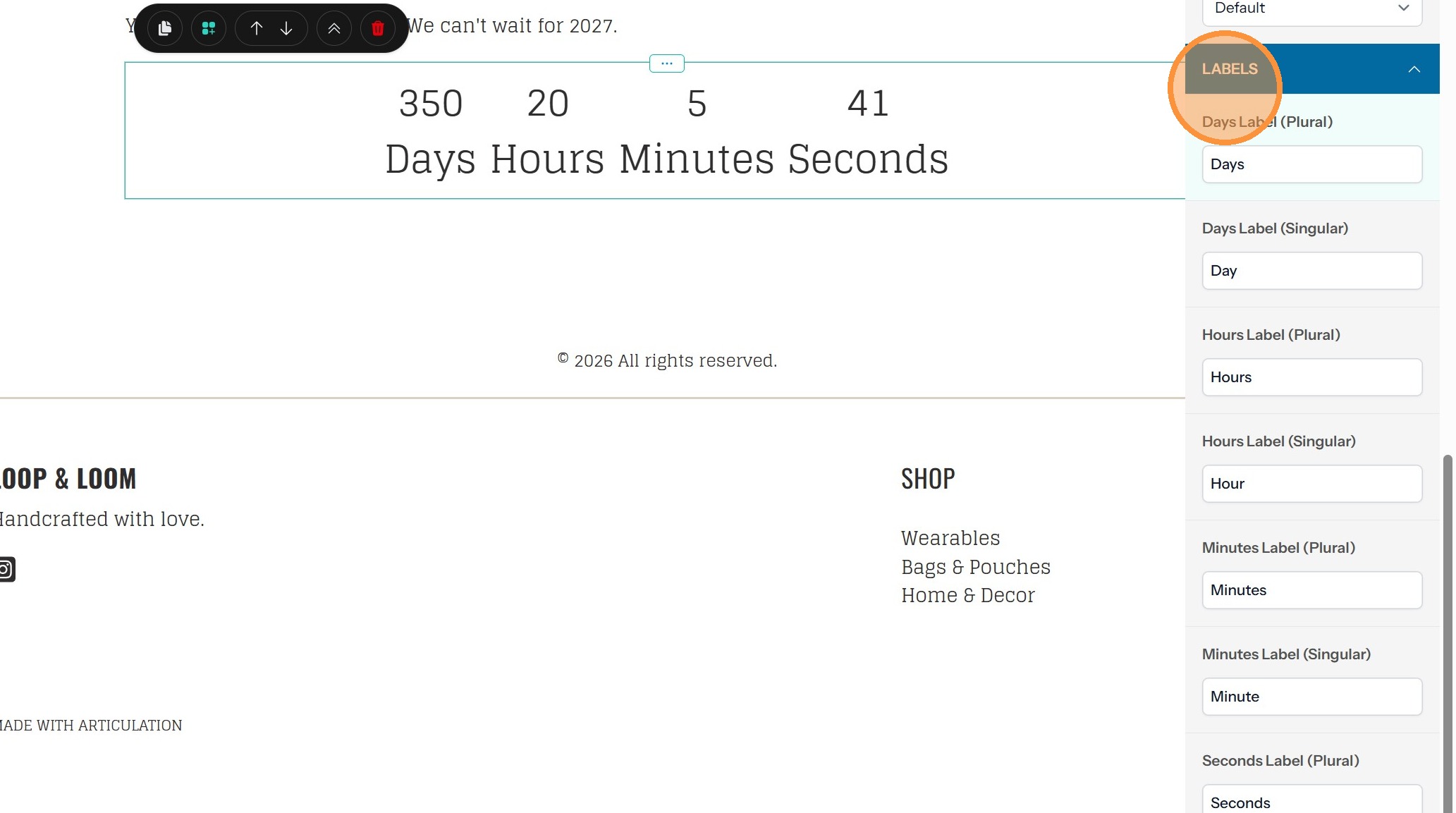
Edit the Spacing
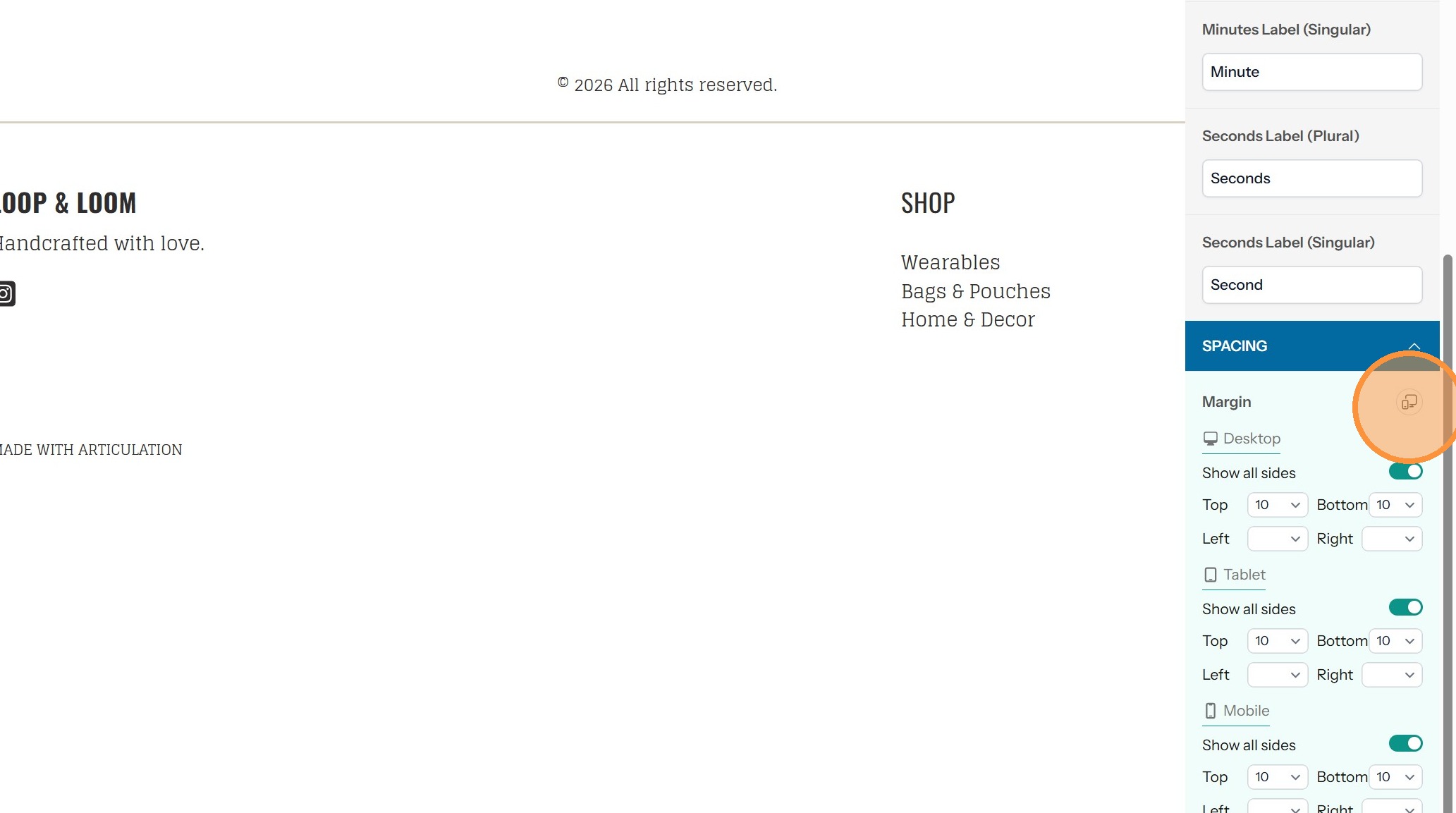
10. In the Spacing drawer, you can edit the space around the counter within the component. You can set this individually for each side or all together
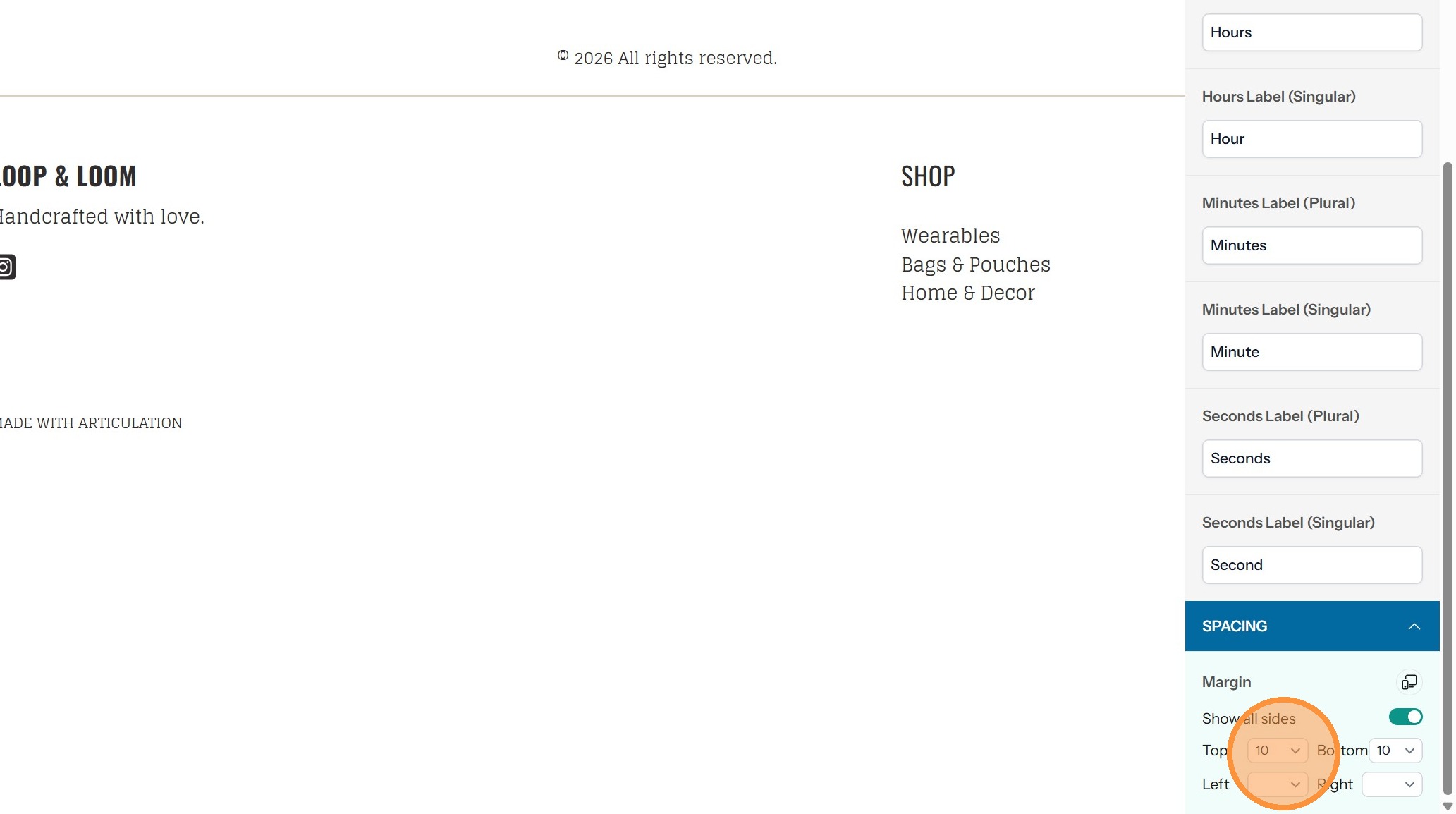
11. You can edit the spacing separately for different screen sizes by clicking the desktop/mobile icon