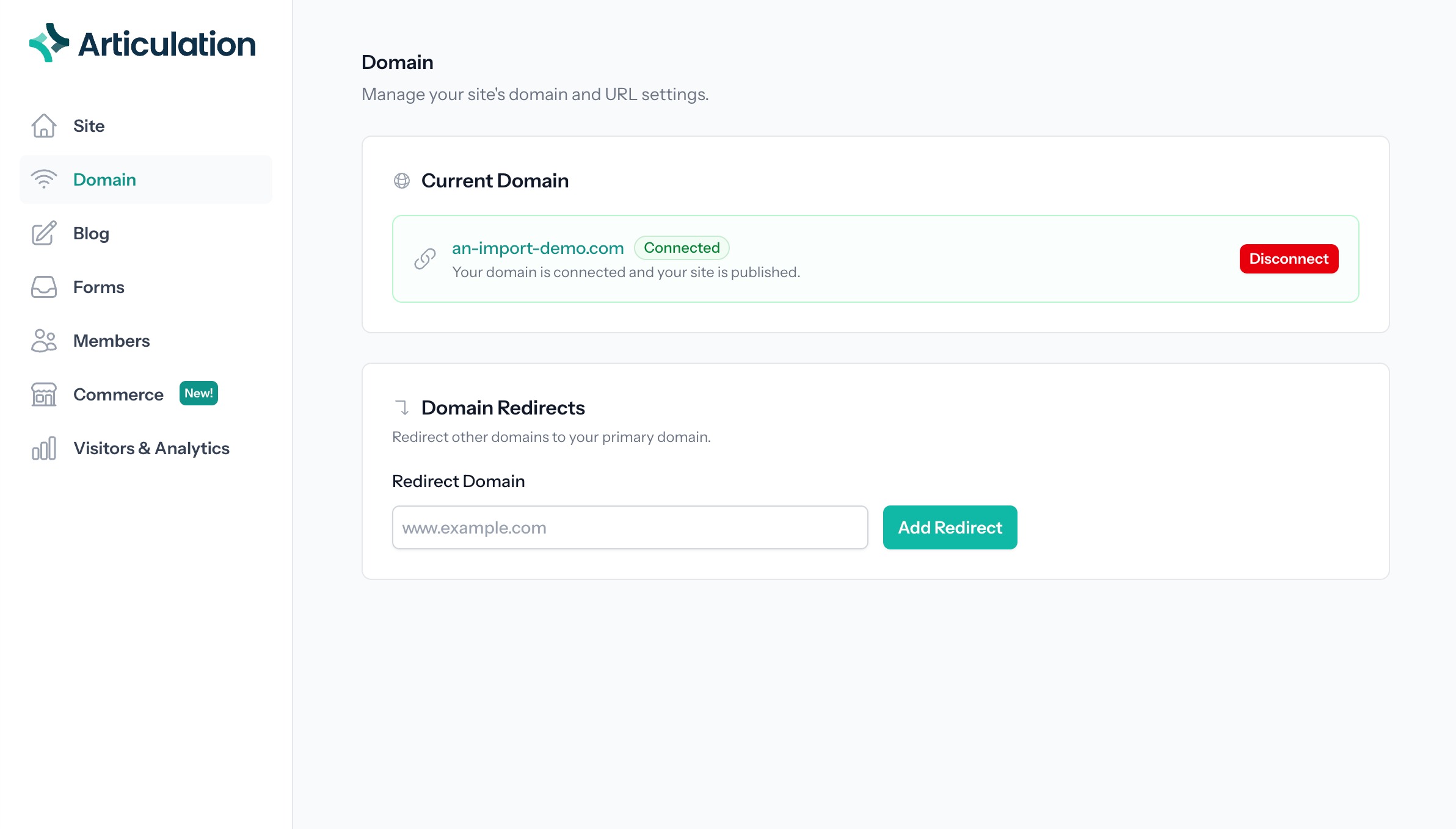
Import a Weebly Site and Connect a Custom Domain
This guide walks through the process for importing your Weebly site to Articulation and connecting a custom domain.
Import Weebly Site Content
1. Navigate to https://www.articulationsites.com/
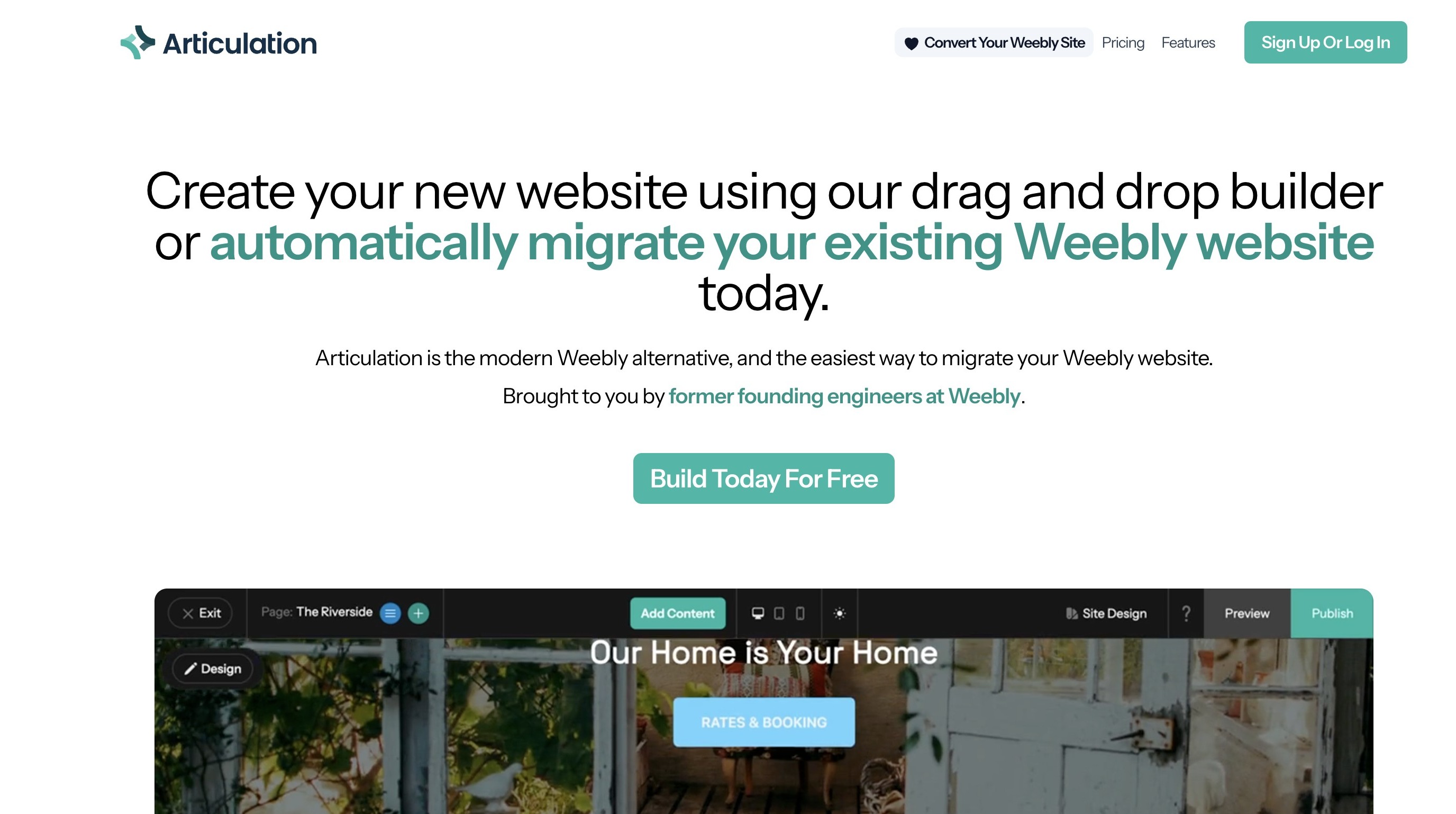
2. Click "Convert Your Weebly Site"
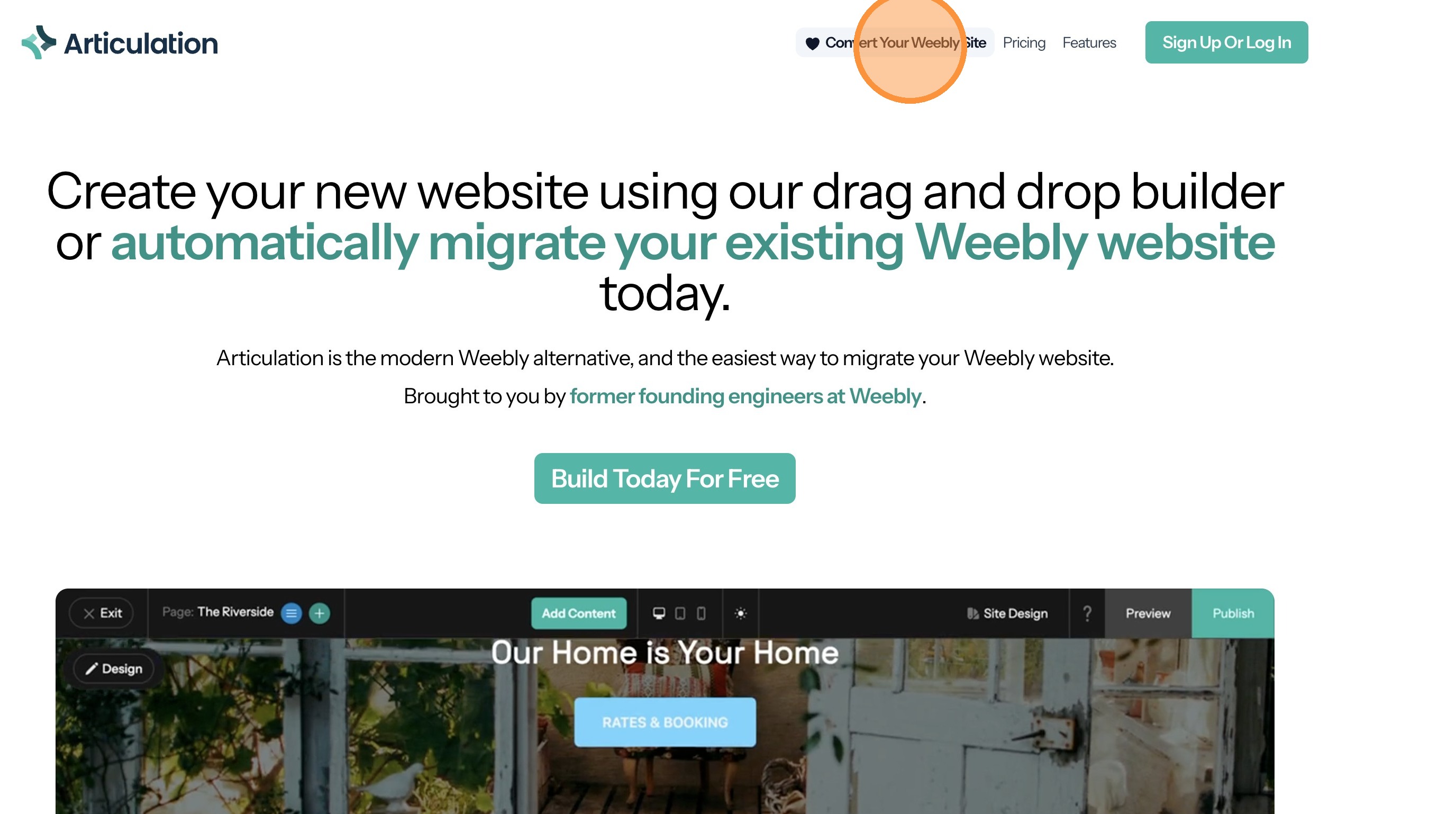
3. Enter the address for your Weebly website
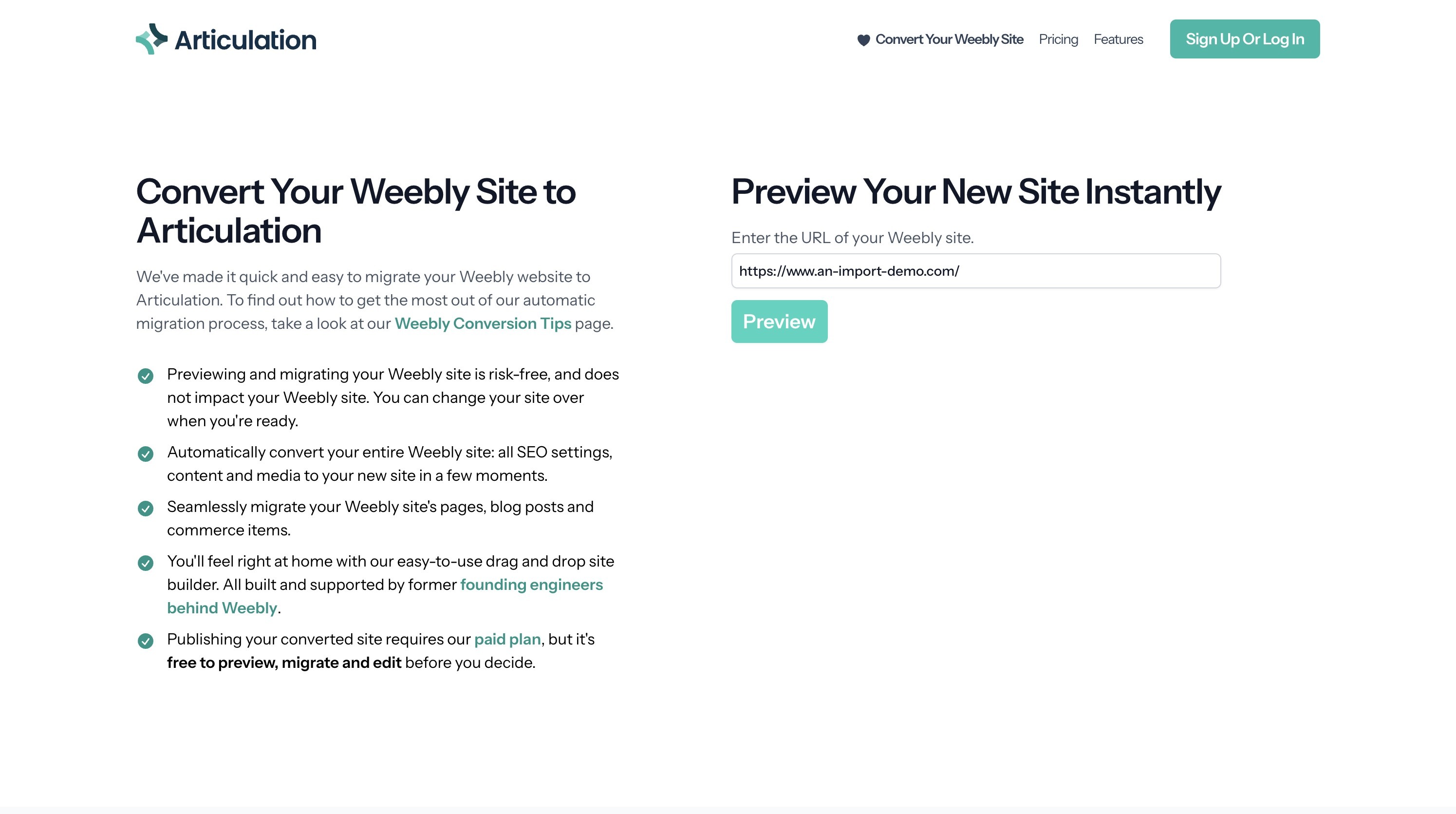
4. Click "Preview"
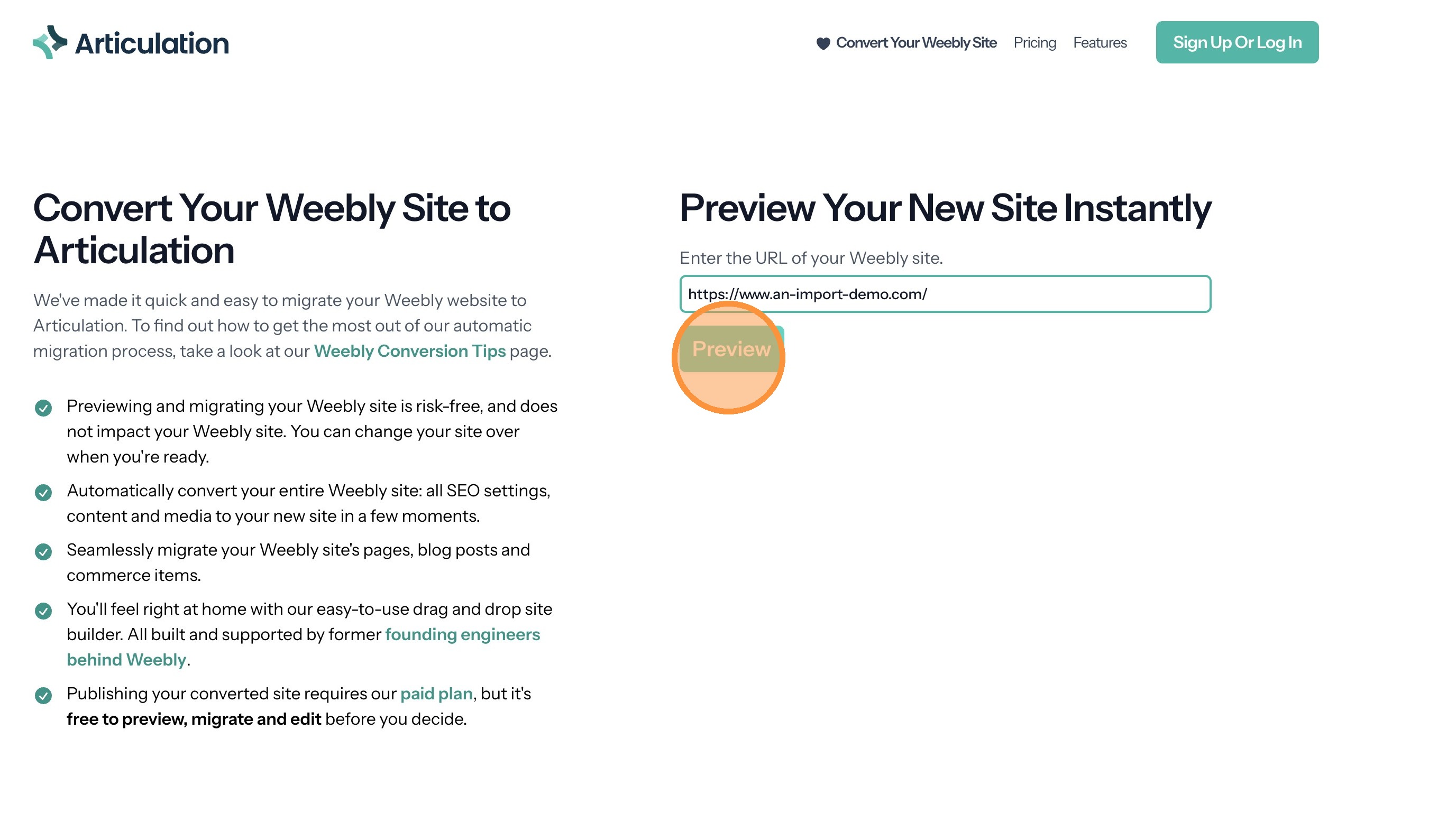
5. You will see a preview of what your site will look like once imported to Articulation. Click "Continue"

6. Enter your email address to create an account. A login link will be sent to your email address.
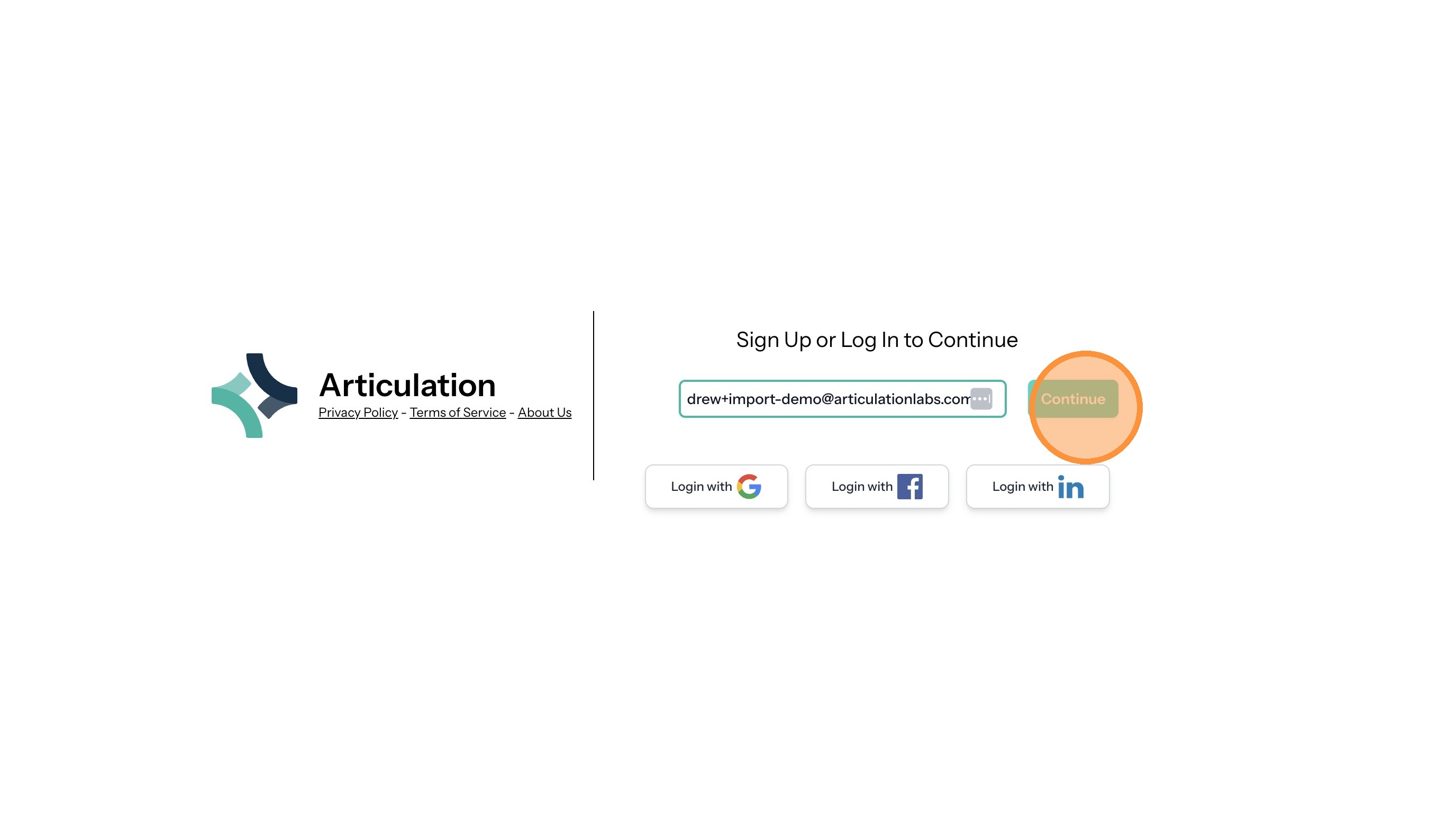
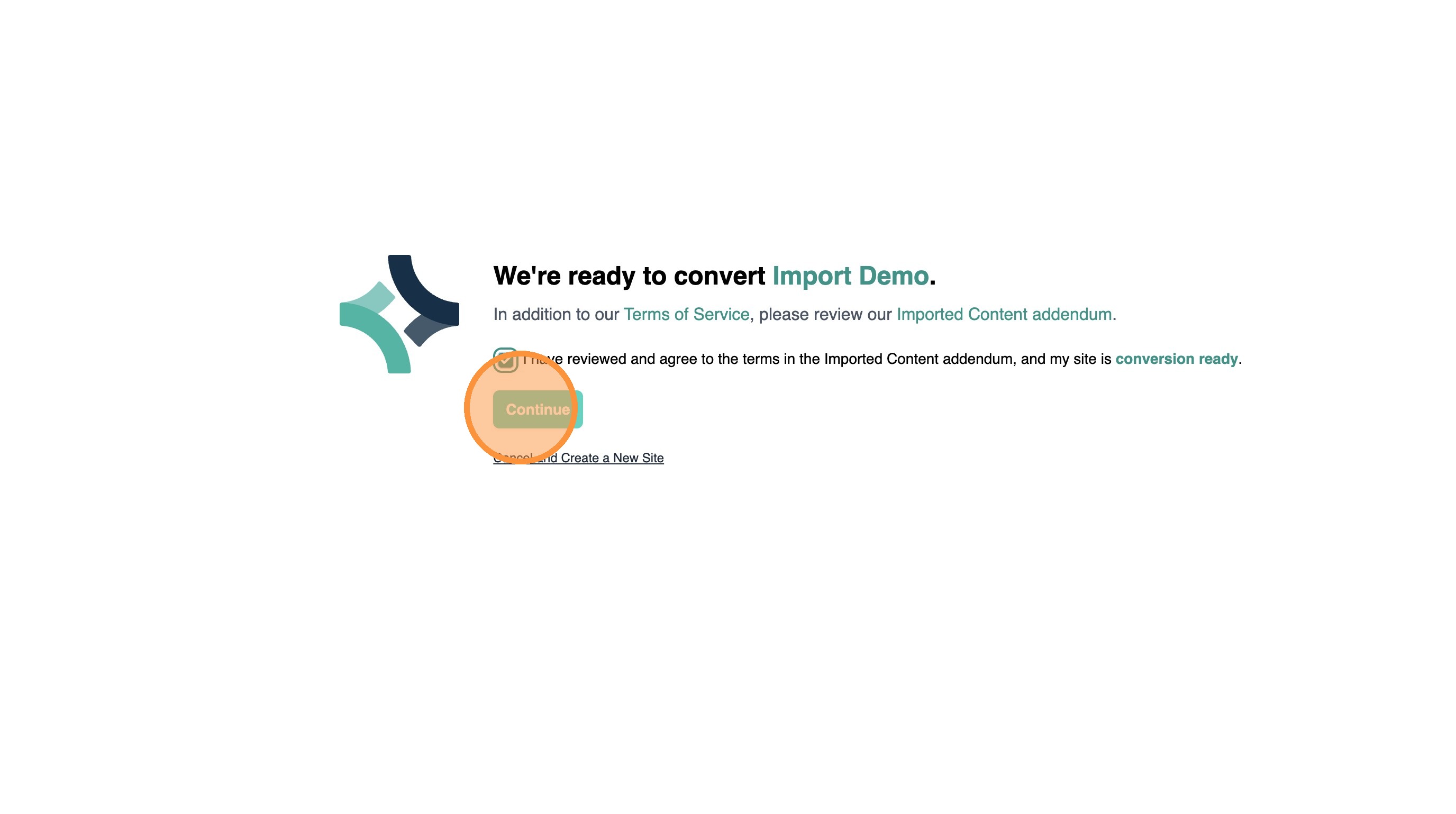
7. After clicking the login link, agree to the terms of service and click Continue. The site will be imported. This will typically take seconds for small sites and minutes for larger sites.
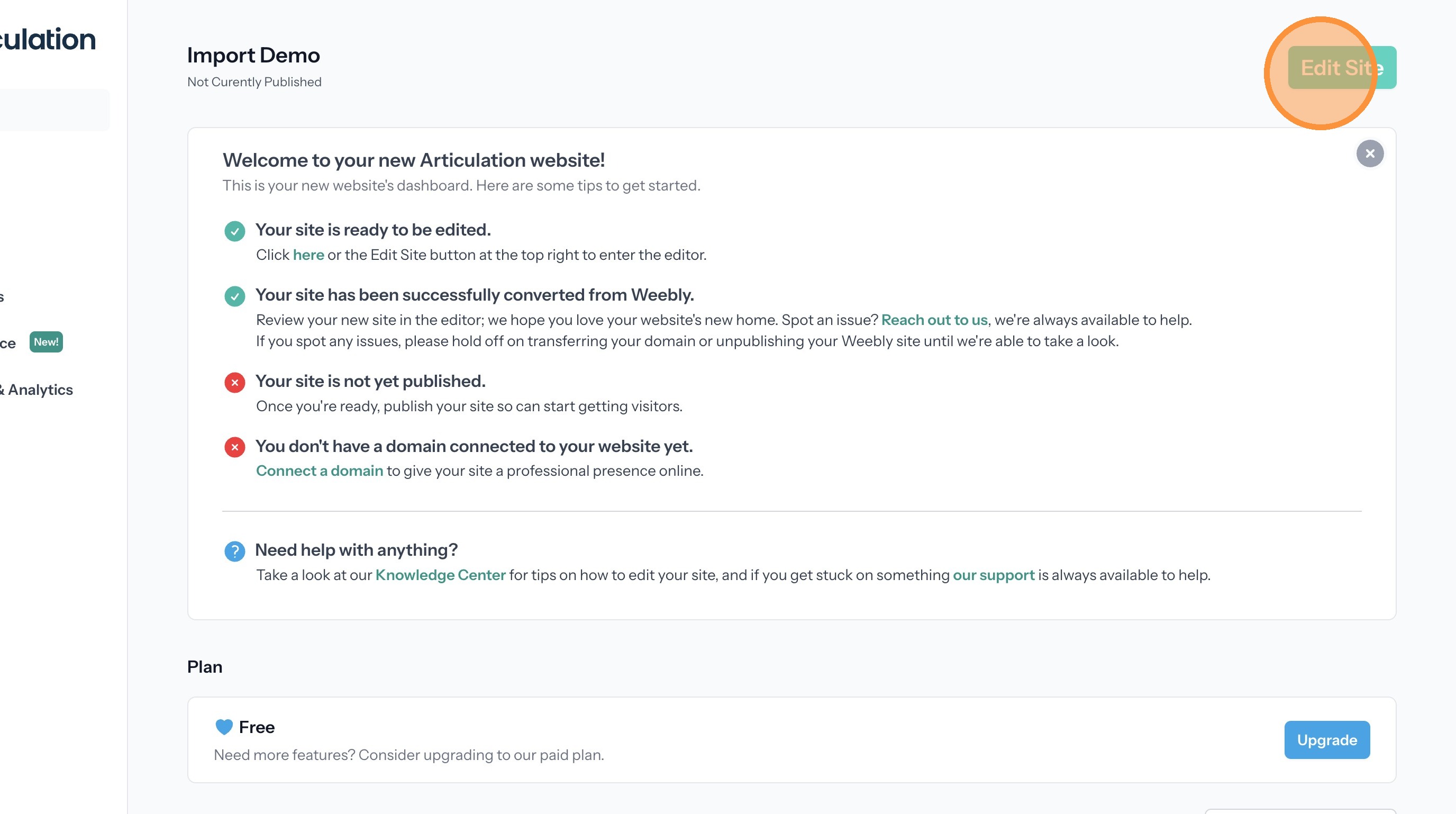
8. You will arrive at your site's dashboard. Click "Edit Site" to enter the site editor.
9. Here you can edit your content and make design changes.
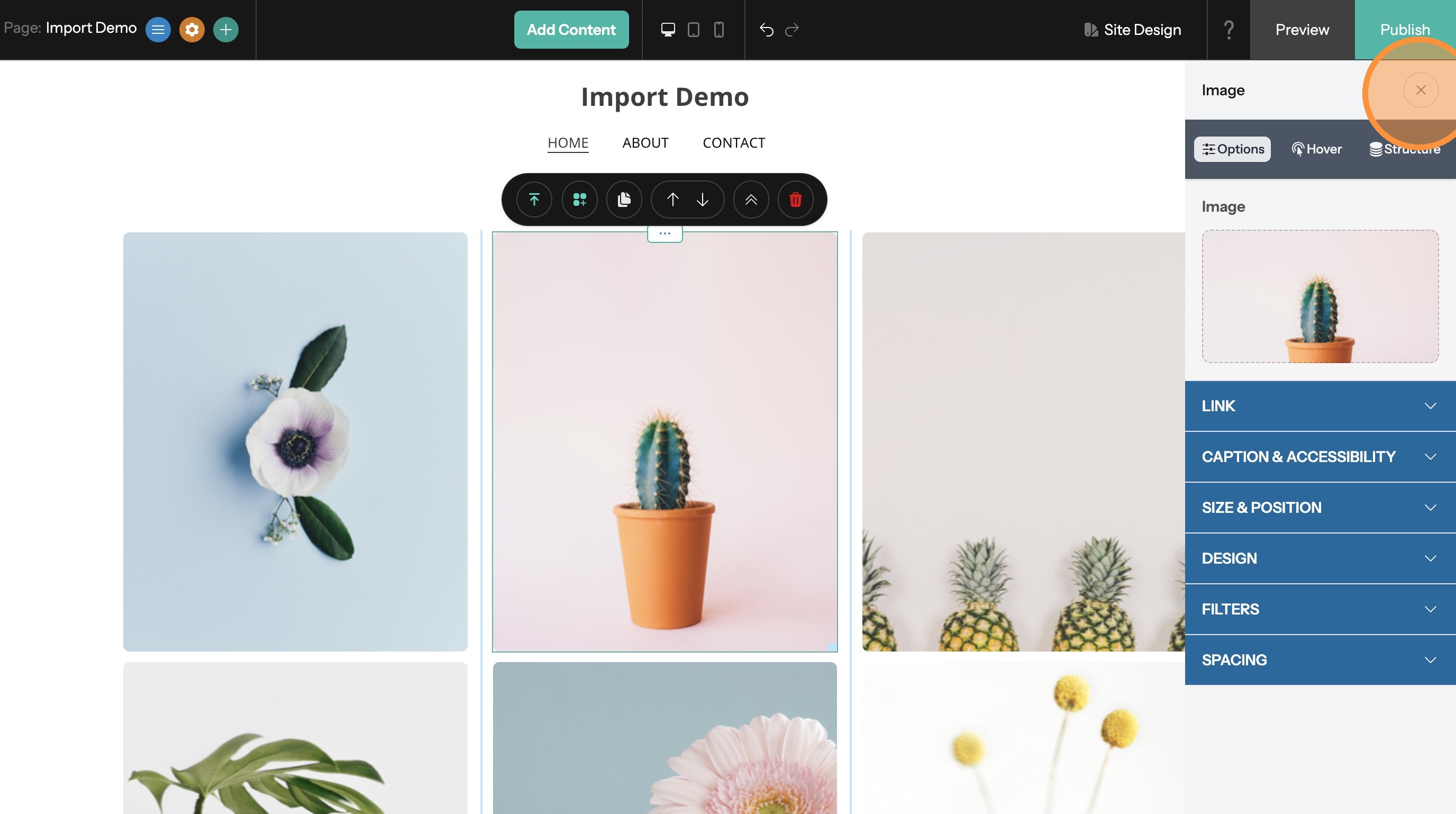
10. When ready click "Publish". At this point you will need to upgrade to a paid plan.
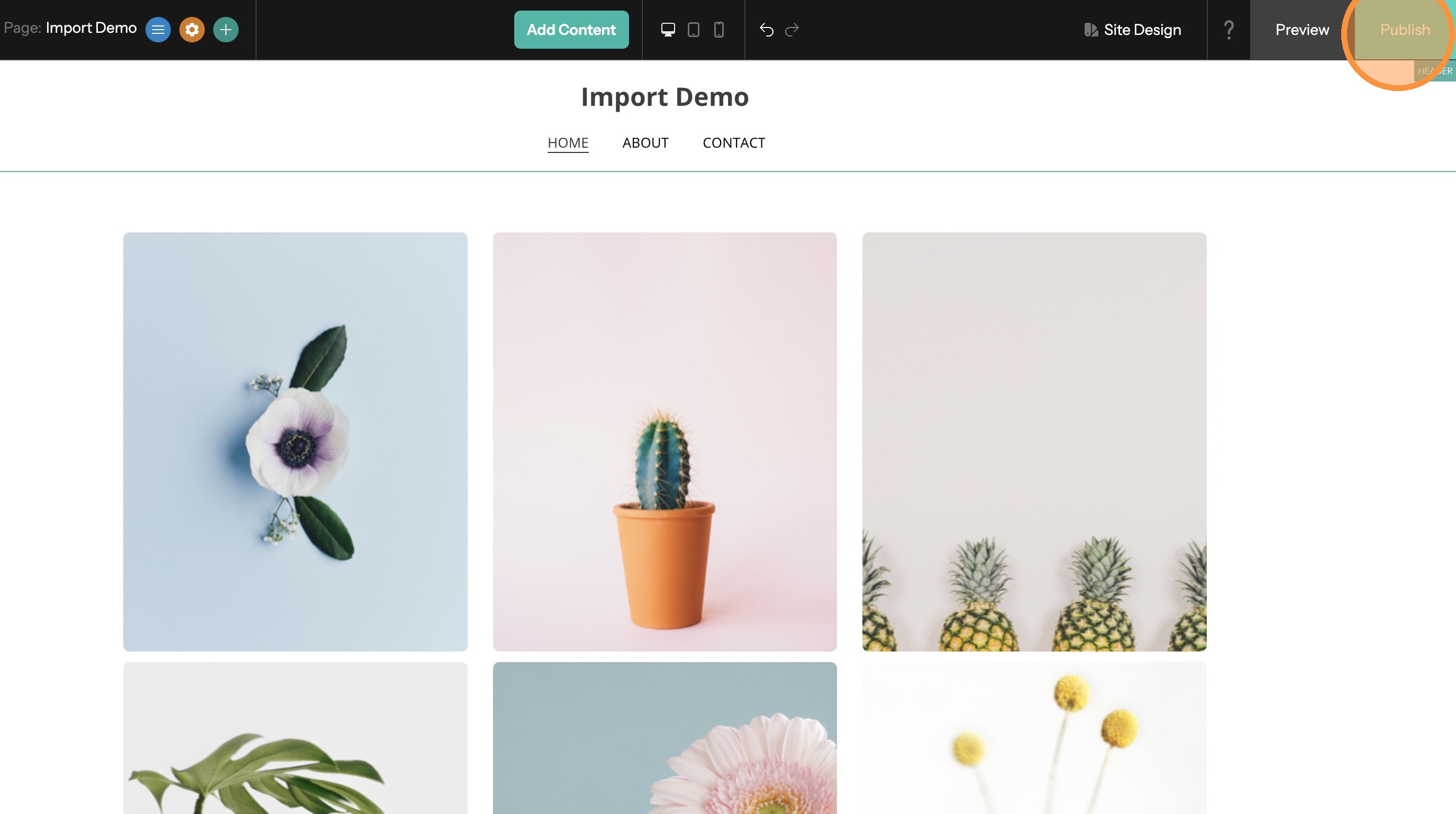
11. Your site will be published to a temporary url. Next you will connect your domain to the new site.
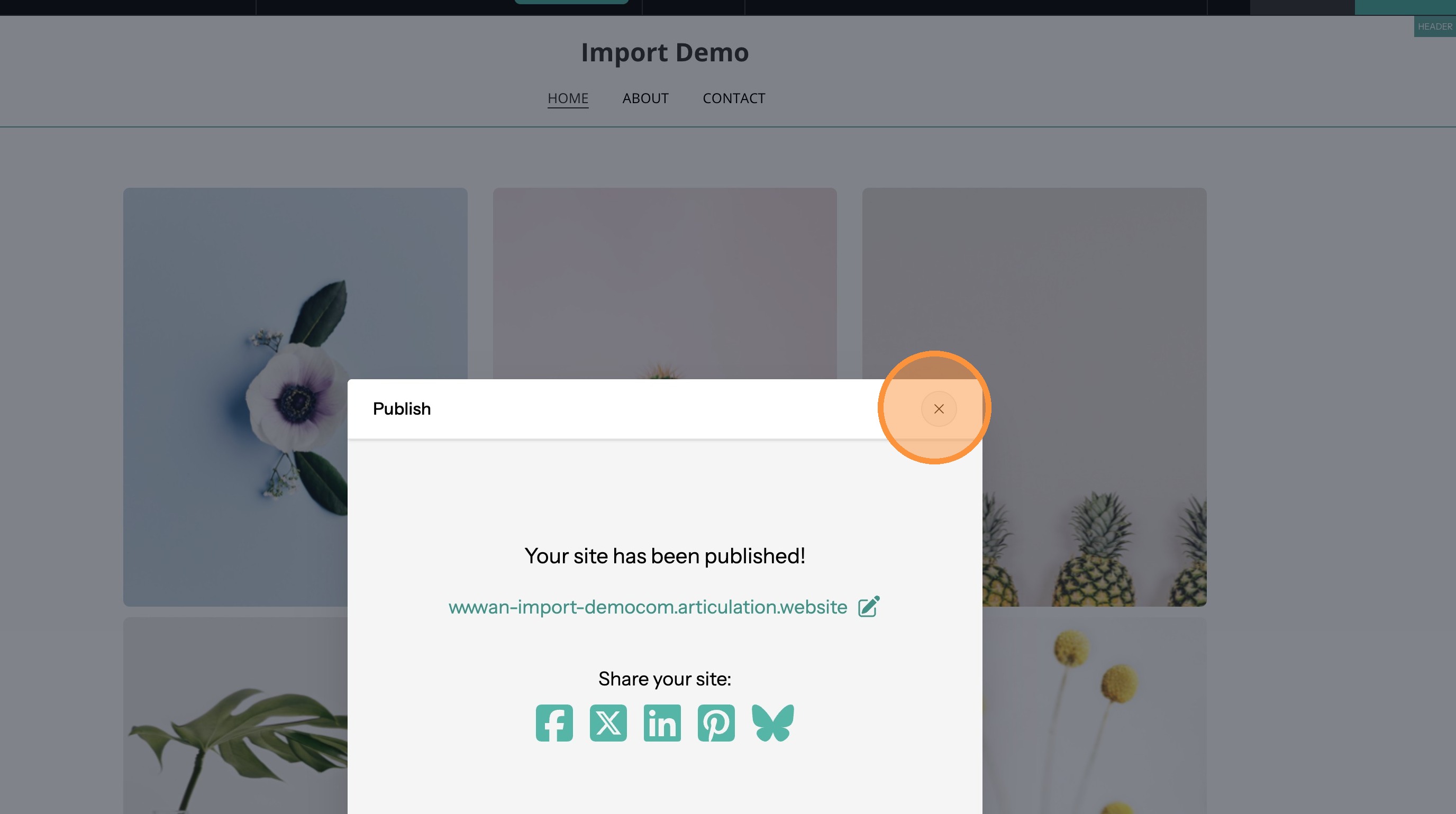
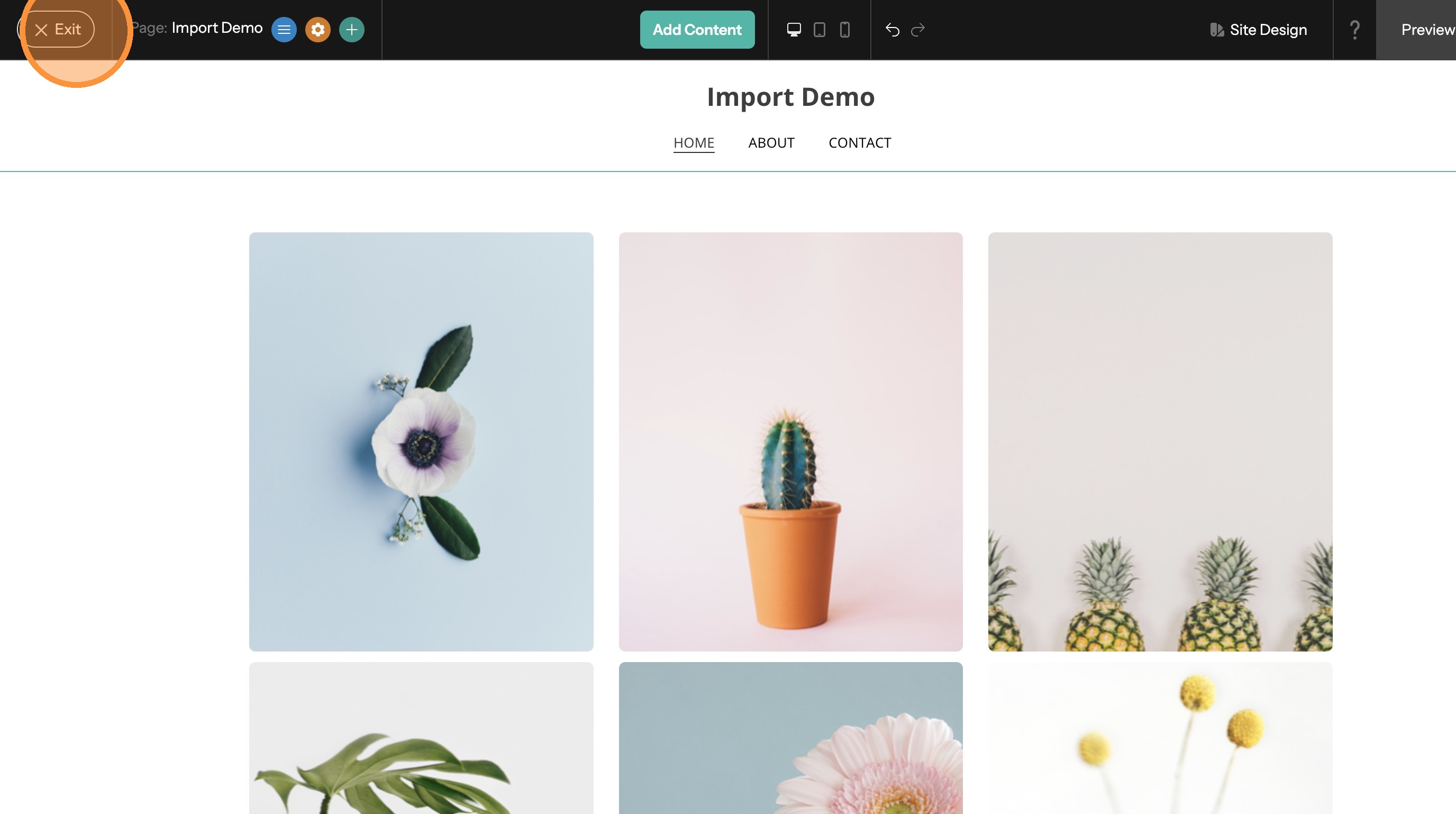
12. Click "Exit" to leave the website editor
Connect Domain
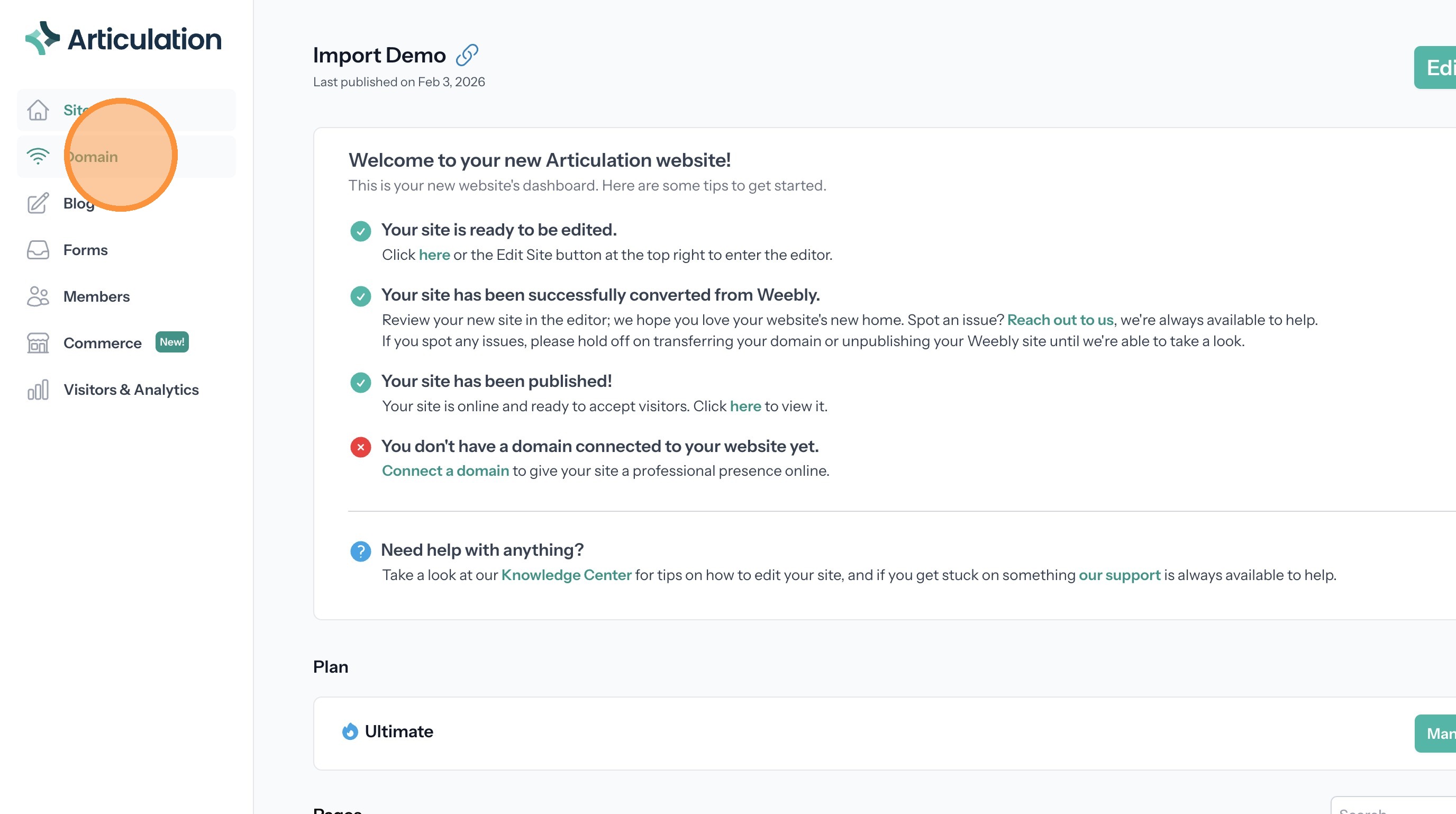
13. Click "Domain"
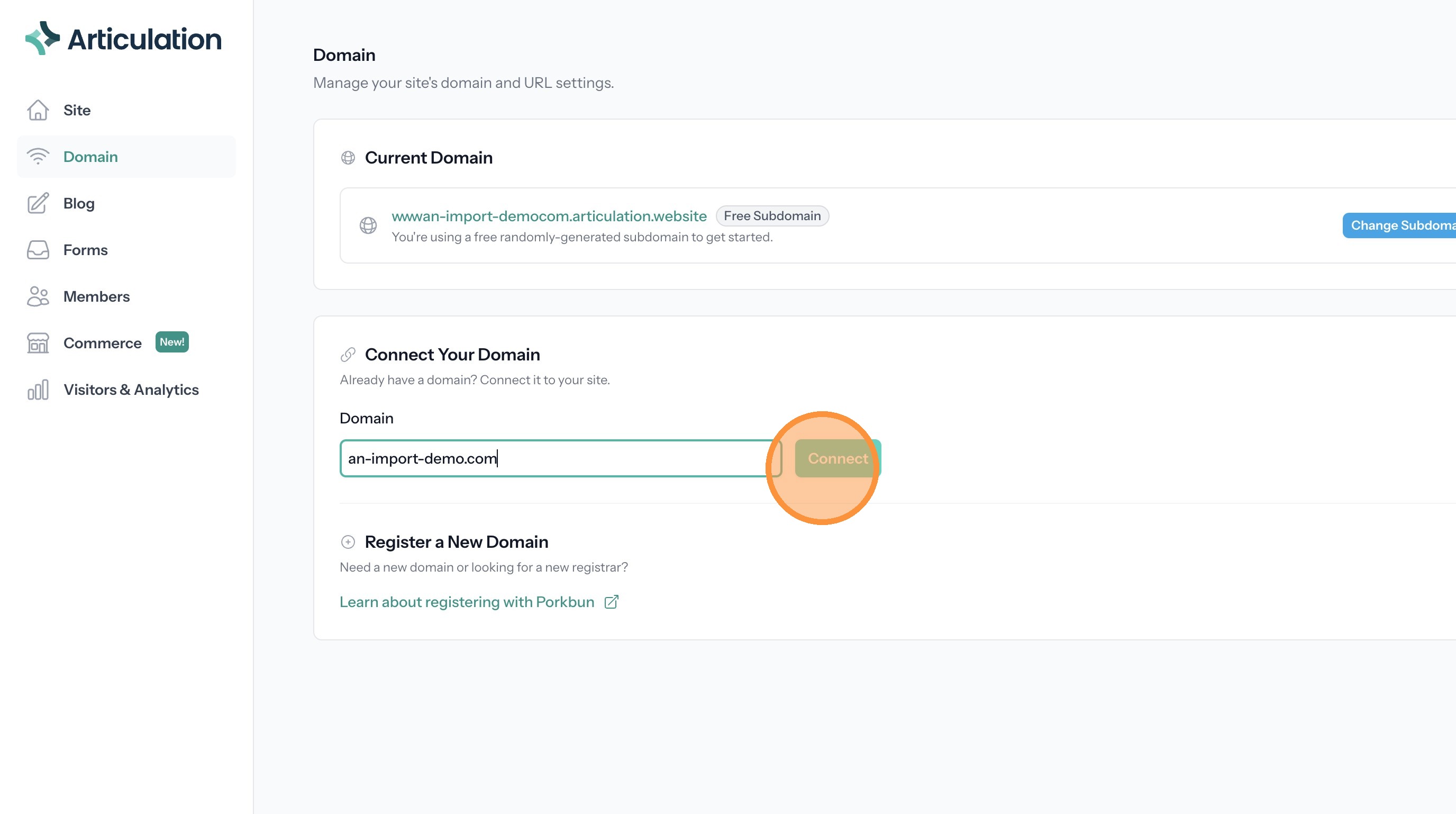
14. Enter your domain and click "Connect"
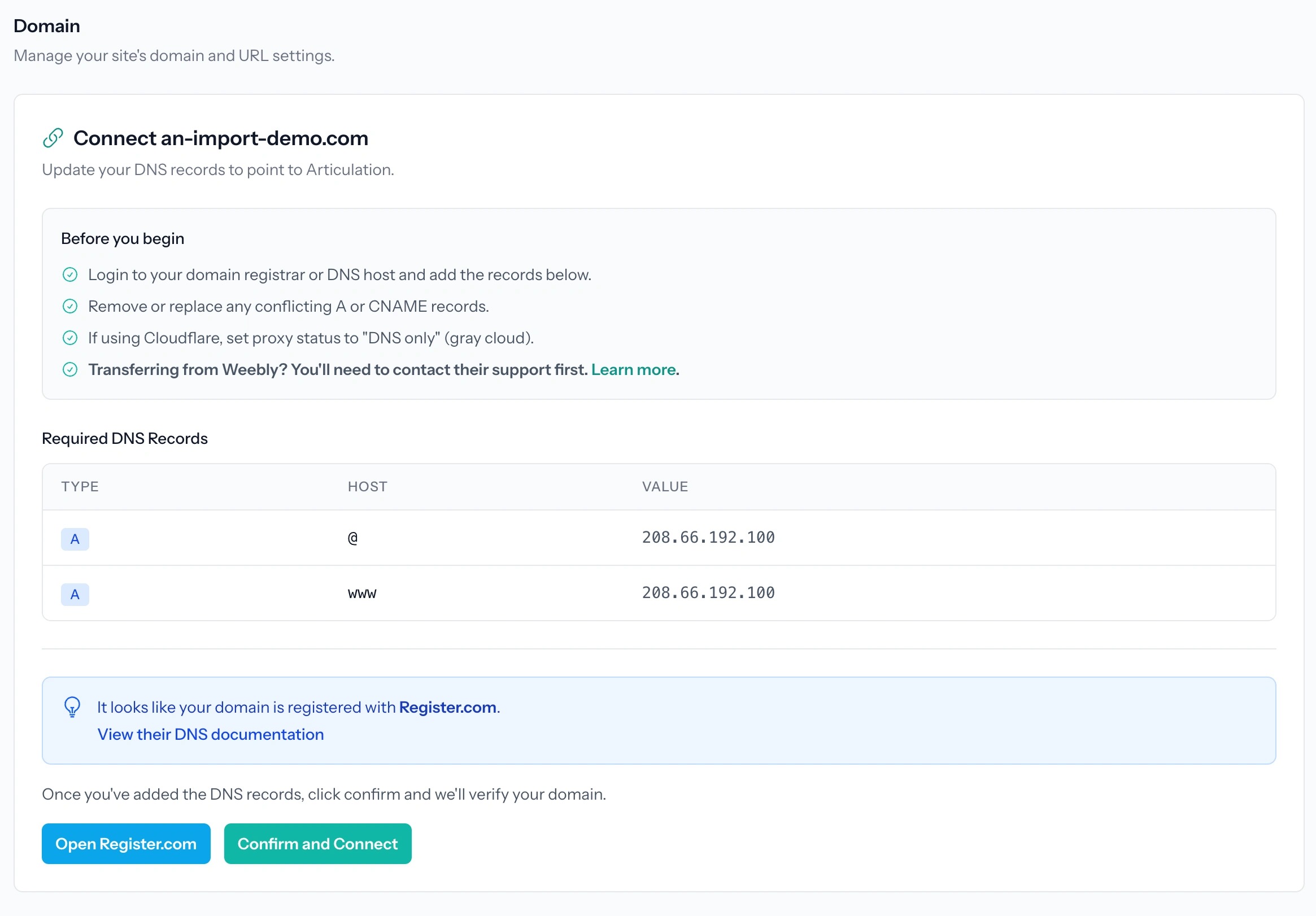
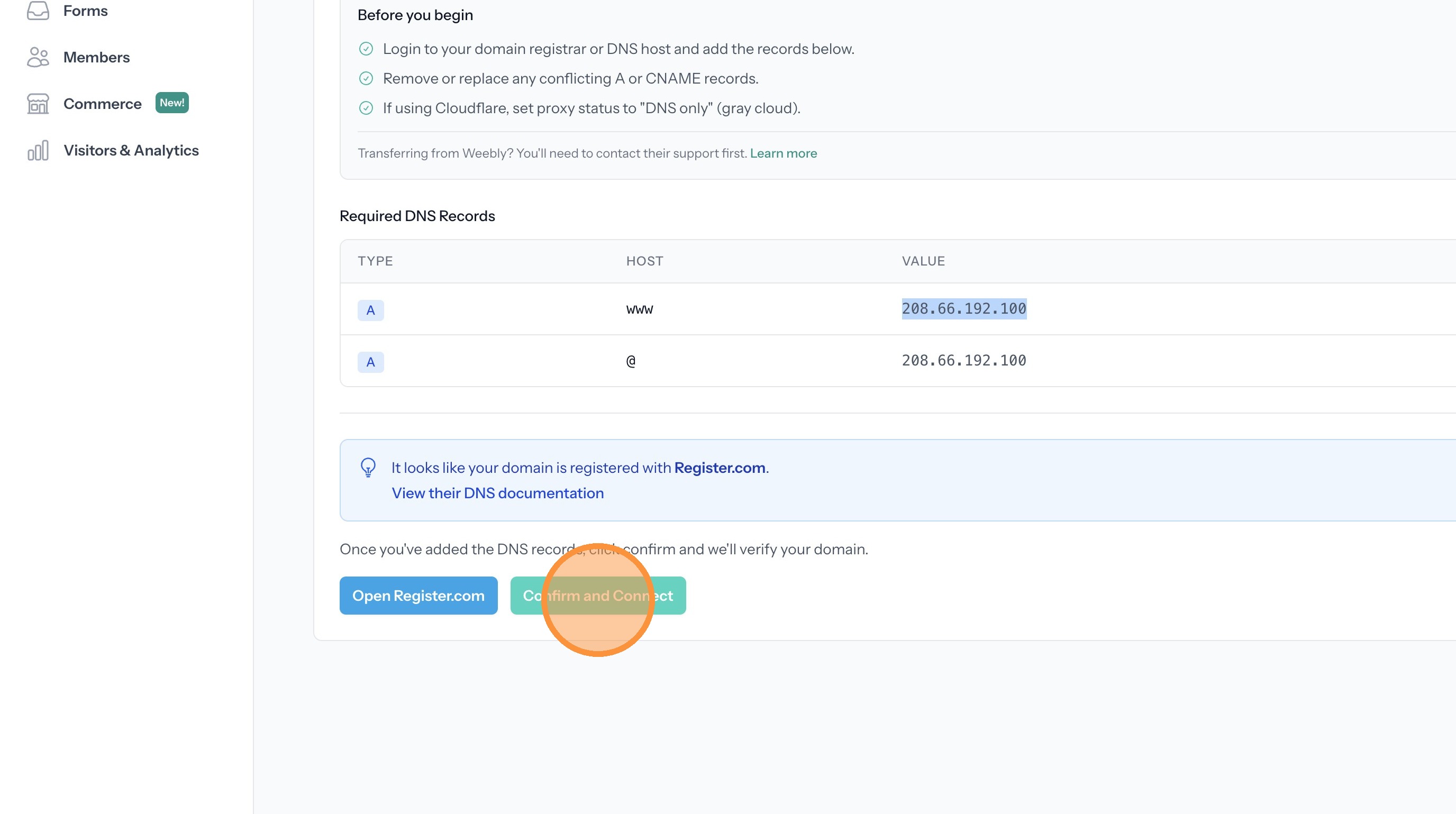
15. You will now see the DNS settings needed to connect your domain. Copy the ip address value in the first record. You will need this later.
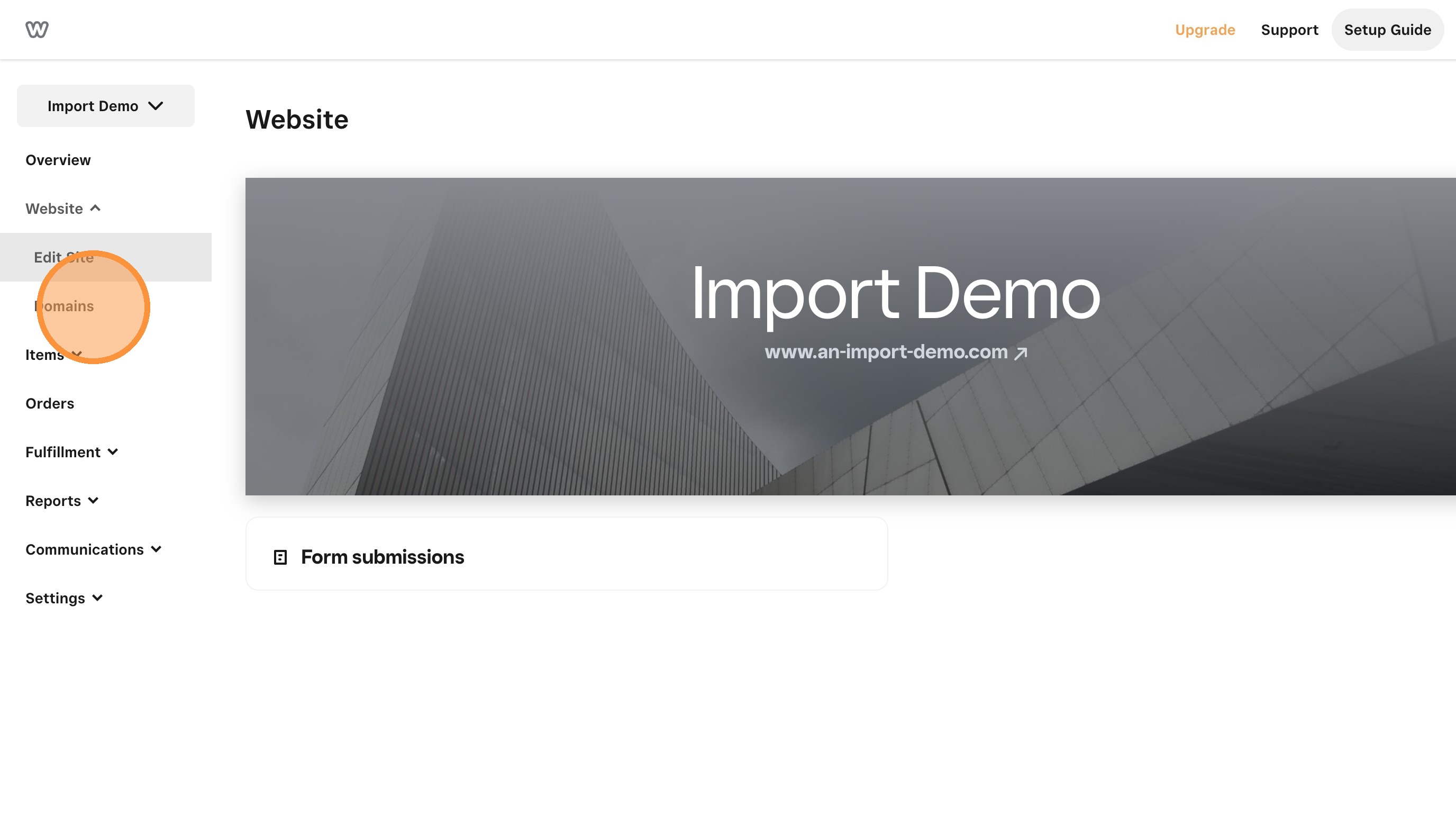
16. Log into your Weebly account
17. In the Weebly dashboard click "Domains"
18. Find the domain you want. Click "Manage"
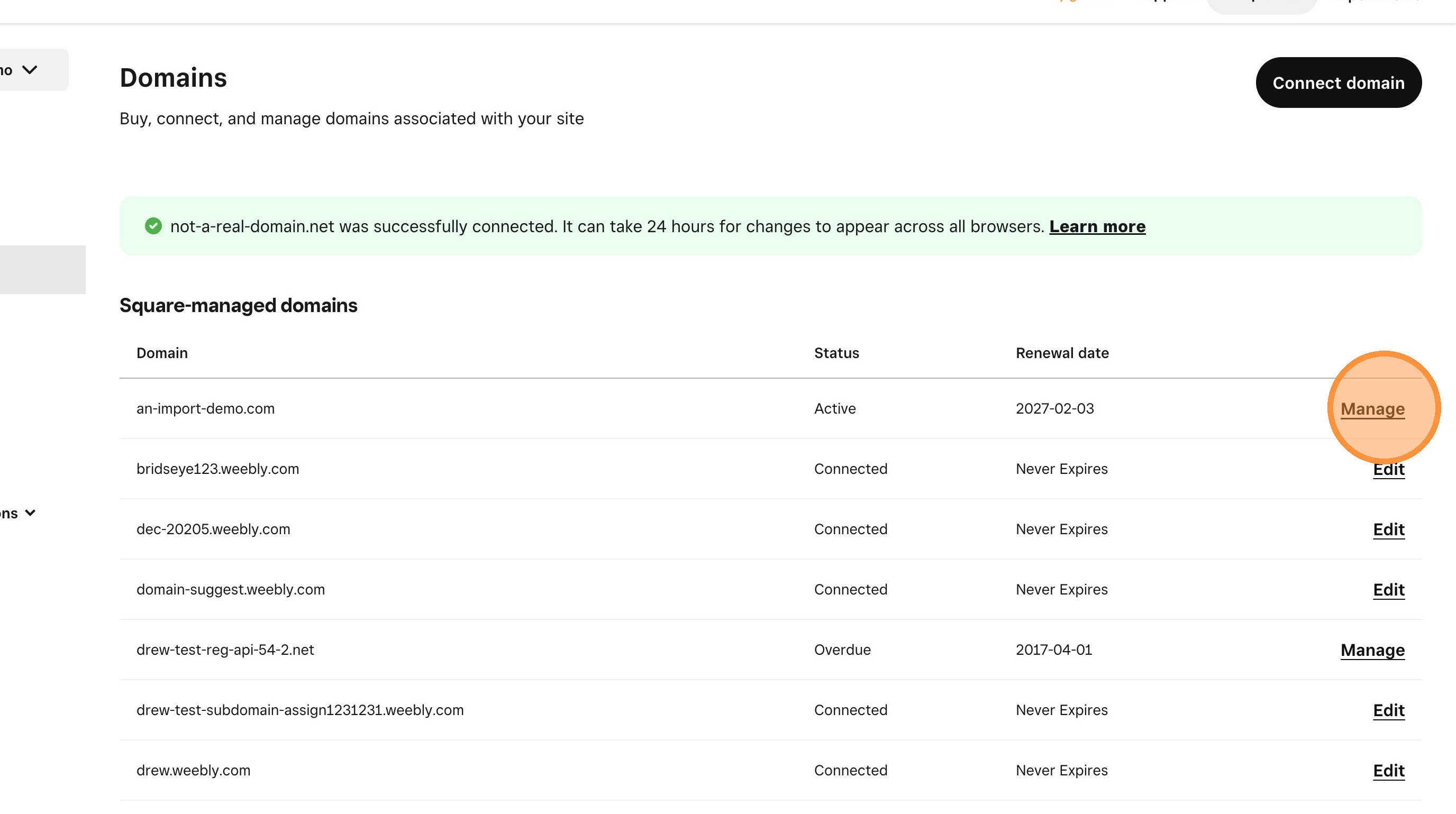
19. Click "Manage domain"
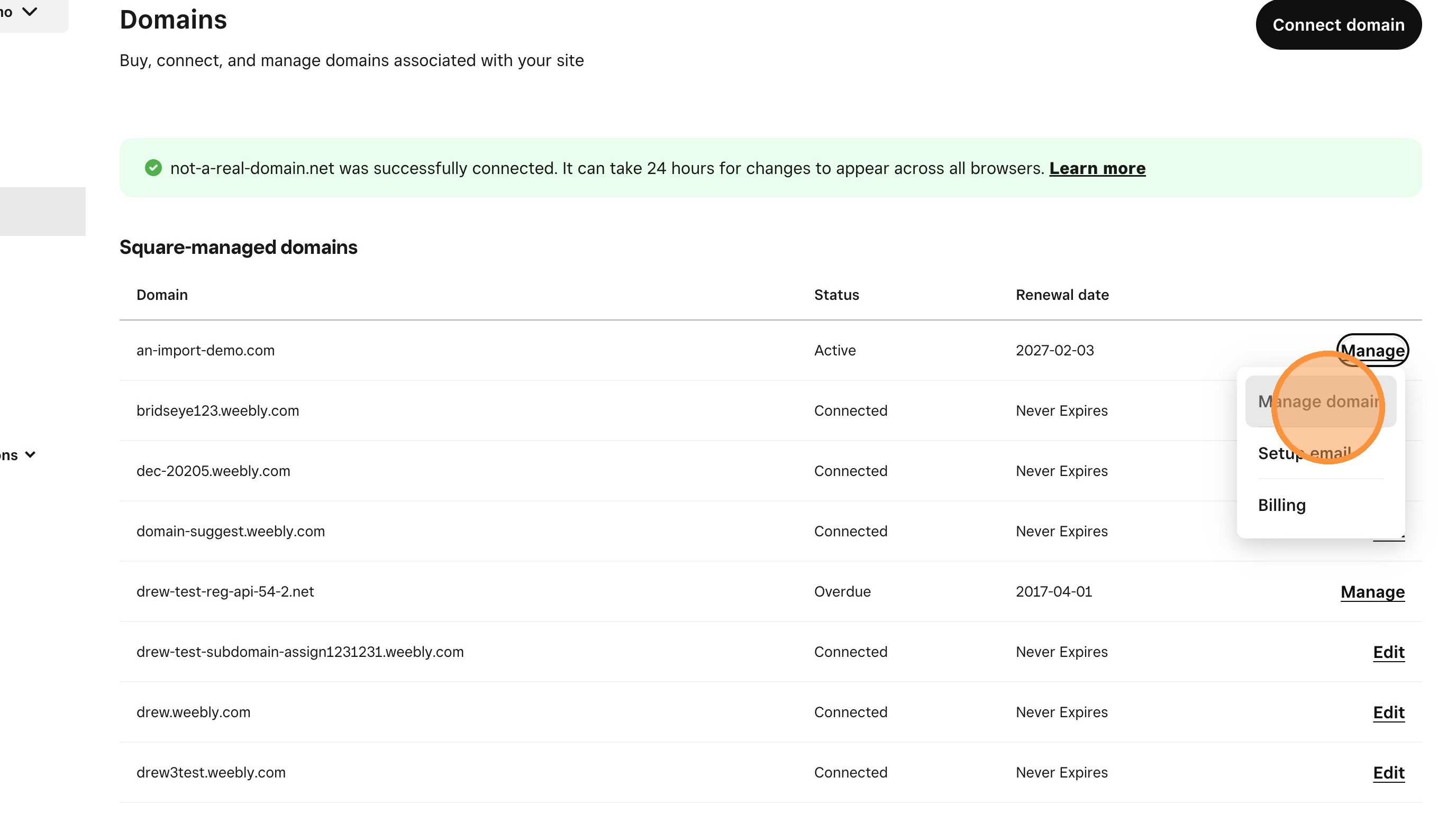
20. Scroll down the DNS Records section and edit the records that point to an ip address
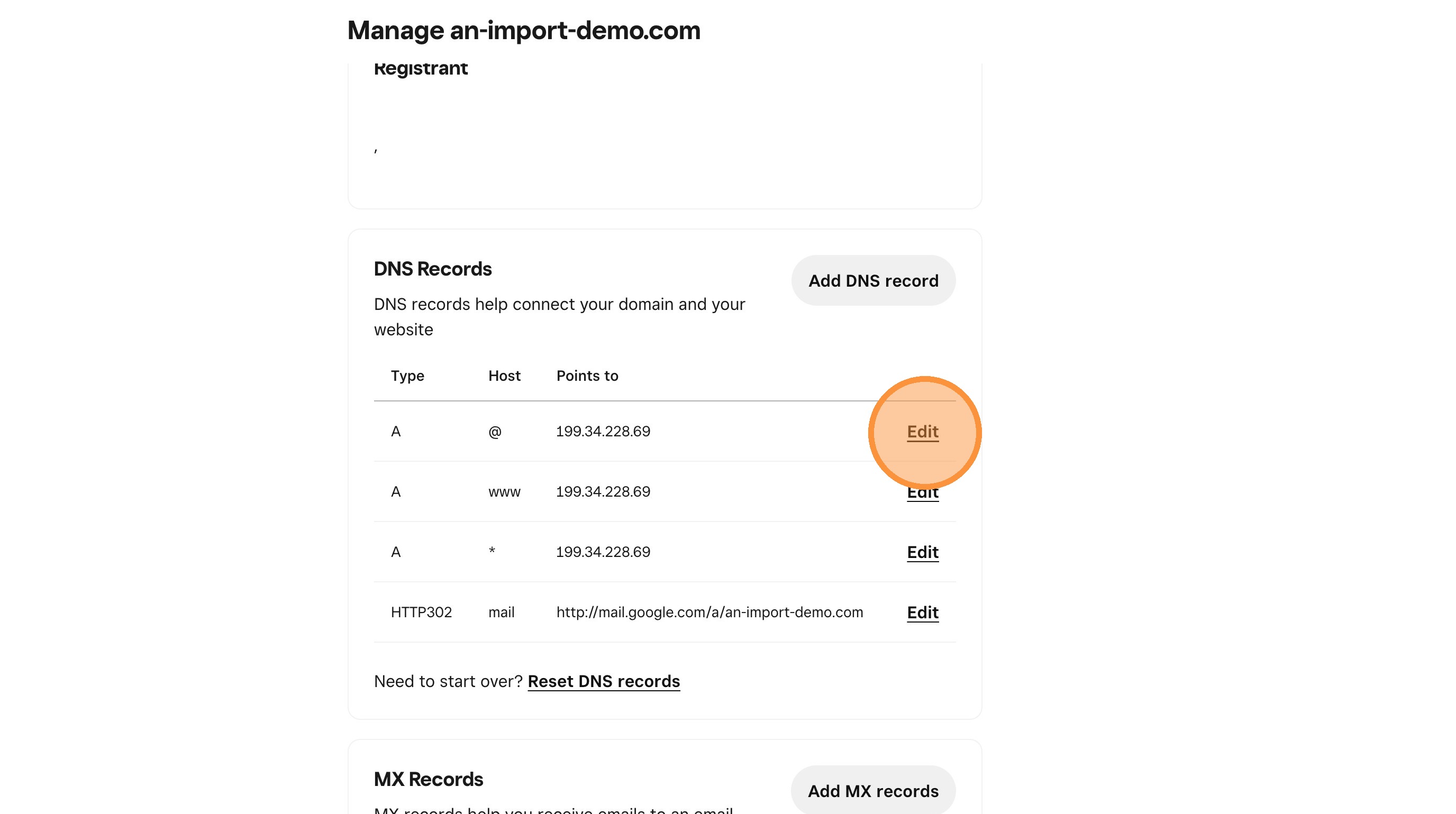
21. Click the "Points to" field.
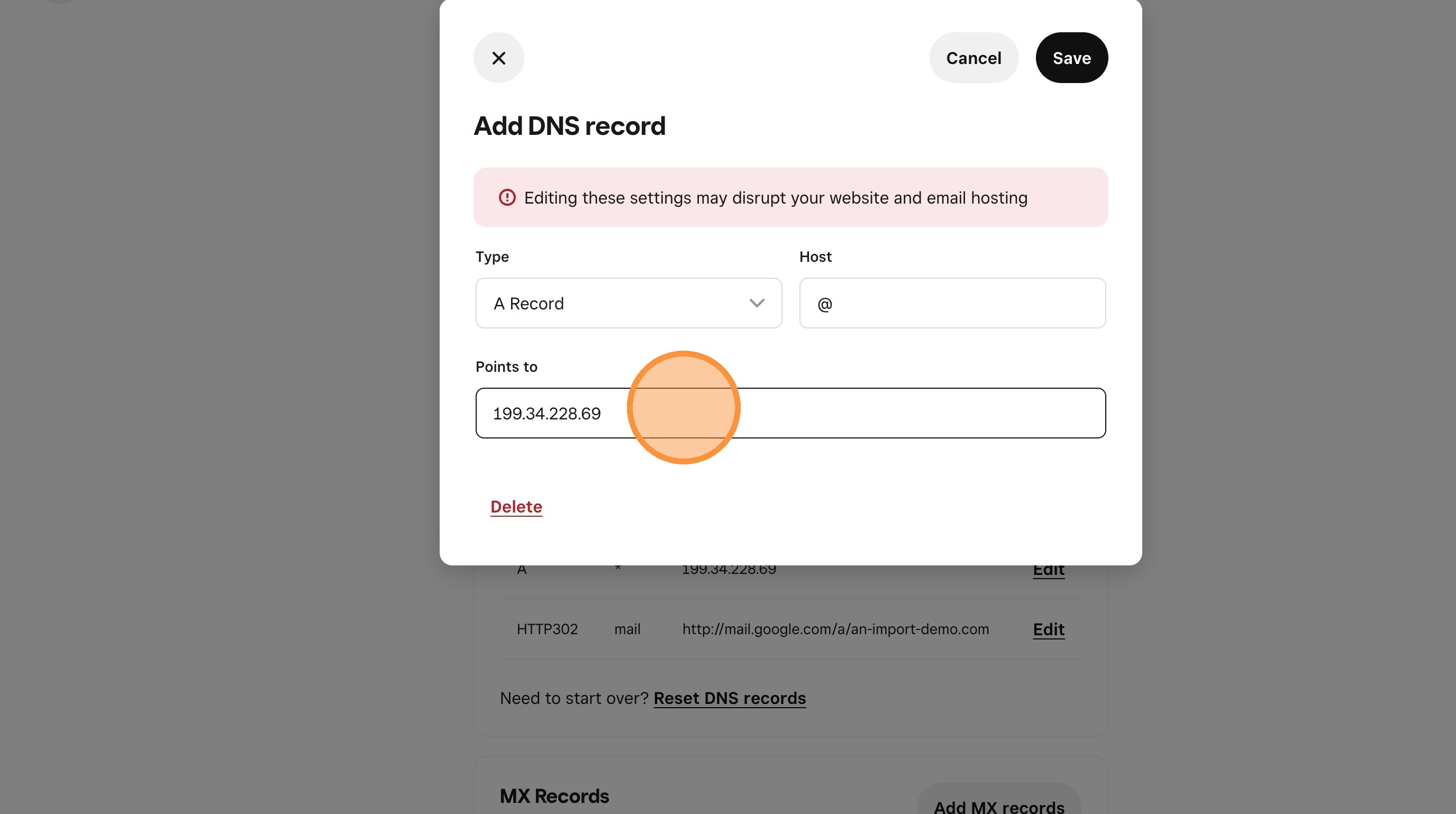
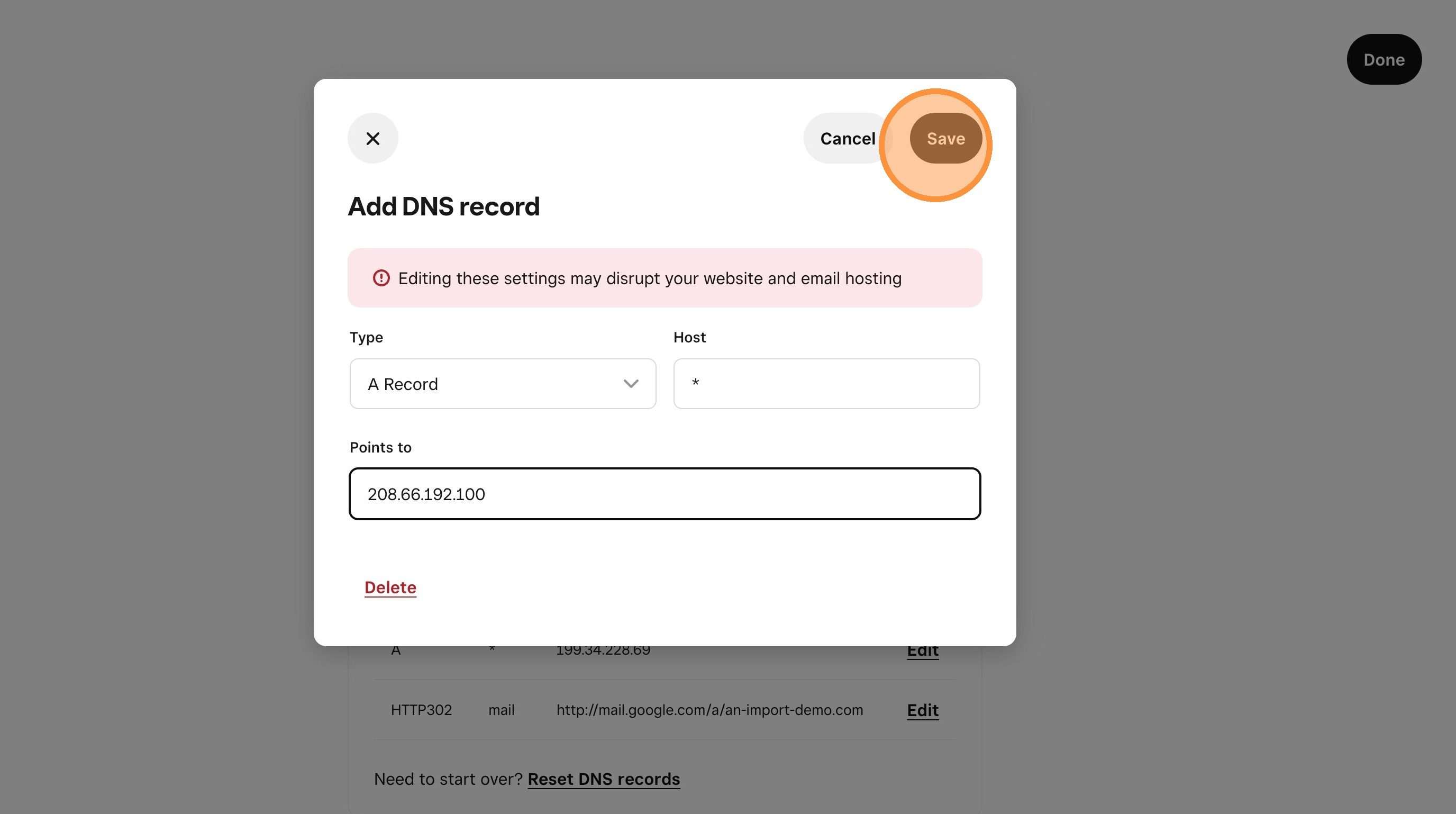
22. Enter the ip address from the Articulation Domain tab
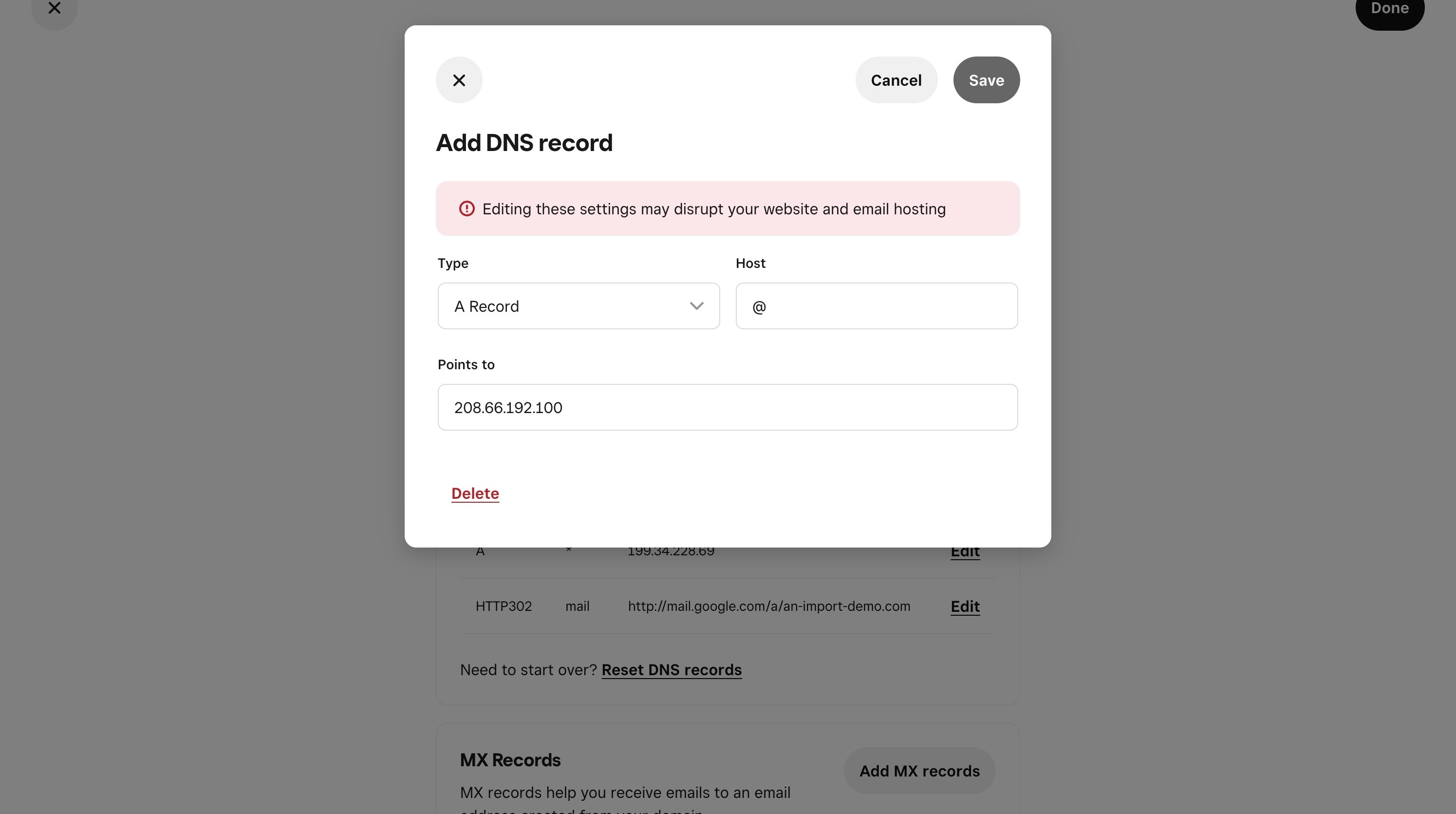
23. Click "Save"
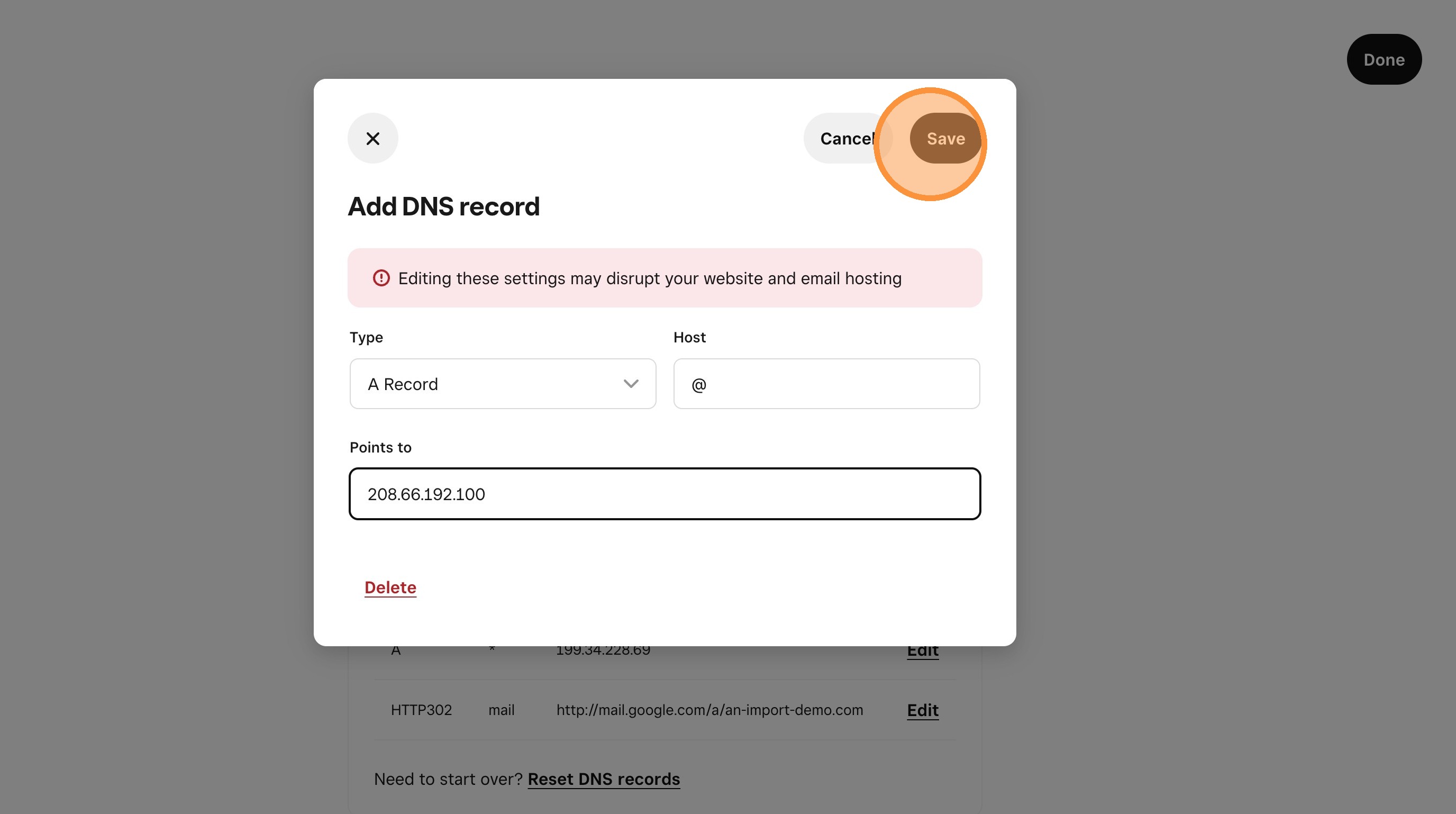
24. Click "Edit"
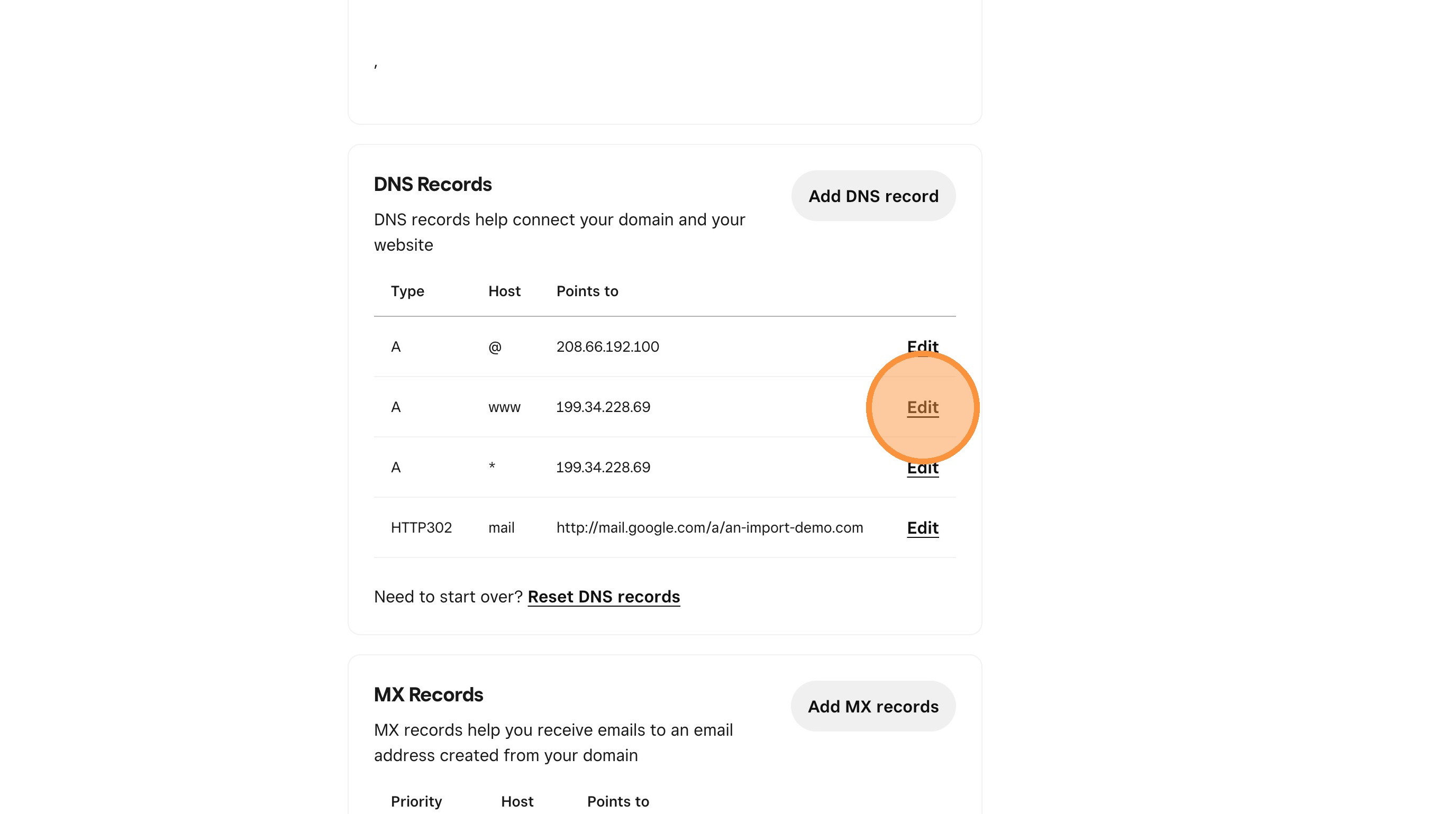
25. Enter the ip address from the Articulation Domain tab
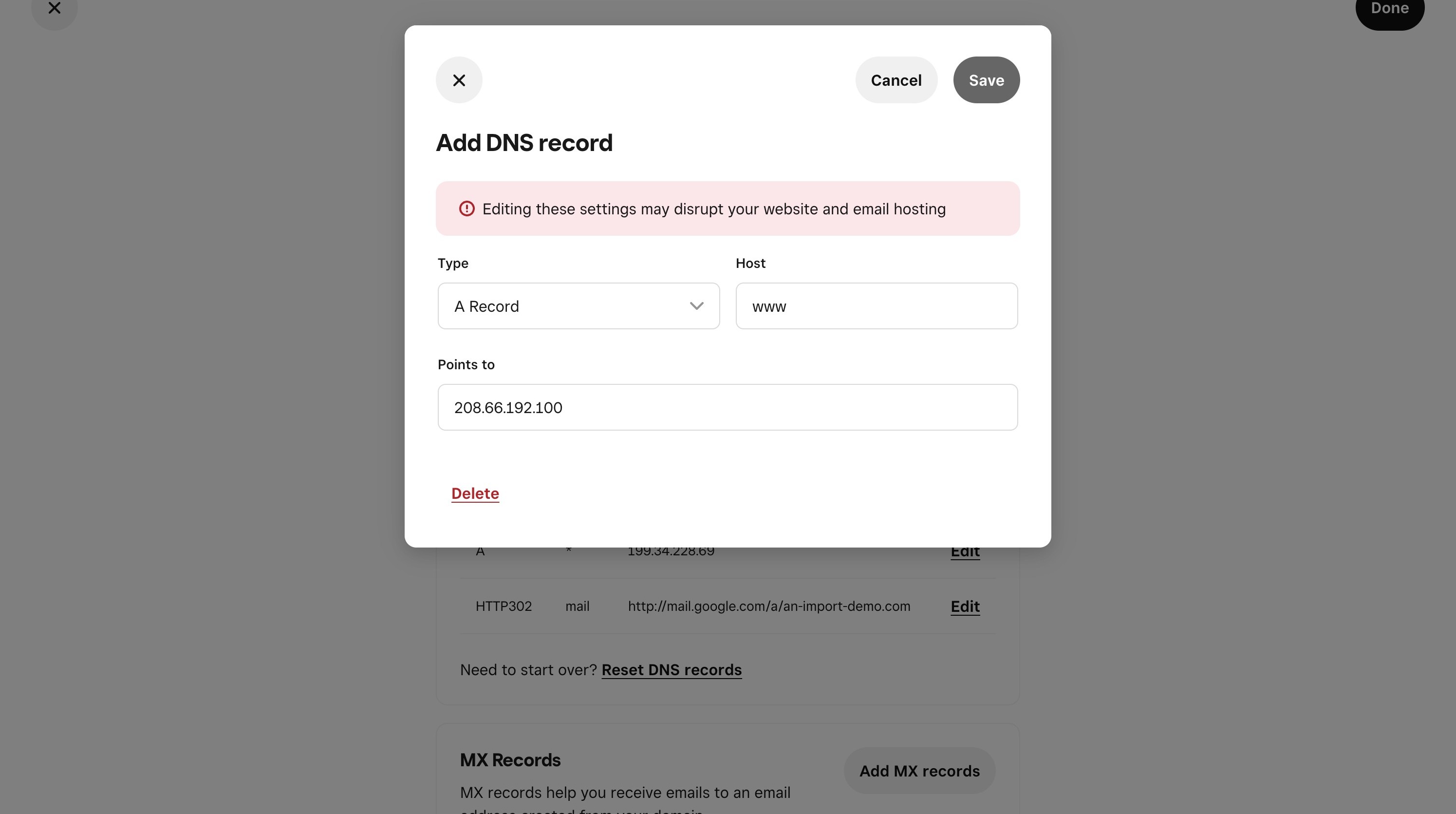
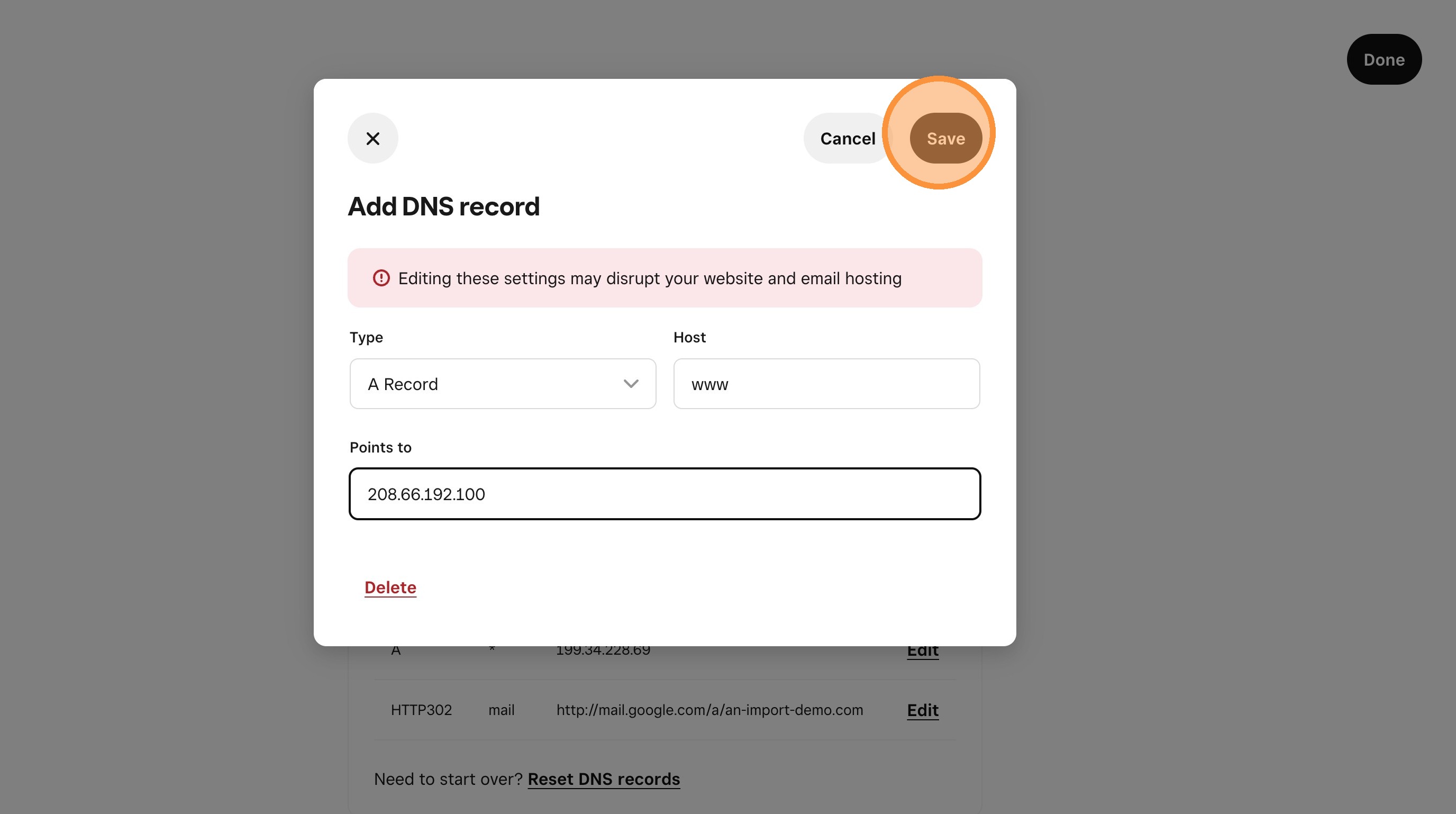
26. Click "Save"
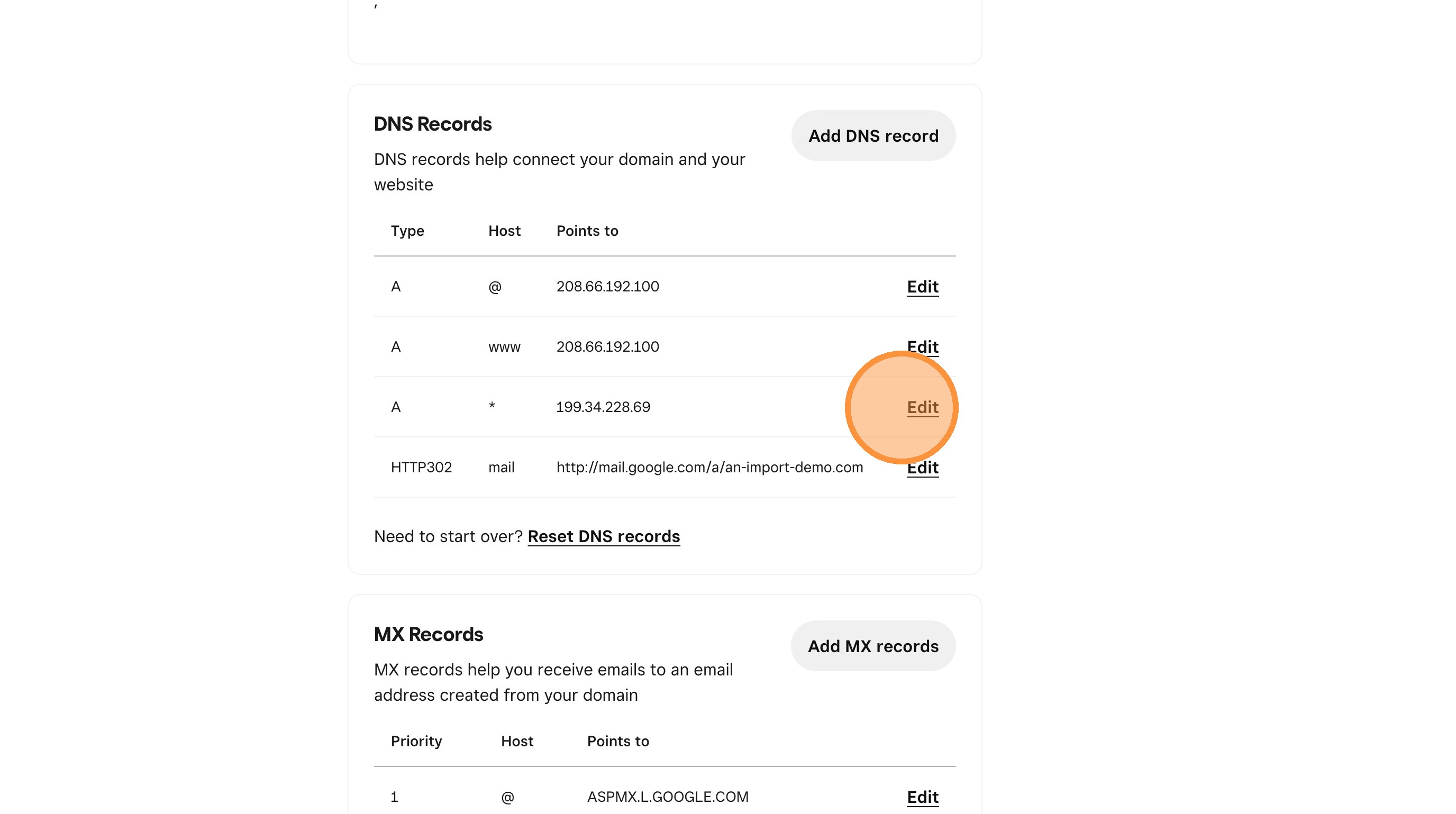
27. Click "Edit"
28. Click the "Points to" field.
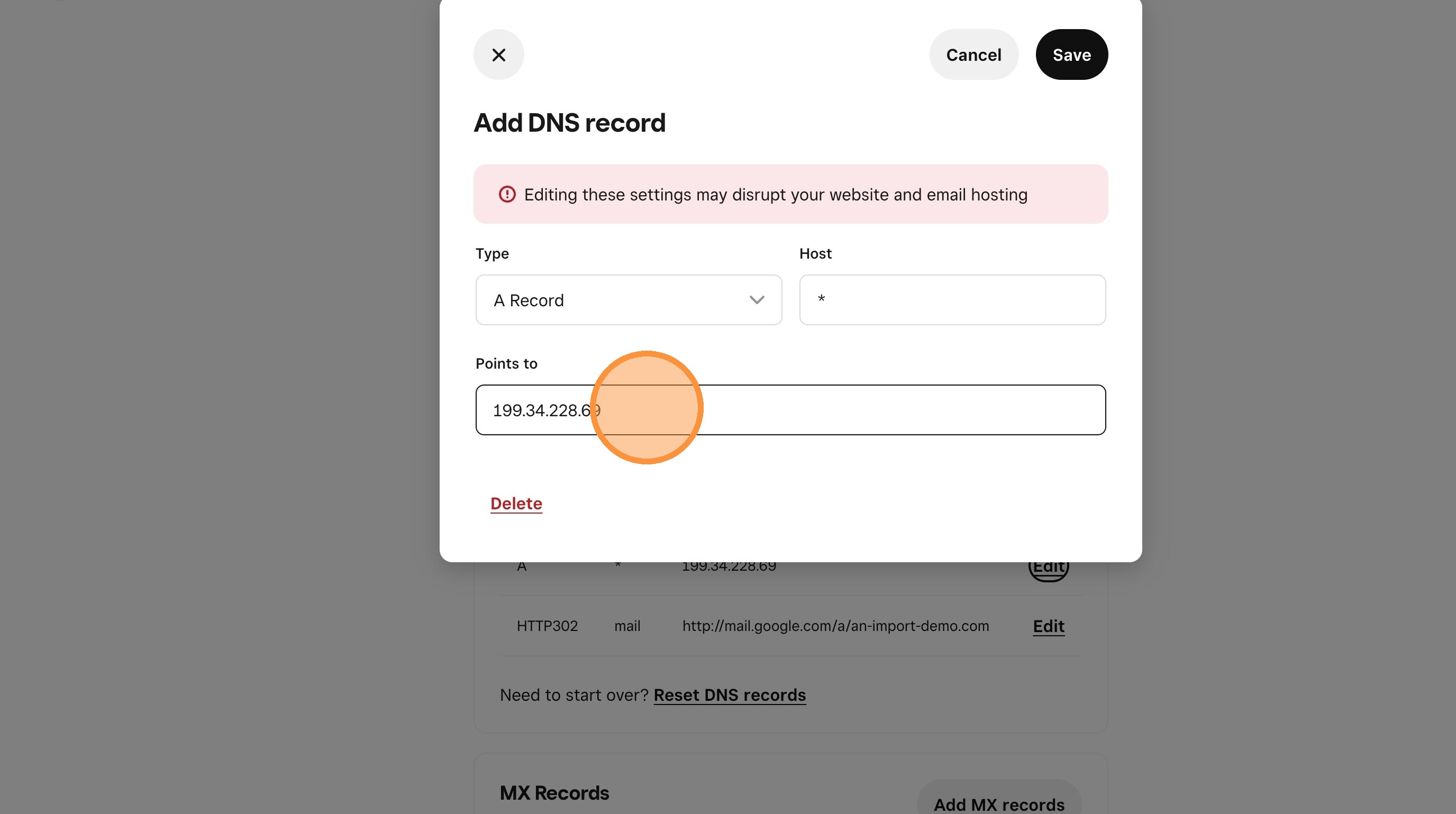
29. Enter the ip address from the Articulation Domains tab
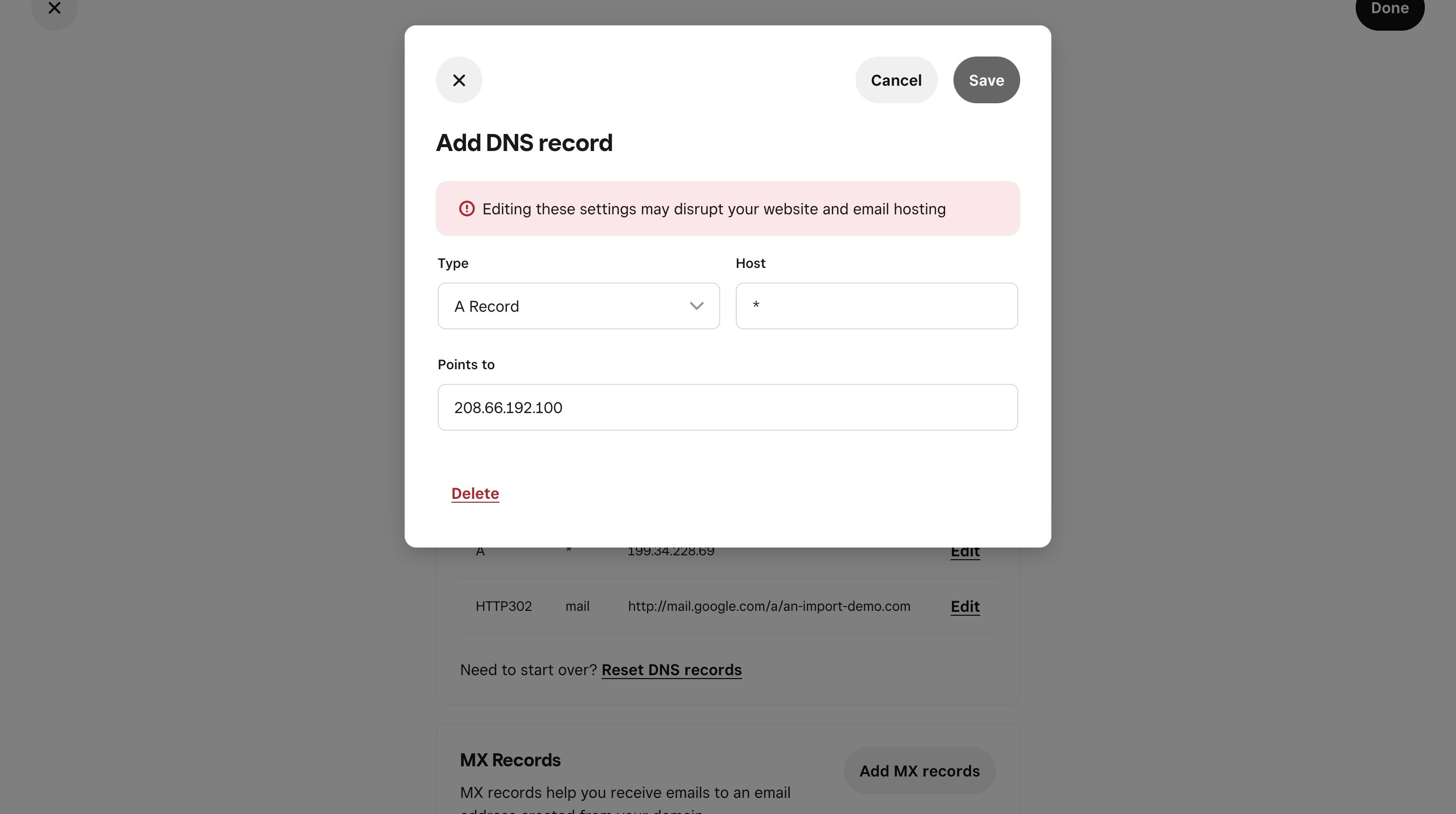
30. Click "Save"
31. You are done with the Weebly settings. Go back to the Articulation Domain page
32. Click "Confirm and Connect"
33. You will see that the status says "Connecting..." It will take a some time for the DNS changes to take effect. You will get an email when the process completes and the status on the Domain tab will show "Connected"