
Configure Domain Email Forwarding or an Email Provider
Configure email provider DNS or forward domain email to existing inboxes.
For a domain managed by Articulation, you can configure DNS for an email provider or forward incoming messages to an existing address. Forwarding does not create a hosted mailbox.
Configure an email provider
- Open Domain → Manage for the domain.
- Find Email Provider in the DNS Records section.
- Choose your provider: Google Workspace / Gmail, Microsoft 365, iCloud Mail, or Fastmail.
- Review the confirmation and apply the configuration.
- Return to your provider to complete account setup and any verification it requires.
The presets add DNS records for the selected provider. They do not purchase a subscription or create an email account. If another provider is configured, the confirmation explains that its records will be replaced. Review any provider-specific verification or authentication records separately.
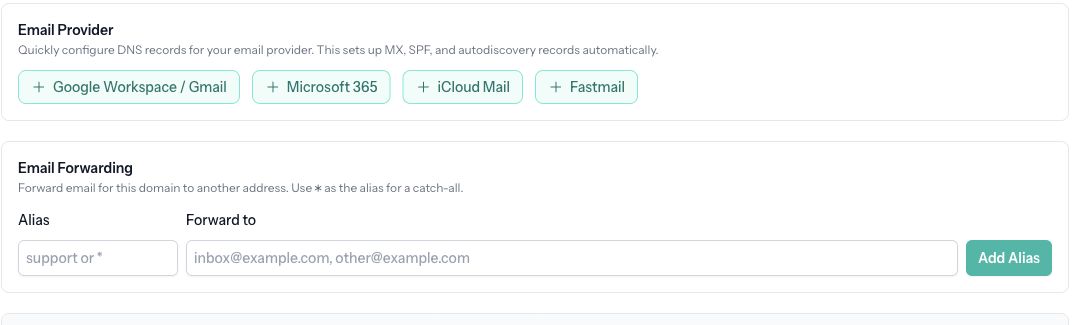
Add email forwarding
Email forwarding cannot be enabled while an email provider is configured above. Remove that configuration only if you intend to stop using it.
- Find Email Forwarding.
- Enter an alias, such as
support, to forward mail addressed tosupport@example.com. Enter*for a catch-all alias. - In Forward to, enter the receiving email address. Separate multiple destinations with commas.
- Click Add Alias.
- Send a test message from another address and check the destination inbox.
Change or remove forwarding
Use Edit beside an alias to change its destinations. Remove an individual alias when it is no longer needed, or choose Remove Email Forwarding to remove the domain's forwarding configuration entirely. Read and confirm the removal prompt.
After changing your mail configuration, test delivery again. Messages addressed to a removed alias will no longer follow that forwarding rule.