Creating Links
Shows how to create links and the types of links that can be made.
Create a Link Inside Text
1. Start from the website editor

2. Click on a text component

3. Select the text you want to link
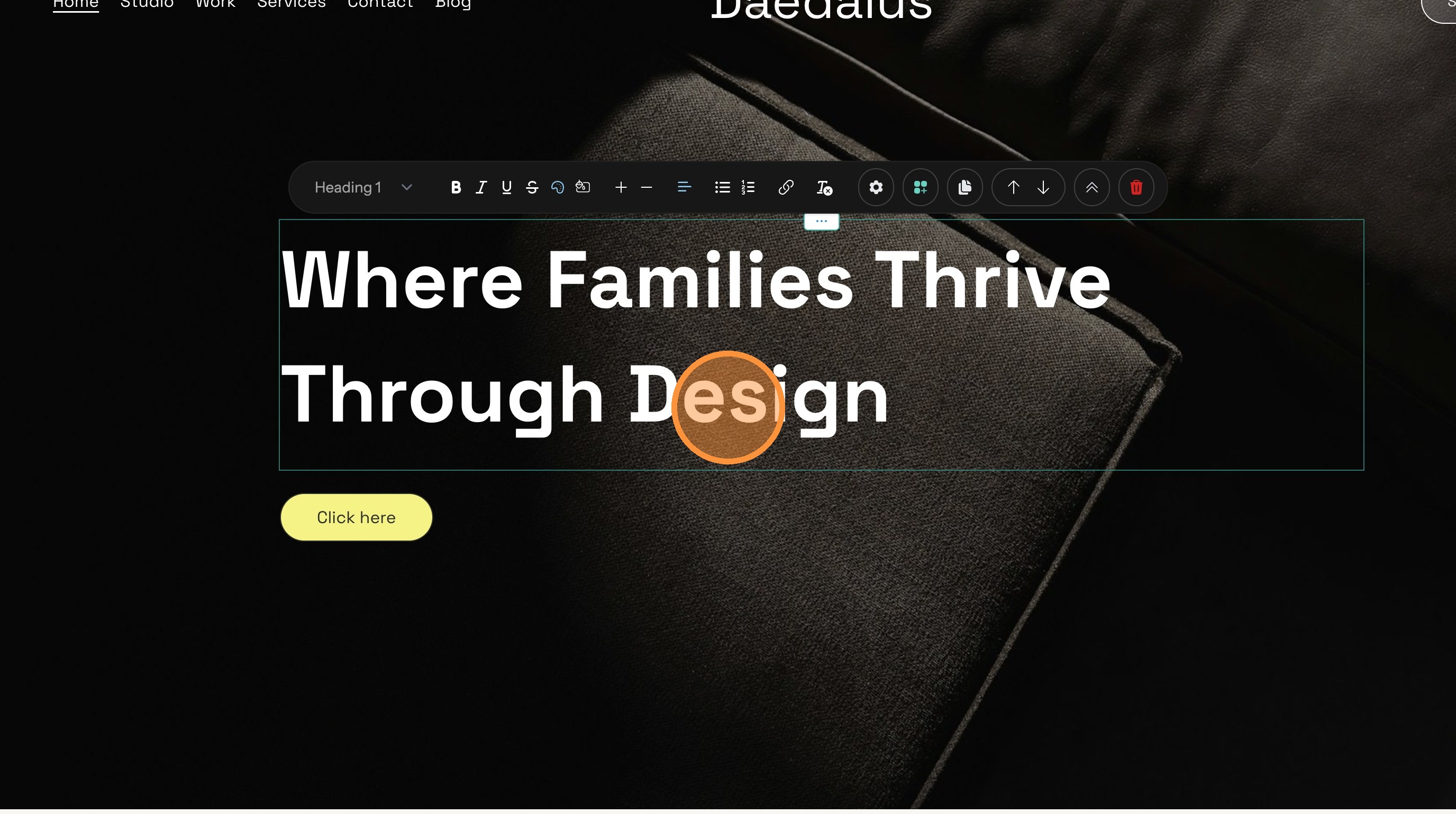
4. Click the link icon to open the linker dialog

Create a Link in a Component
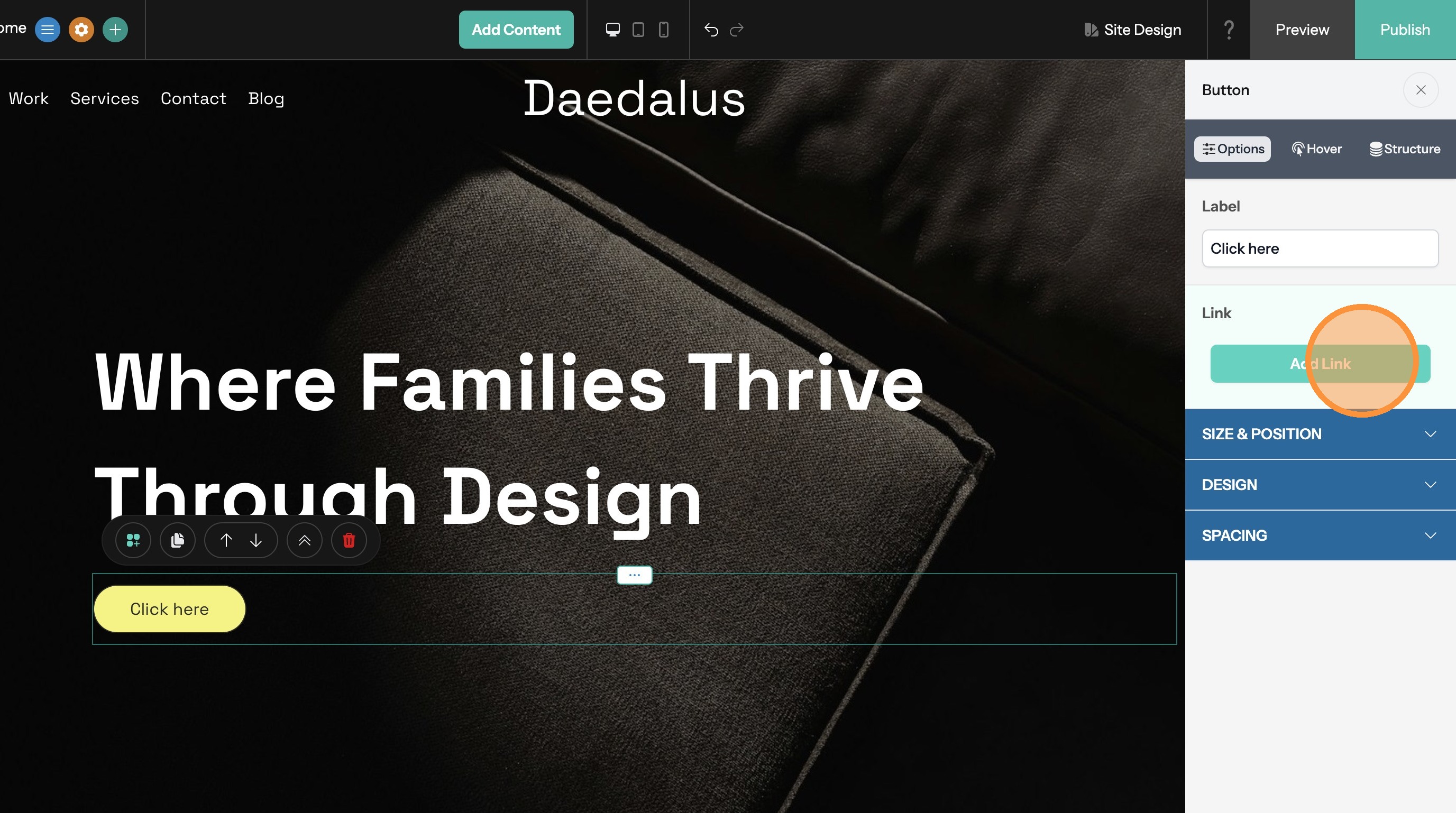
5. Click on the component to open the options panel

6. Click "Add Link" to open the linker dialog
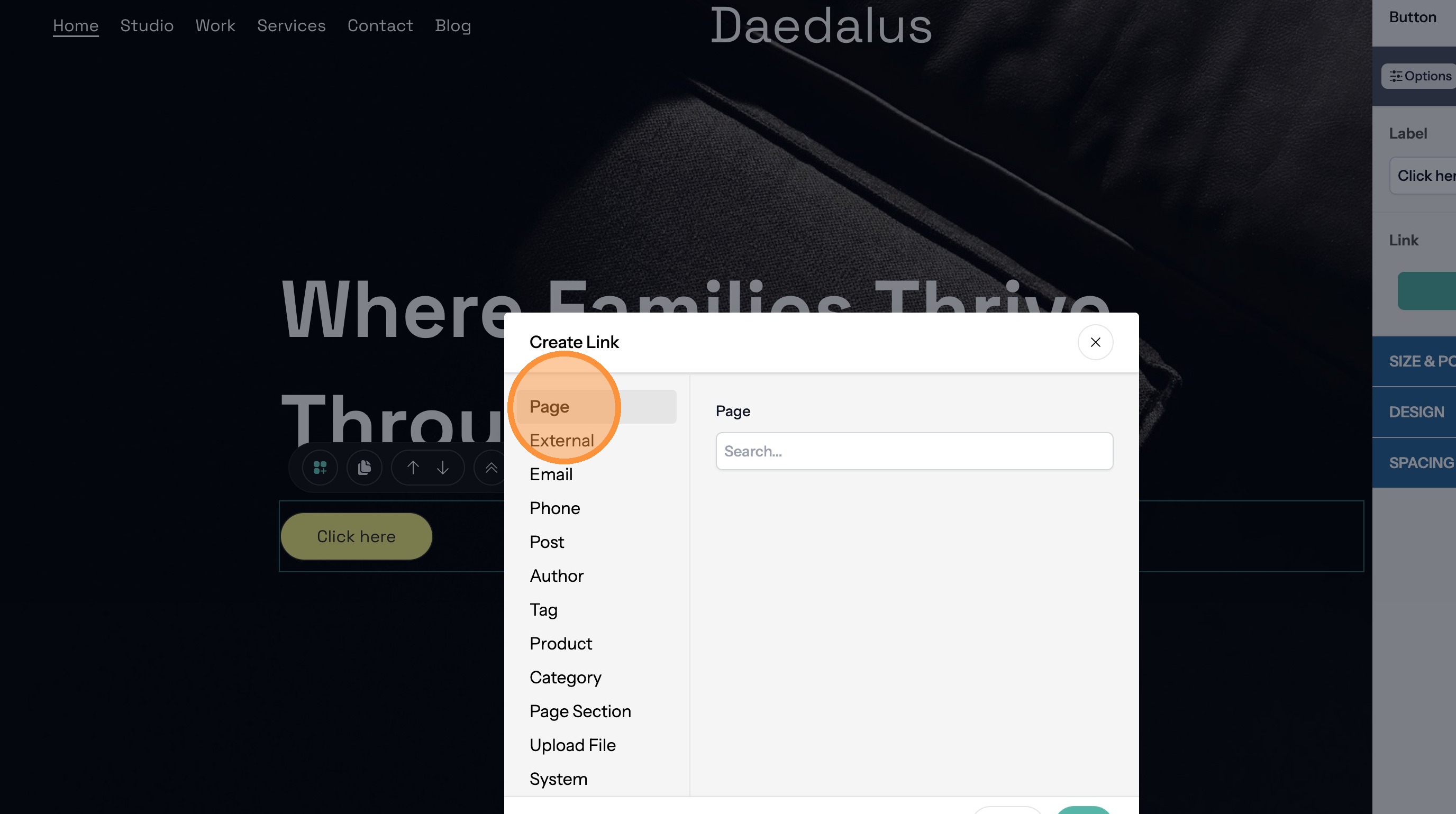
Link to a Page on your Website
7. Click "Page"
8. Click the "Search" field.
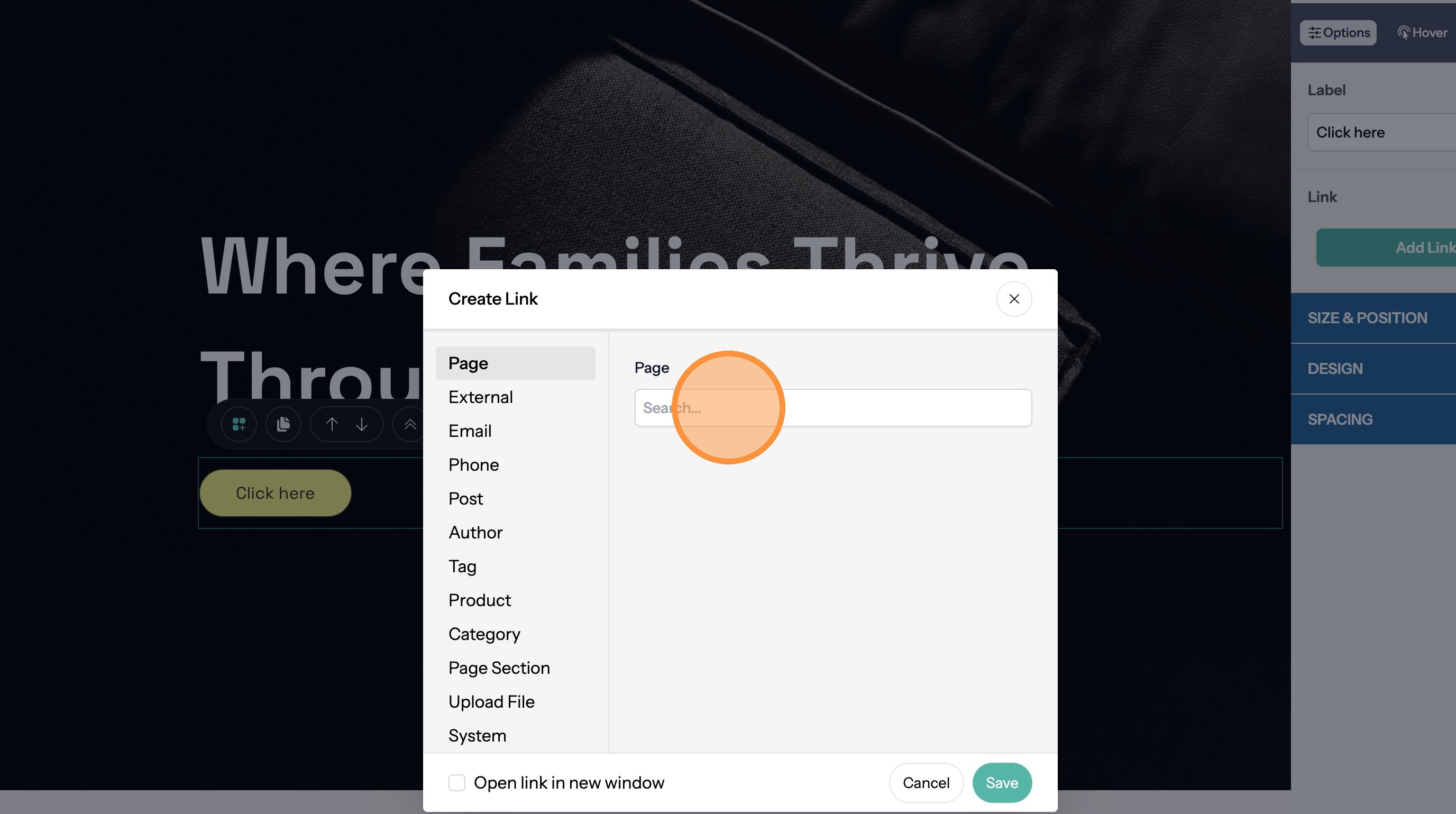
9. Search for the page you want
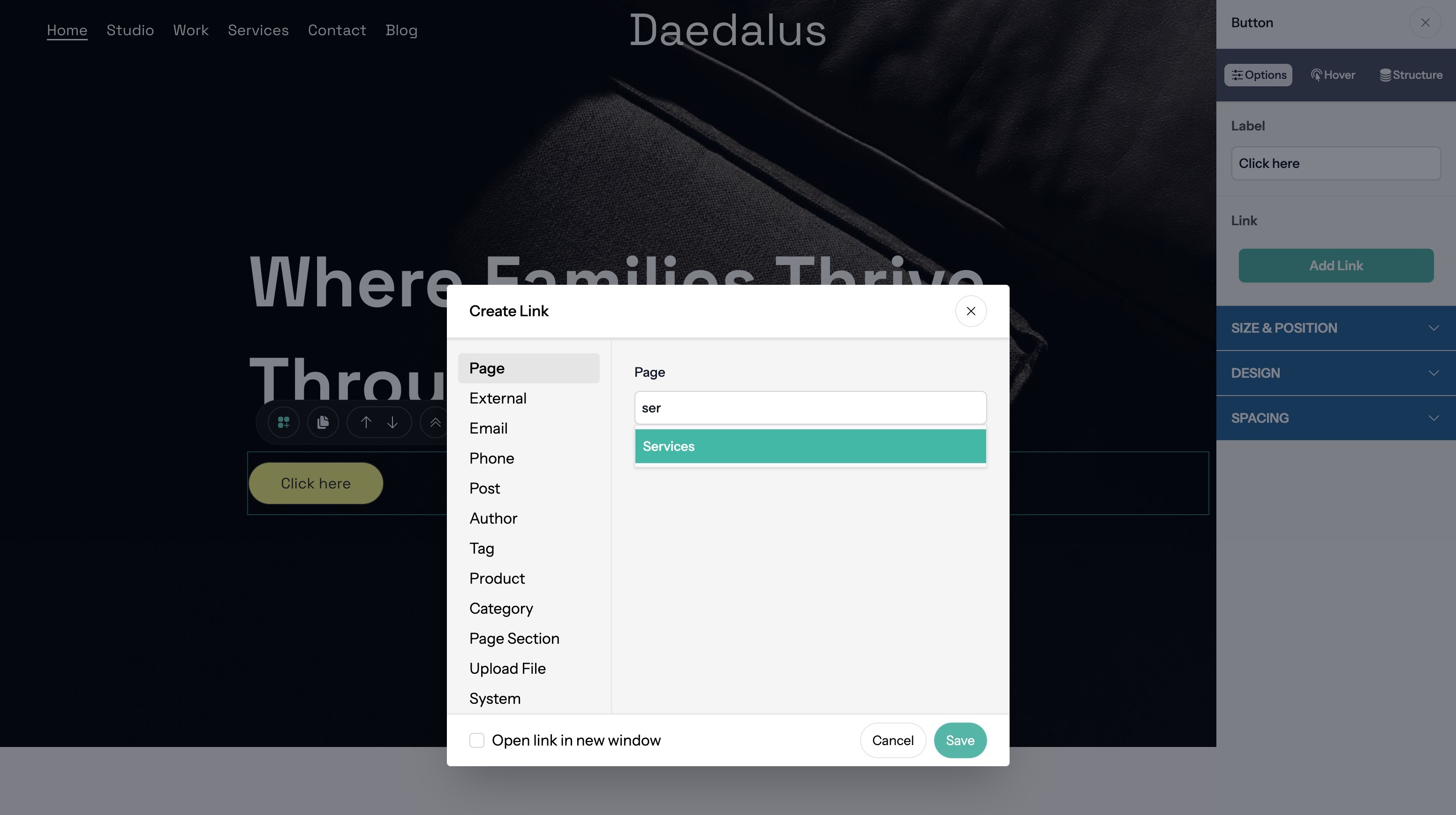
10. Click the page name
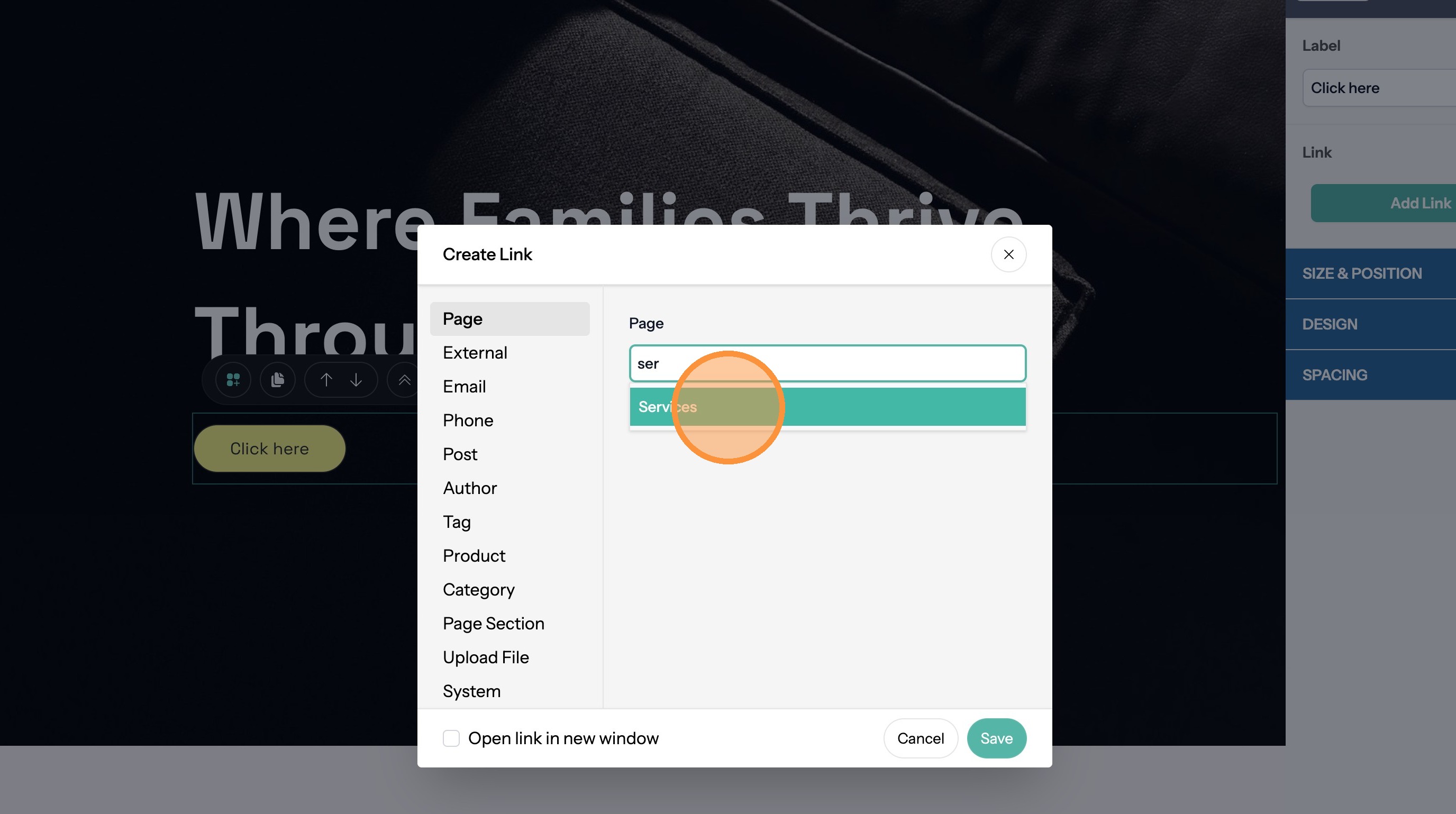
11. Click "Save"
Create a Link to Another Website
12. Click "External"
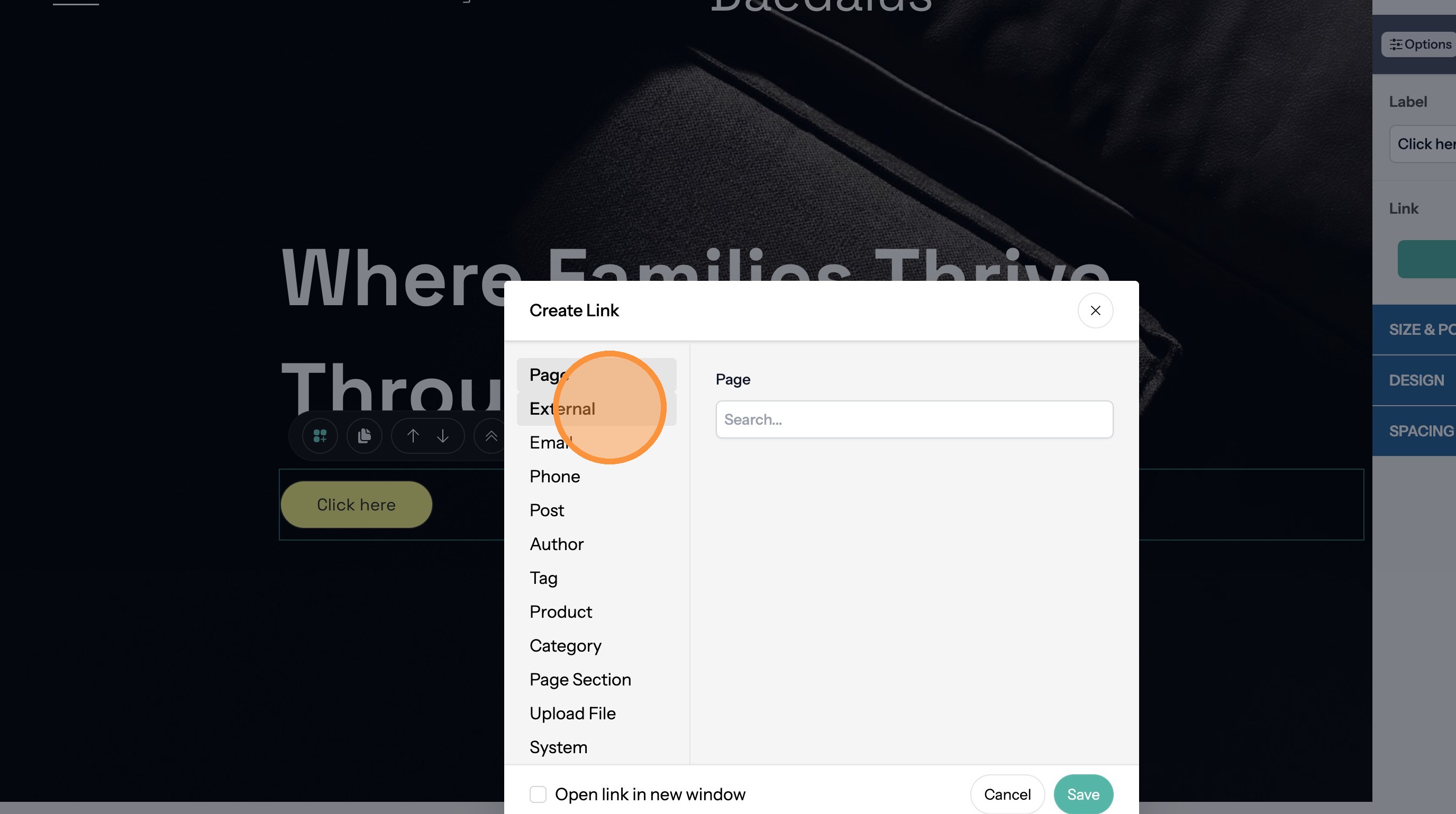
13. Click "URL"
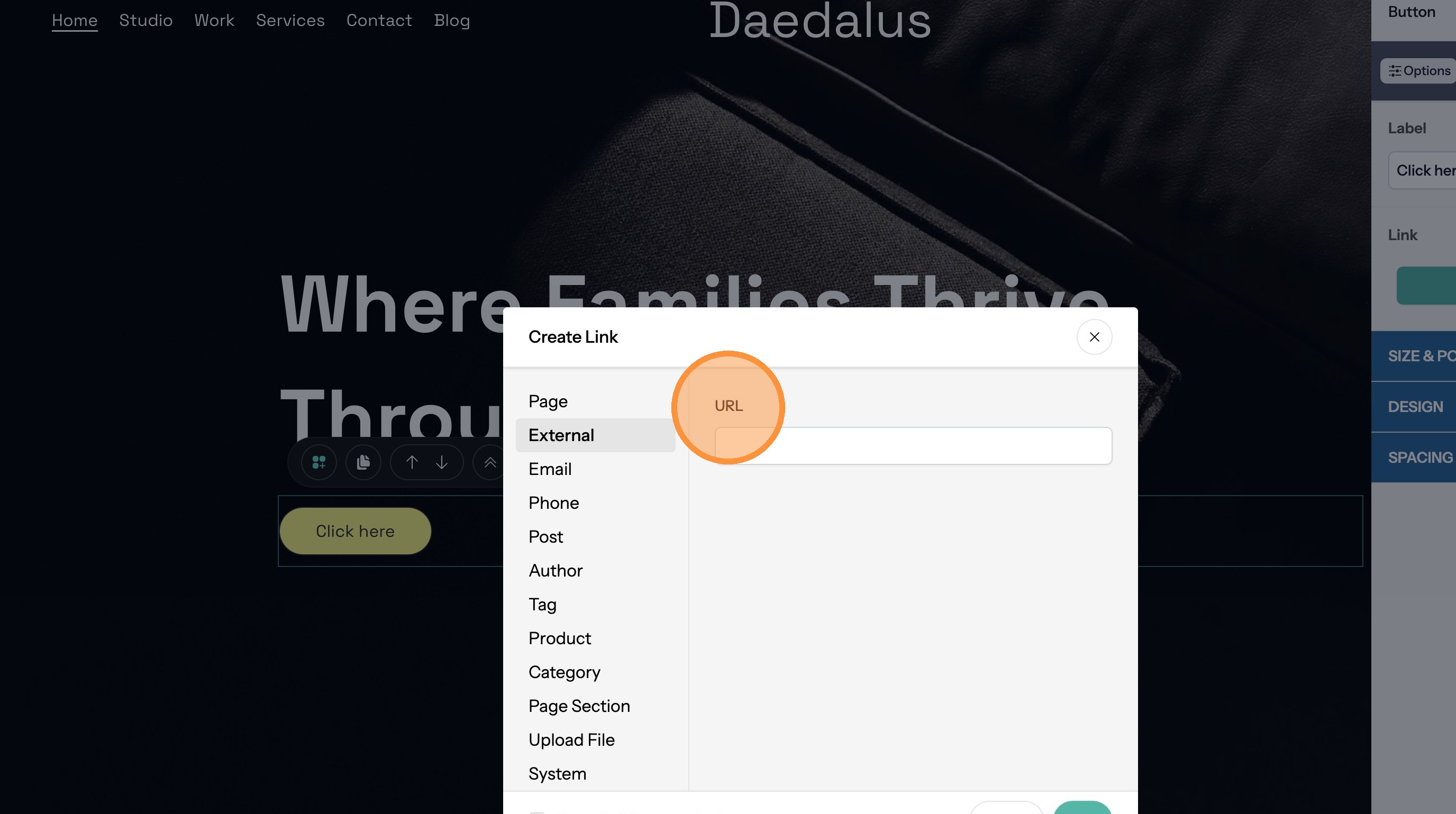
14. Enter the URL
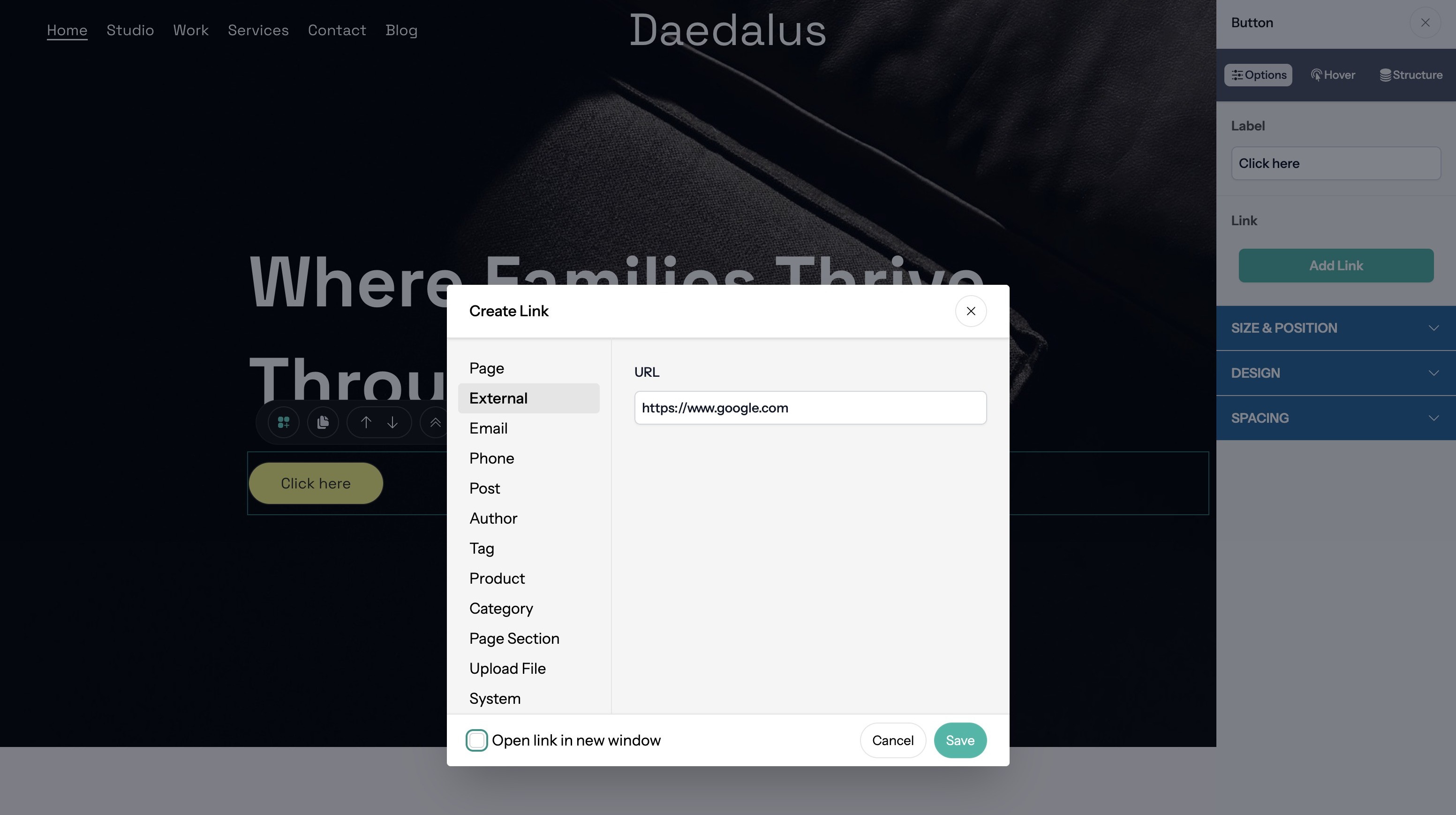
Tip: Best practice is to open external links in a new browser window.
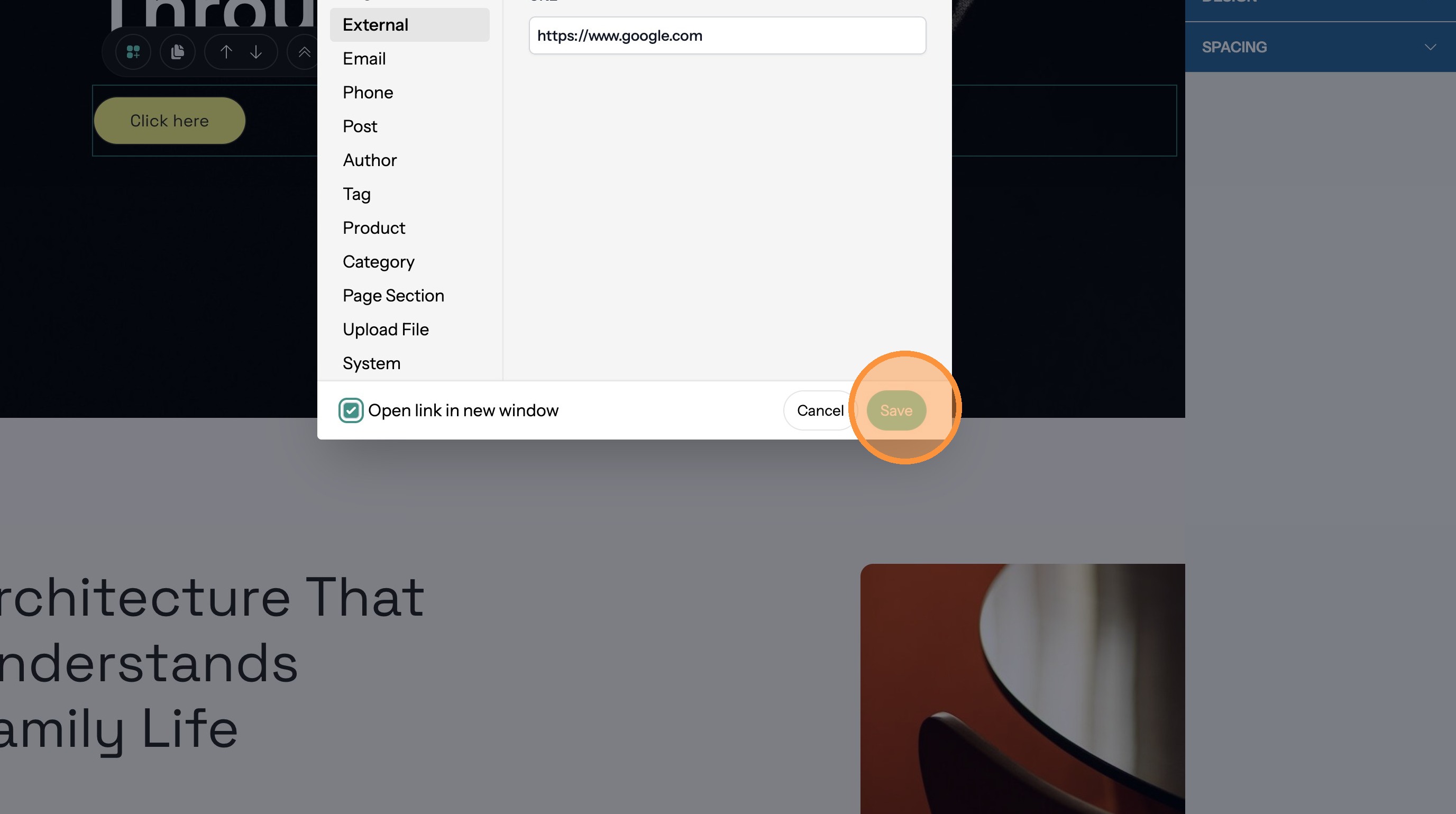
15. Click the "Open link in new window" field.
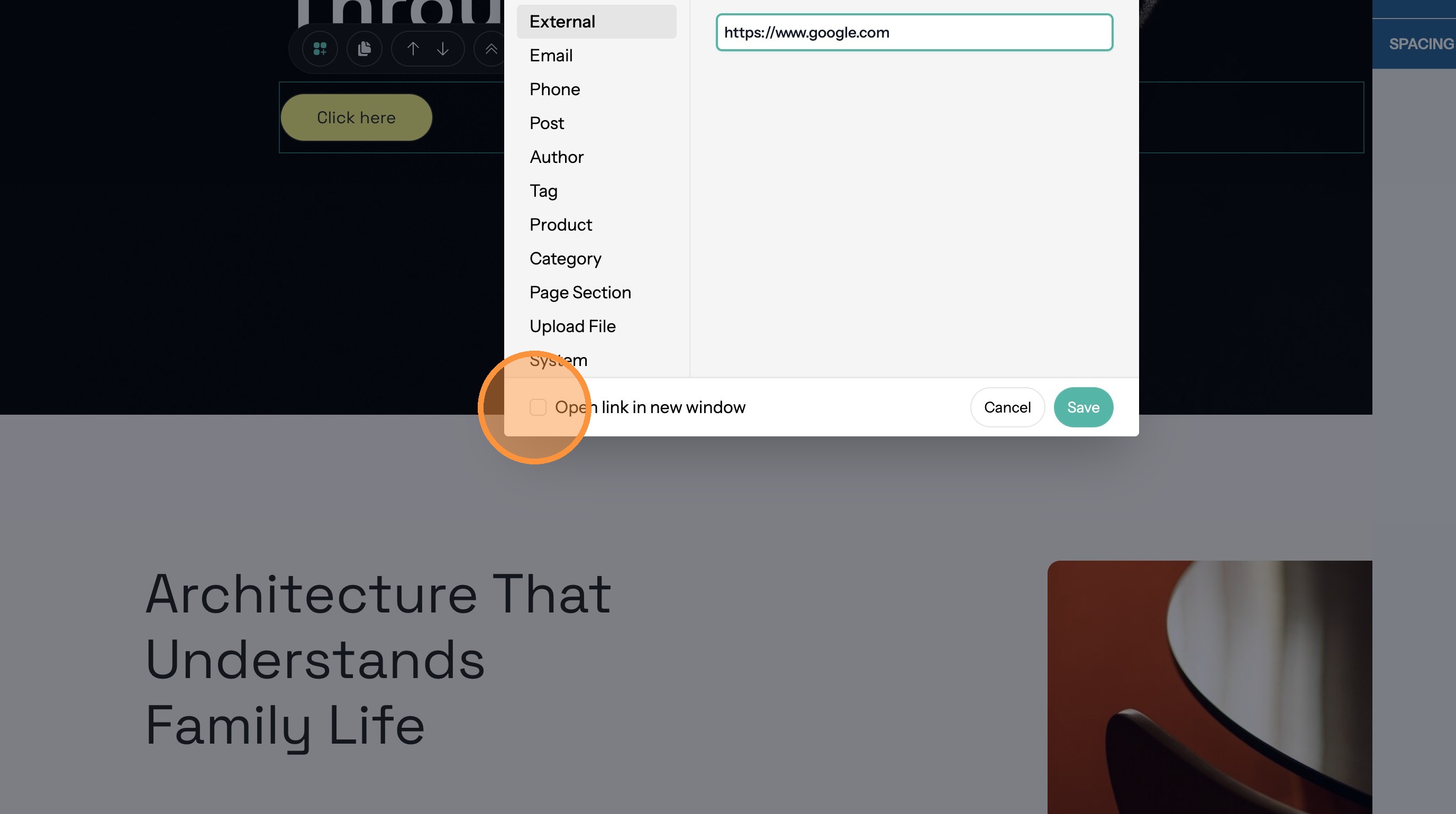
16. Click "Save"
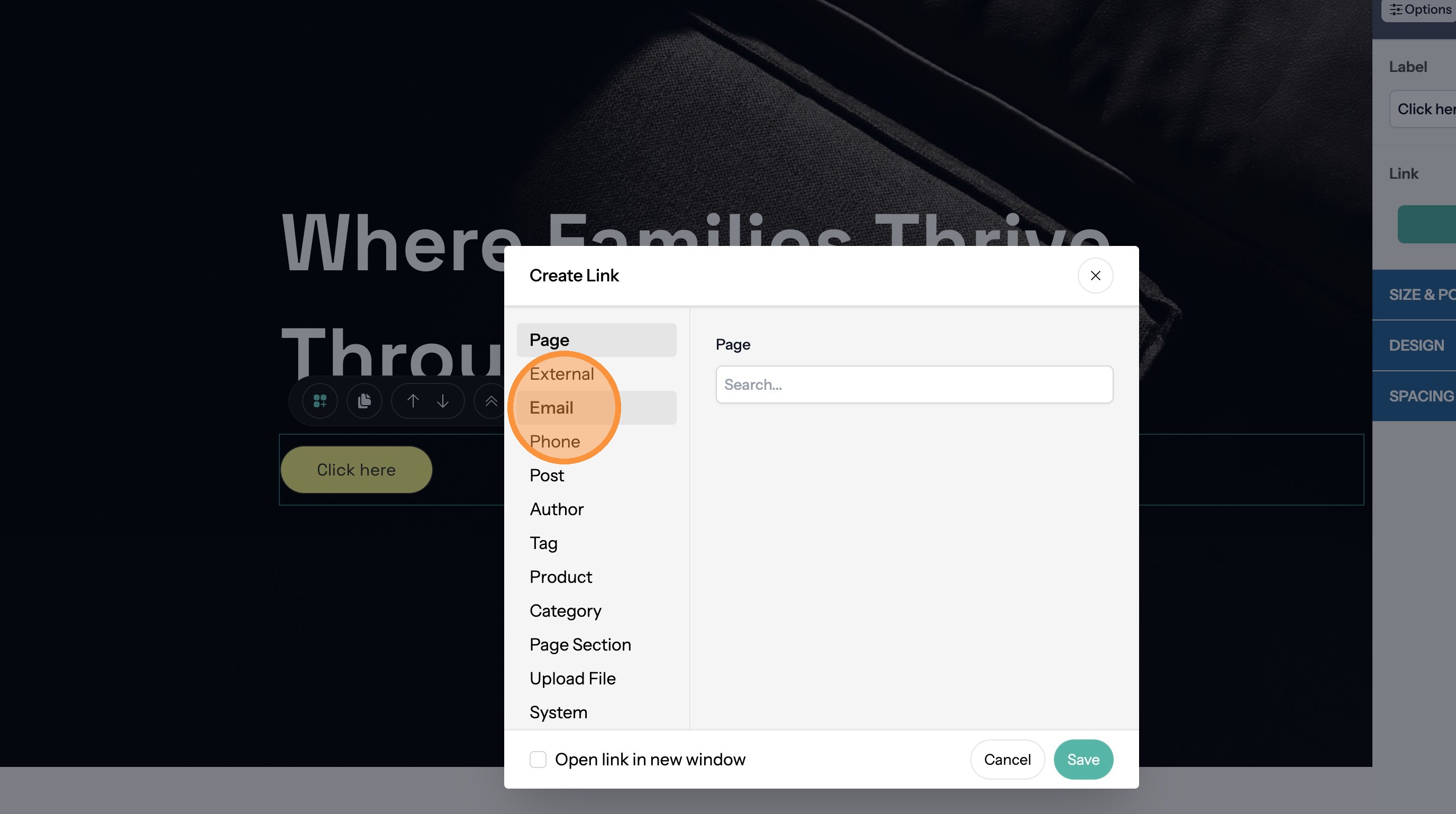
Link to an Email Address
17. Click "Email"
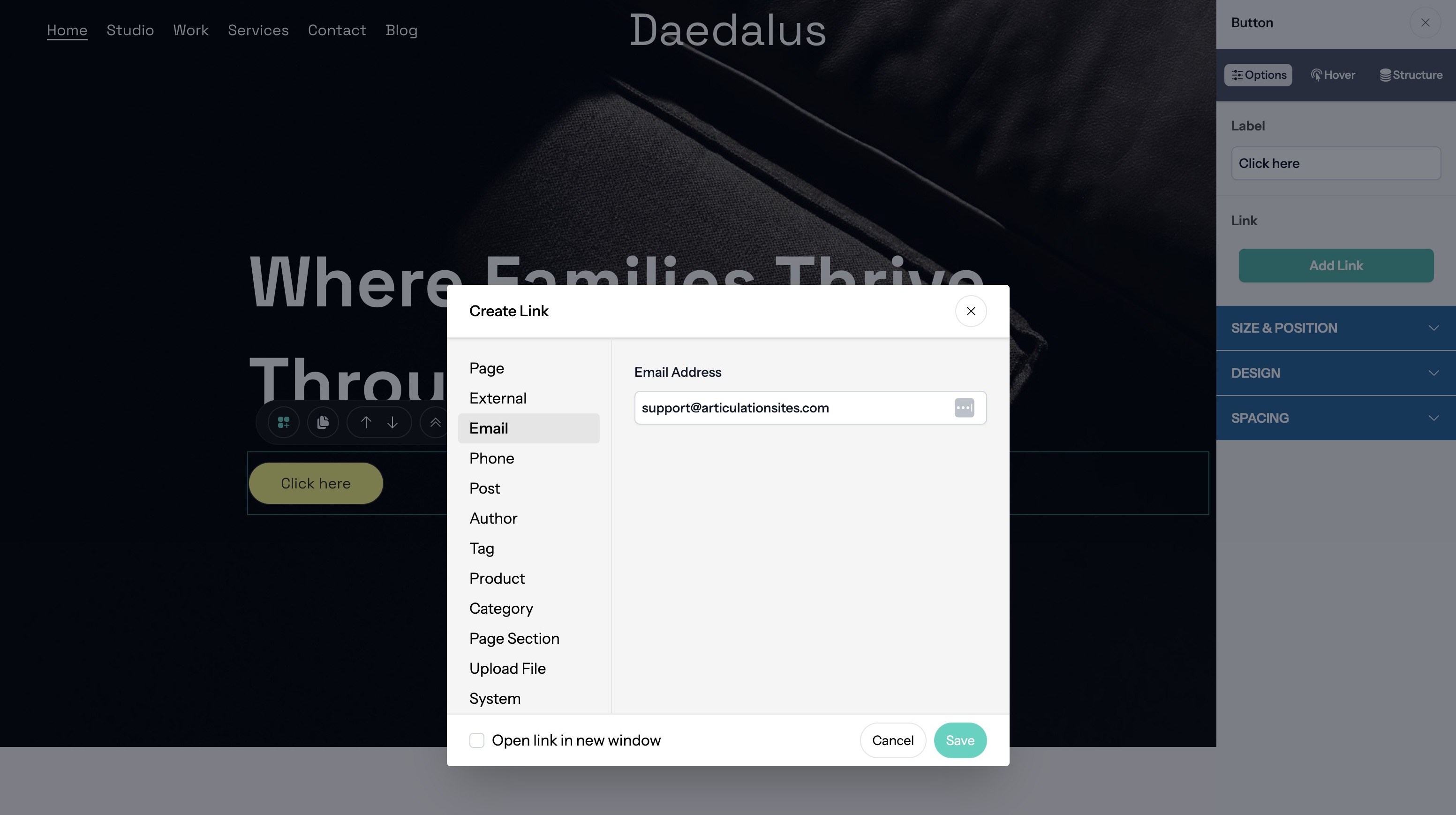
18. Enter the email address
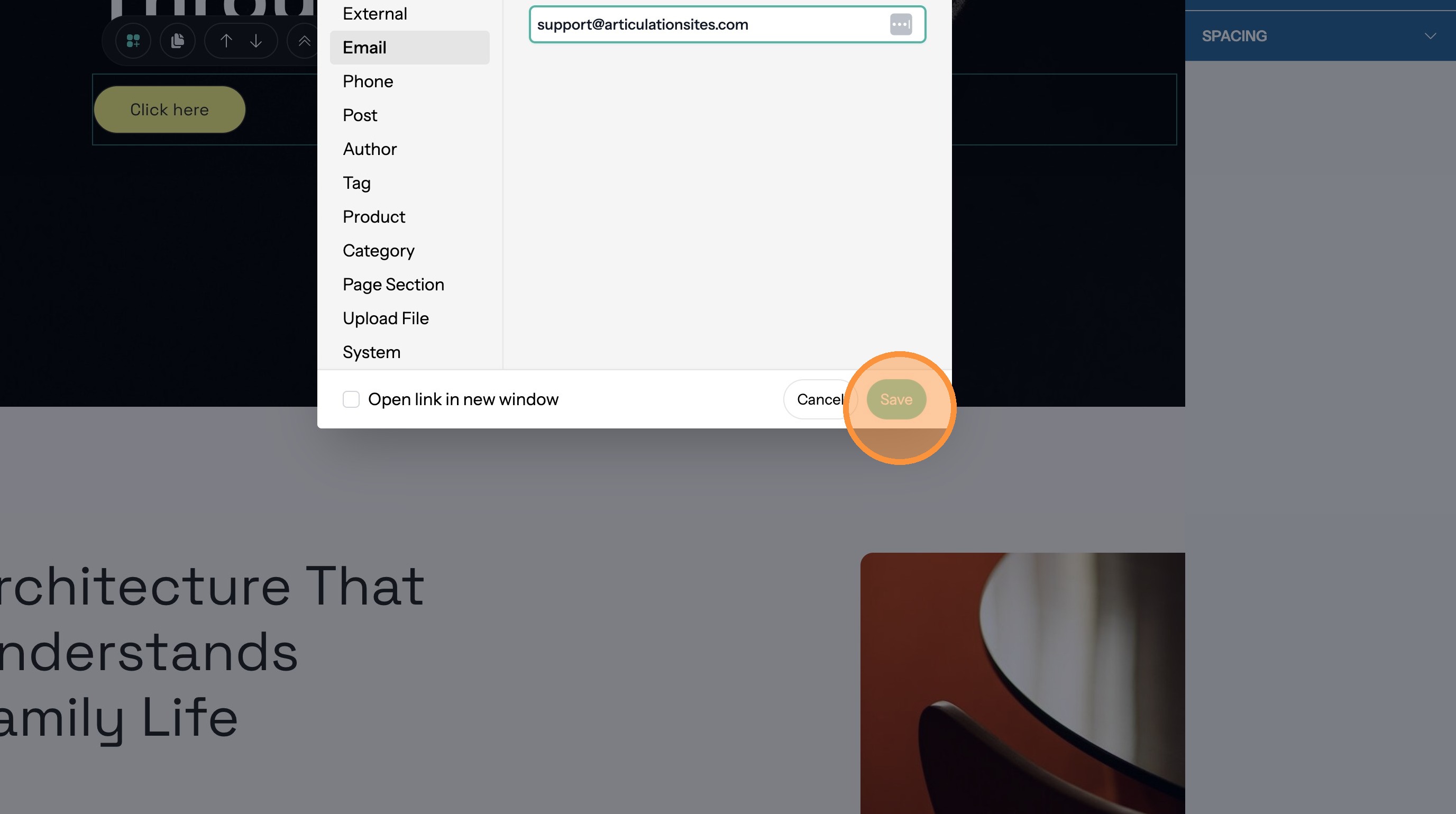
19. Click "Save"
Link to a Phone Number
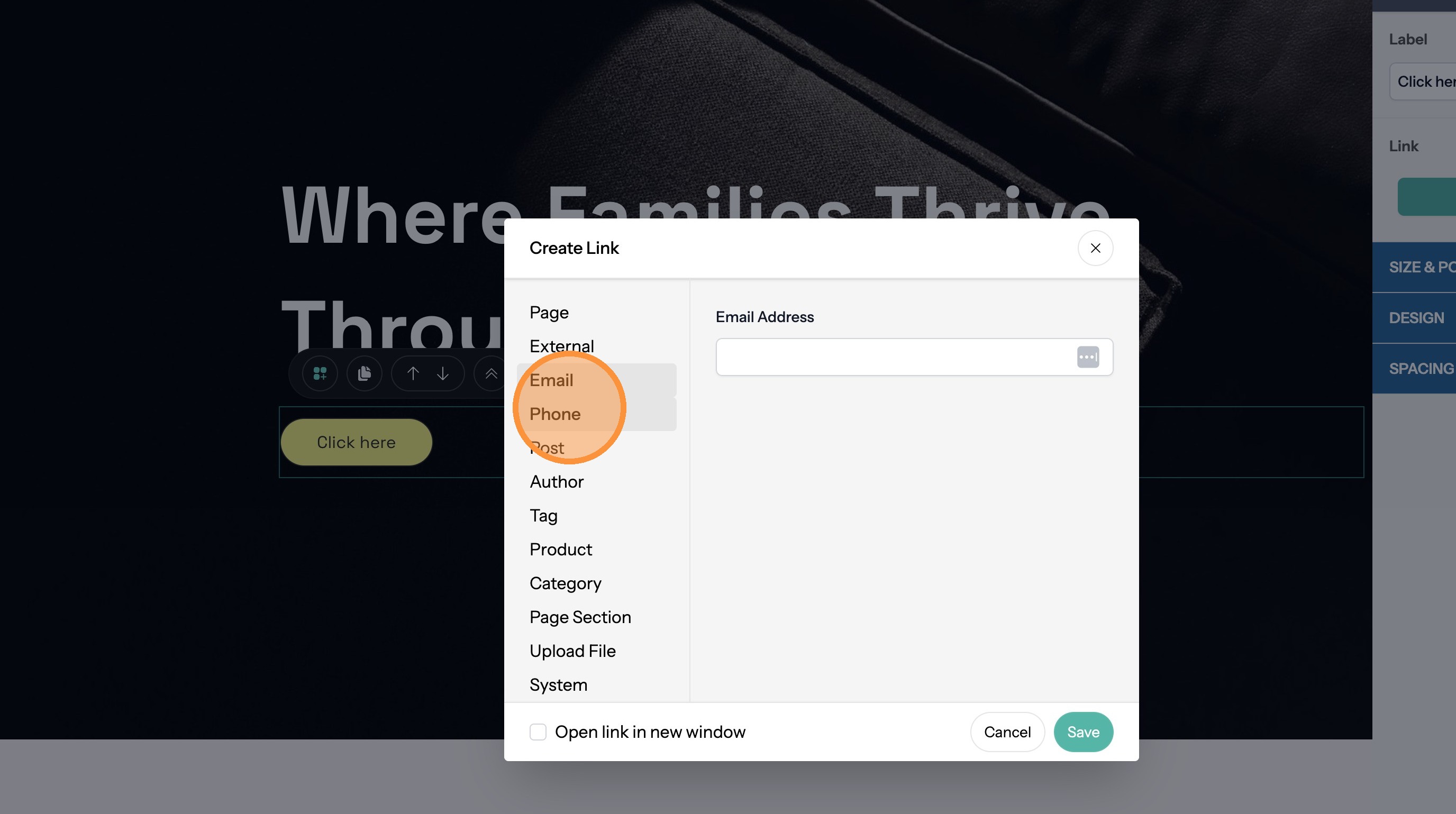
20. Click "Phone"
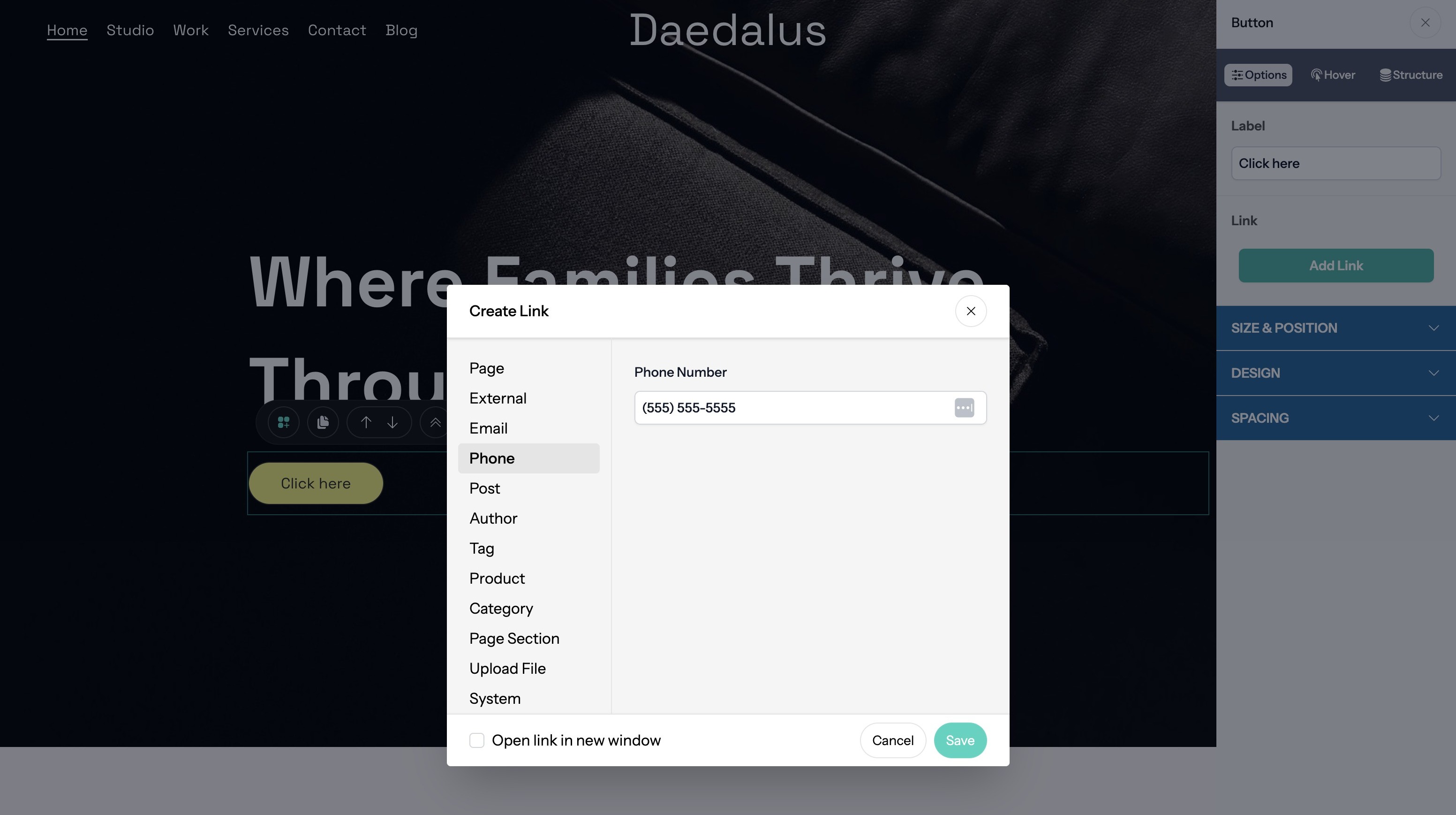
21. Enter the phone number
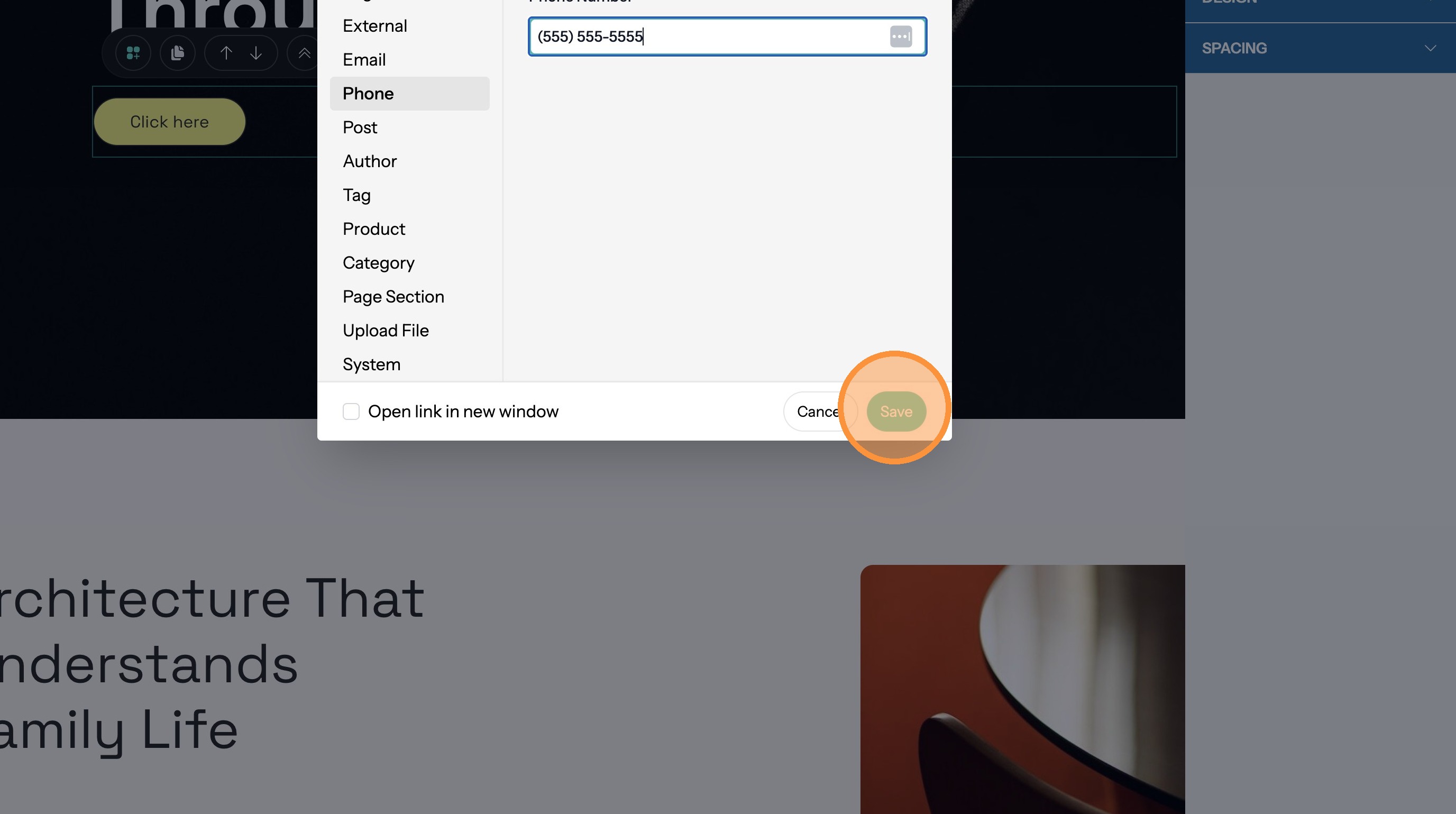
22. Click "Save"
Link to a Blog Post
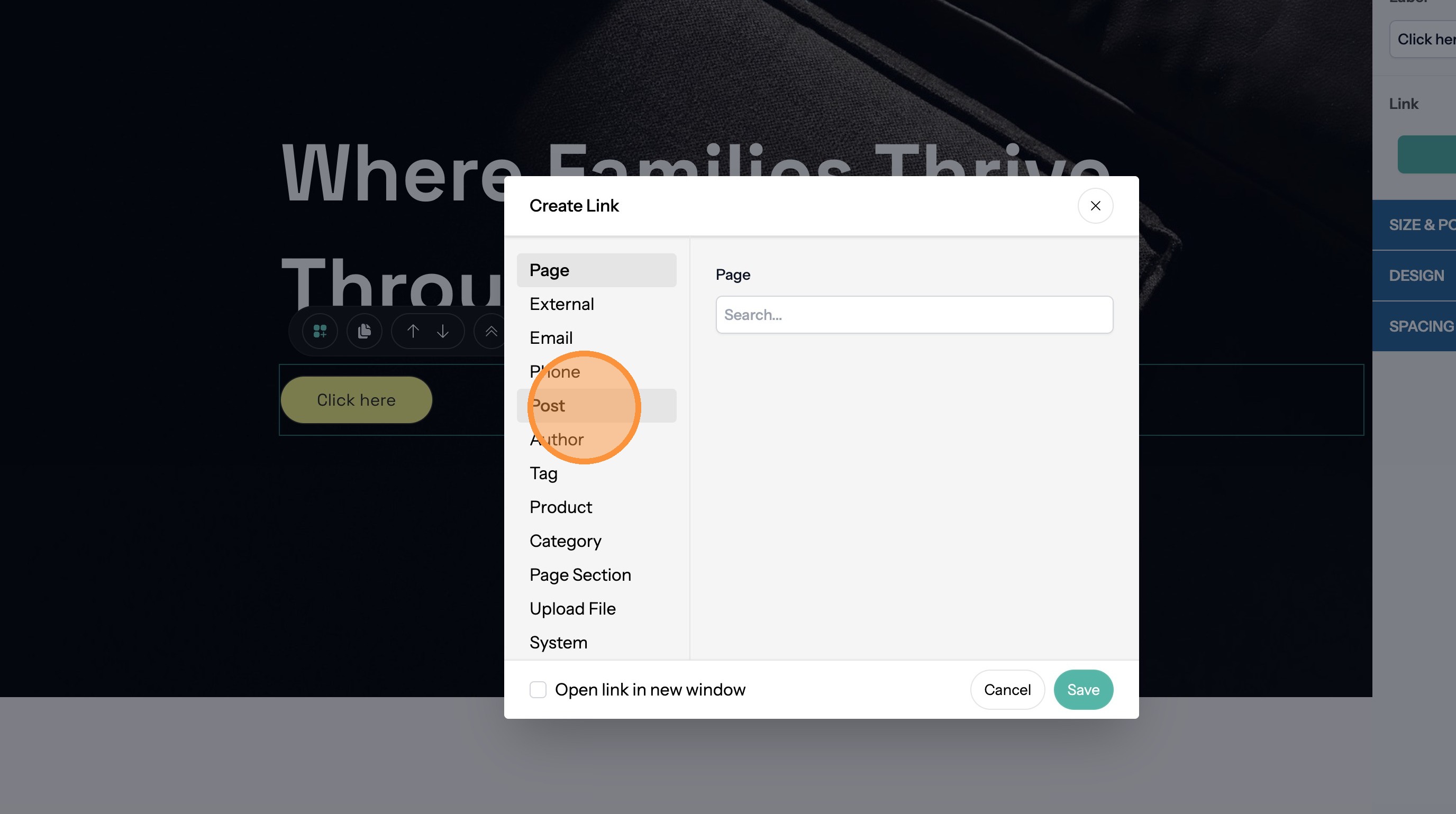
23. Click "Post"
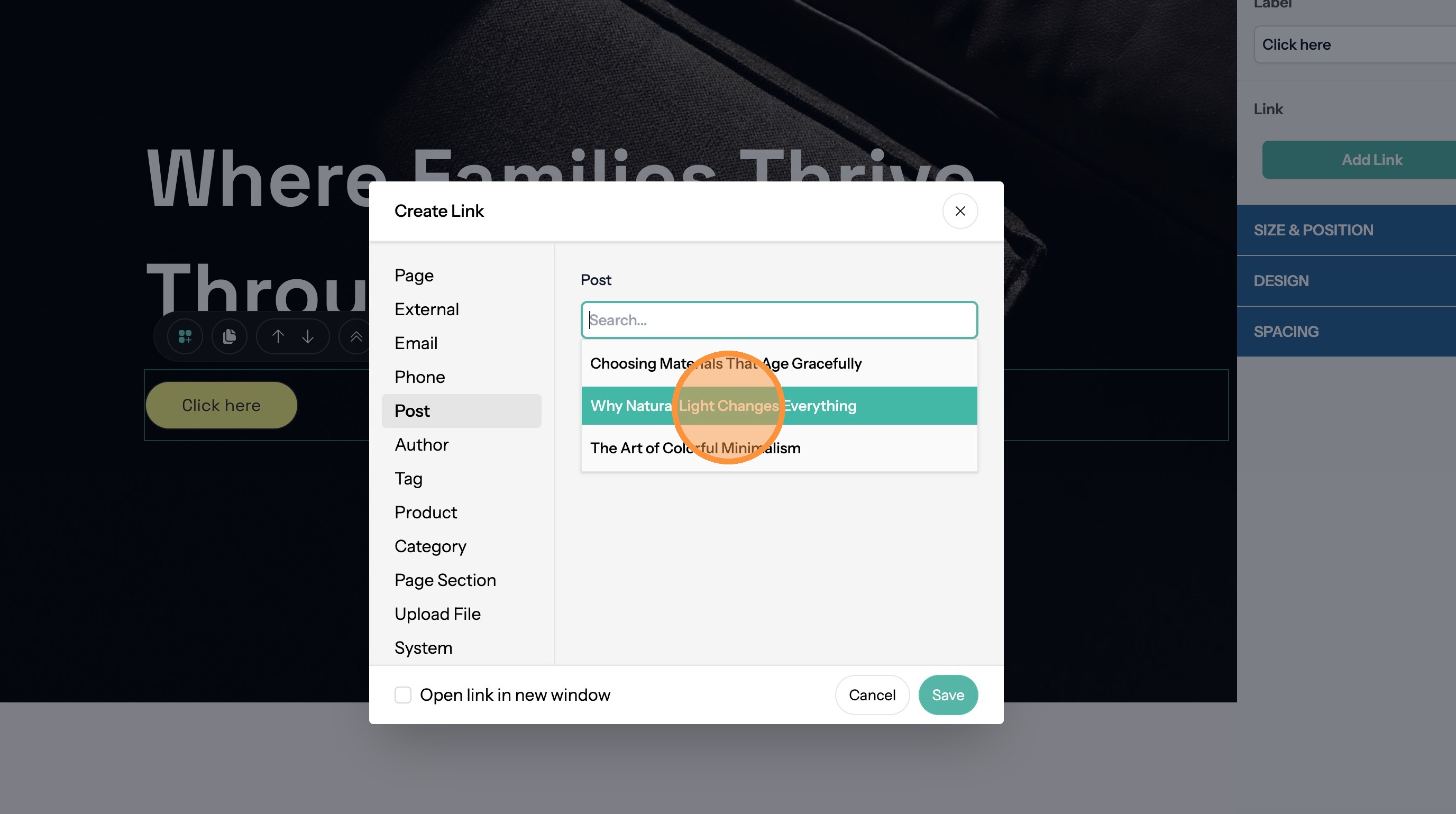
24. Click the "Search" field and search for the post you want.
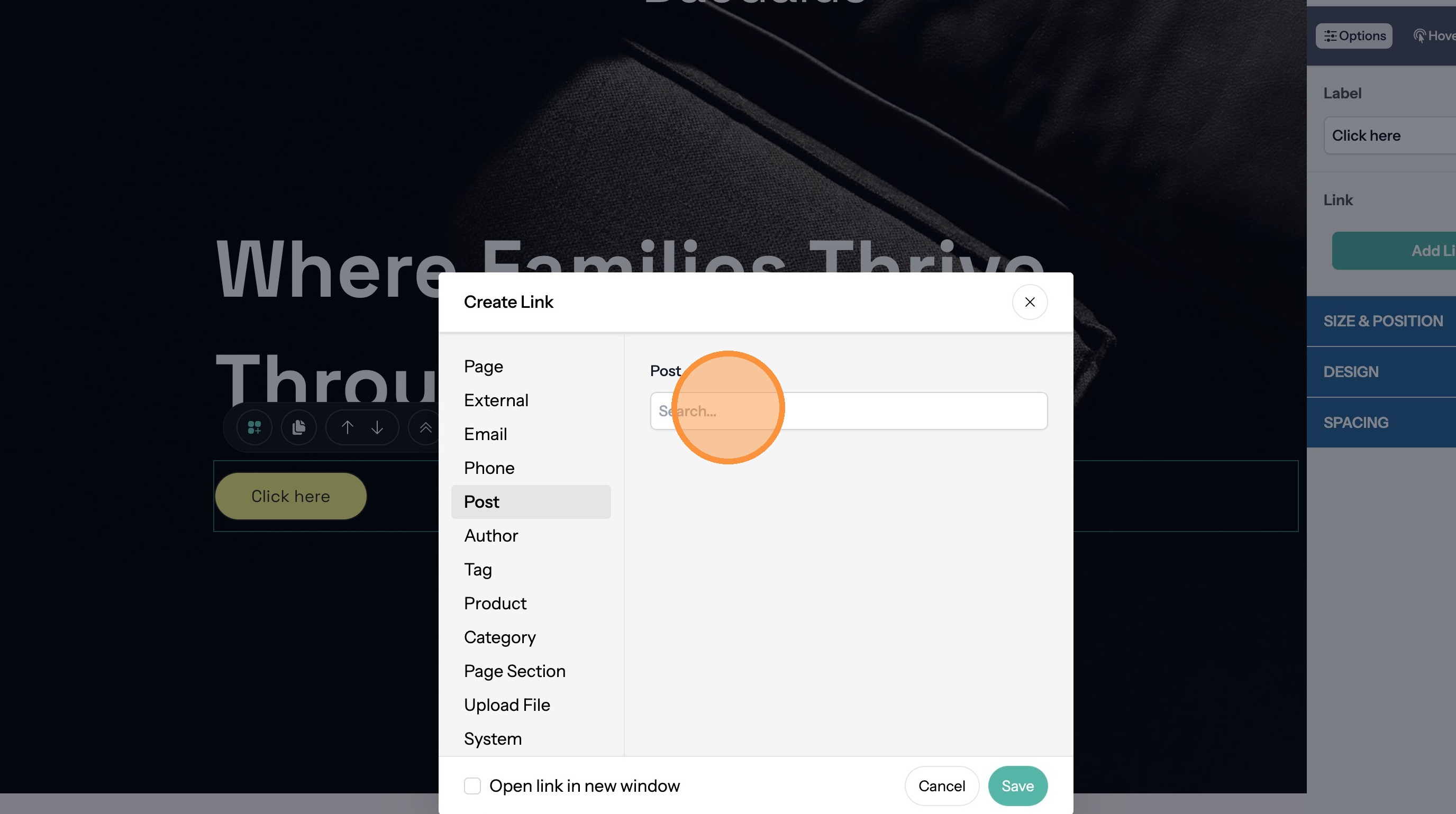
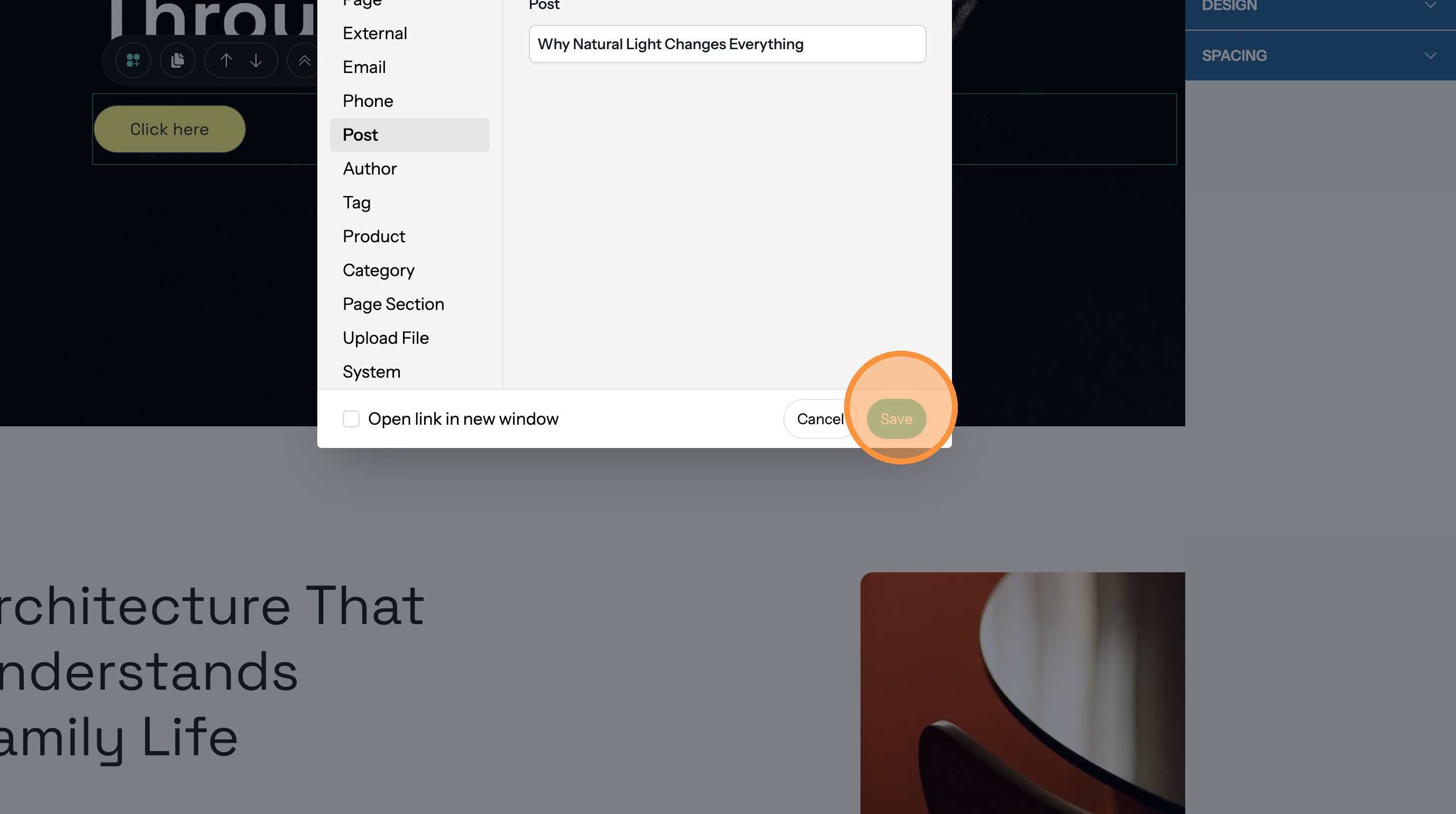
25. Click the post title.
26. Click "Save"
Link to a Blog Author's Page
27. Click "Author"
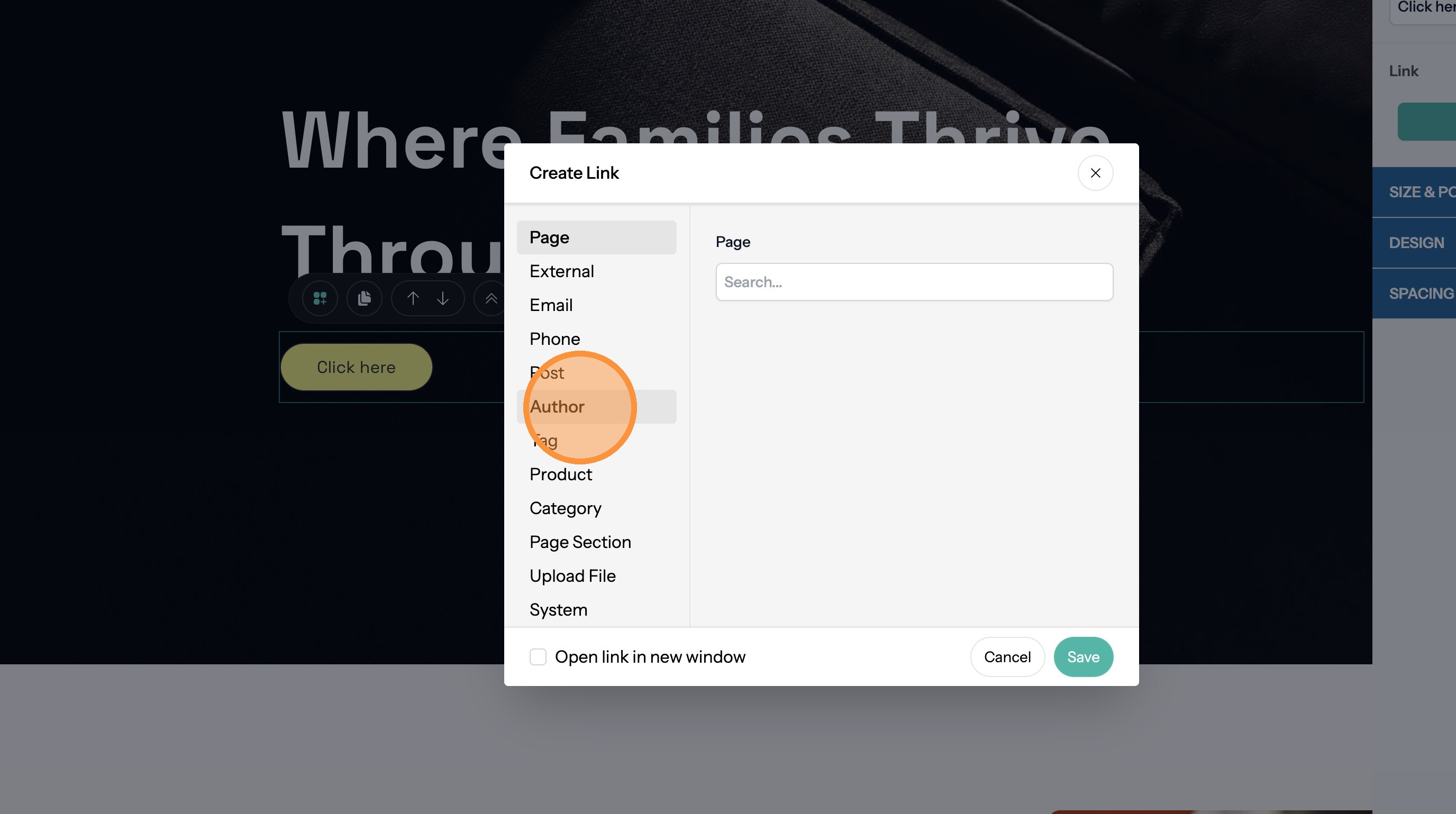
28. Click the "Search" field and search for the author.
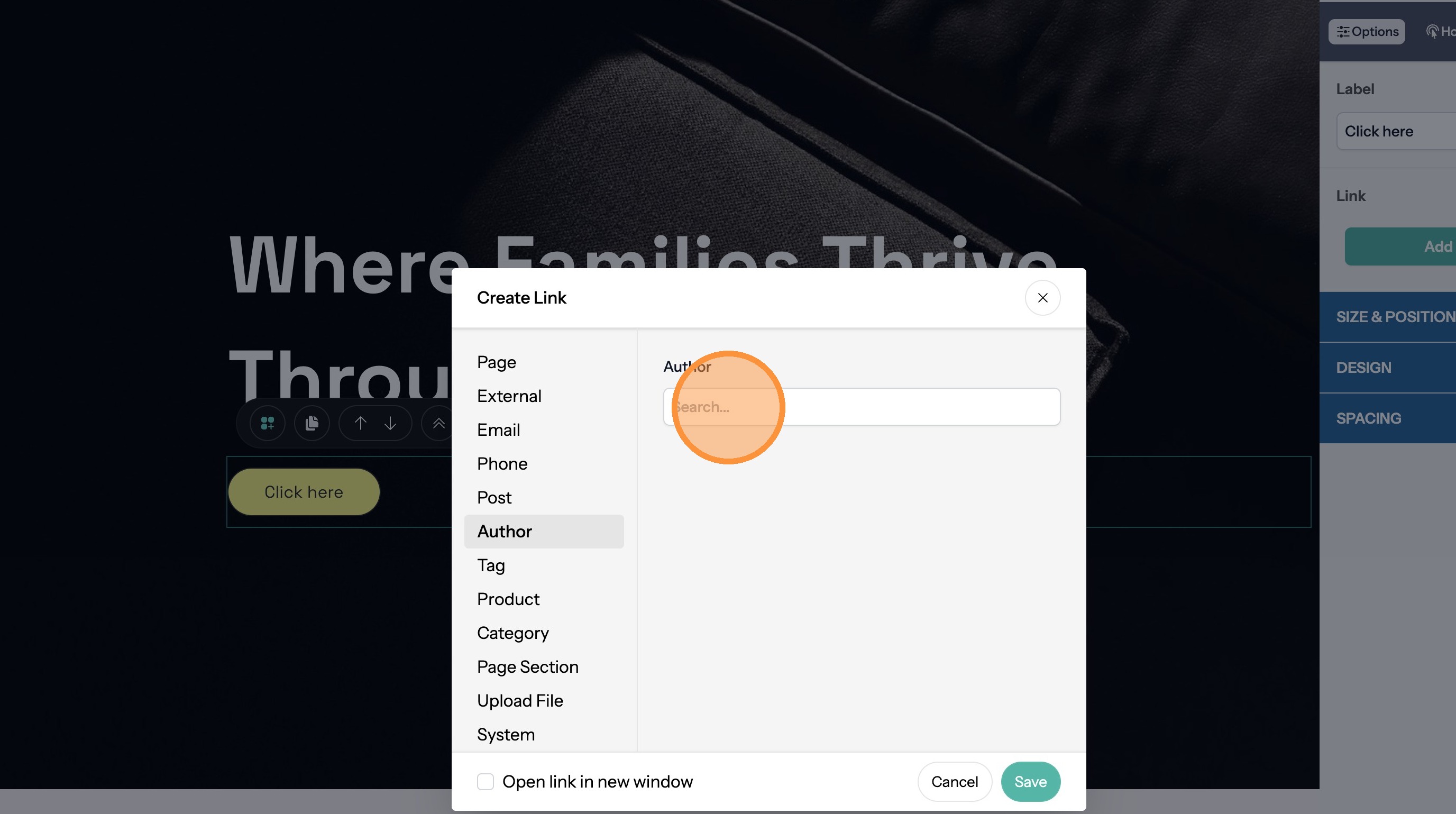
29. Click the author's name.
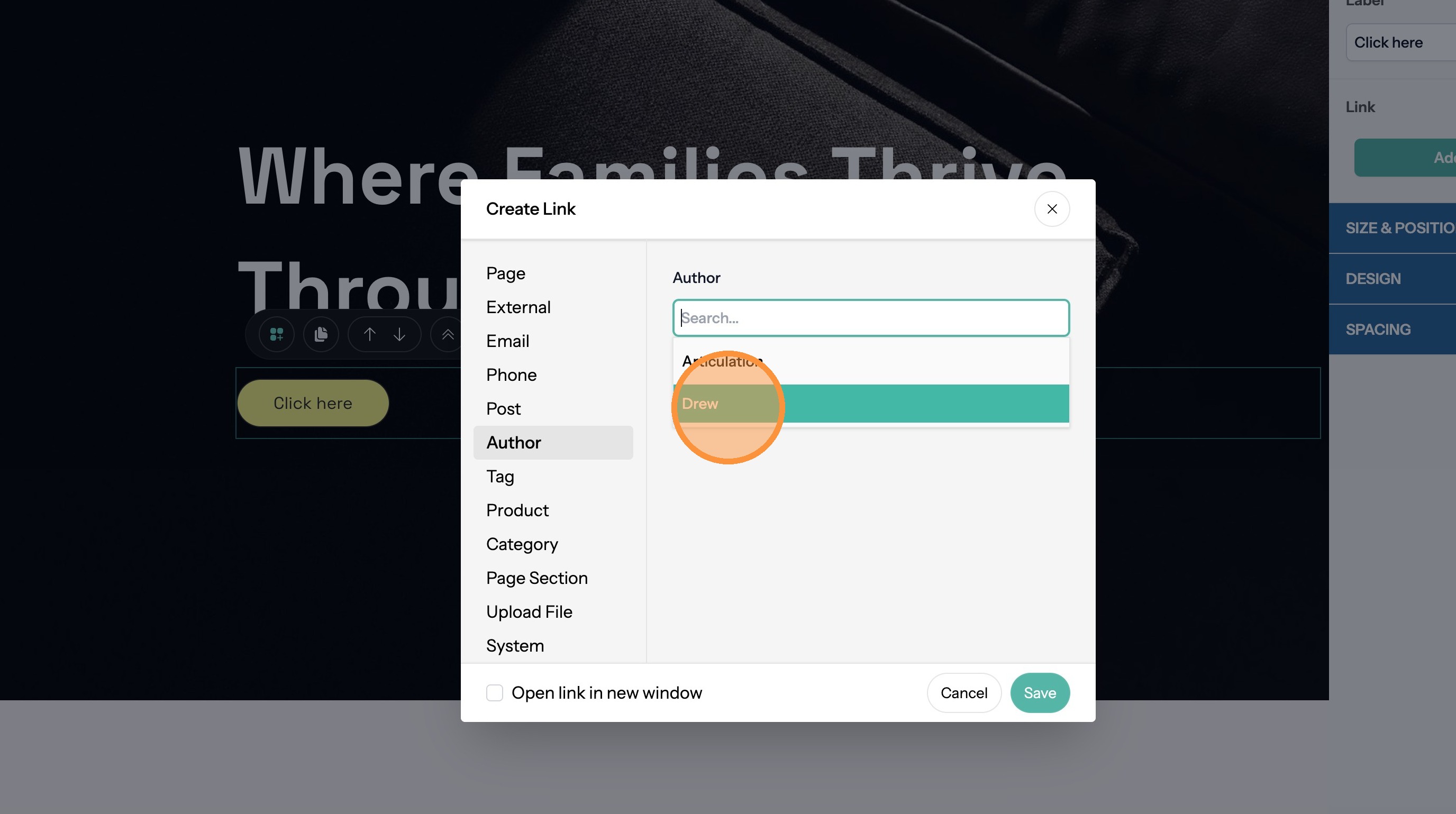
30. Click "Save"
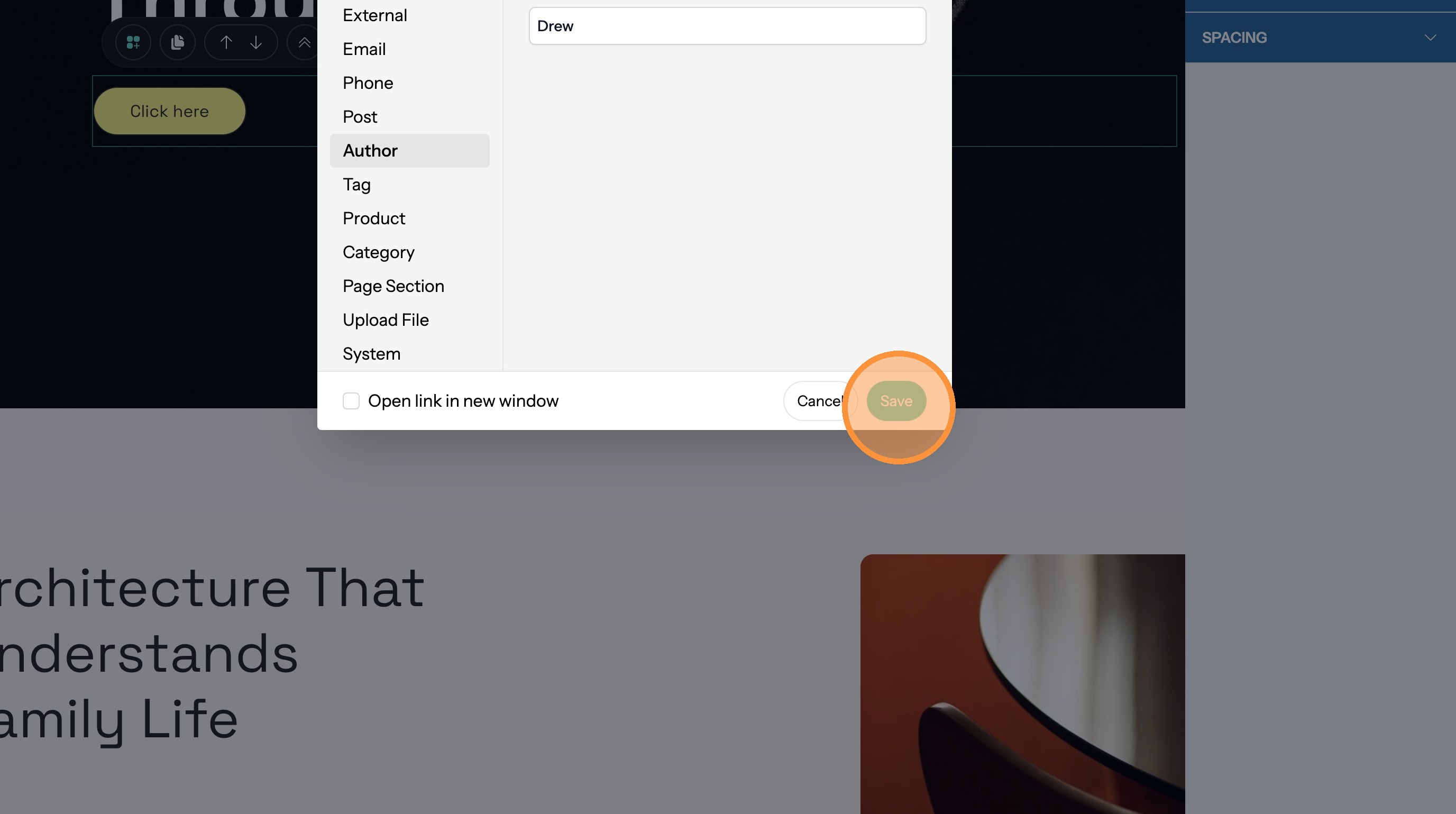
Link to a Blog Tag
31. Click "Tag"
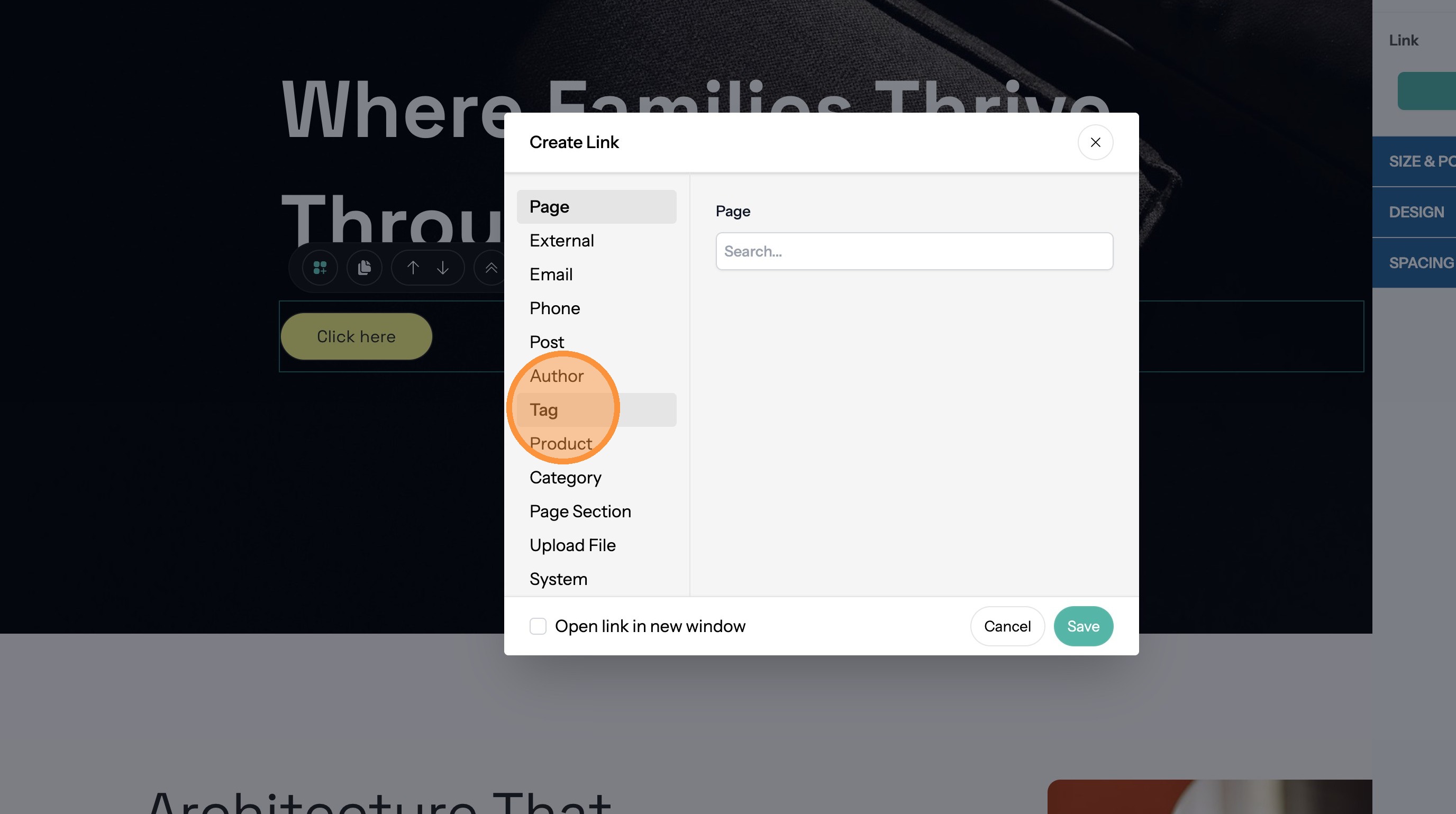
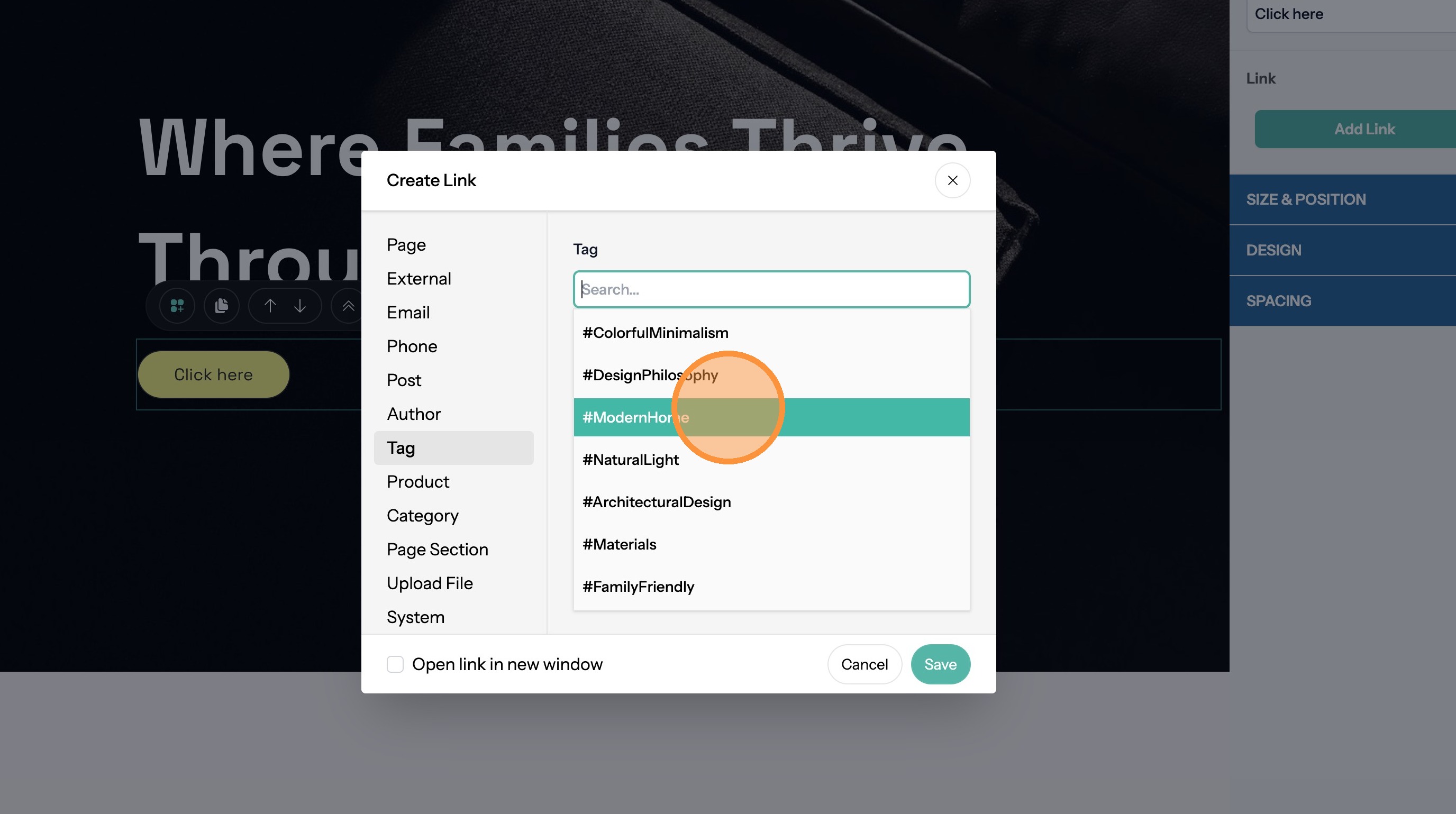
32. Click the "Search" field and search for the tag.
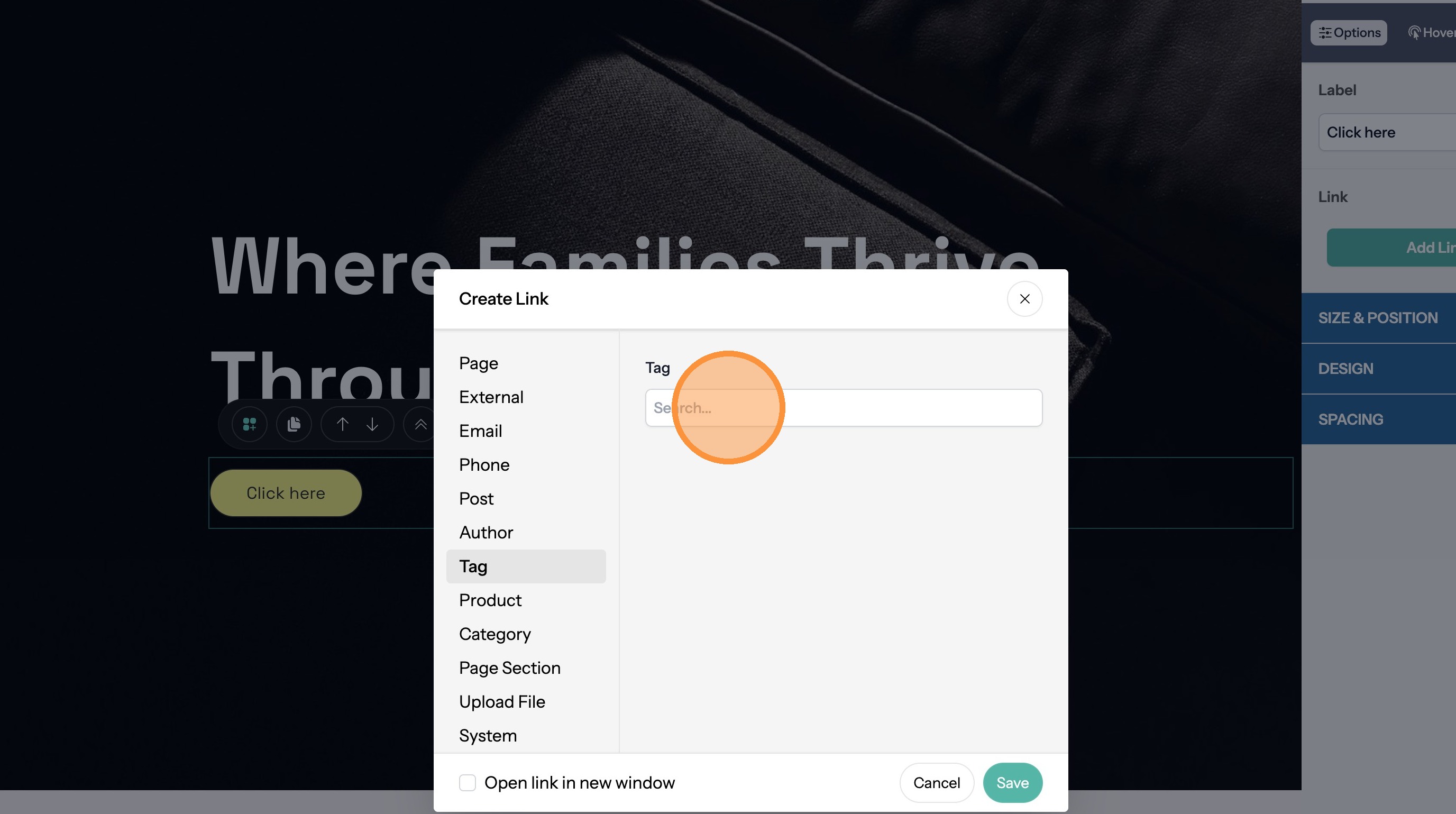
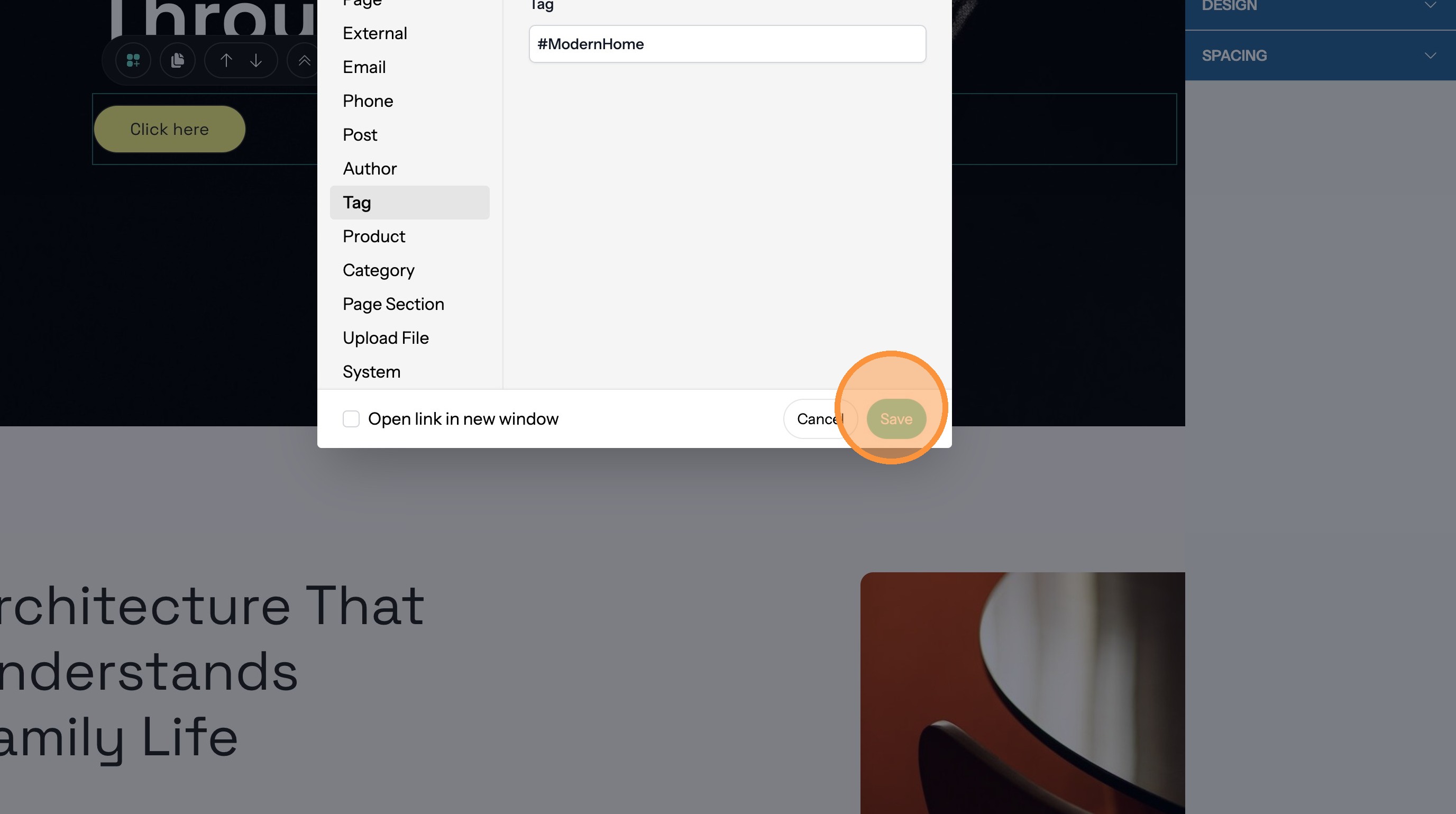
33. Click the tag name.
34. Click "Save"
Link to a Product Page
35. Click "Product"
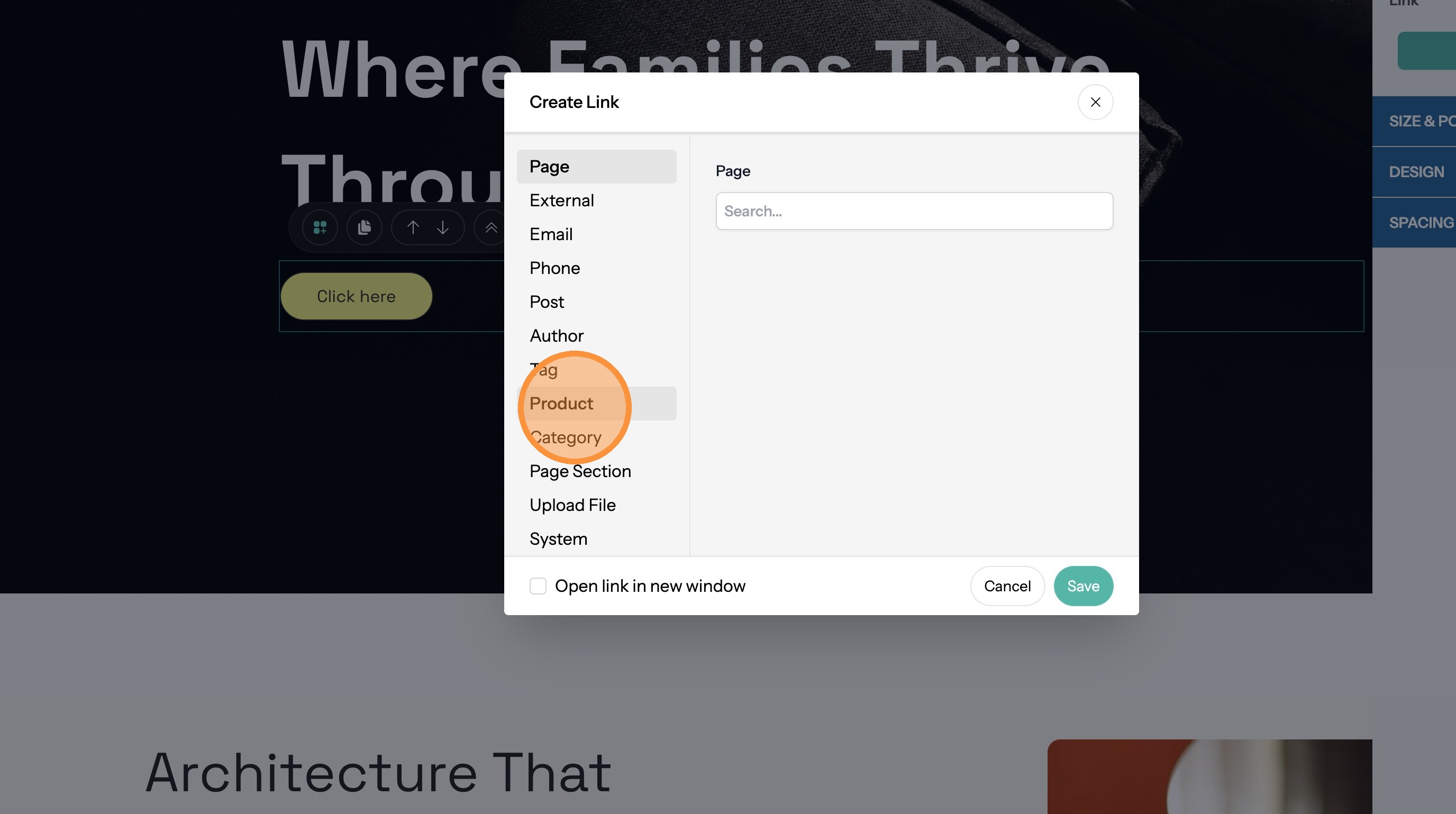
36. Click the "[[Search]]" field and search for the product.
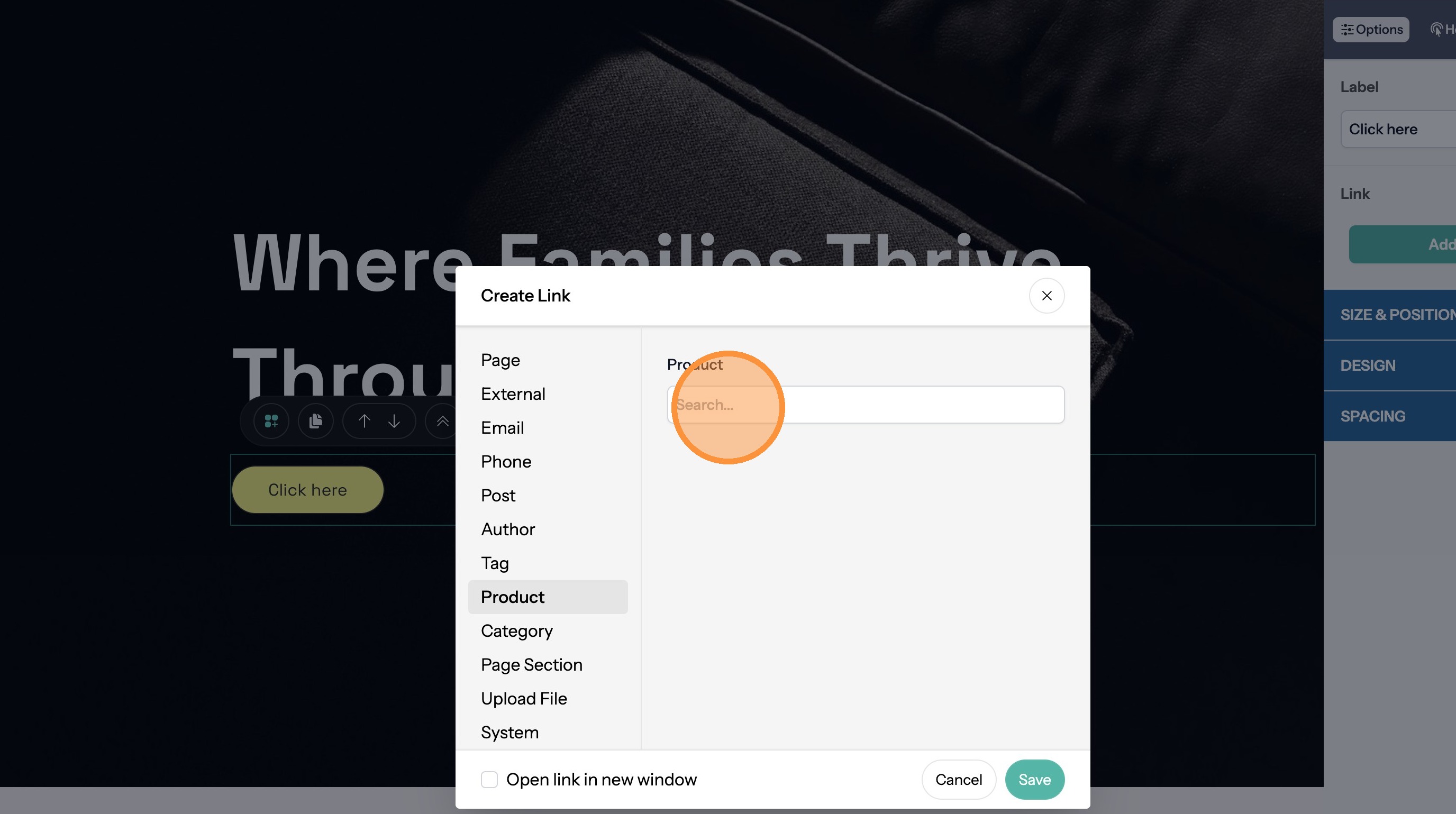
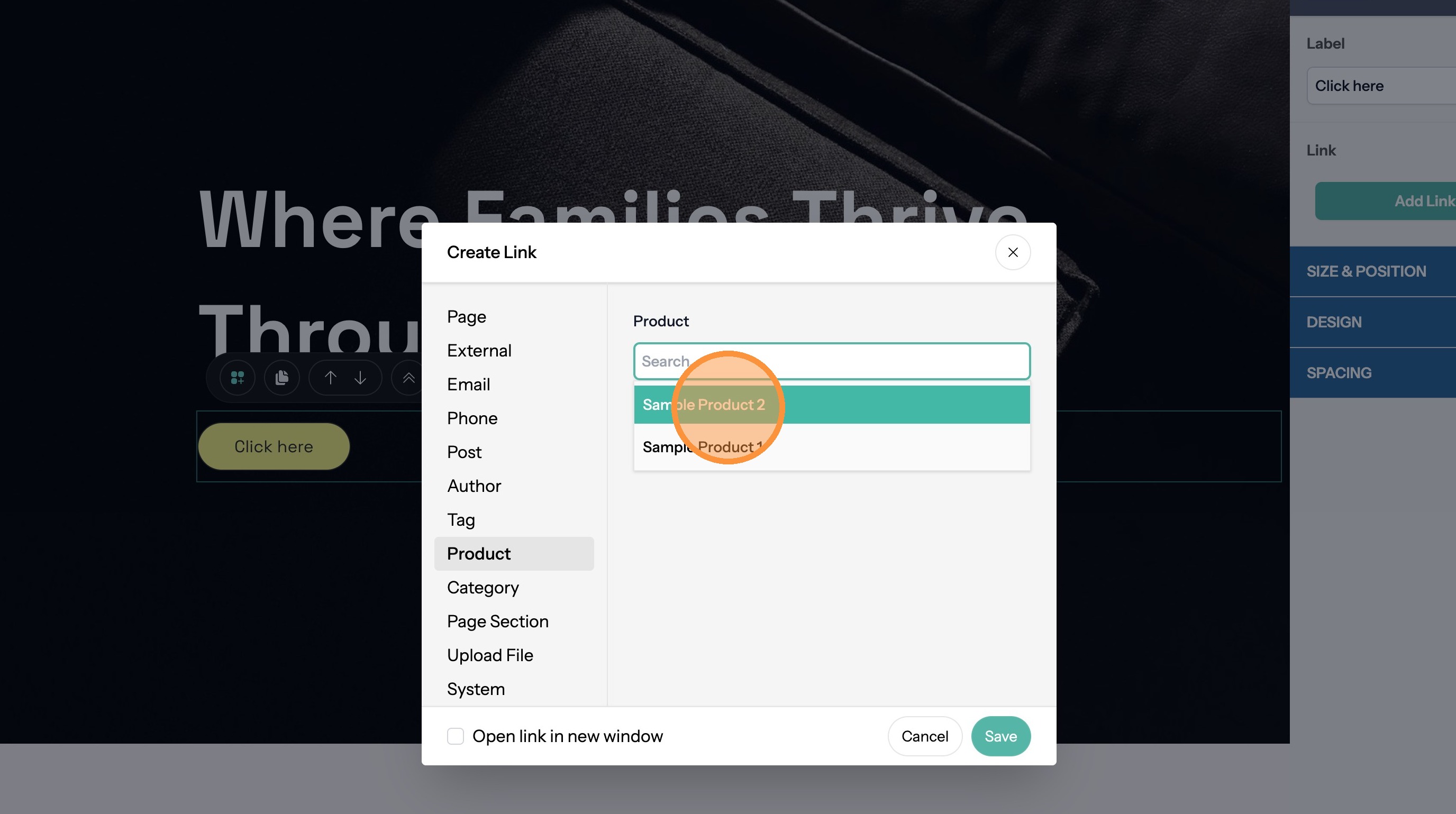
37. Click product name.
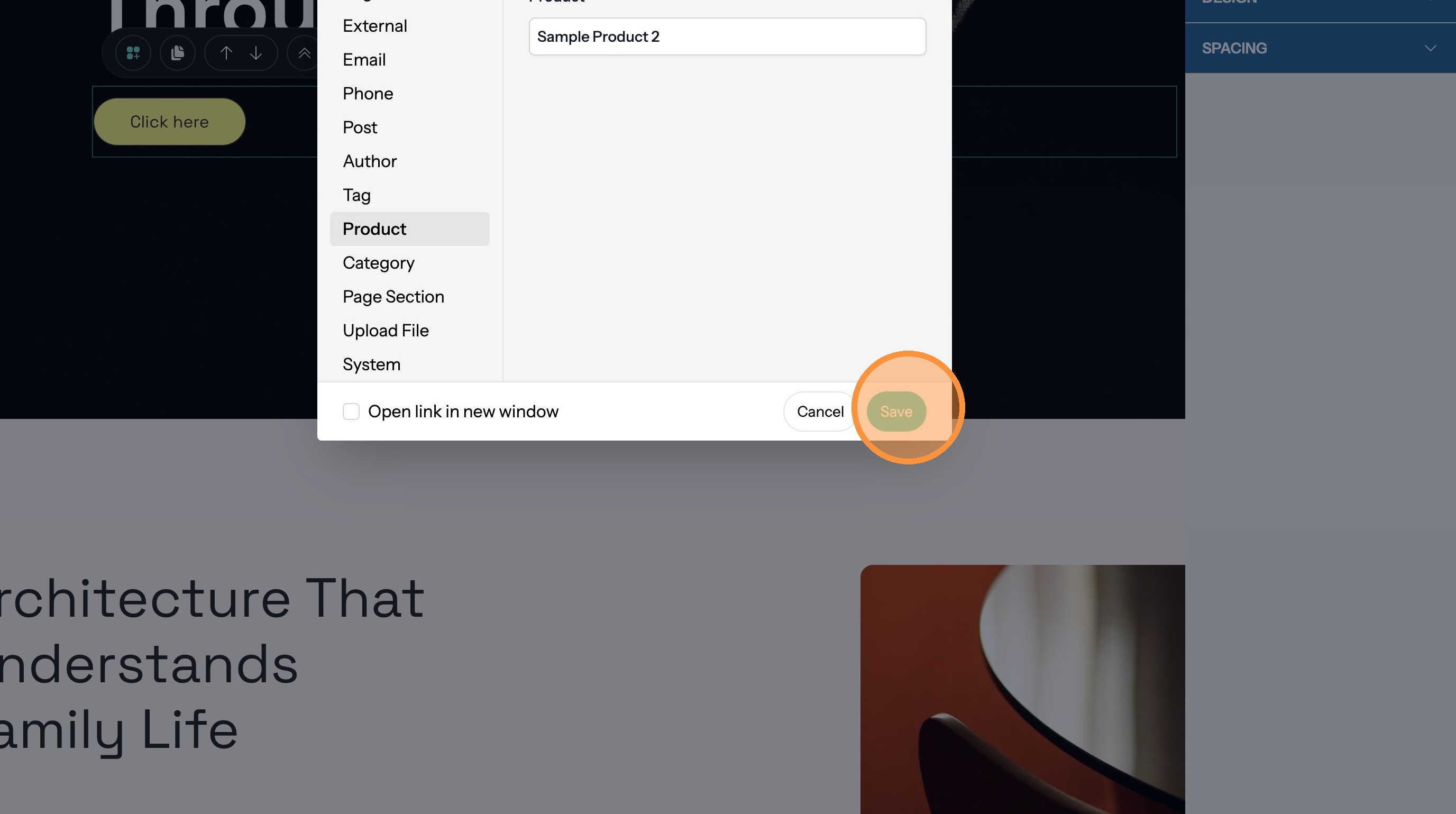
38. Click "Save"
Link to a Product Category Page
39. Click "Category"
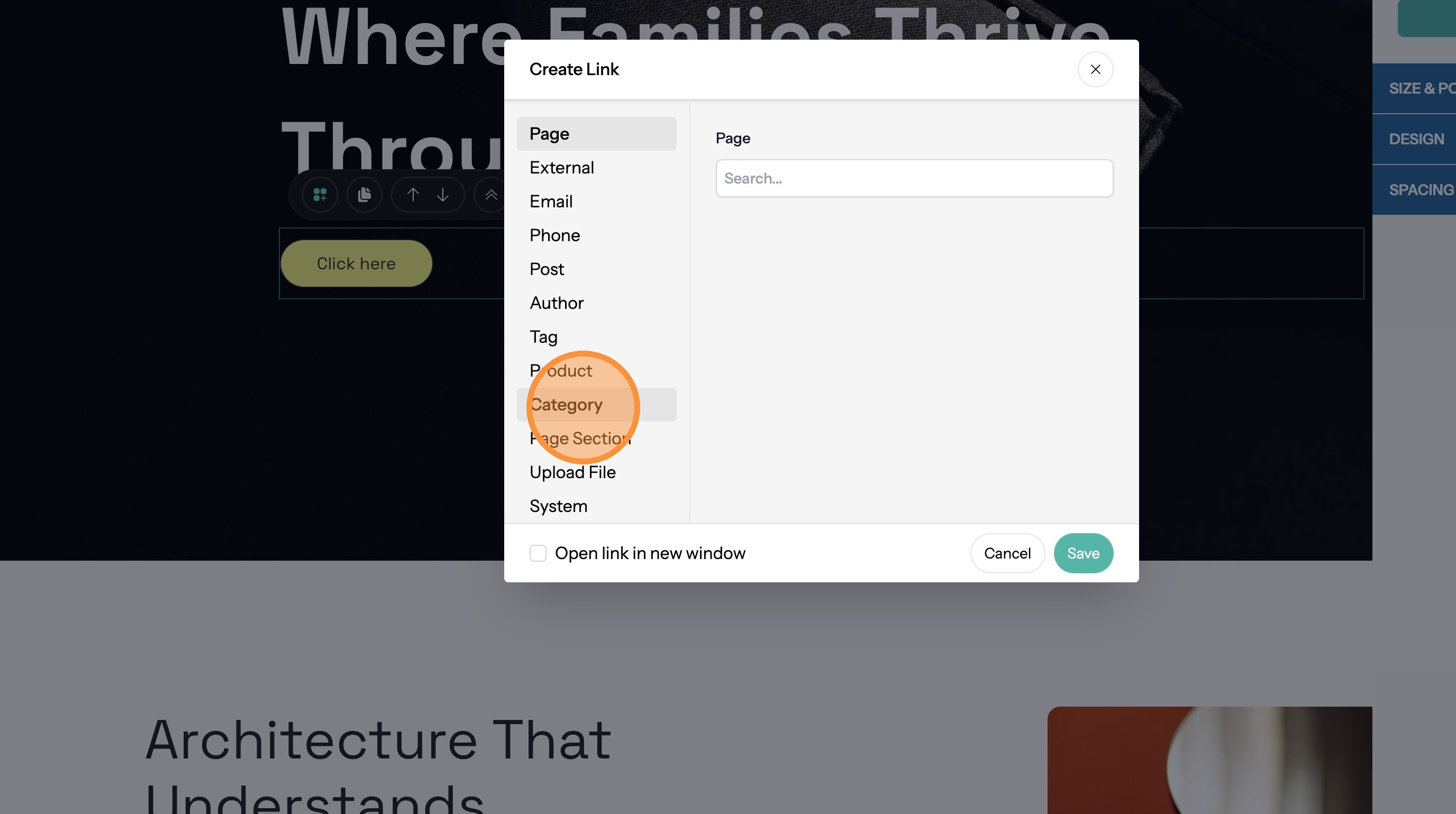
40. Click the "Search" field and search for the category.
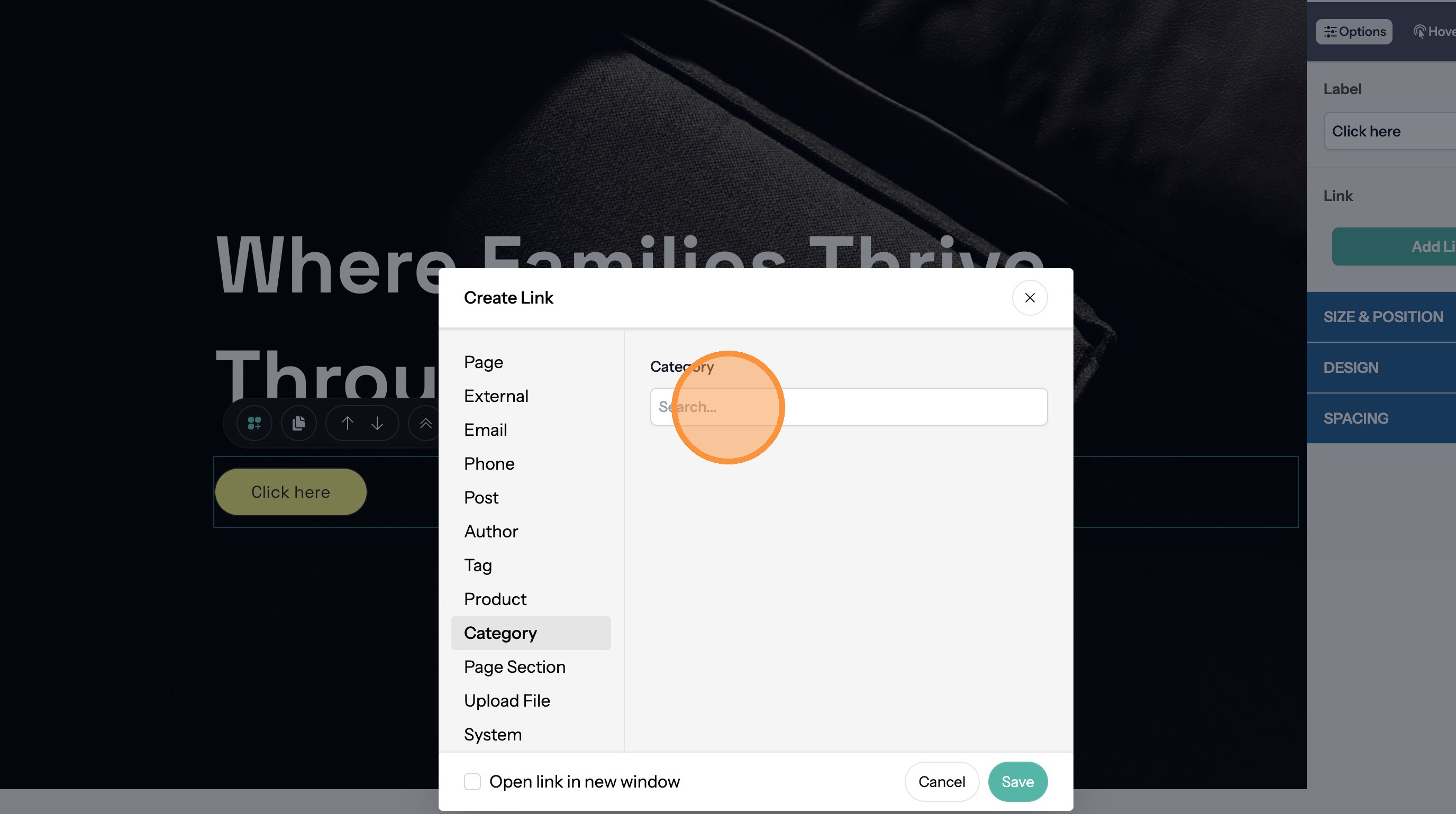
41. Click the category name.
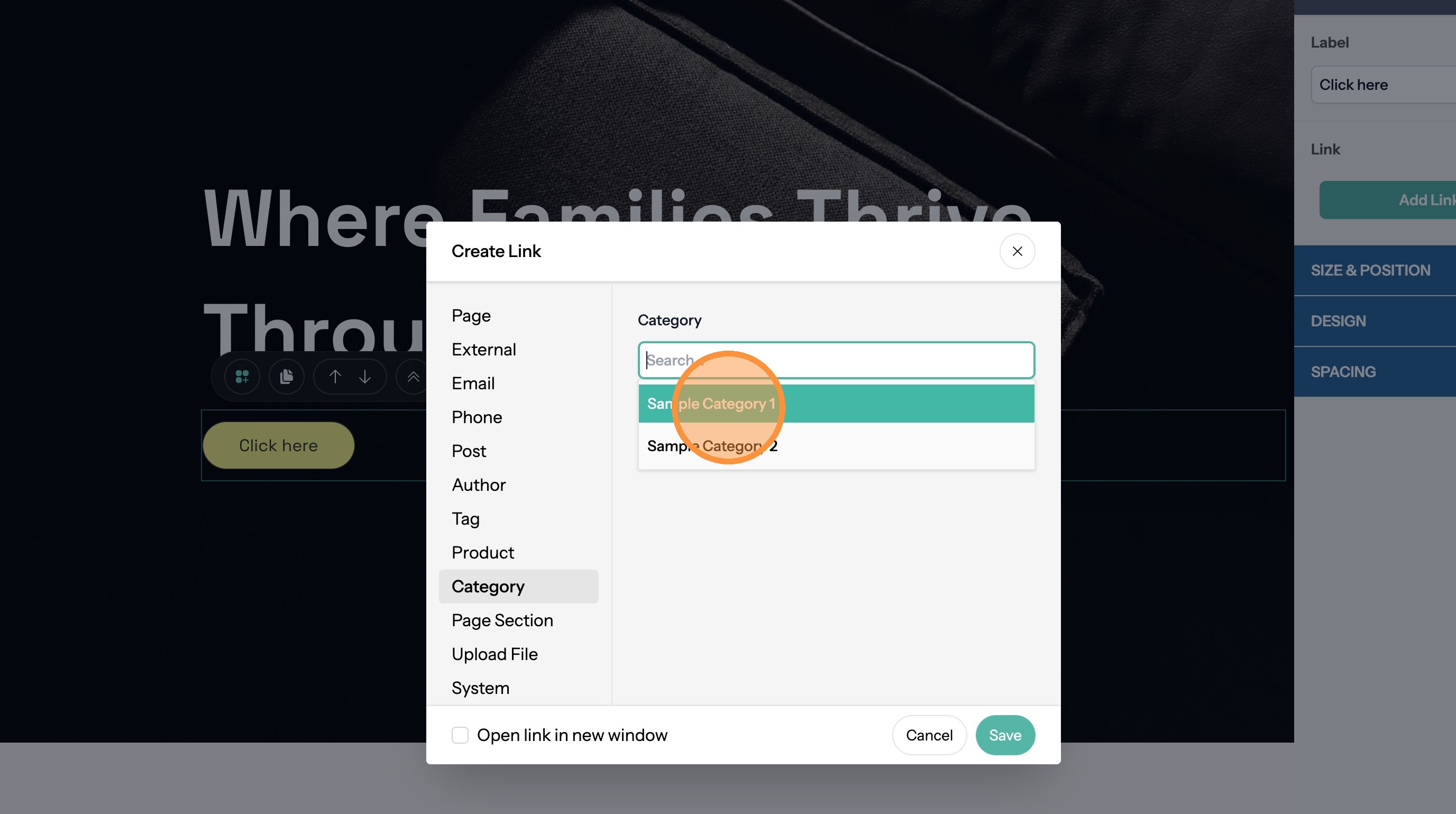
42. Click "Save"
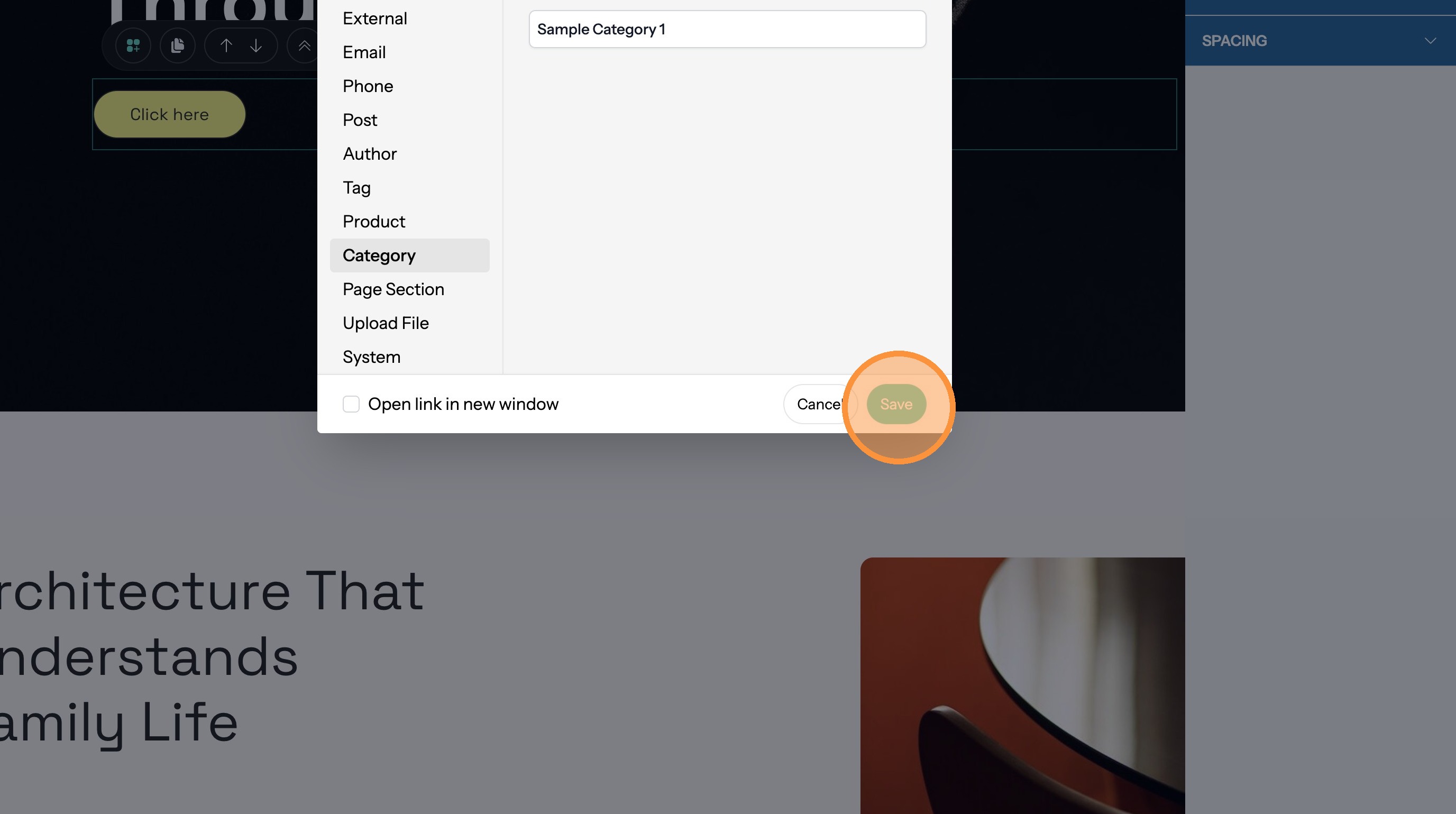
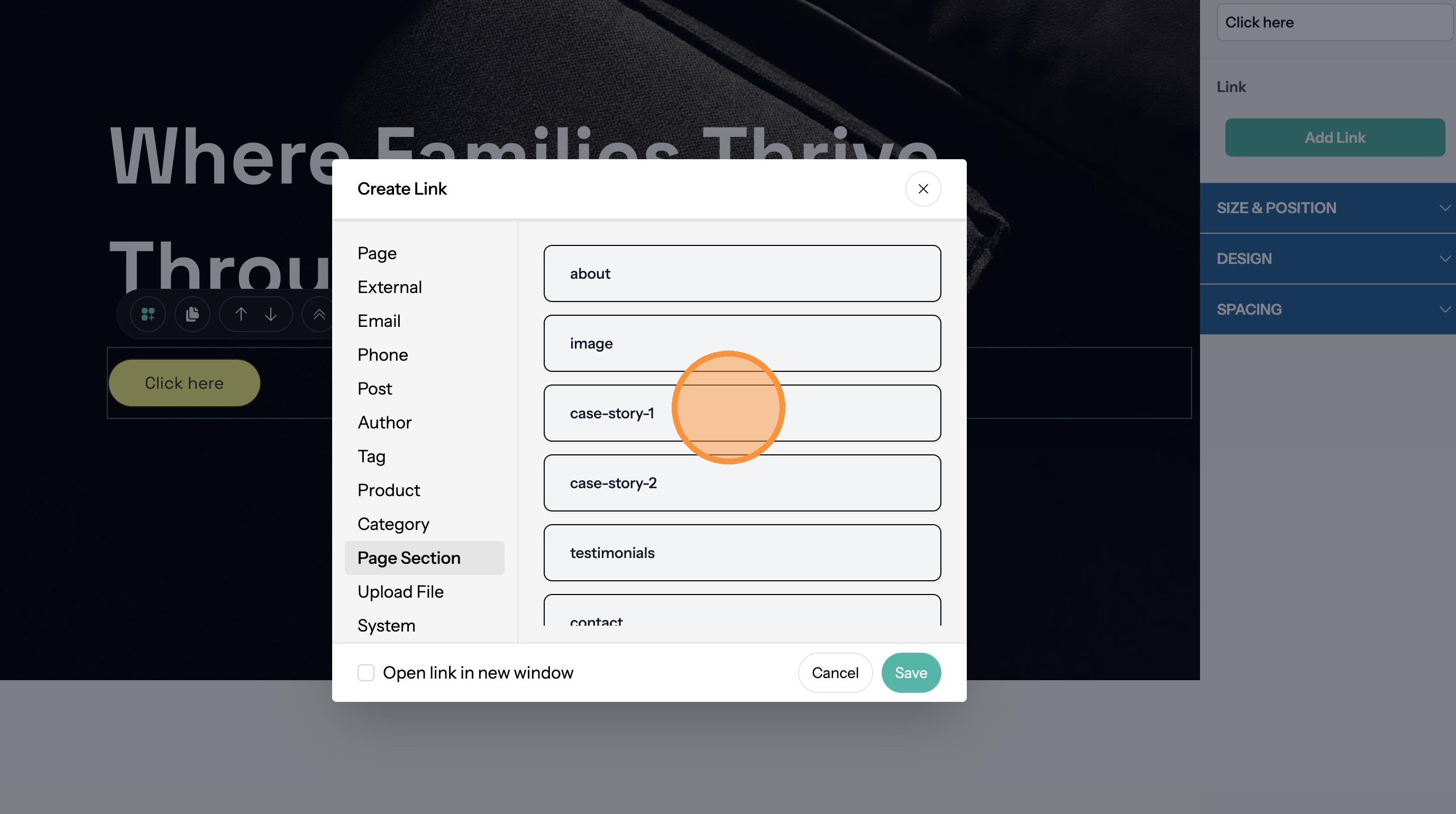
Link to a Page Section
Tip: It's helpful to first name your page sections to make it easier to find the section you want to link to.
43. Click "Page Section"
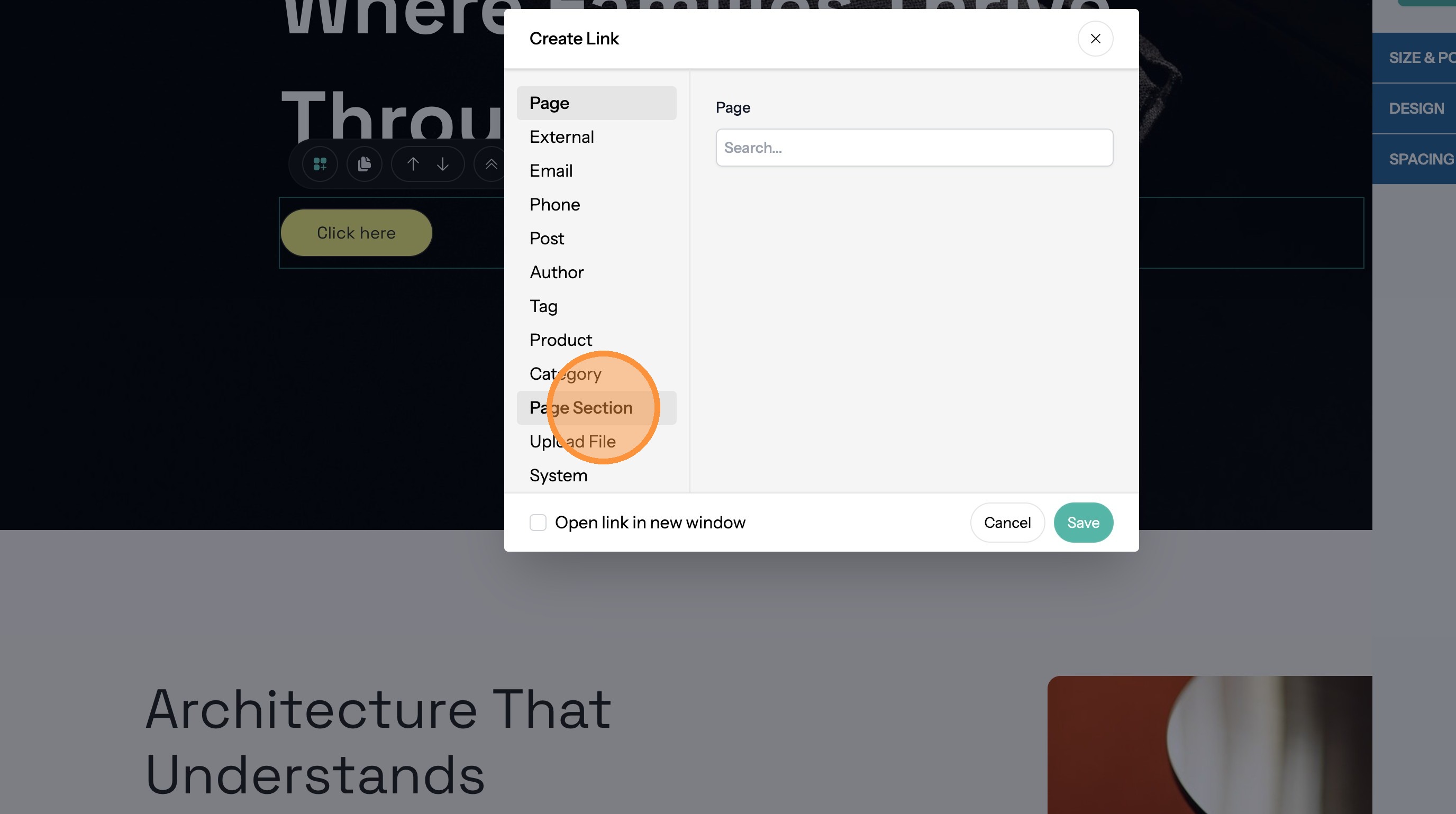
44. Click click on the section you want.
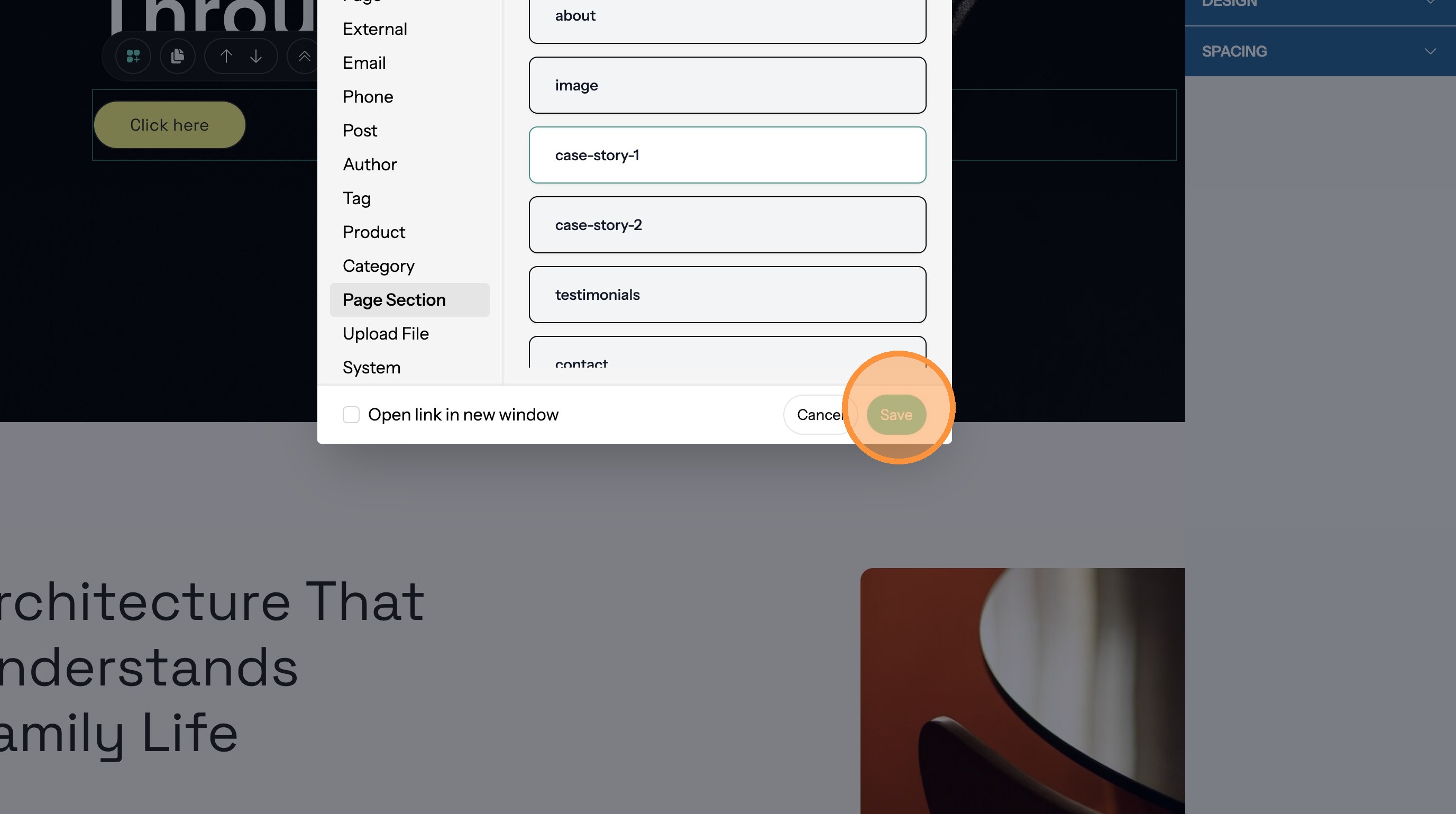
45. Click "Save"
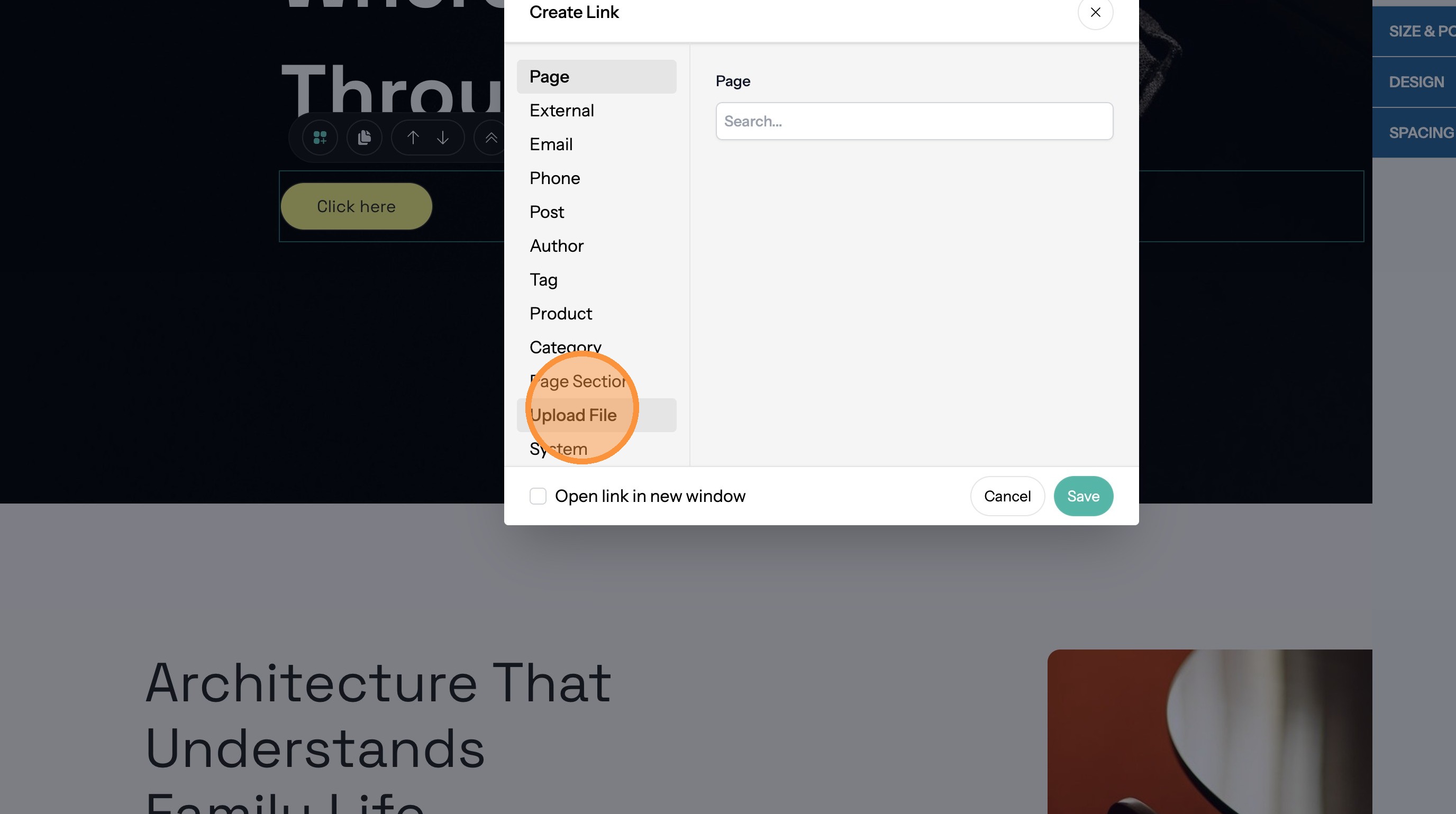
Link to an Uploaded File
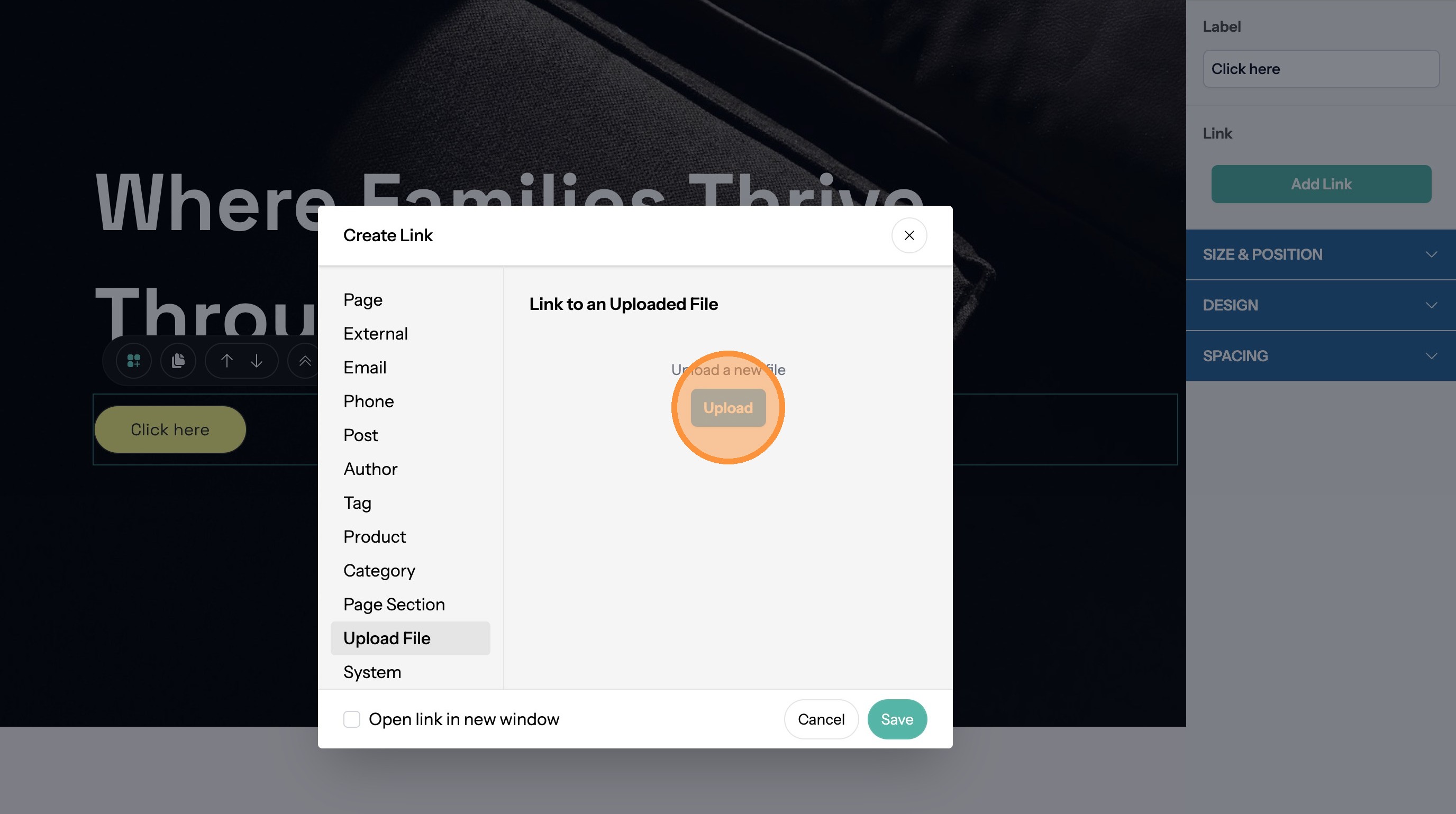
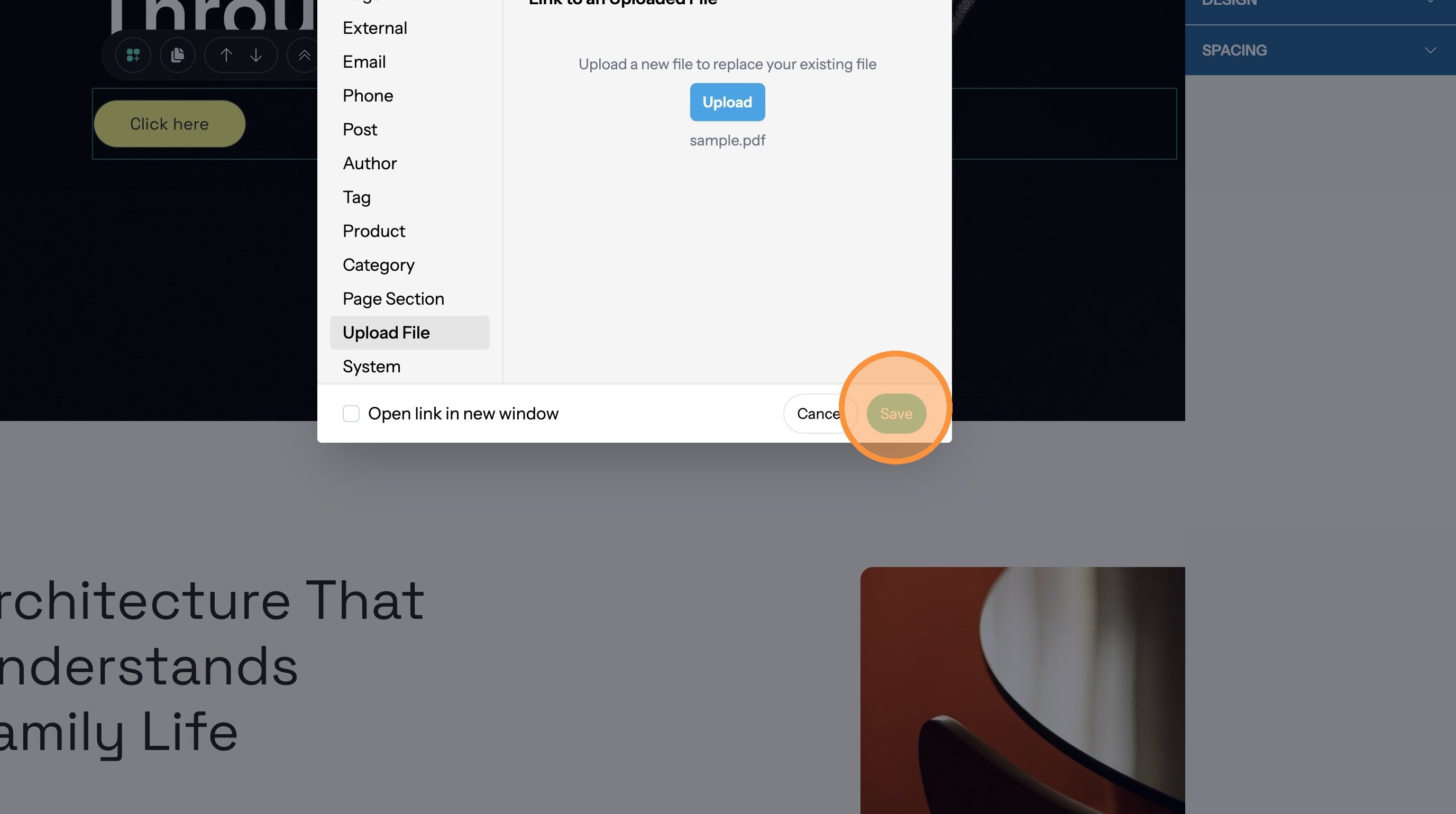
46. Click "Upload File"
47. Click the Upload button and choose a file.
48. Click "Save"
Link to the Blog Index Page
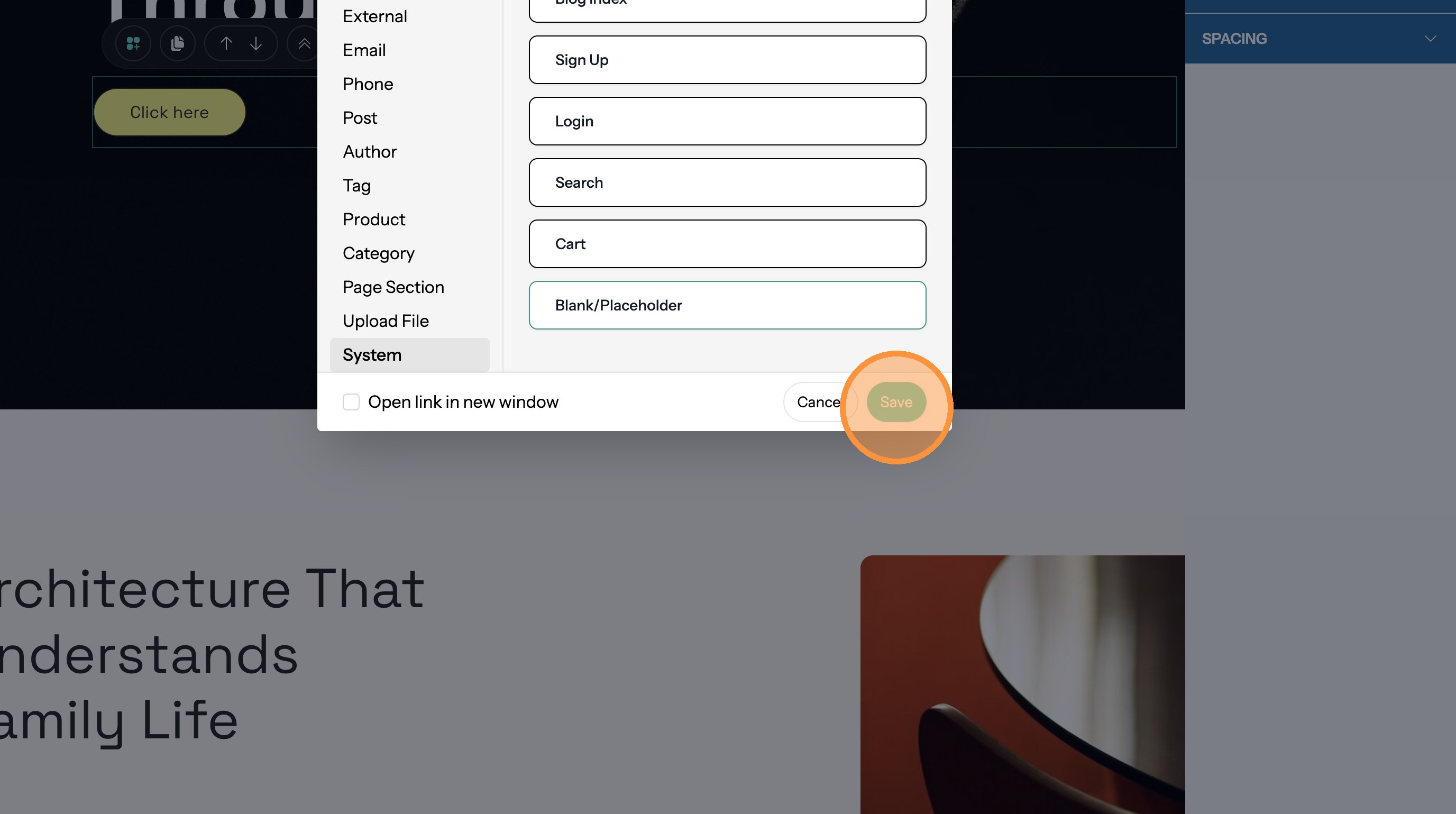
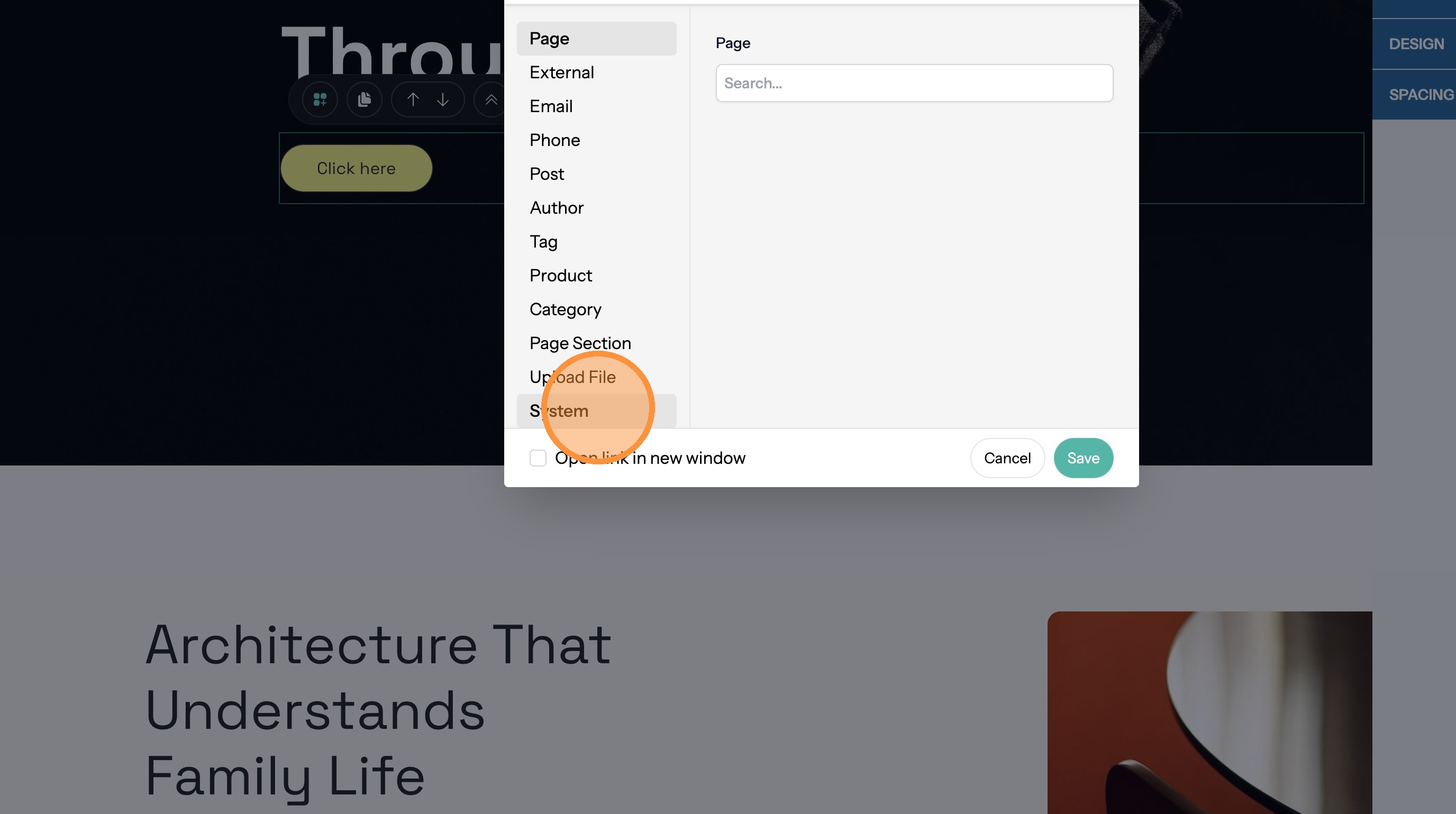
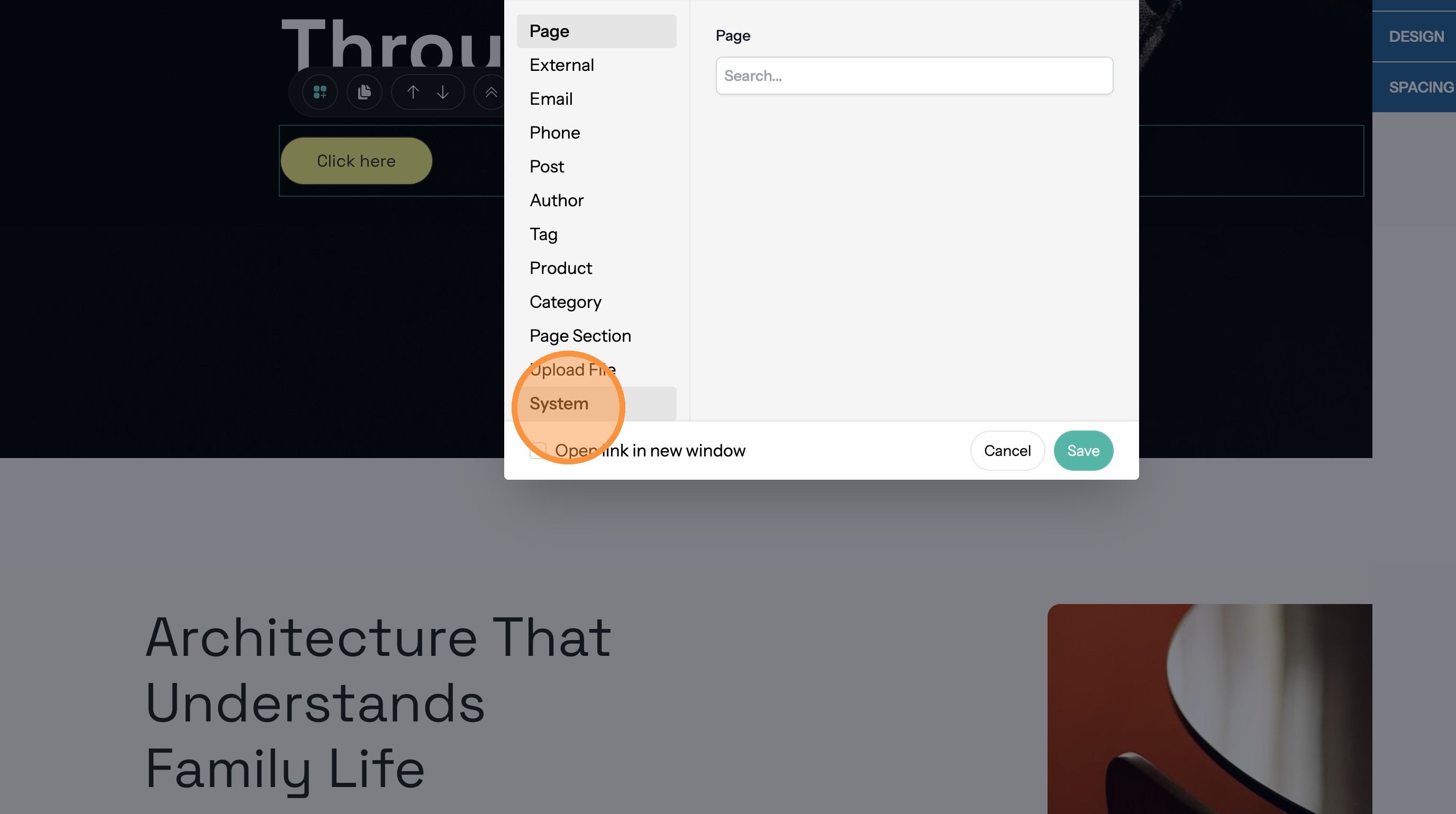
49. Click "System"
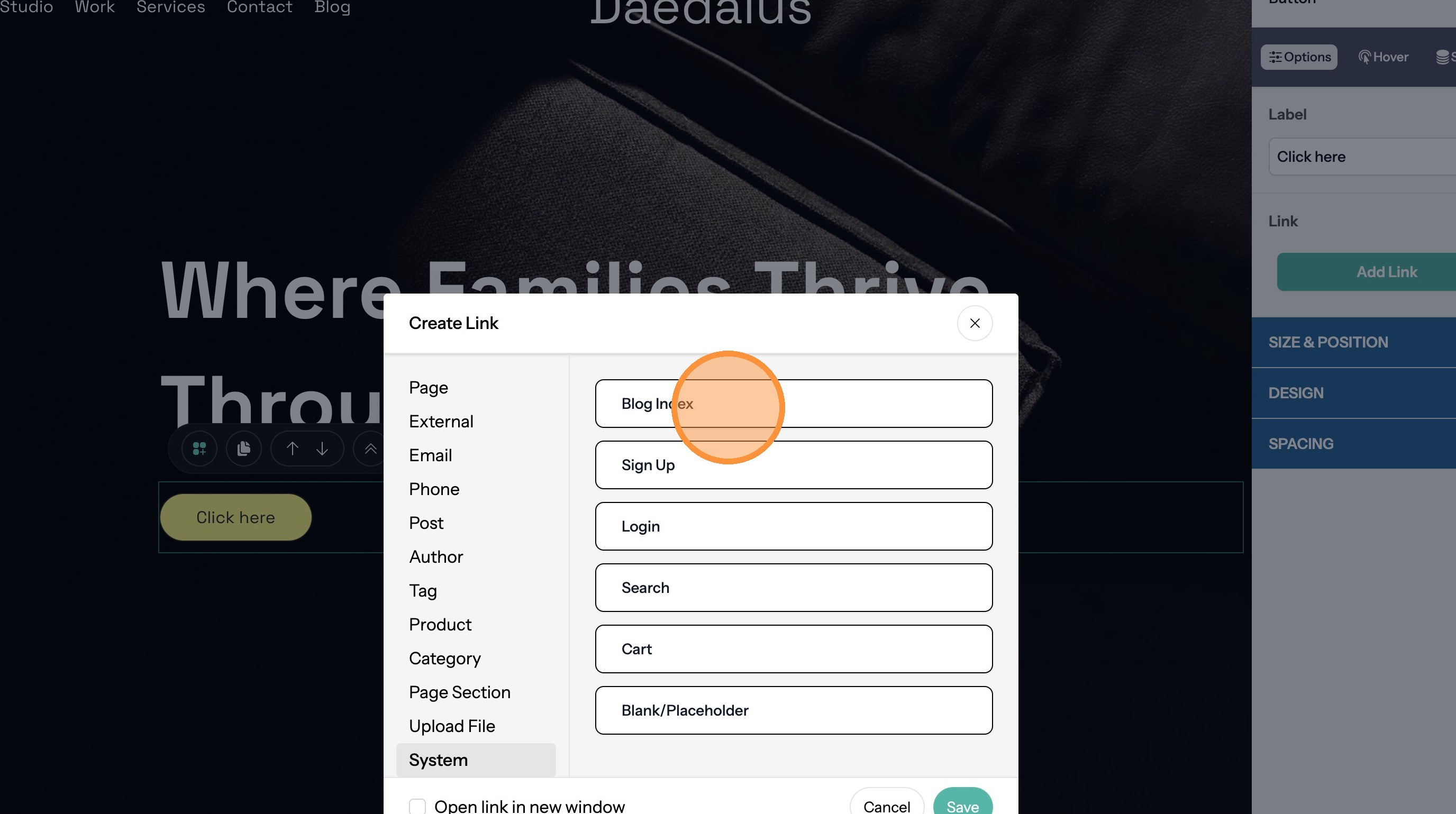
50. Click "Blog Index"
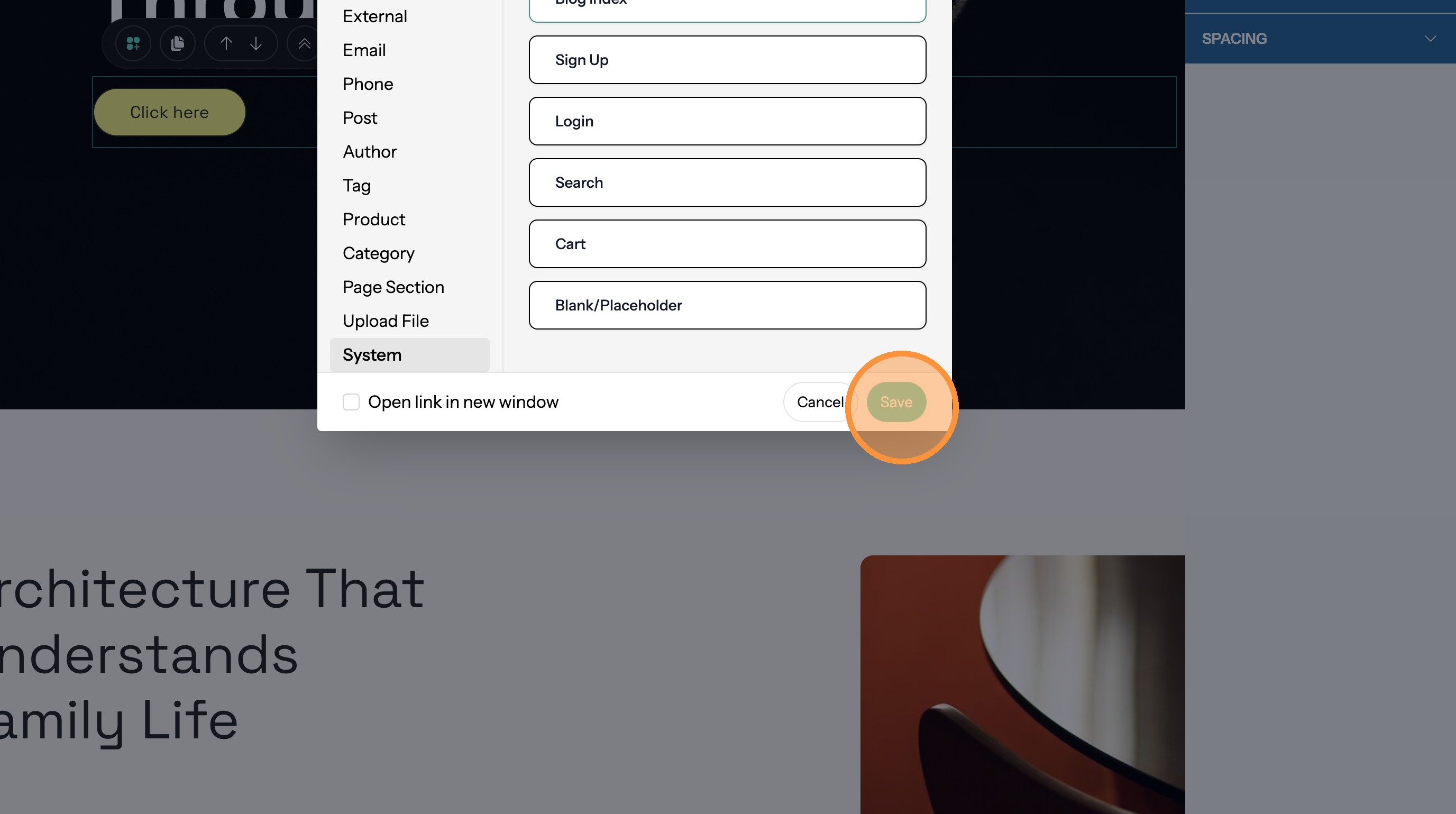
51. Click "Save"
Link to the Sign Up Page
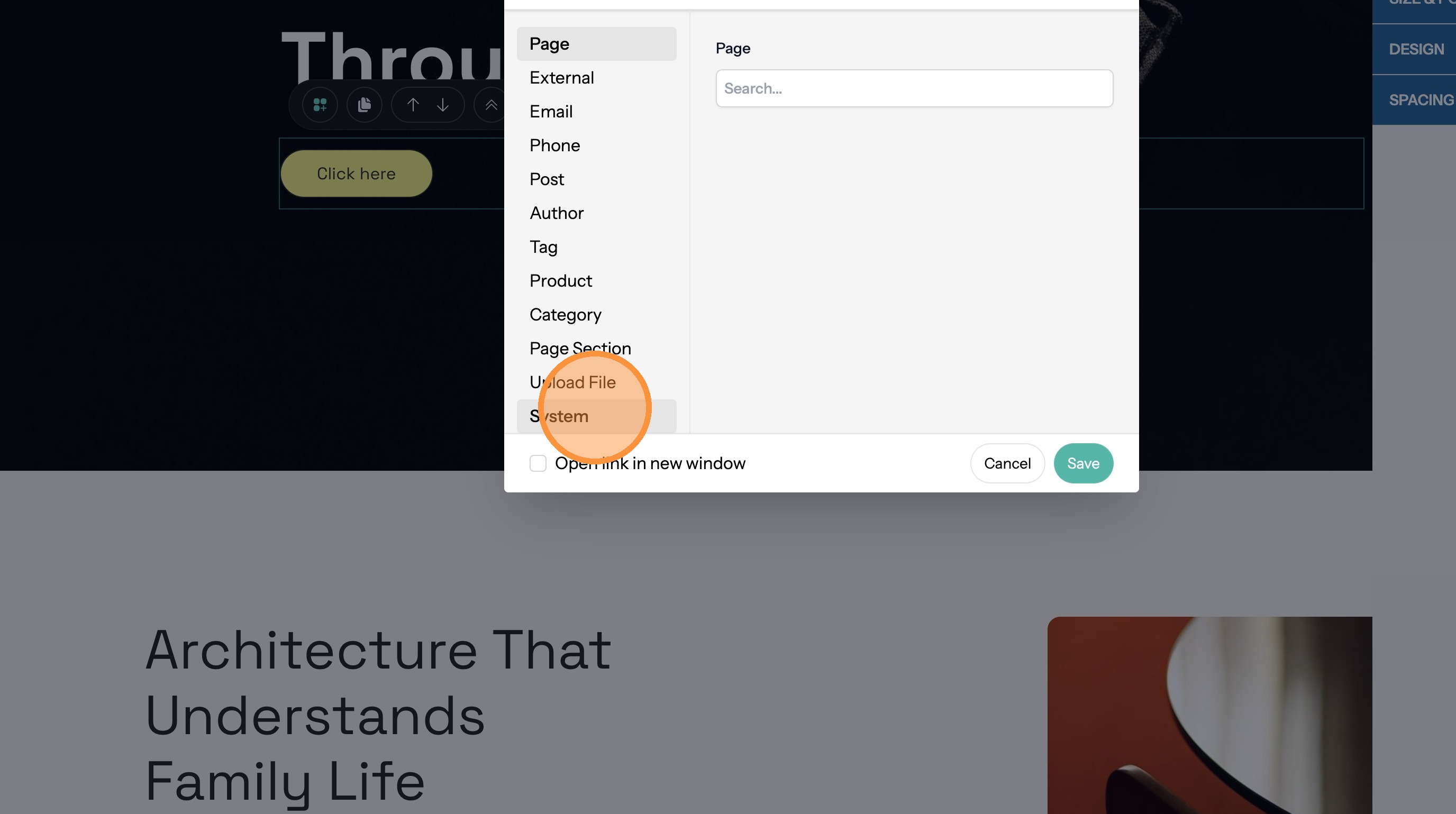
52. Click "System"
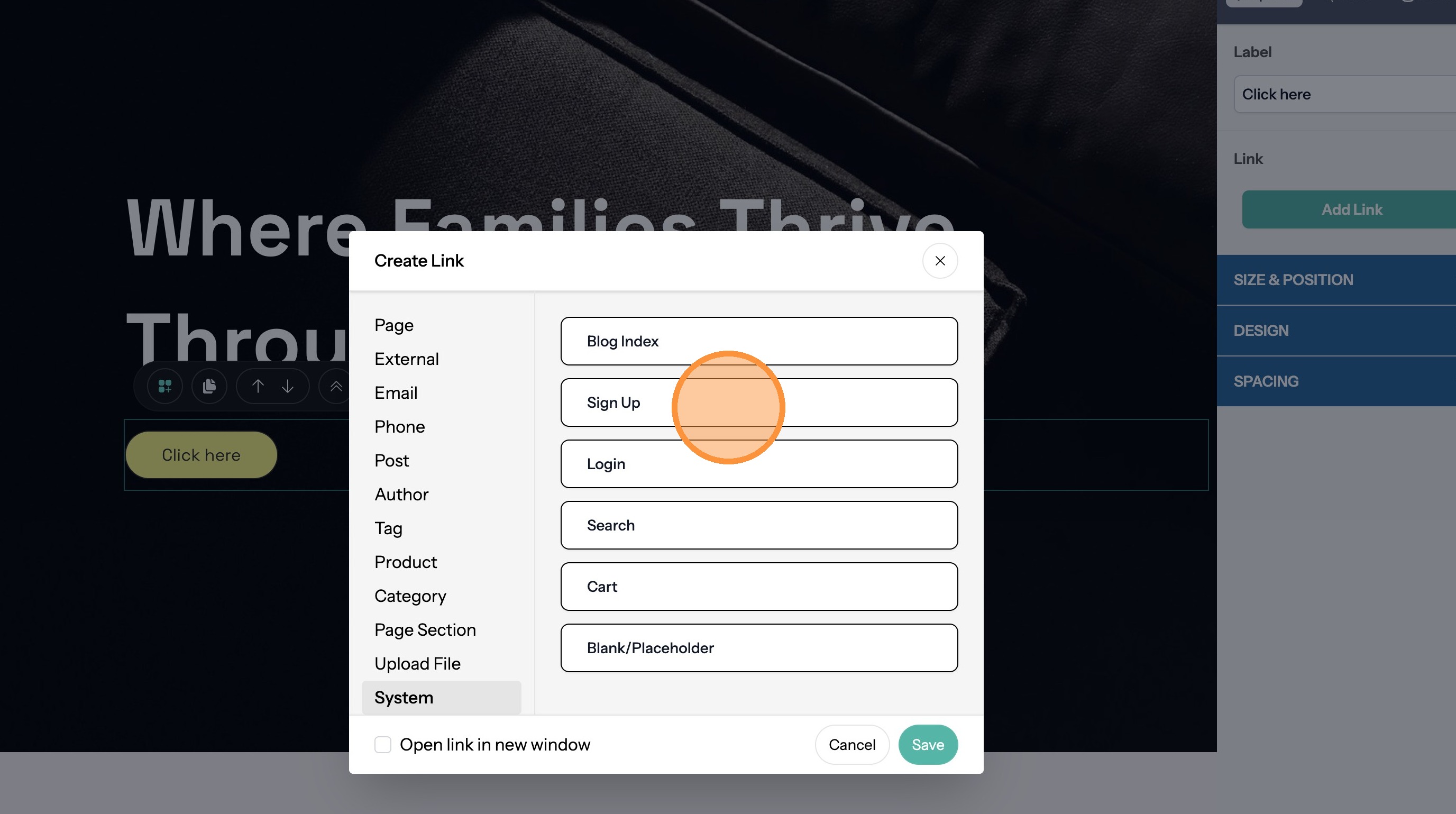
53. Click "Sign Up"
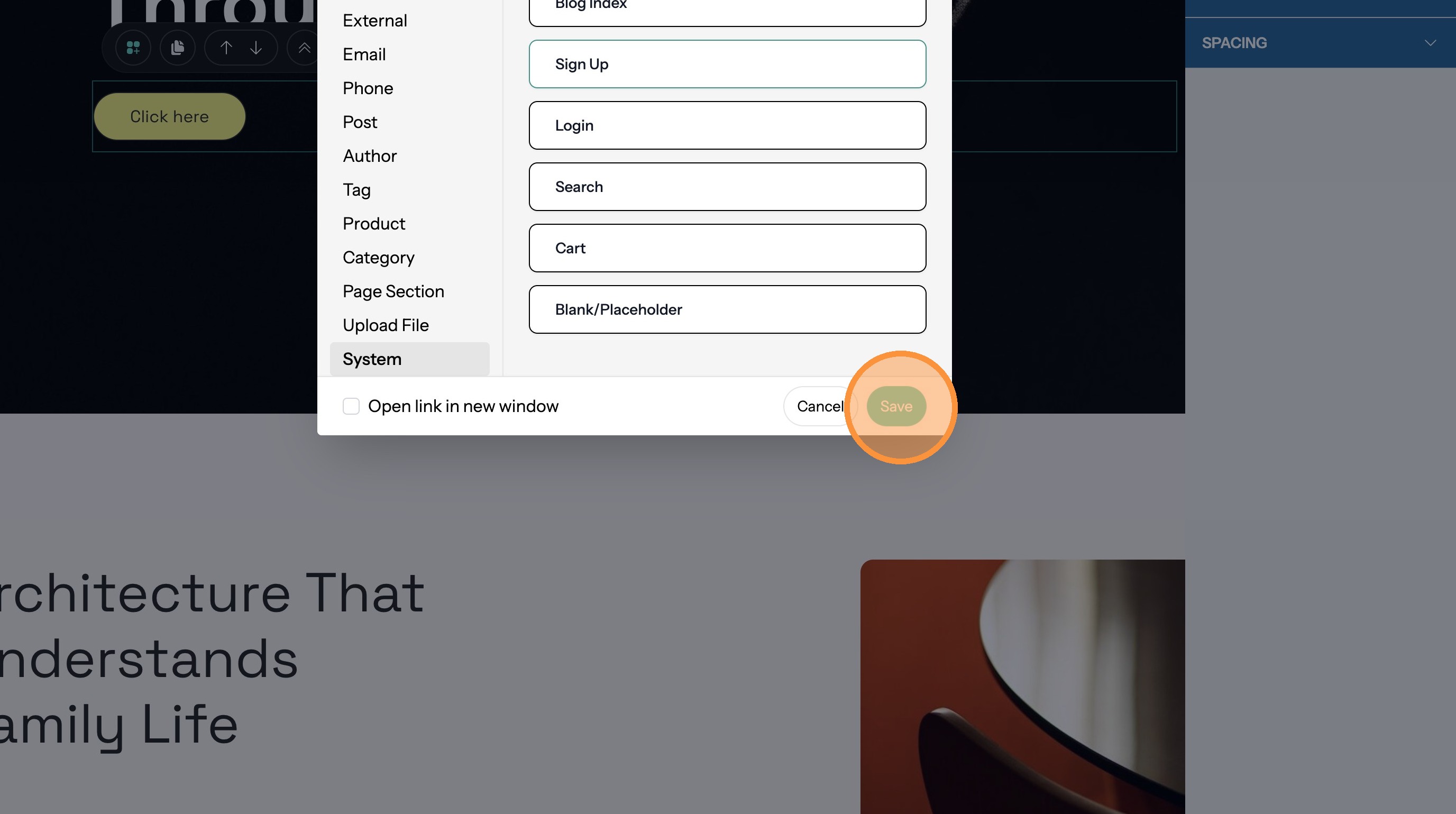
54. Click "Save"
Link to the Login Page
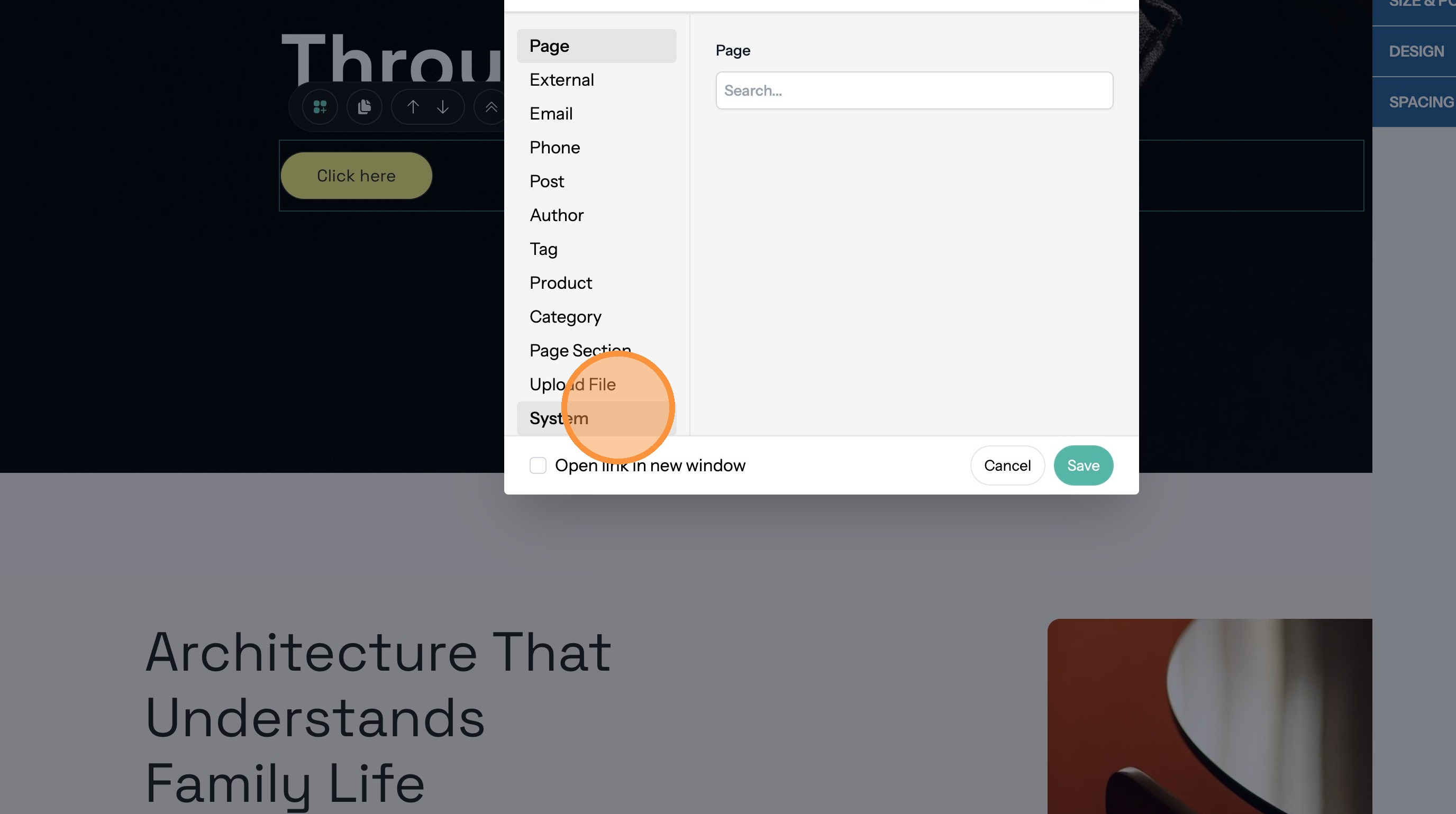
55. Click "System"
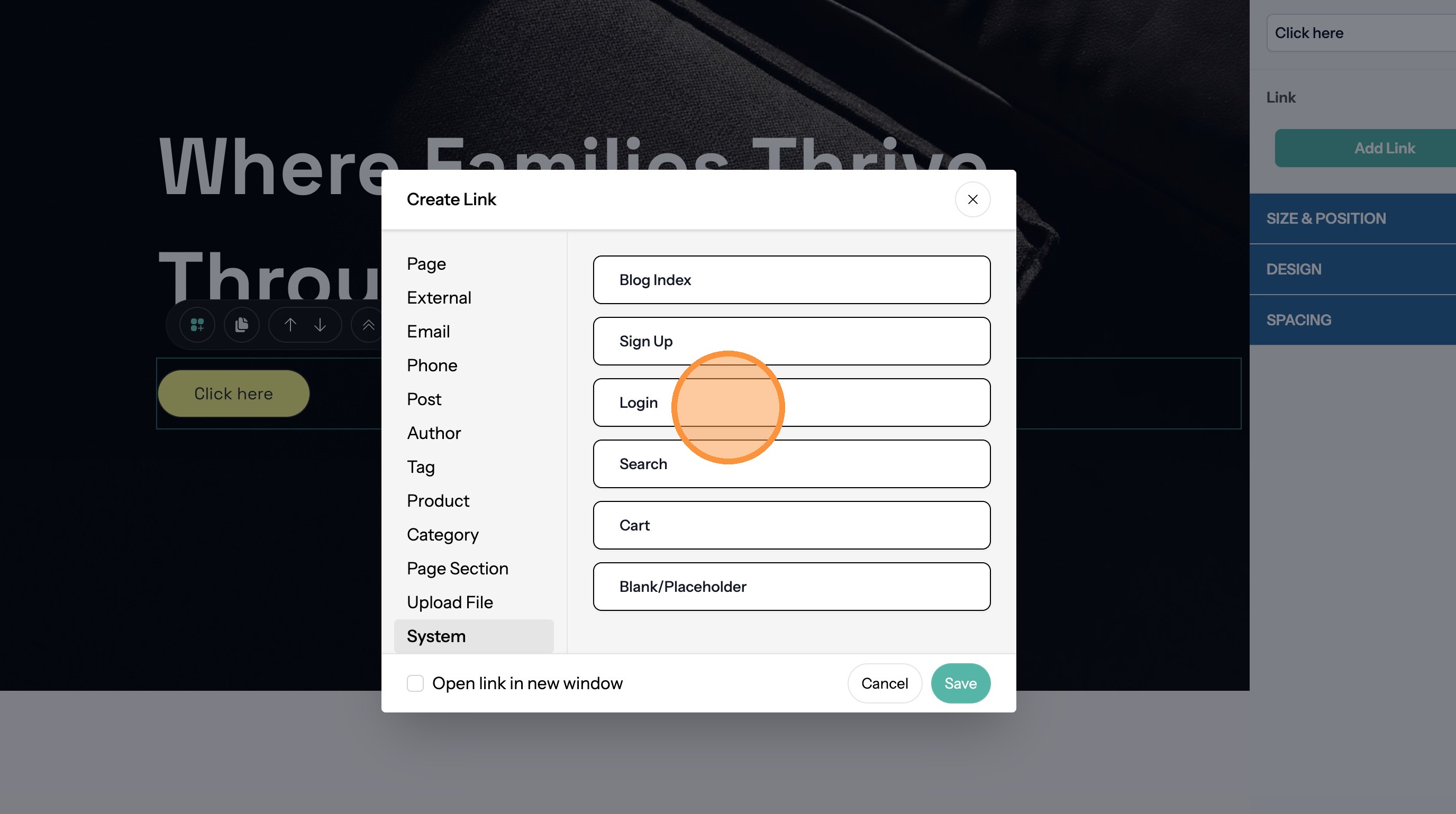
56. Click "Login"
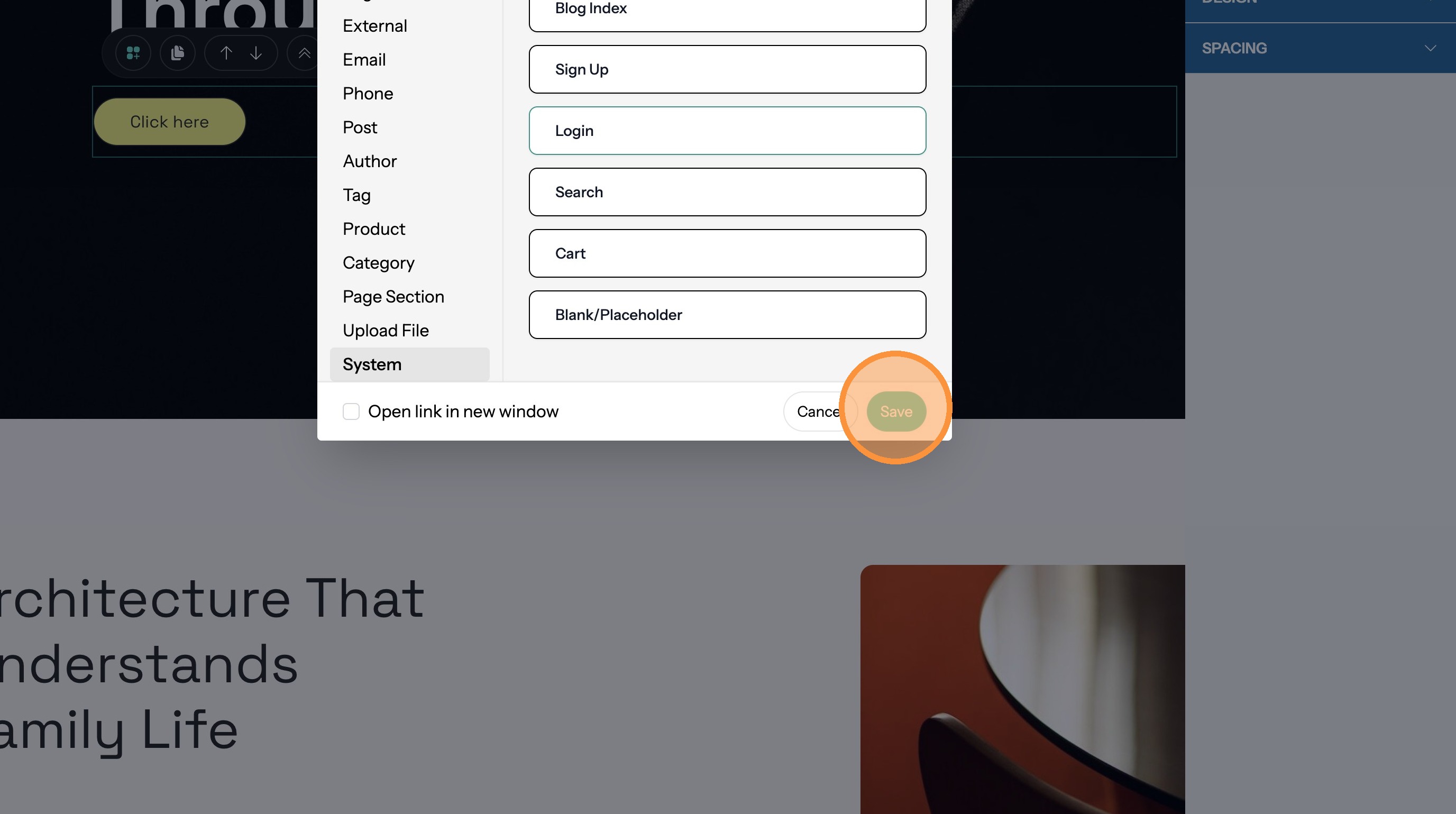
57. Click "Save"
Link to the Search Page
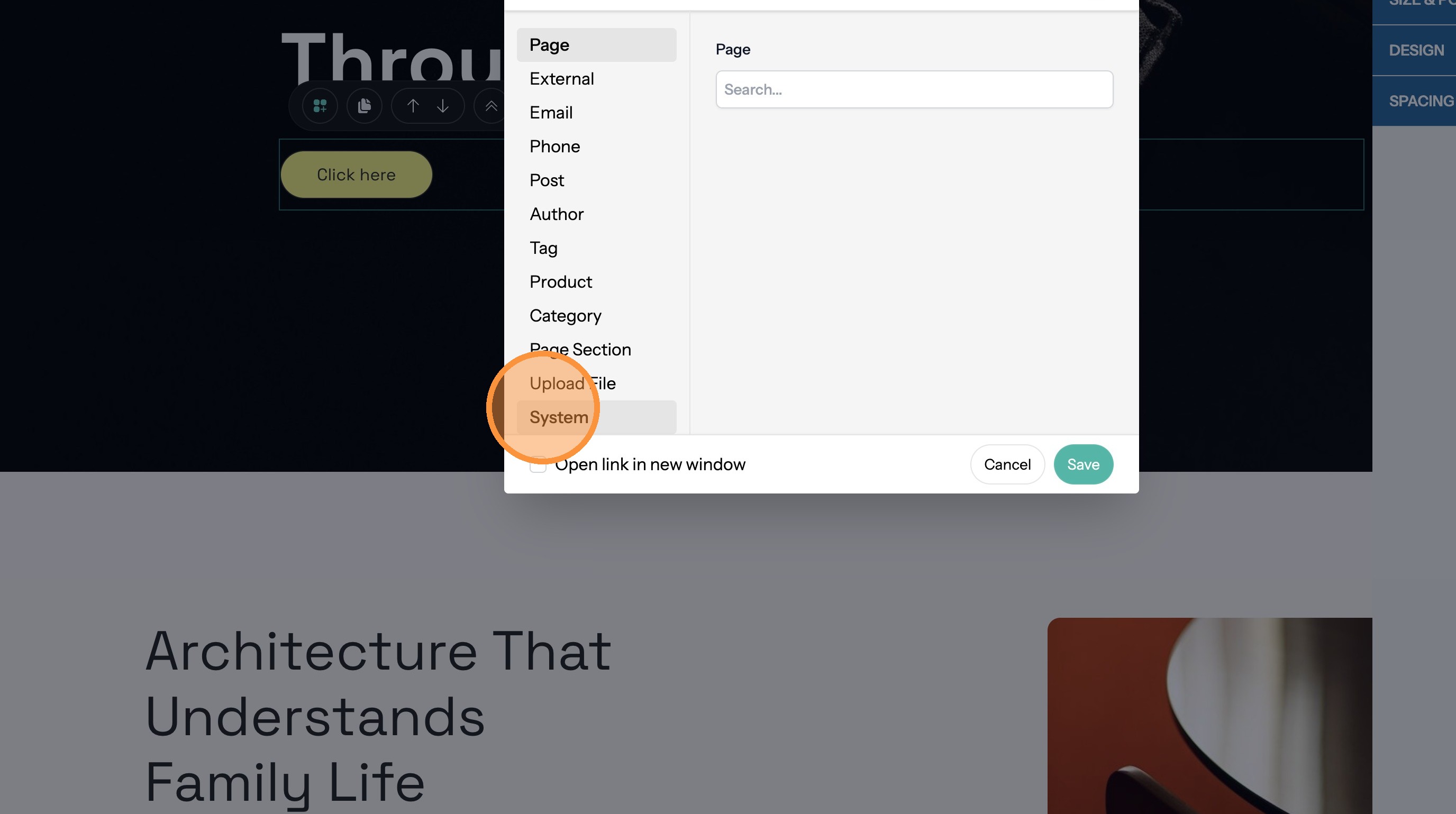
58. Click "System"
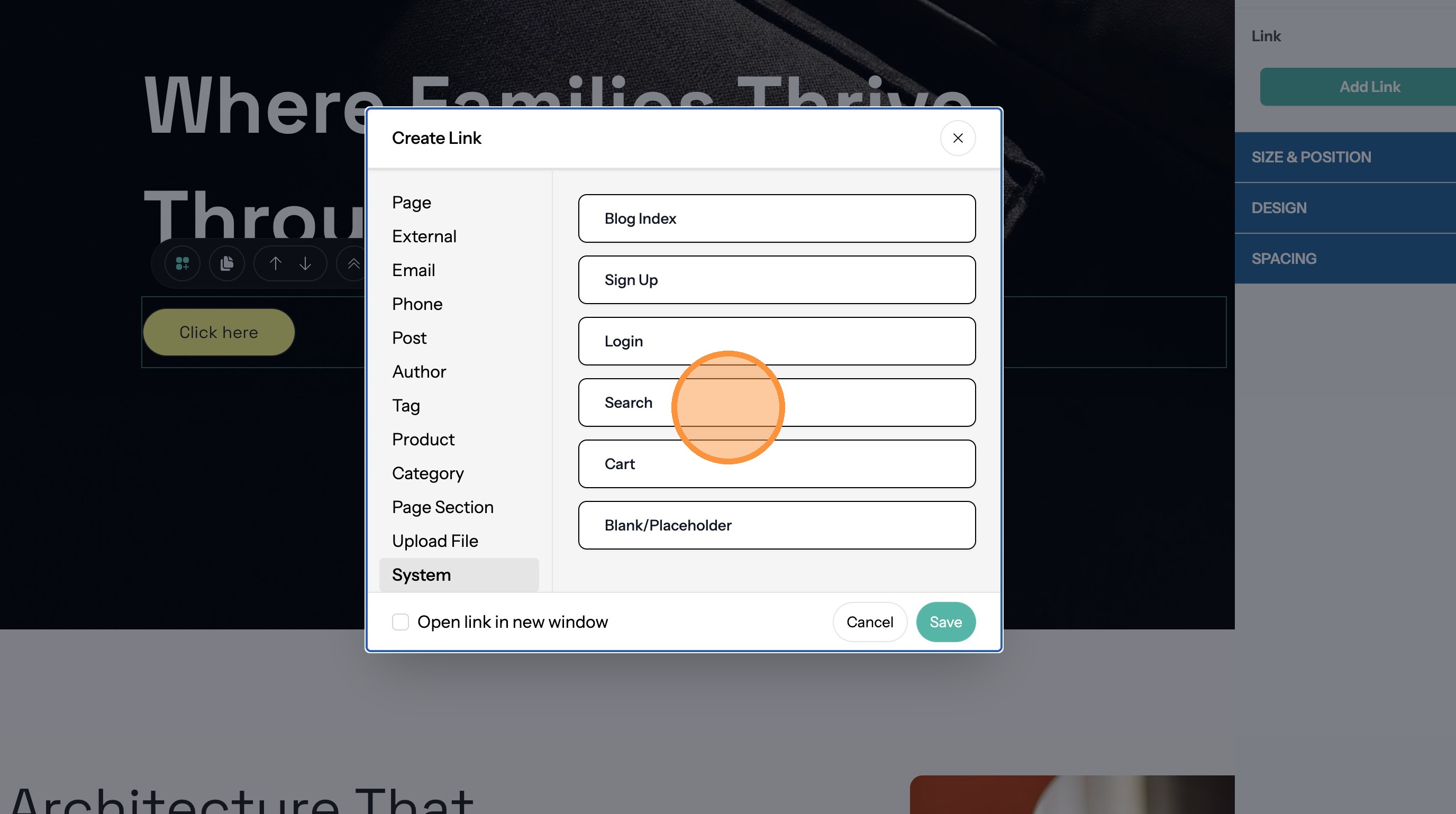
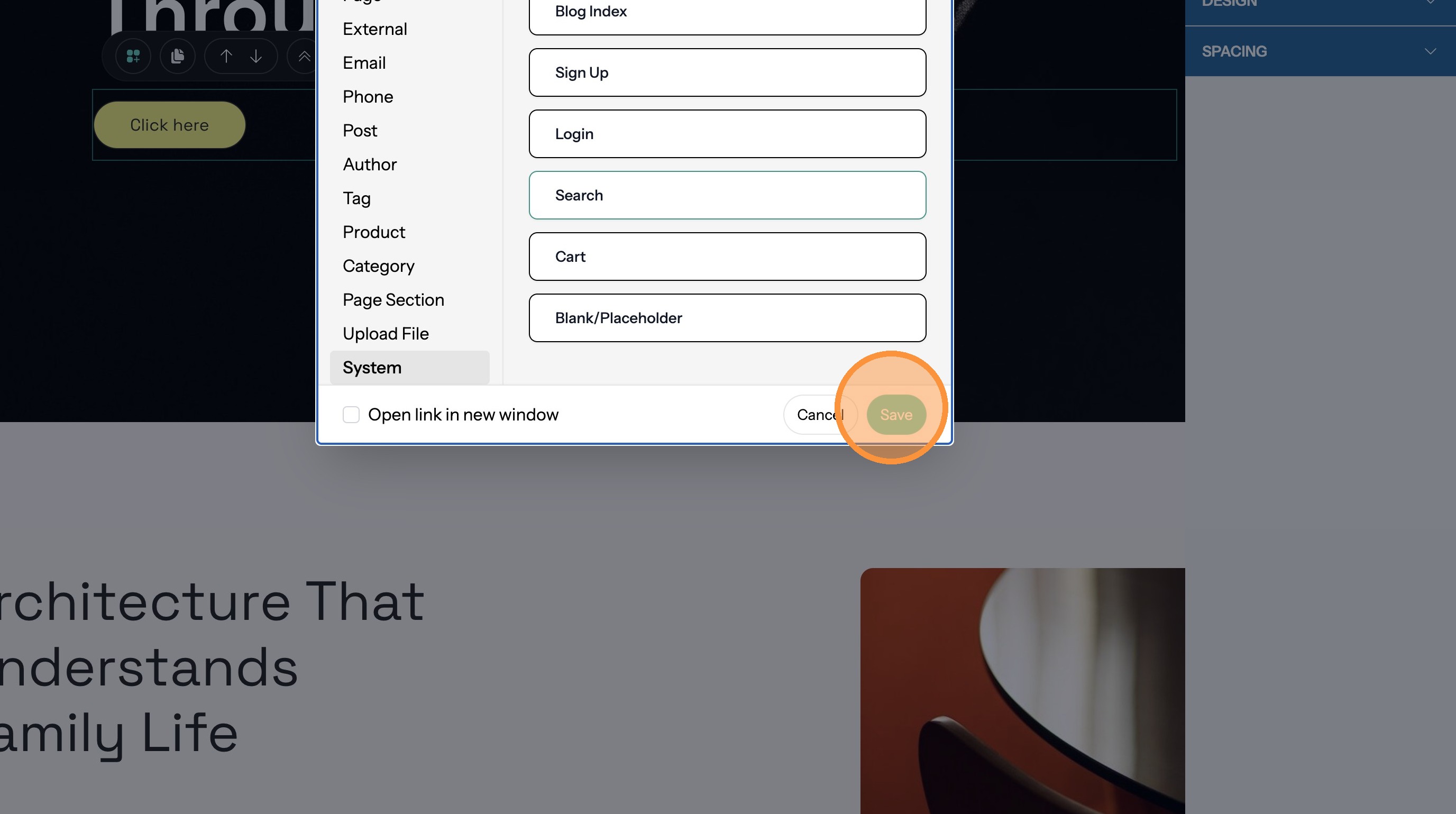
59. Click "Search"
60. Click "Save"
Link to the Cart Page
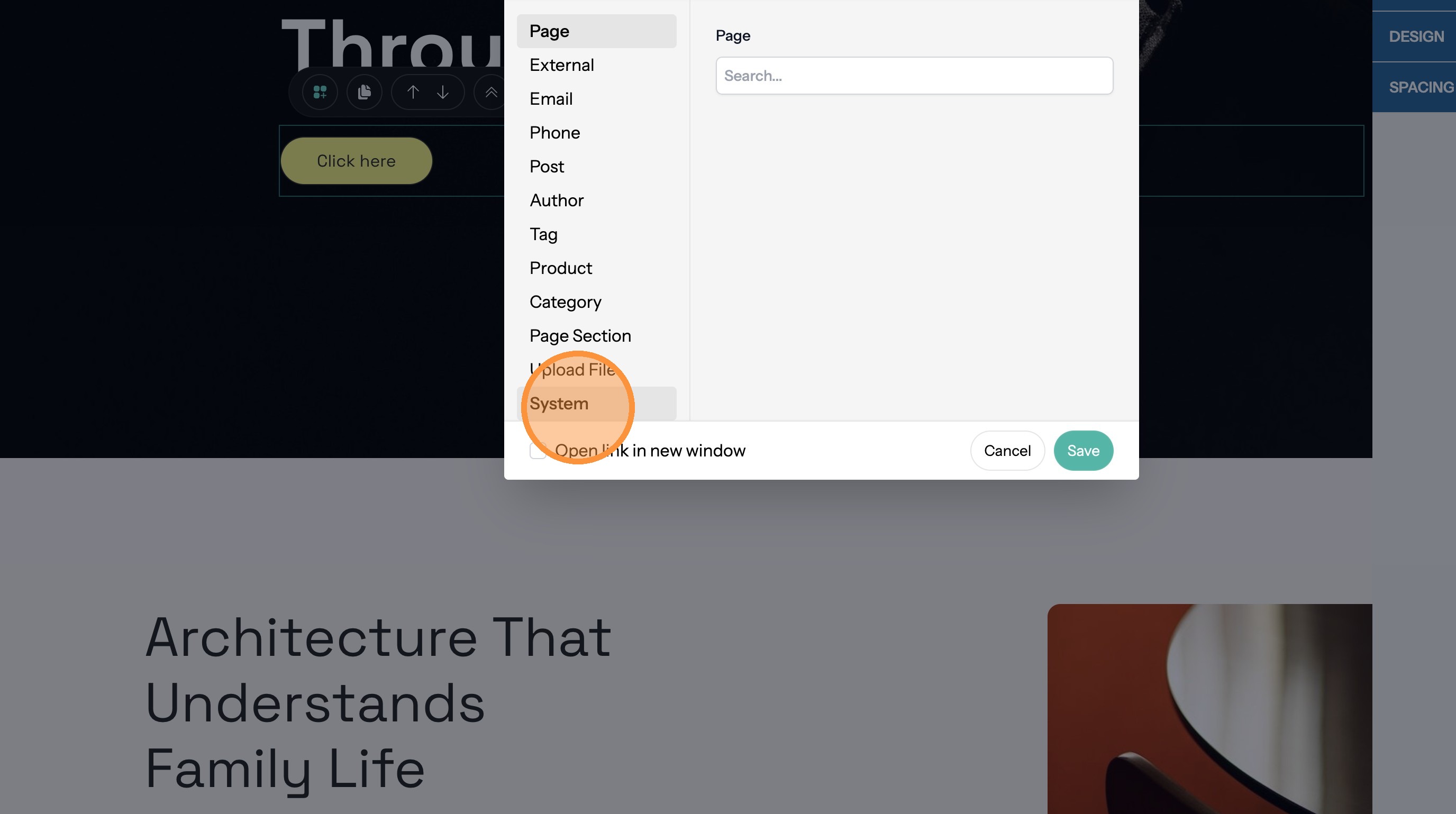
61. Click "System"
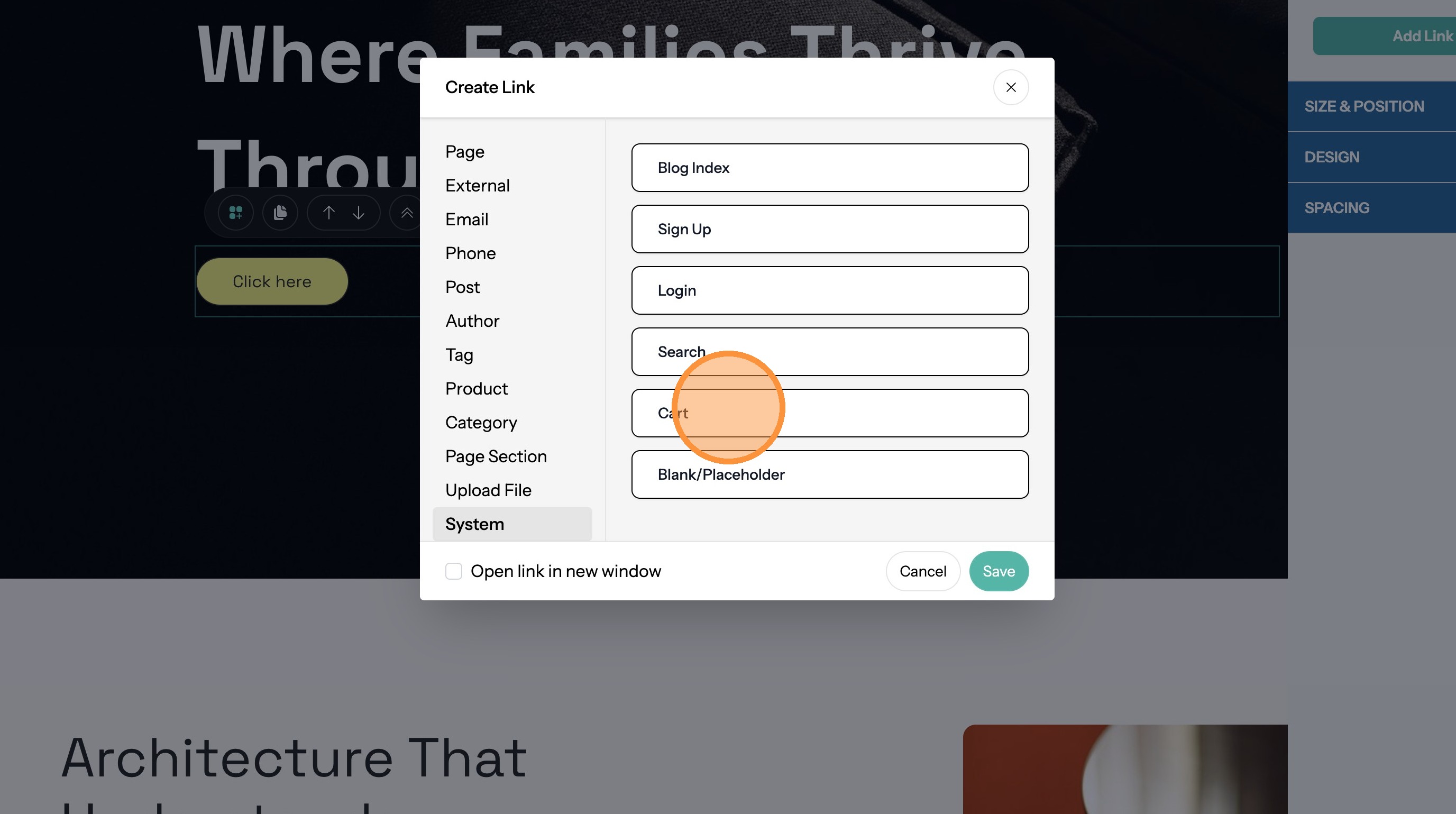
62. Click "Cart"
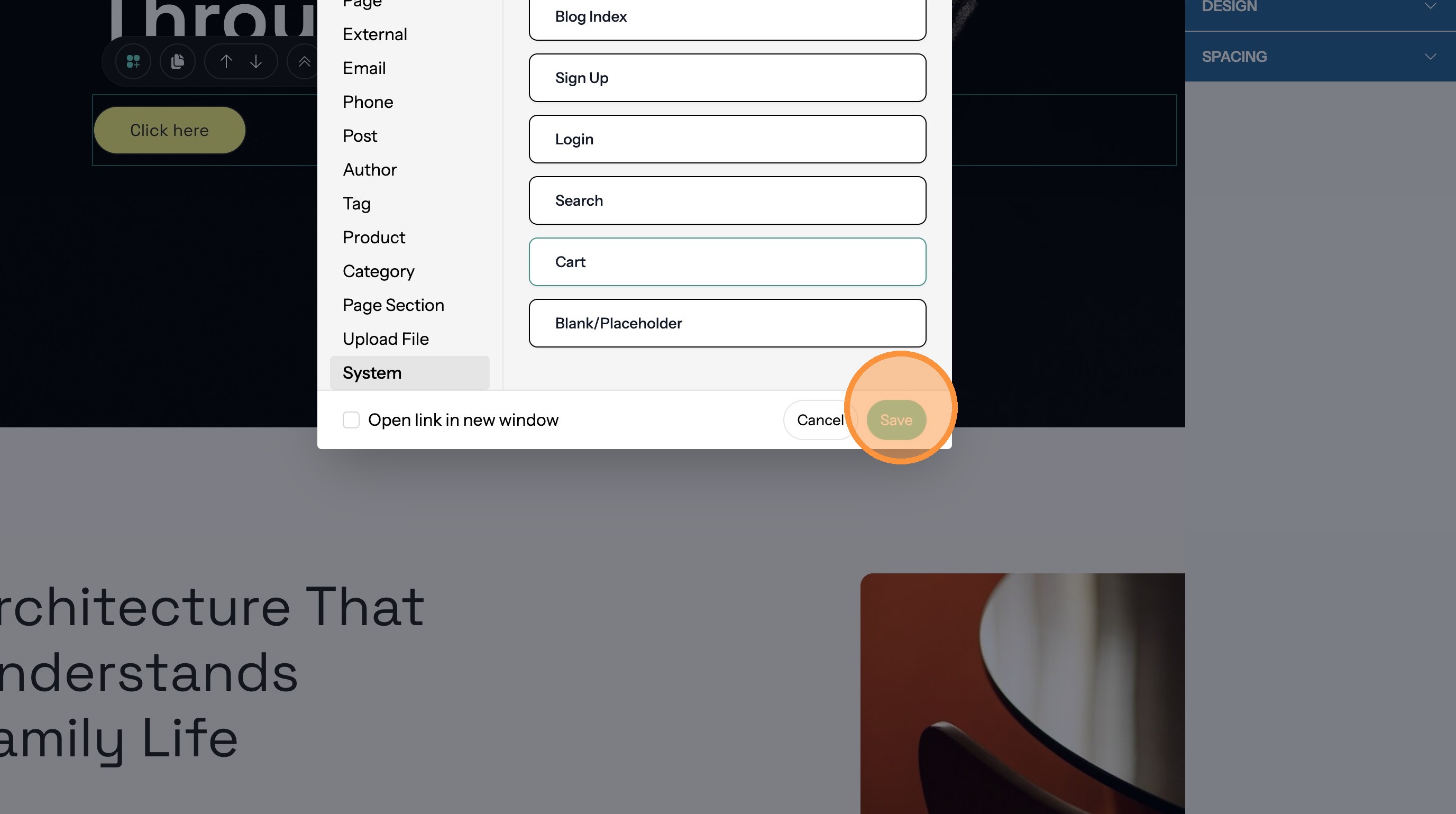
63. Click "Save"
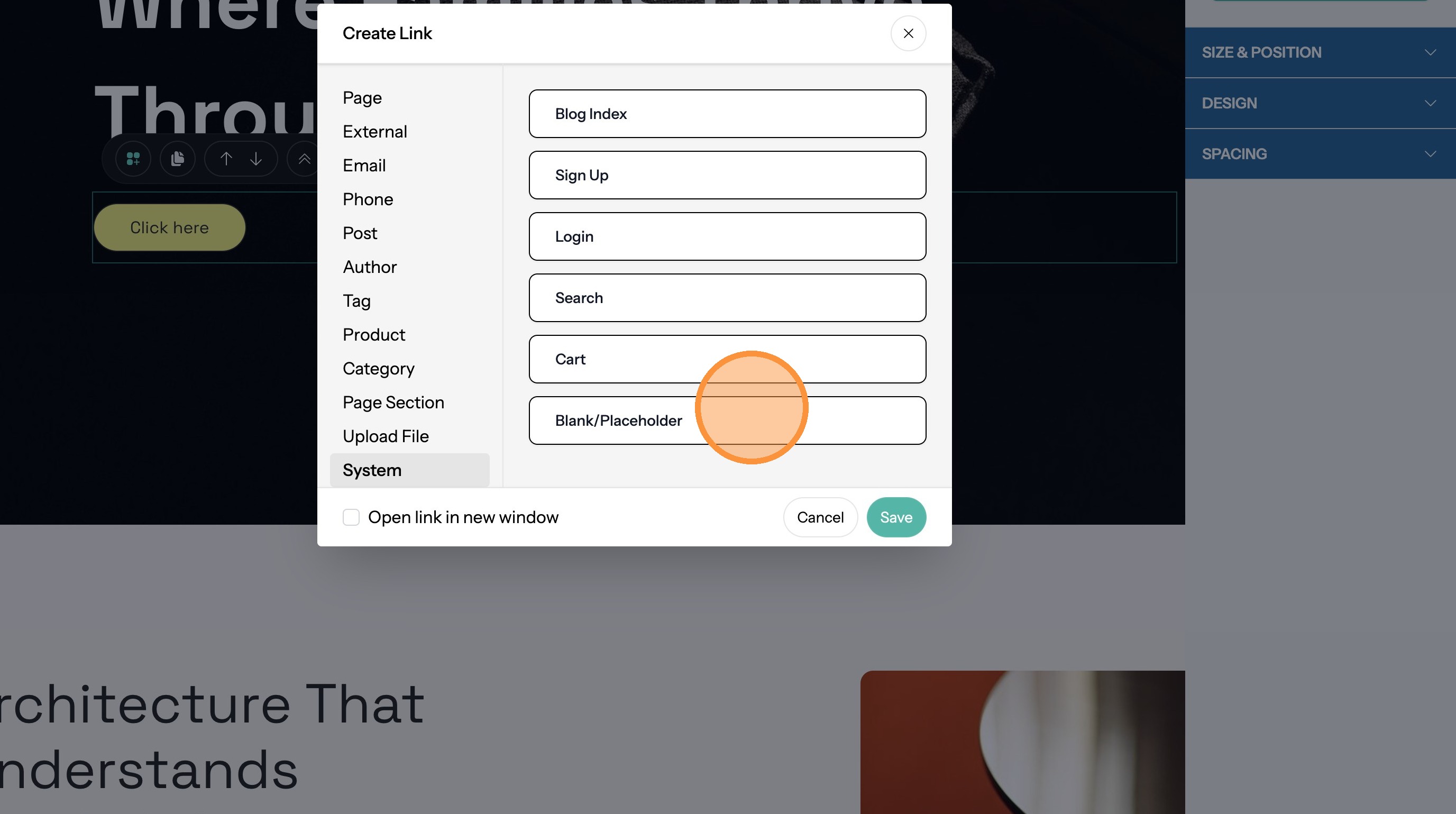
Create a Placeholder Link
Tip: Placeholder links are useful in your site's main navigation, creating a place to nest other links under.
64. Click "System"
65. Click "Blank/Placeholder"
66. Click "Save"