
Import and Export Site Members
Import members, groups, and permissions from CSV and export the current member list.
Use CSV import to add several site members and their group memberships at once. You can also export your current member list for your own records.
Prepare your CSV
Use these column headings:
Name,Email,Groups,Permissions
Alex Example,alex@example.com,"Readers,Course Members",View Only
Email is required. Name, Groups, and Permissions are optional. Separate multiple groups or permissions with commas inside a quoted CSV cell. The import dialog includes a Download Example CSV link. Keep the file under 5 MB.
Leave Permissions blank or use View Only for readers. Editing permissions give access to site management; use the permission values in your exported CSV when intentionally assigning those roles.
Import members
- Open Members in your site's dashboard.
- Open Manage → Import CSV.
- Click Choose CSV and select your file.
- If available, choose whether to Send invite emails to new members. Leave this off if you are preparing members before inviting them.
- Click Import and read the result showing imported, updated, and skipped rows.
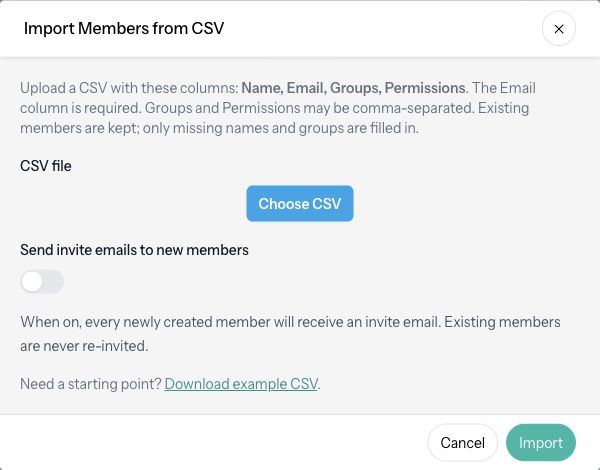
New groups named in the CSV are created as needed. Existing members are kept: an empty name can be filled, and missing group memberships are added. Existing names and permissions are not overwritten. Permissions in the import apply to newly created members only.
Rows with an invalid or missing email address, or the site owner's address, are skipped. Existing members are not re-invited by an import. Invite controls may be unavailable under your agency's settings. Publish your site before inviting members to use its public login page.
Check access and export members
After importing, open a member to check their groups and permissions. Group membership controls access to pages restricted to that group; it does not automatically make a member a website editor.
To download the list, choose Members → Manage → Export to CSV. The export includes Name, Email, Groups, Permissions, and Joined. Store it appropriately because it contains member email addresses.