Edit Category Pages
A guide to making styles changes to category pages.
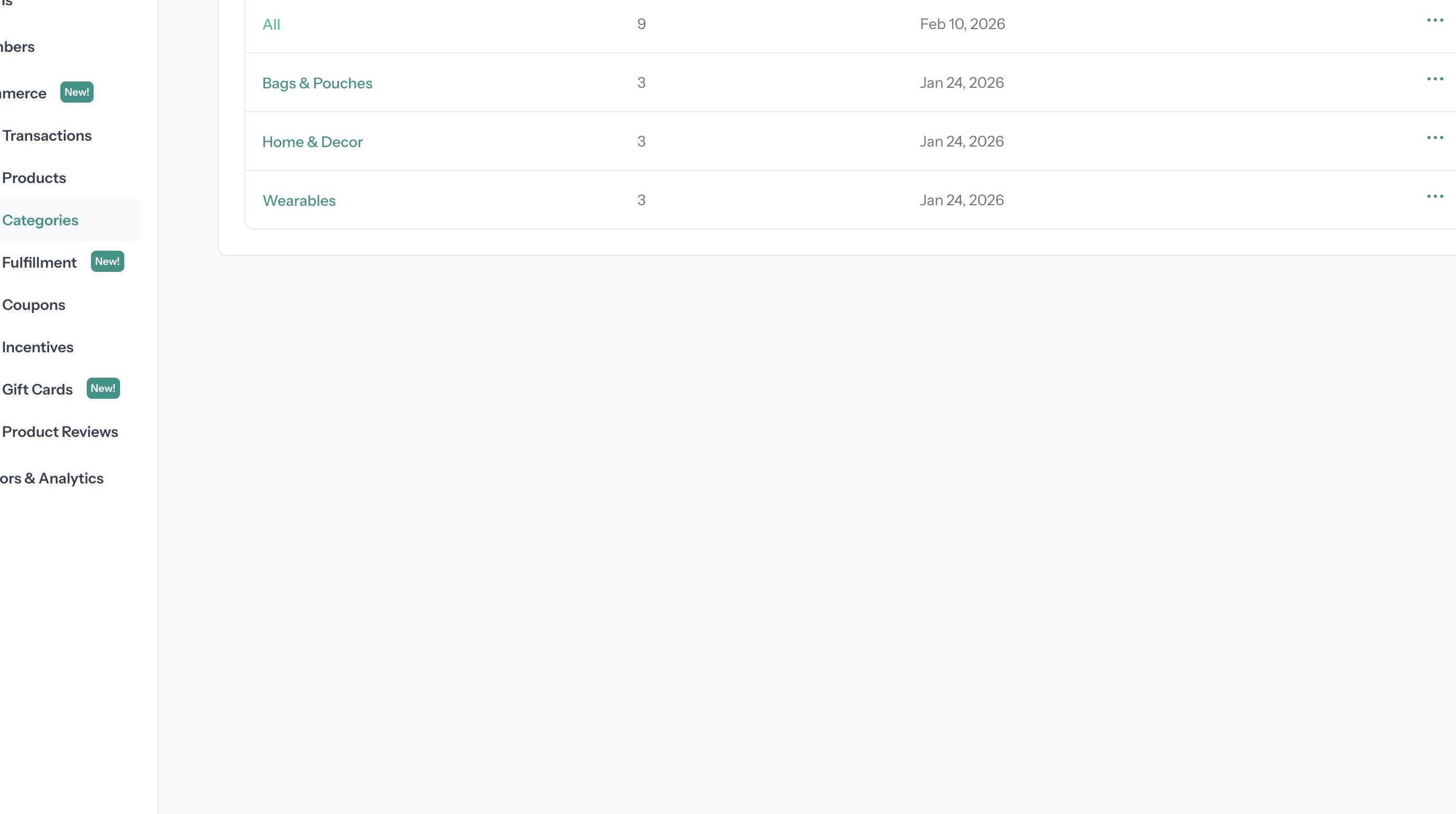
1. Create products and categories if you don't have any yet
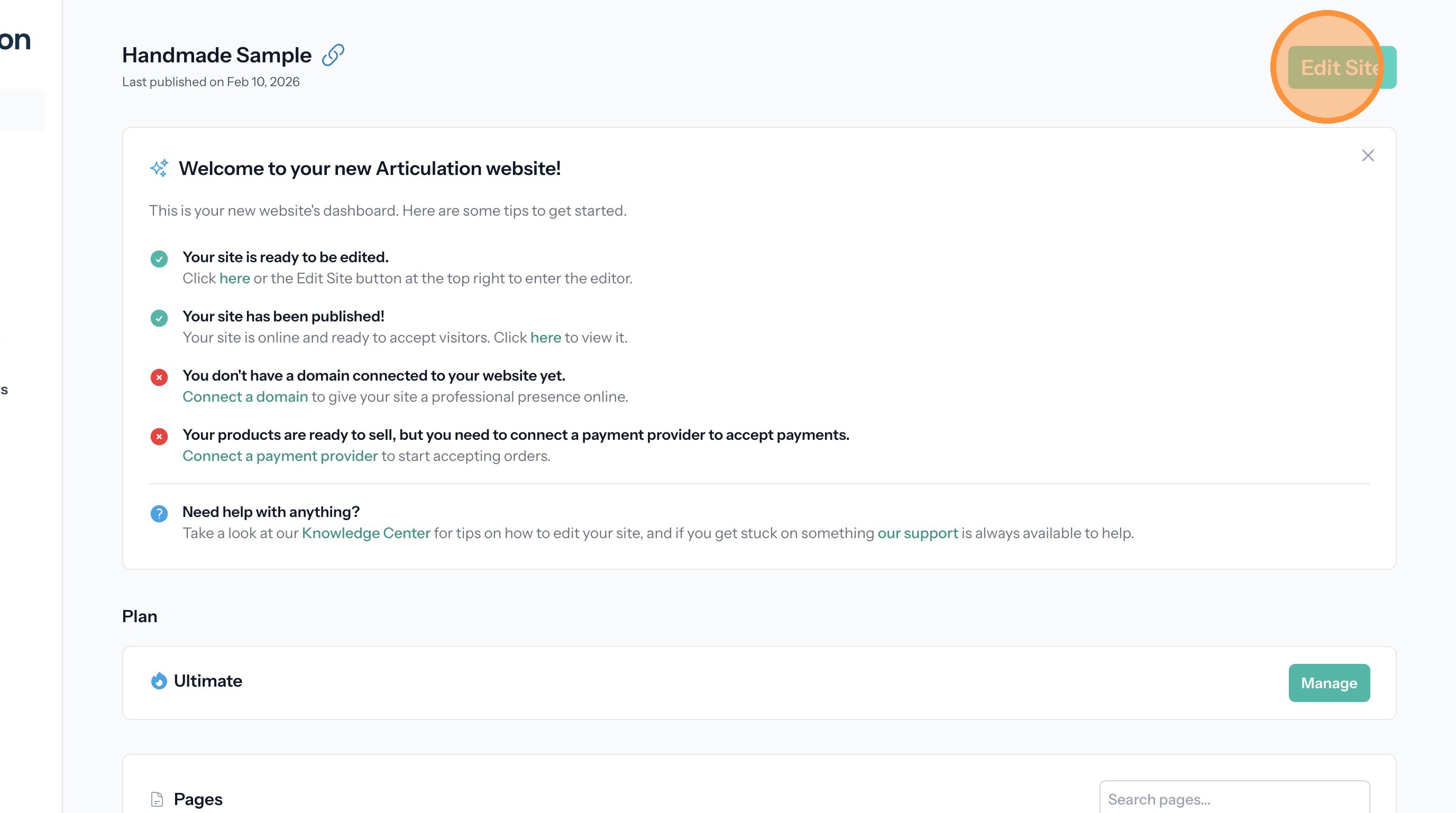
2. Enter the website editor
Add a Navigation Link to a Category Page
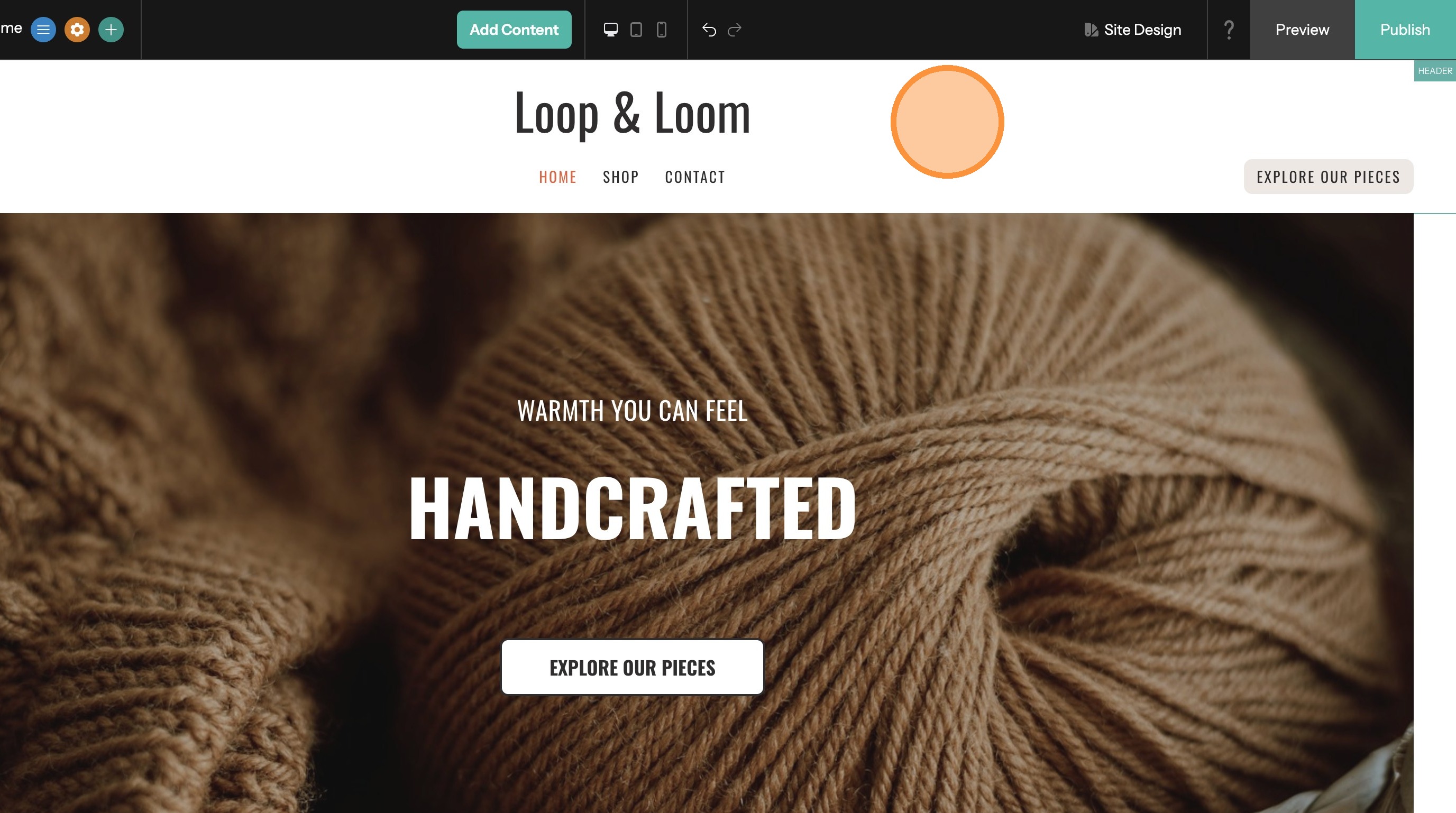
3. Click on the header
4. Click "Navigation"
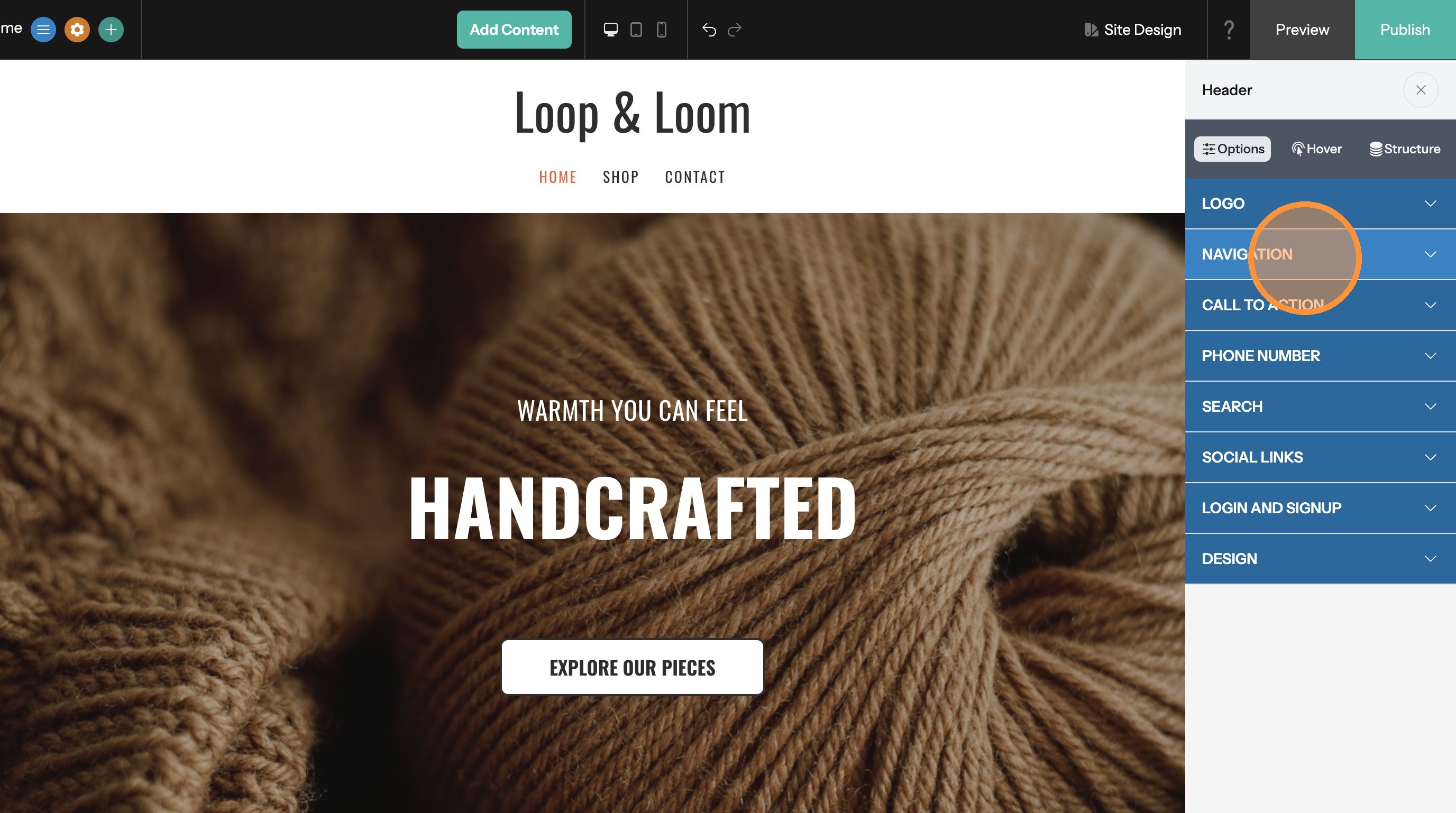
5. Click "Add Link"
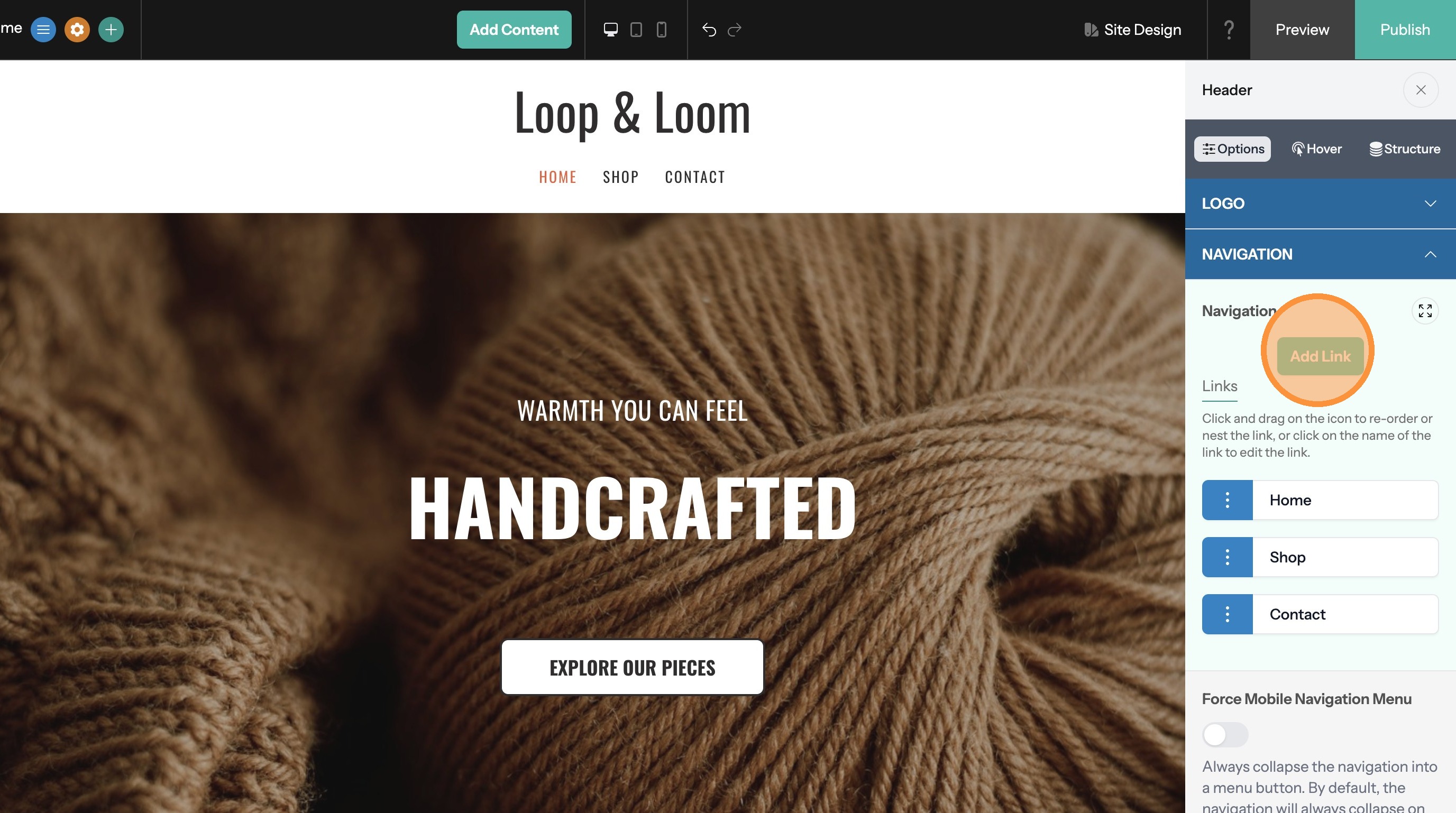
6. Click "Category"
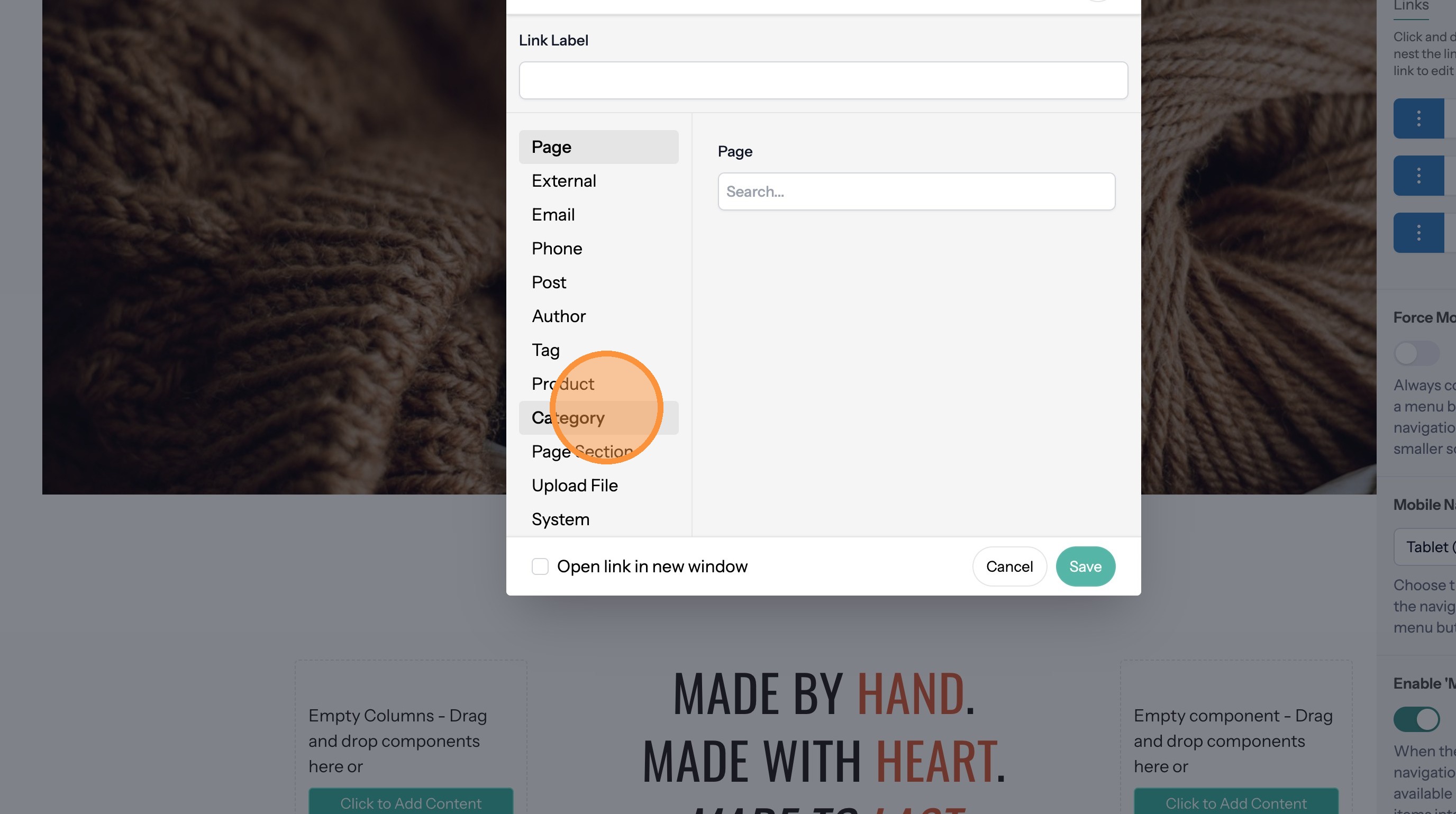
7. Click the "Category" field.
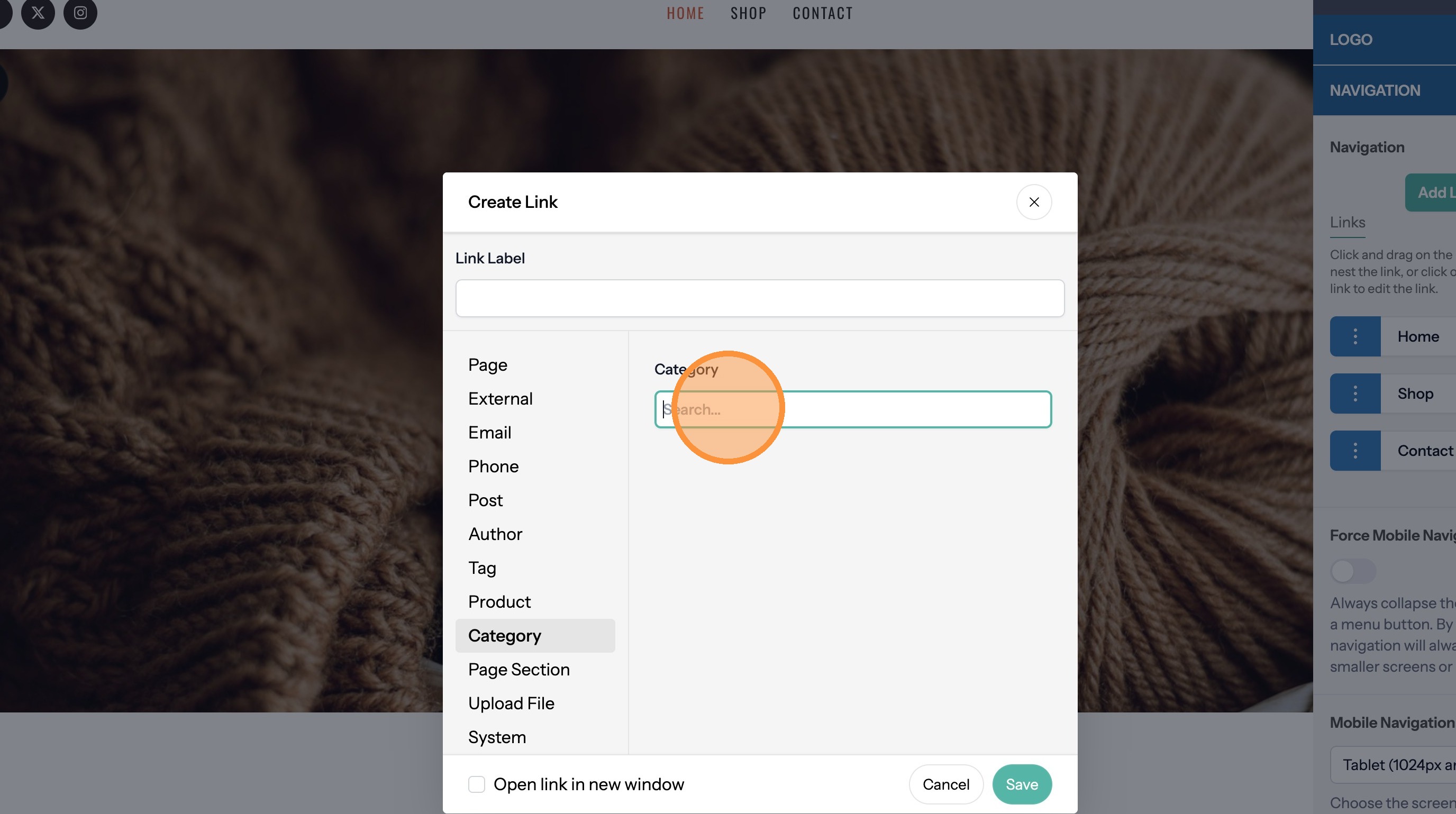
8. Select you category from the list. If the one you want is not shown you can search for it.
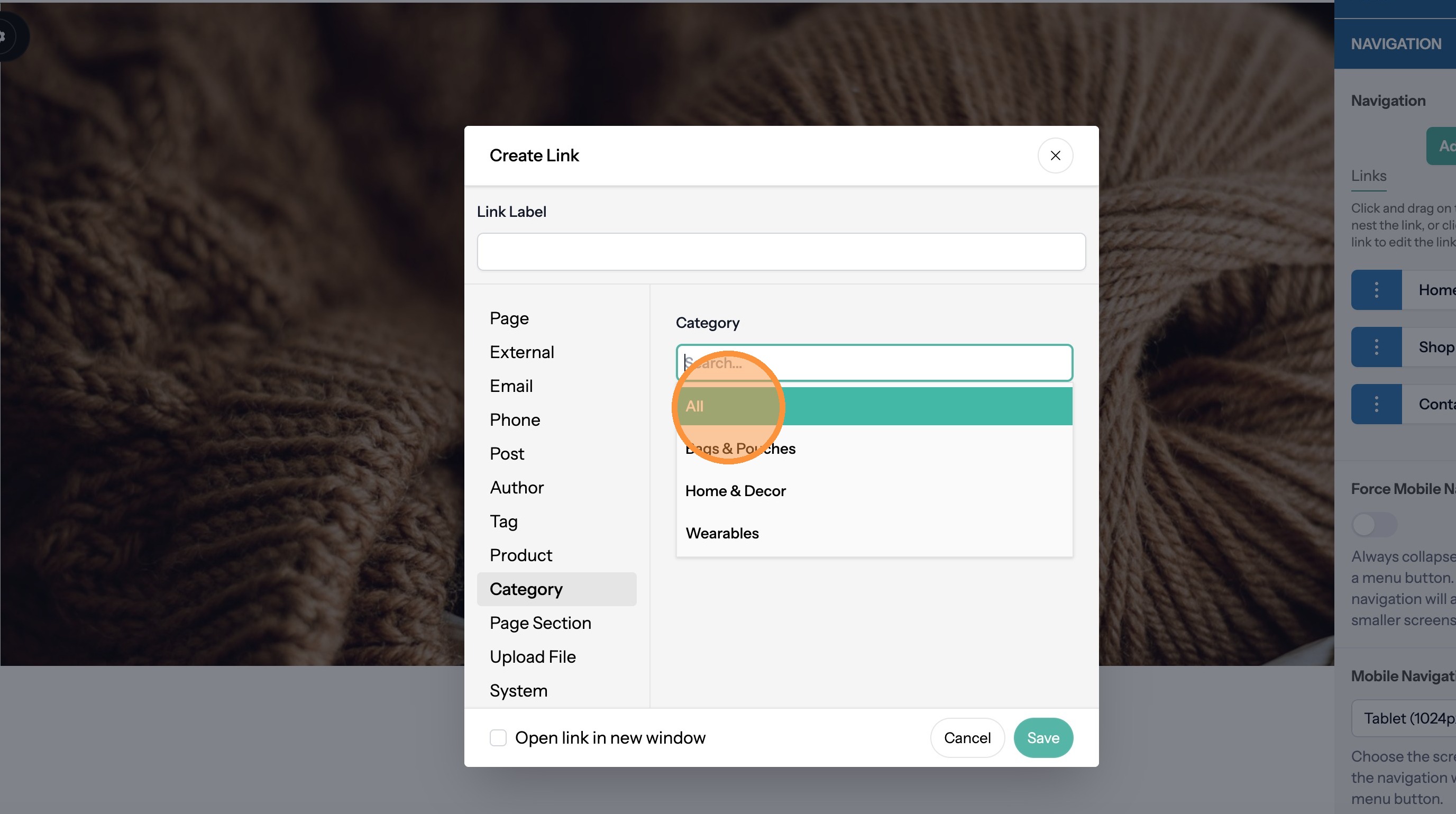
9. Update the link label if you want
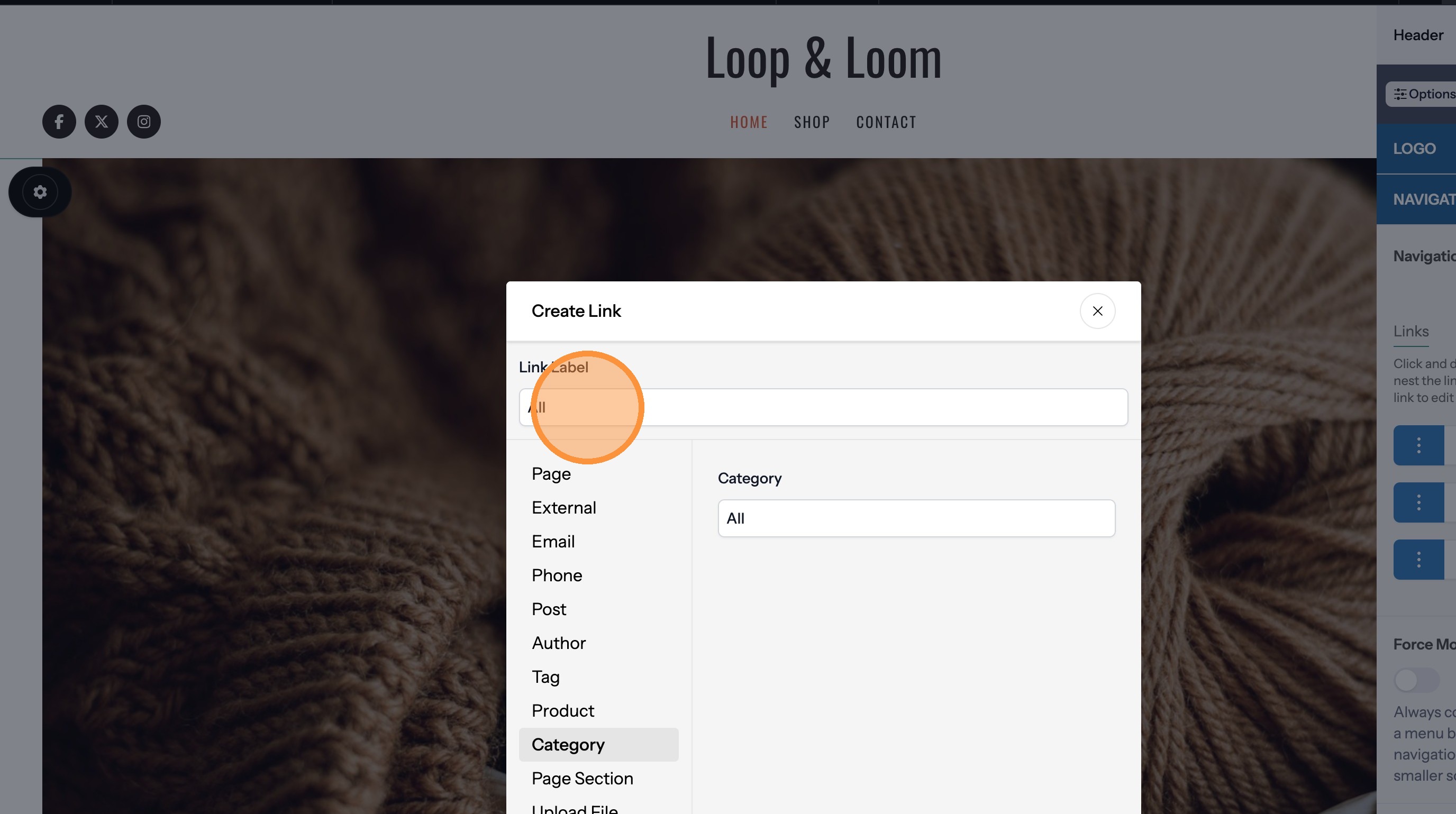
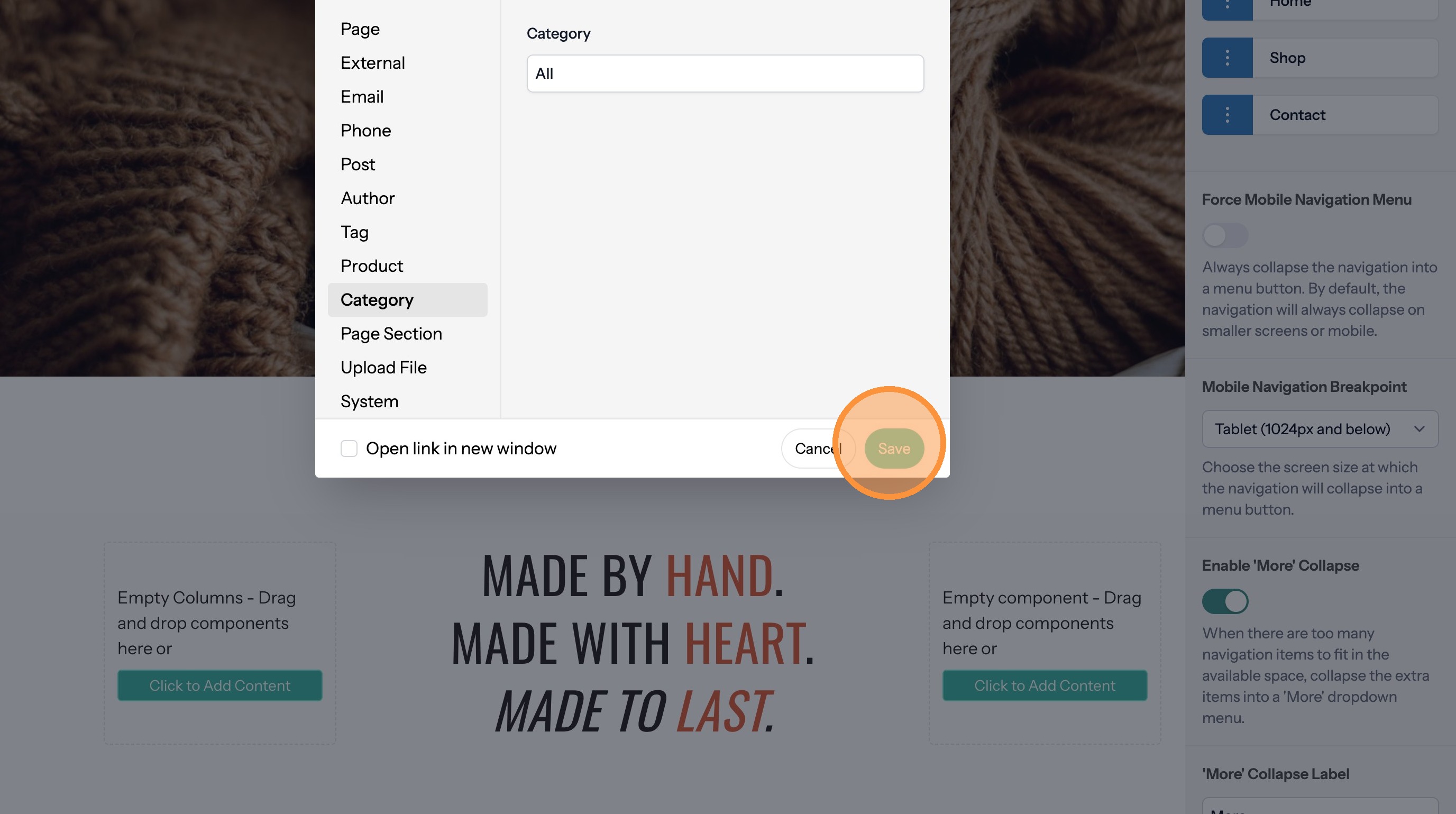
10. Click "Save"
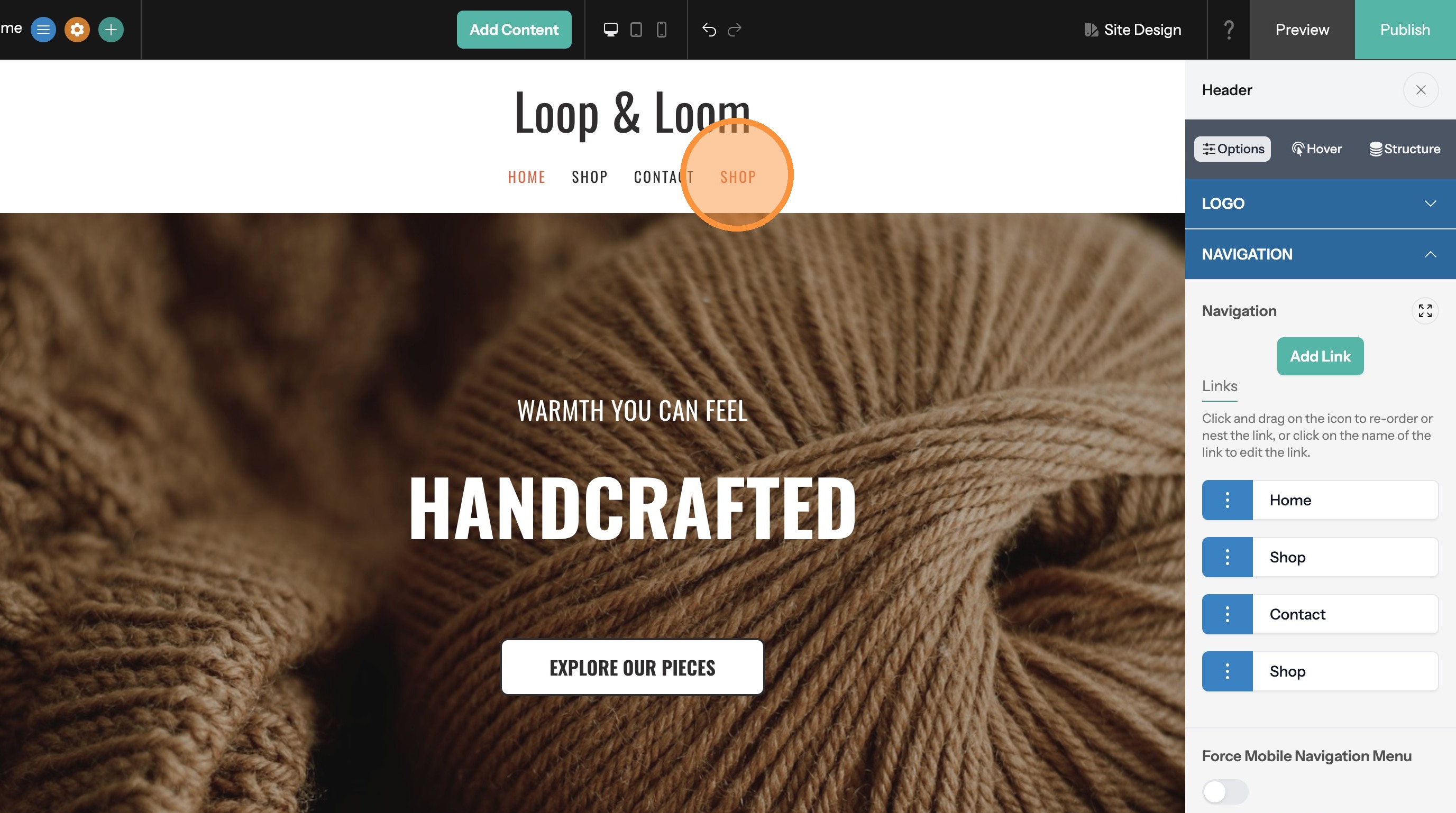
Go to the Category Page in the Editor
11. Click the category link you just made.
Open the Category Layout Settings Panel
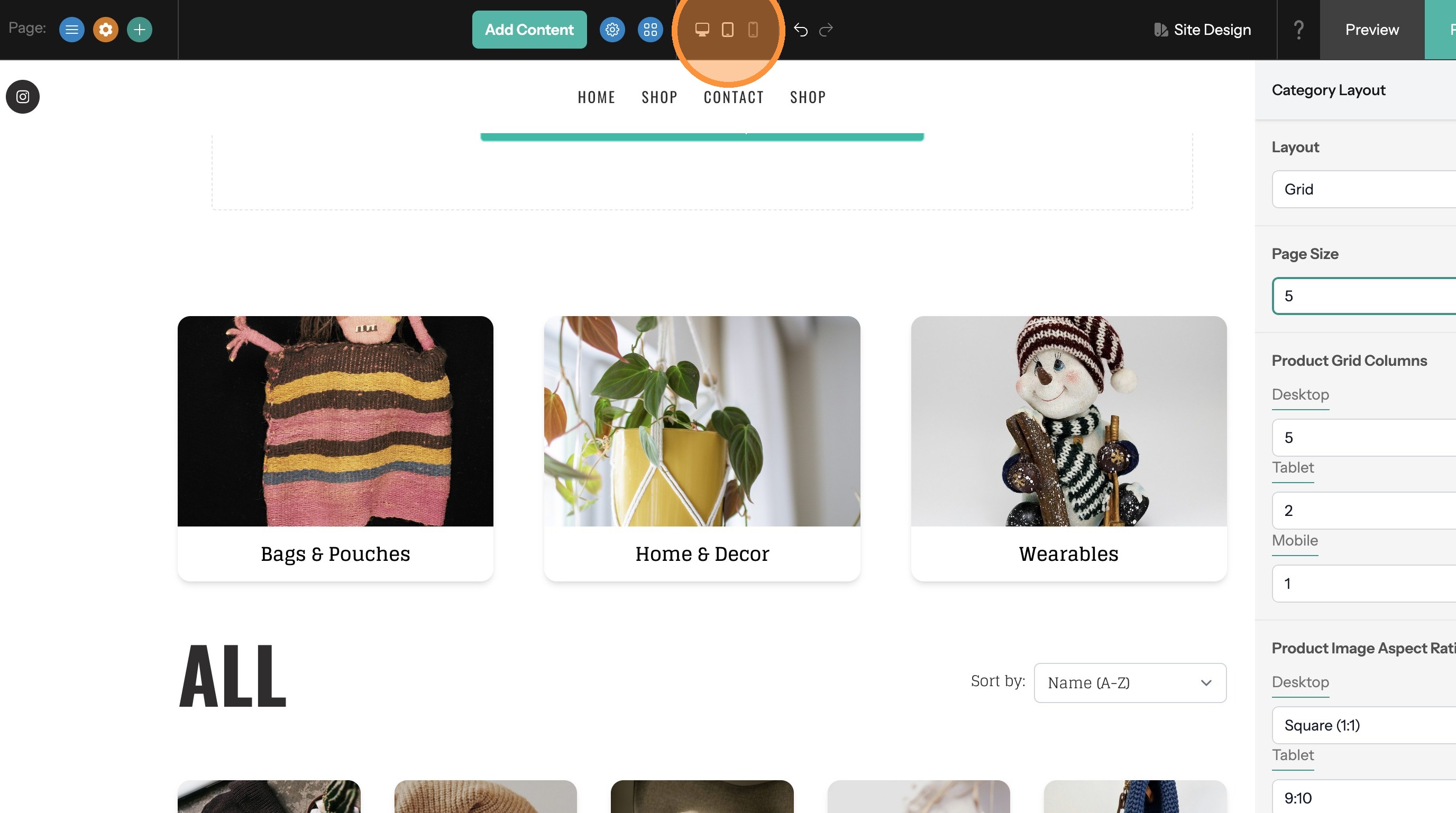
12. Click the Change Category Layout button.
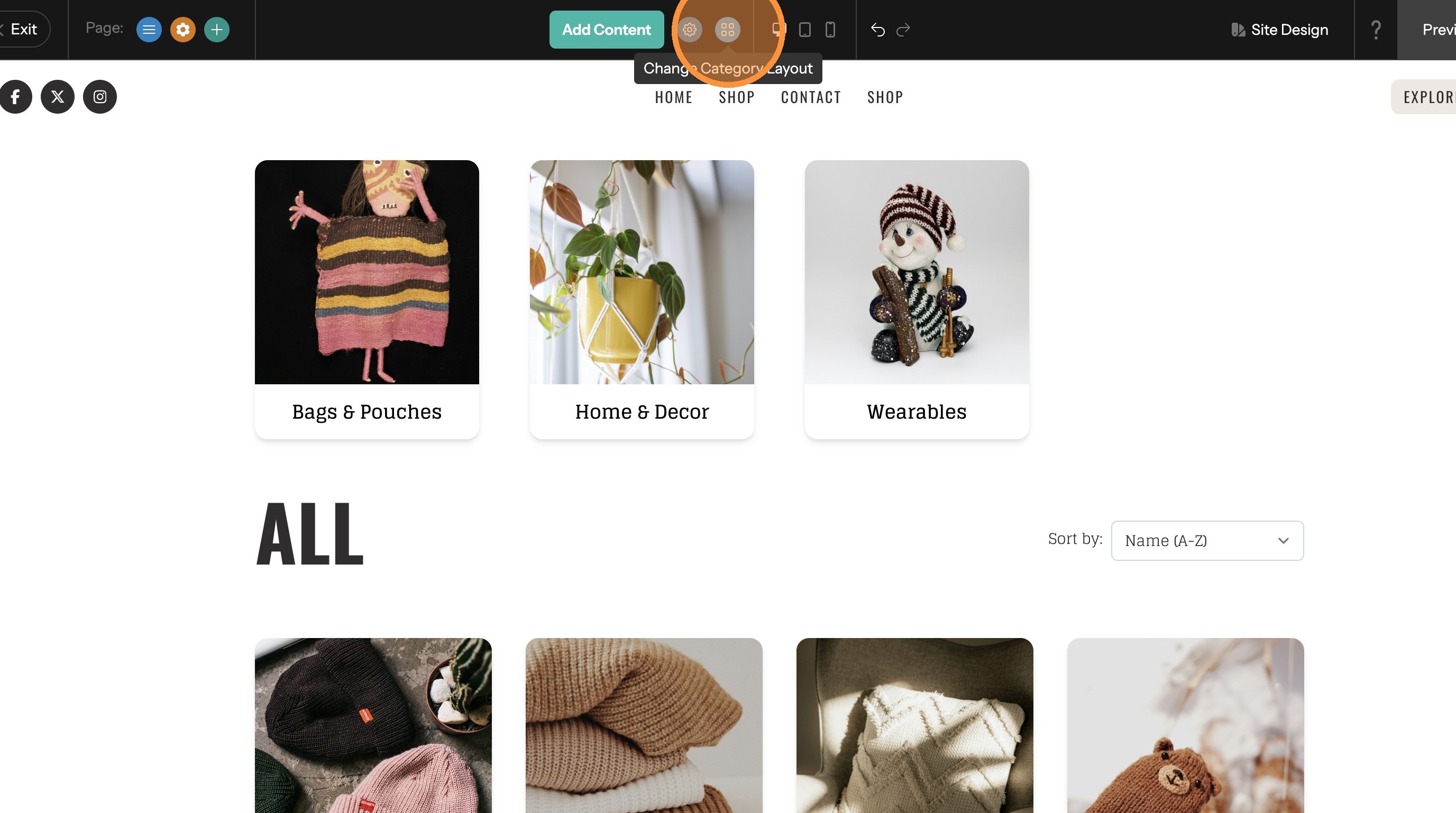
13. This option allows you to switch between layouts.
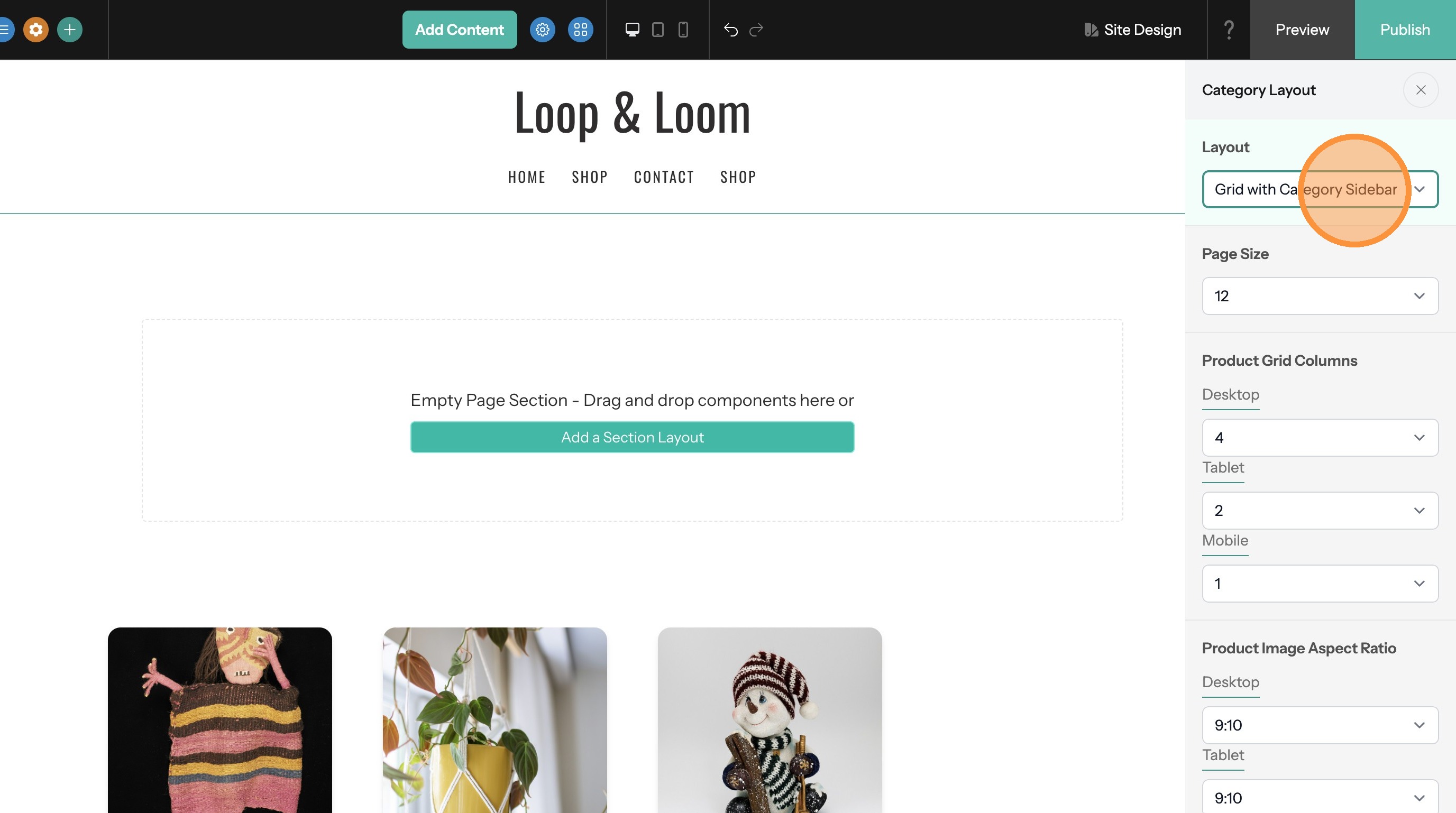
Tip: Grid columns and image aspect ratio settings can have different values based on the device that is viewing the page.
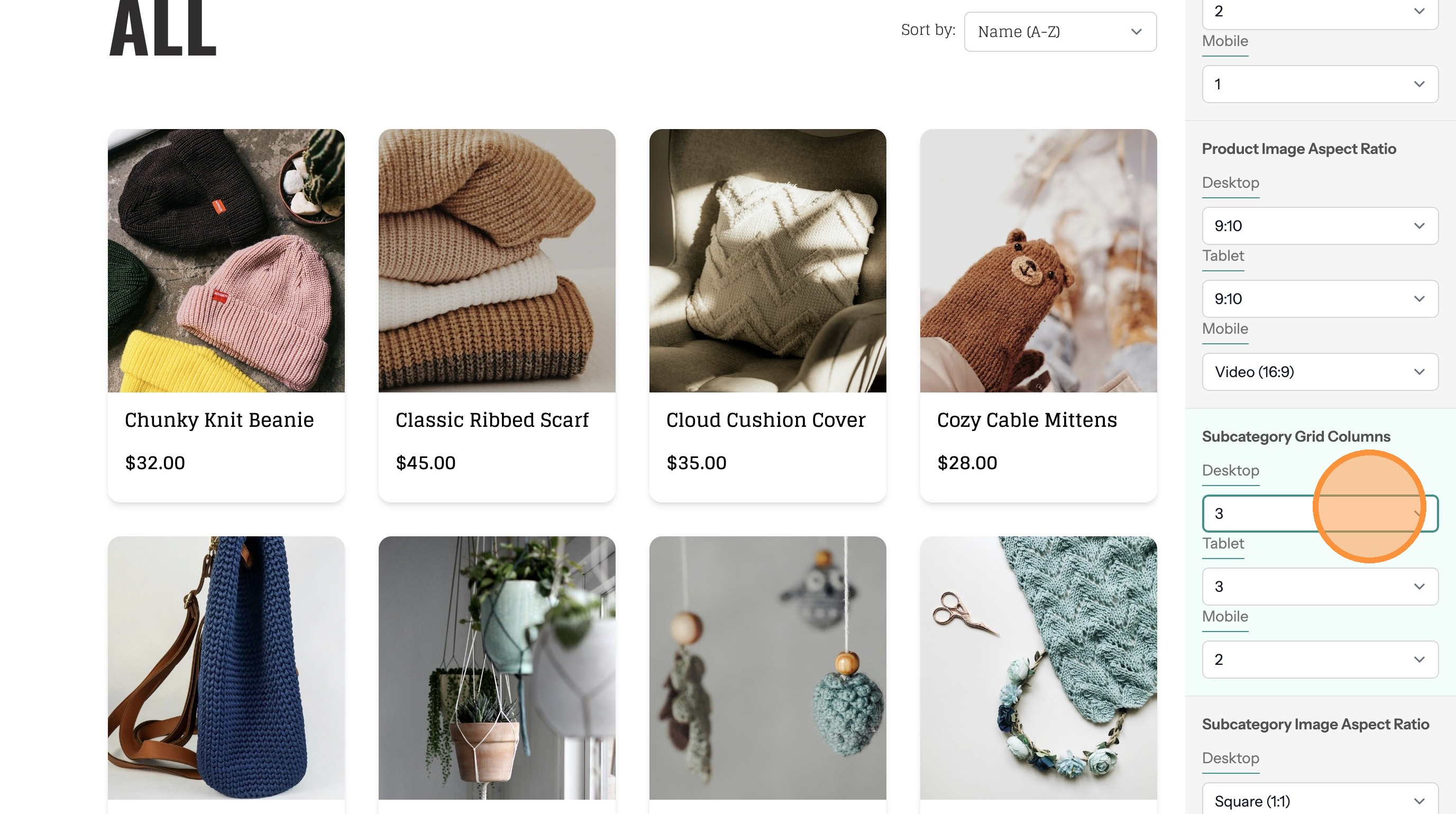
14. Make changes to the Subcategory Grid Columns option. This determines how many subcategories will be shown in each row.
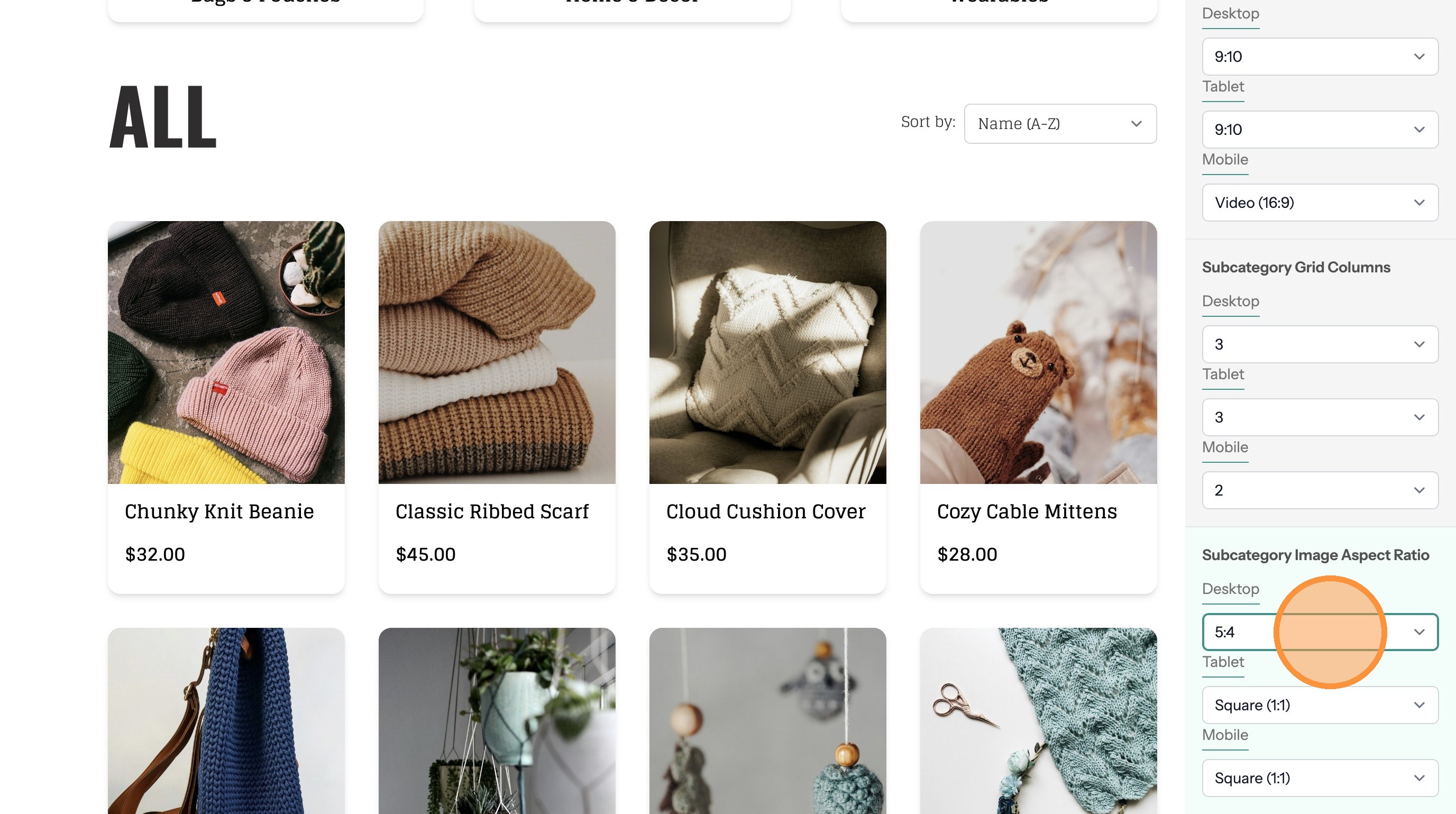
15. Make changes to the Subcategory Image Aspect Ration option. This changes the size and shape of the subcategory images.
16. Make changes to the Product Grid Columns option. This determines how many products will show in each row.
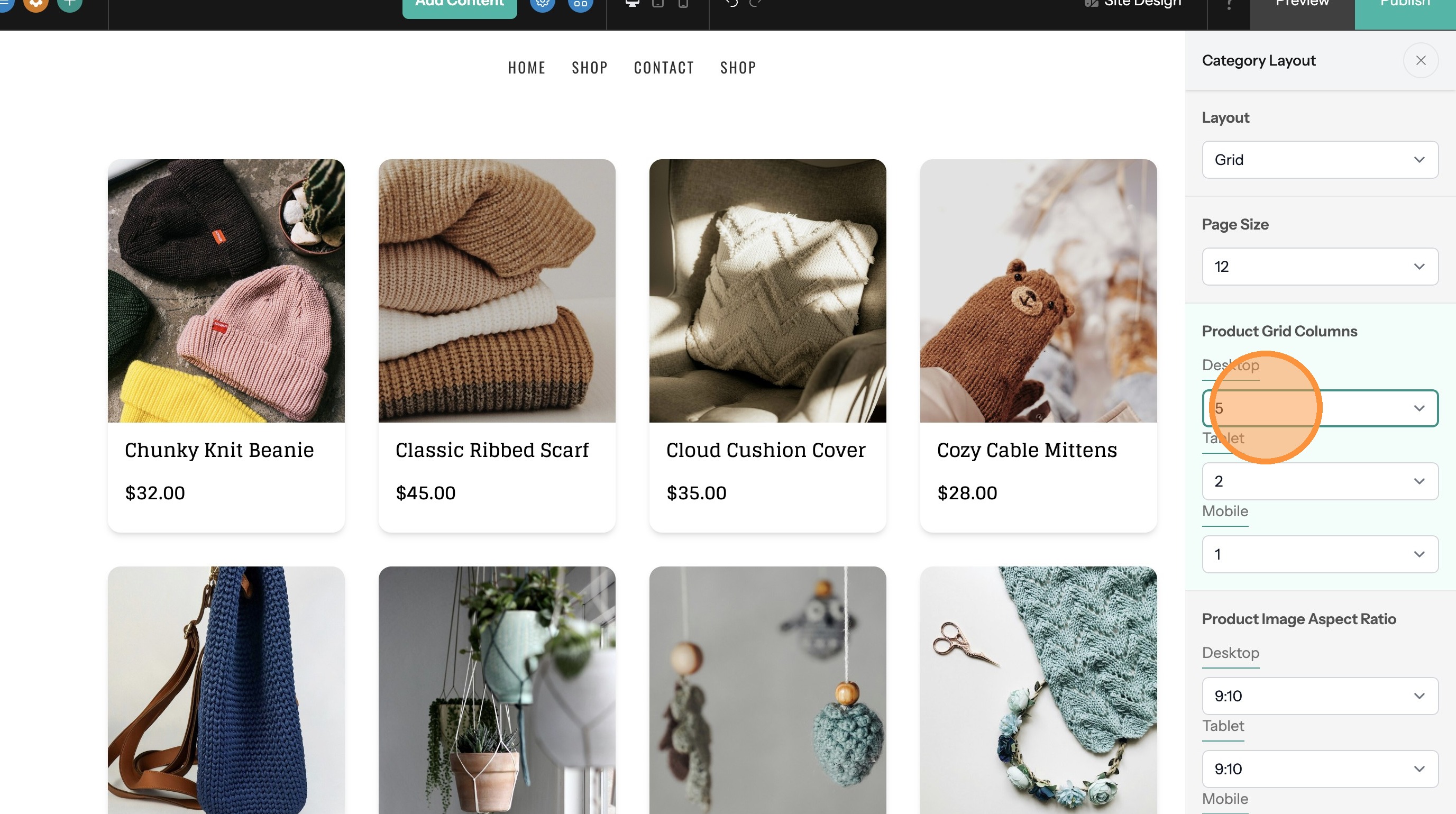
17. Make changes to the Product Image Aspect Ratio option. This changes the size and shape of the product images.
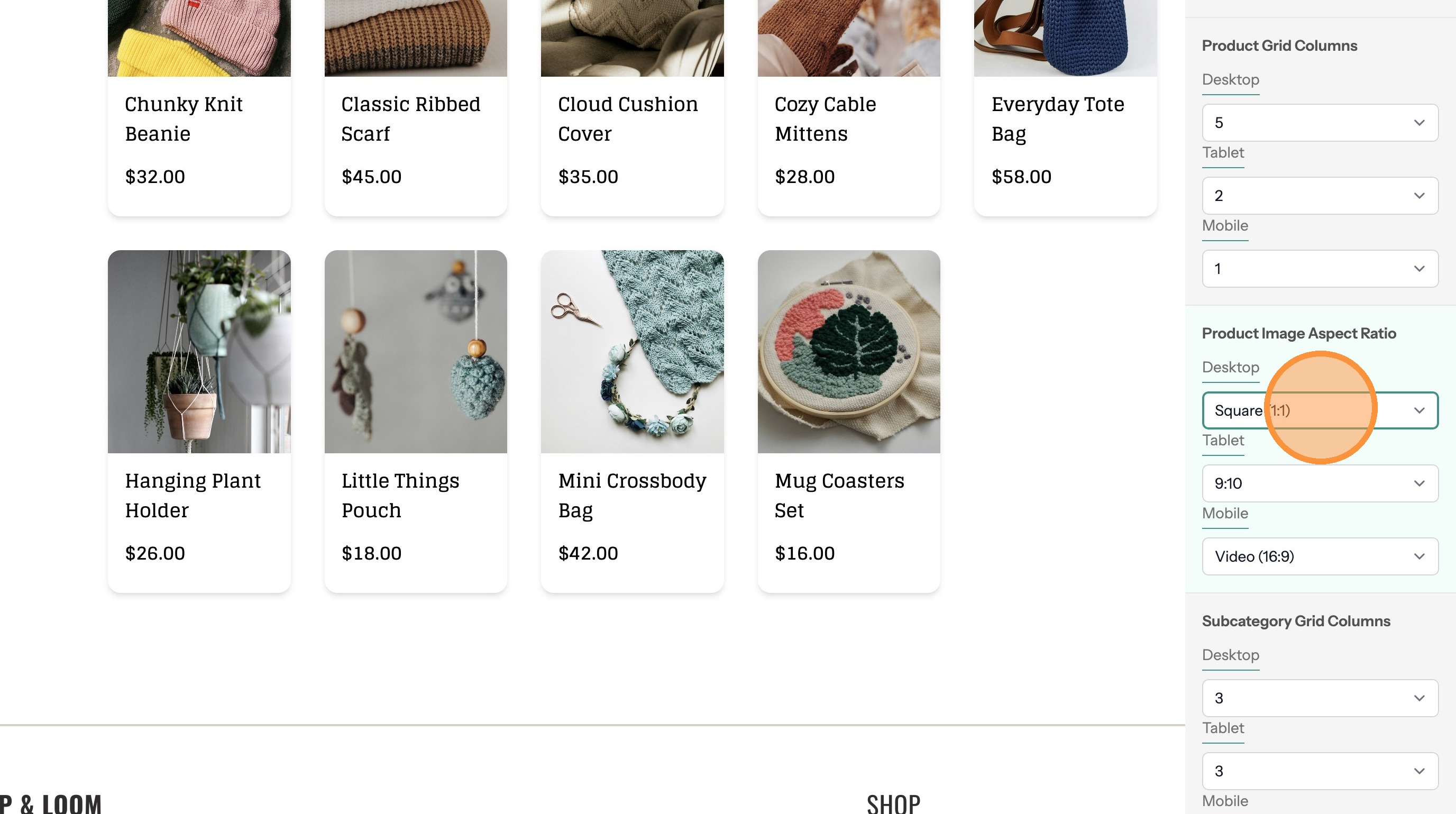
18. Use the device type switcher to see how the page will look on different devices.